
For: Admins and dispatchers · Permission: Manage technician schedules · Time: ~10 minutes
Quick summary
- Open Settings › Technician Shifts.
- Add your shifts to the Shift catalog.
- Choose whether the app clocks technicians in and out.
- Set time-off defaults and holidays.
- Check the default overtime rules.
Before you start
- You need the Manage technician schedules permission. Without it, the page shows "You do not have permission to view technician shift settings."
- A shift is a named block of working hours, such as "Day 7-3:30". It is the building block for every technician's schedule.
- Shifts and the clock are separate. A shift says when a technician is expected to work. The clock says when they are working now. Shifts reach the clock only when Turn on automatic clock in / out is on.
Open Technician Shifts
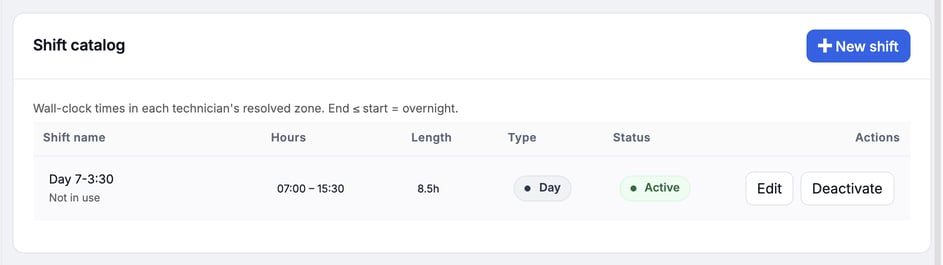
Go to Settings › Technician Shifts. The page has five cards: Shift catalog, Auto clock-in / clock-out, Time off · shop defaults, Holidays and Default overtime rules.
Add a shift
- On the Shift catalog card, click New shift.
- Enter a Name, for example
Day 7-3:30. - Set Start and End.
- Click Save.
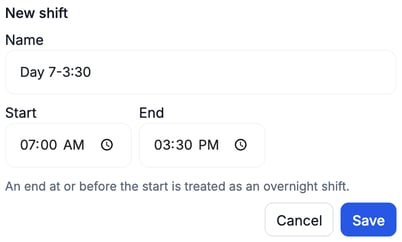
Overnight shifts. An end at or before the start is treated as an overnight shift. A 10:00 PM start with a 6:00 AM end runs into the next day.
The catalog shows each shift's hours, length, type and status. Times are wall-clock times in each technician's own time zone.
A shift that no one is scheduled on shows Not in use under its name. To change a shift, click Edit. To retire one, click Deactivate. Deactivating never deletes the shift, and schedules that already use it keep their saved times. Click Reactivate to bring it back.
Choose whether the app clocks technicians in and out
On the Auto clock-in / clock-out card:
- Turn on Turn on automatic clock in / out. When it is off, schedules are only a plan and the clock is never touched.
- Set the defaults for new technicians: Auto clock-in and Auto clock-out. A technician can override either one on their own schedule.
- Set Clock out anyway after (min). If a job is still running at shift end, the technician is asked first. Once this many minutes pass, they are clocked out anyway.
- Set Remind to clock out after (min). A technician who clocks out by hand and is still clocked in after their shift gets a reminder to clock out this many minutes after the shift ends. The default is 15. It applies only when Auto clock-out is off for that technician.
- Leave Ask "still working?" after (min) as it is. Click Save.
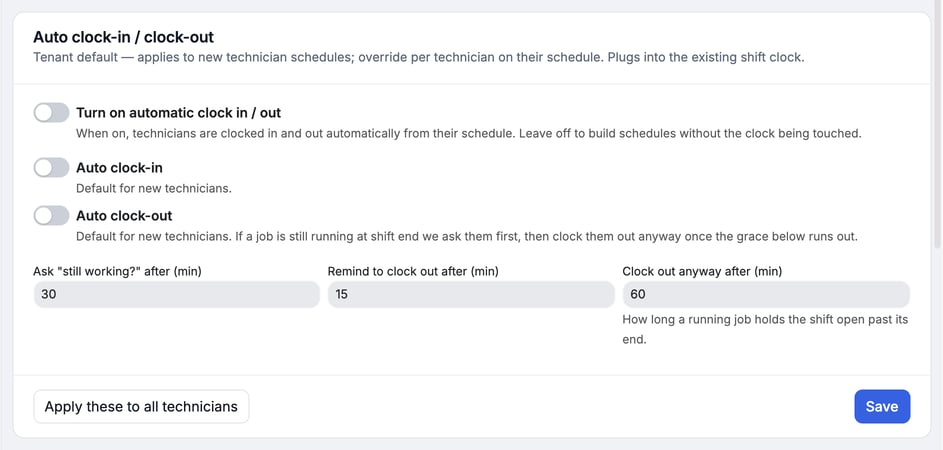
Apply these to all technicians copies the two switches on this card, Auto clock-in and Auto clock-out, onto every technician who has a saved schedule. It overwrites any personal setting, including one you chose on purpose. It leaves their shifts and the other fields alone. The card then shows how many schedules changed. It uses the switches as they appear on screen, so click Save first.
See Clock In, Clock Out and Track Job Time for what technicians see when they clock in by hand.
Set time-off defaults
On Time off · shop defaults, enter PTO days / year. Leave 0 if you don't offer PTO. Sick days are not capped, so no sick balance is shown. Click Save.
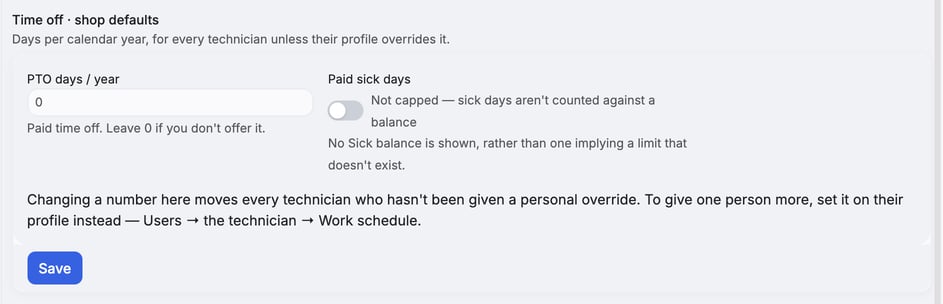
The number applies to every technician who has no personal override. To give one person a different number, set it on that technician's own schedule.
Mark holidays
- On the Holidays card, check the federal holidays your shop observes.
- To close on other dates, enter one under Other days off › Add a date and click Add.
- Click Save.
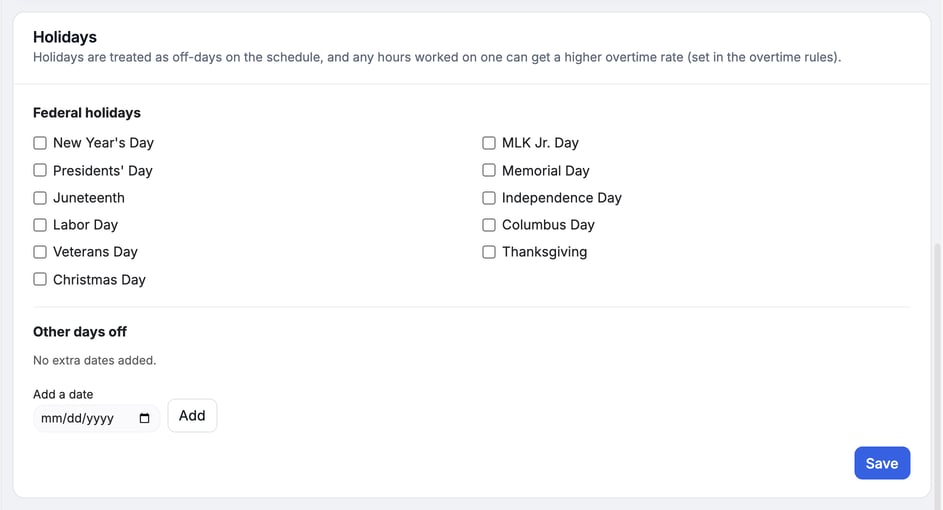
Holidays count as days off on the schedule. Hours worked on one can earn a higher overtime rate.
Check the default overtime rules
The Default overtime rules card applies to technicians whose home service location has no overtime rules of its own. To give a location its own rules, see Set Overtime Rules for a Service Location. Until you customize it, it shows the built-in rule: overtime after 40 hours a week at time-and-a-half.
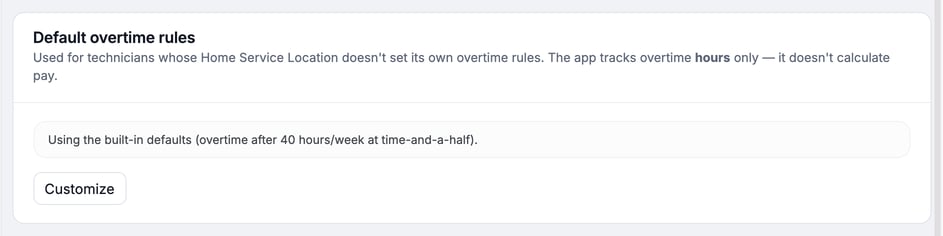
- Click Customize.
- Set Weekly overtime after (hours per week) and the rate, where 1.5 is time-and-a-half.
- Optional: turn on Overtime on a 7th straight workday or Higher overtime rate on holidays.
- Optional: under Daily overtime, click Add overtime step for each rate. For example, overtime after 8 hours, then double time after 12.
- Click Save.
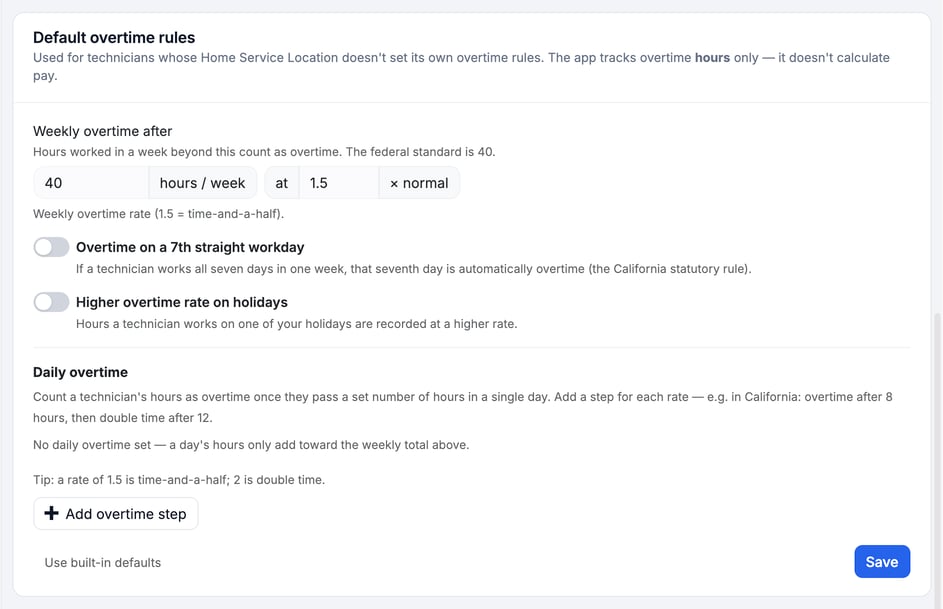
To go back to the built-in rule, click Use built-in defaults. MetaFleet tracks overtime hours only. It does not calculate pay.
Where shifts show up
- Give a Technician a Recurring Schedule: put shifts on a technician's week.
- Run the Weekly Technician Schedule: one-day changes and requests.
- Request Time Off and Swap Shifts: what technicians do.
- Manually Assign a Technician: the technician picker when you assign a job.
Troubleshooting
| Symptom | Likely cause | Fix |
|---|---|---|
| "You do not have permission to view technician shift settings." | Your role lacks Manage technician schedules | Ask an admin to add the permission. |
| A new default doesn't change an existing technician | Defaults apply to new technicians | Click Apply these to all technicians, or change it on the technician's own schedule. |
| A technician's personal clock setting changed on its own | Someone clicked Apply these to all technicians | Set it again on the technician's schedule. |
| A technician is still clocked in after shift end | A job is still running | They are asked first. They clock out automatically after the Clock out anyway after (min) grace. |
FAQs
Does a shift clock a technician in by itself?
Only when Turn on automatic clock in / out is on and the technician's own Auto clock-in is on.
Does deactivating a shift change existing schedules?
No. Schedules that use it keep their saved times.
Does MetaFleet calculate overtime pay?
No. It tracks overtime hours only.