---
title: Give a Technician a Recurring Schedule
description: "Give a technician a repeating weekly schedule: drag shifts onto days, repeat every 1 to 4 weeks, and set auto clock-in, time off and overtime location."
---
[Skip to content](https://support.metafleet.ai/give-a-technician-a-recurring-schedule#main-content)
English
Show submenu for translations

Open main navigation
Close main navigation
- English
Show submenu for translations
- [Contact us](mailto:support@metafleet.ai)
[Contact us](mailto:support@metafleet.ai)
How can we help you?
- There are no suggestions because the search field is empty.
1. [MetaFleet Answer Hub](https://support.metafleet.ai/?hsLang=en)
2. [Dispatch & Scheduling](https://support.metafleet.ai/dispatch-scheduling?hsLang=en)
3. [Technician Schedule](https://support.metafleet.ai/dispatch-scheduling?hsLang=en#technician-schedule)
# Give a Technician a Recurring Schedule
## Set the weekly pattern a technician works, plus their auto clock-in, time-off allowance and overtime location, from their user page.
**For:** Admins and dispatchers · **Permission:** Manage technician schedules · **Time:** ~5 minutes per technician
### Quick summary
1. Open the technician on **Settings › Users**.
2. On the **Recurring schedule** card, choose how often the pattern repeats.
3. Drag a shift onto each working day.
4. Set auto clock-in, time off and location if they apply.
5. Click **Save schedule**.
### Before you start
- You need the **Manage technician schedules** permission. Without it, the **Save schedule** button is hidden.
- Add your shifts first. The card only offers active shifts from the shift catalog. See [Set Up Technician Shifts](https://support.metafleet.ai/technician-shifts-and-scheduling?hsLang=en).
- If no shifts exist, the card says "No active shifts". You can still use custom hours.
### Open the technician's Recurring schedule card
1. Go to **Settings › Users**.
2. Click the technician's name.
3. Scroll down to the **Recurring schedule** card.
Nothing on the card changes until you click **Save schedule** at the bottom.
### Choose how often the pattern repeats
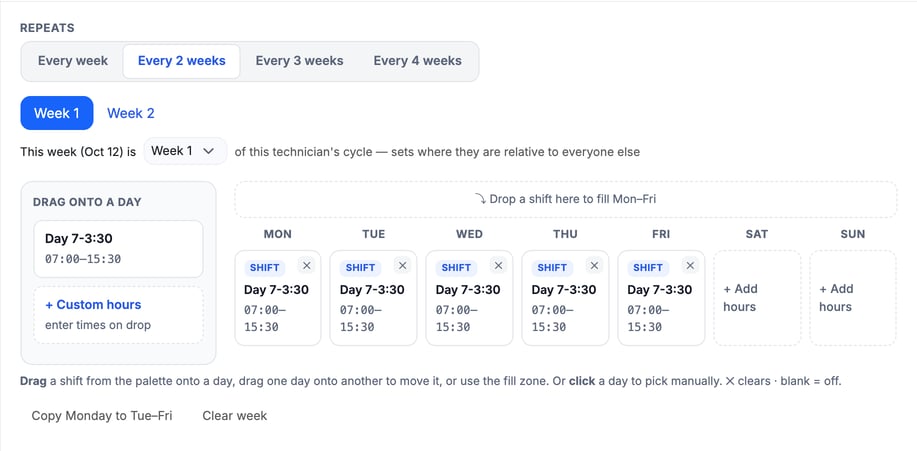
Under **Repeats**, pick **Every week**, **Every 2 weeks**, **Every 3 weeks** or **Every 4 weeks**. Most technicians work the same week every week.
For a longer cycle, a **Week 1**, **Week 2** (and so on) tab appears for each week. Fill in each tab. A line under the tabs reads "This week (Oct 12) is Week 1 of this technician's cycle". Change that list to say which week of the cycle the technician is in right now. This lets you stagger technicians against each other without counting dates.
### Add shifts to the week
The left side of the card lists your active shifts under **Drag onto a day**. Each shows its hours, for example `Day 7-3:30` 07:00–15:30.
- **Fill Monday to Friday:** drag a shift onto **Drop a shift here to fill Mon–Fri**.
- **Fill one day:** drag a shift onto that day.
- **Move a day:** drag a filled day onto another day.
- **Pick by hand:** click a day, then choose **Off** or a shift.
- **Clear a day:** click the ✕ on it. A blank day means the technician is off.
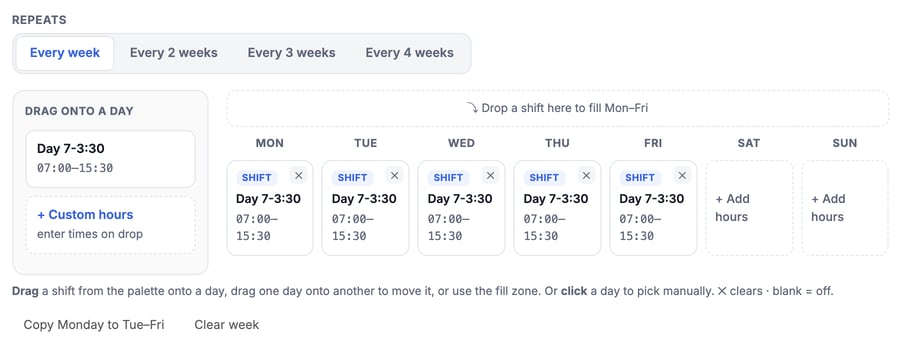
Each filled day shows a tag. **Shift** is a catalog shift. **Custom** is hours you typed. **On-call** is a shift that ends at or before its start, so it runs overnight (shown with +1d). A day marked **Retired shift** uses a shift that was deactivated. It keeps its saved hours.
### Use custom hours
1. Click the day. To start from the palette instead, drag **+ Custom hours** onto the day. The same window opens.
2. Under **Custom hours**, set **Start** and **End**.
3. Click **Use these hours**.
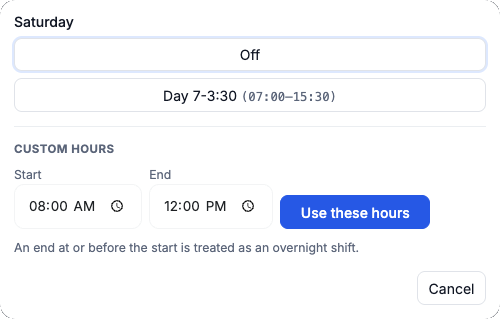
> **Overnight hours.** An end at or before the start counts as an overnight shift.
### Copy or clear the week
- **Copy Monday to Tue–Fri** copies Monday's hours onto Tuesday through Friday.
- **Clear week** empties the week you are viewing.
### Turn on auto clock-in and clock-out
At the top right of the card, **Auto clock-in** and **Auto clock-out** are switches for this technician. When they are on, the technician is clocked in at the start of the scheduled shift and clocked out at the end. If a job is still running at shift end, the technician is asked first, and is clocked out anyway once the grace period ends.
These switches work only when **Turn on automatic clock in / out** is on, on the **Auto clock-in / clock-out** card under **Settings › Technician Shifts**. That card also sets the starting default for new technicians; the switches on this card override it for one technician. See [Set Up Technician Shifts](https://support.metafleet.ai/technician-shifts-and-scheduling?hsLang=en).
### Set time off, time zone and location
Below the week, the card has settings for this technician alone.
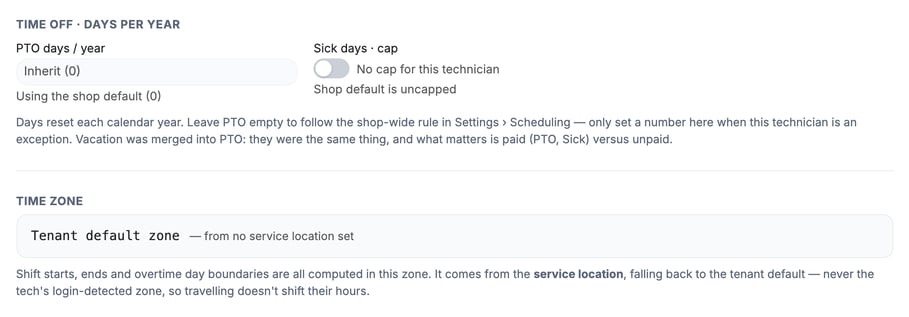
- **PTO days / year:** leave it empty to use the shop default, shown as **Inherit**. Type a number only for someone who is an exception. Days reset each calendar year. The card's help text says **Settings › Scheduling**; the menu item is **Settings › Technician Shifts**.
- **Sick days · cap:** off means no cap for this technician. Turn it on to enter a number.
- **Time zone:** read only. It comes from the technician's service location. With no location, it uses the shop's default zone. It never follows the zone of the device they sign in from, so travel doesn't shift their hours.
- **Service location:** pick the location this technician belongs to from the list. Overtime follows that location's rules for all of their hours. See [Set Overtime Rules for a Service Location](https://support.metafleet.ai/set-overtime-rules-for-a-service-location?hsLang=en). With **None (tenant default)**, the shop's default overtime rules apply. Set up locations in [Create a Service Location](https://support.metafleet.ai/create-a-service-location?hsLang=en).
- **Eligible for wage-conditional overtime:** turn this on when your location's overtime rules have a tier marked "Only for wage-eligible techs" in its overtime rules. Technicians without it on skip that tier.
### Save the schedule
Click **Save schedule** at the bottom of the card. A message confirms the save, or shows the reason it failed.
### Check recent exceptions
If the technician has recent one-day changes, a **Recent exceptions** list appears at the bottom of the card. It shows time off, a day marked off, a different shift, or an extra shift. It lists up to 12 dates, newest first, each with a status badge such as **Requested**.
### Change the pattern or one day
The recurring schedule is the technician's standing week. For a one-off change on a single date, use the Technician Schedule page in the main menu. The pattern stays as it was.
### Troubleshooting
| Symptom | Likely cause | Fix |
| --- | --- | --- |
| No **Save schedule** button | You lack the Manage technician schedules permission | Ask an admin to add it to your role. |
| The shift list says "No active shifts" | The shop has no active shifts yet | Add shifts under **Settings › Technician Shifts**, or use custom hours. |
| Technician isn't clocked in automatically | Auto clock-in is off for them or for the shop | Turn on **Auto clock-in** on the card, and turn on **Turn on automatic clock in / out** on the **Auto clock-in / clock-out** card under **Settings › Technician Shifts**. |
| Day shows **Retired shift** | The shift was deactivated after you used it | The saved hours still apply. Drag an active shift onto the day to replace it. |
### FAQs
**Can I give two technicians the same pattern?**
Yes. Set it on each technician's card. Each card saves on its own.
**Which time zone are shifts in?**
The technician's service location zone, or the shop default if none is set.
**How do I leave a day off?**
Leave it blank, or click ✕ on it.
### Related articles
- [Set Up Technician Shifts](https://support.metafleet.ai/technician-shifts-and-scheduling?hsLang=en)
- [Create a Service Location](https://support.metafleet.ai/create-a-service-location?hsLang=en)
- [Run the Weekly Technician Schedule](https://support.metafleet.ai/run-the-weekly-technician-schedule?hsLang=en)
- [Start Here](https://support.metafleet.ai/start-here?hsLang=en)
- [Companies & Contacts](https://support.metafleet.ai/companies-contacts?hsLang=en#main-content)
- [Create/Edit Companies](https://support.metafleet.ai/companies-contacts?hsLang=en#create-edit-companies)
- [Contacts](https://support.metafleet.ai/companies-contacts?hsLang=en#contacts)
- [Vehicles](https://support.metafleet.ai/companies-contacts?hsLang=en#vehicles)
- [Work Intake (Requests & Service Orders)](https://support.metafleet.ai/work-intake-requests-service-orders?hsLang=en#main-content)
- [Creating Service Orders](https://support.metafleet.ai/work-intake-requests-service-orders?hsLang=en#creating-service-orders)
- [Customer & Partner Requests](https://support.metafleet.ai/work-intake-requests-service-orders?hsLang=en#customer-partner-requests)
- [Reference](https://support.metafleet.ai/work-intake-requests-service-orders?hsLang=en#reference)
- [Customer Portal](https://support.metafleet.ai/work-intake-requests-service-orders?hsLang=en#customer-portal)
- [Estimates & Approvals](https://support.metafleet.ai/estimates-approvals?hsLang=en#main-content)
- [Approval Gates](https://support.metafleet.ai/estimates-approvals?hsLang=en#approval-gates)
- [Estimates](https://support.metafleet.ai/estimates-approvals?hsLang=en#estimates)
- [Invoices](https://support.metafleet.ai/estimates-approvals?hsLang=en#invoices)
- [Billing](https://support.metafleet.ai/estimates-approvals?hsLang=en#billing)
- [Parts, Inventory & Vendors](https://support.metafleet.ai/parts-inventory-vendors?hsLang=en#main-content)
- [Add Parts & Kits](https://support.metafleet.ai/parts-inventory-vendors?hsLang=en#add-parts-kits)
- [Stock & Counts](https://support.metafleet.ai/parts-inventory-vendors?hsLang=en#stock-counts)
- [Locations & Bins](https://support.metafleet.ai/parts-inventory-vendors?hsLang=en#locations-bins)
- [Purchase Orders](https://support.metafleet.ai/parts-inventory-vendors?hsLang=en#purchase-orders)
- [Parts Catalog](https://support.metafleet.ai/parts-inventory-vendors?hsLang=en#parts-catalog)
- [Vendors & Manufacturers](https://support.metafleet.ai/parts-inventory-vendors?hsLang=en#vendors-manufacturers)
- [Pricing](https://support.metafleet.ai/parts-inventory-vendors?hsLang=en#pricing)
- [Service Vehicles](https://support.metafleet.ai/parts-inventory-vendors?hsLang=en#service-vehicles)
- [Sourcing & Hand-Off](https://support.metafleet.ai/parts-inventory-vendors?hsLang=en#sourcing-hand-off)
- [Part Numbers](https://support.metafleet.ai/parts-inventory-vendors?hsLang=en#part-numbers)
- [Notifications](https://support.metafleet.ai/parts-inventory-vendors?hsLang=en#notifications)
- [Reports](https://support.metafleet.ai/parts-inventory-vendors?hsLang=en#reports)
- [Invoicing & Payments](https://support.metafleet.ai/invoicing-payments?hsLang=en)
- [Dispatch & Scheduling](https://support.metafleet.ai/dispatch-scheduling?hsLang=en#main-content)
- [Preventative Maintenance](https://support.metafleet.ai/dispatch-scheduling?hsLang=en#preventative-maintenance)
- [Technician Assignment](https://support.metafleet.ai/dispatch-scheduling?hsLang=en#technician-assignment)
- [Scheduling & Calendar](https://support.metafleet.ai/dispatch-scheduling?hsLang=en#scheduling-calendar)
- [Technician Schedule](https://support.metafleet.ai/dispatch-scheduling?hsLang=en#technician-schedule)
- [Technicians & Mobile App](https://support.metafleet.ai/technicians-mobile-app?hsLang=en#main-content)
- [Time Tracking](https://support.metafleet.ai/technicians-mobile-app?hsLang=en#time-tracking)
- [Tech Workflow](https://support.metafleet.ai/technicians-mobile-app?hsLang=en#tech-workflow)
- [Evidence & Photos](https://support.metafleet.ai/technicians-mobile-app?hsLang=en#evidence-photos)
- [AI Assistant](https://support.metafleet.ai/technicians-mobile-app?hsLang=en#ai-assistant)
- [Alerts, Alarms & Notifications](https://support.metafleet.ai/alerts-alarms-notifications?hsLang=en#main-content)
- [Email/SMS/App Settings](https://support.metafleet.ai/alerts-alarms-notifications?hsLang=en#email-sms-app-settings)
- [Reporting & Dashboards](https://support.metafleet.ai/reporting-dashboards?hsLang=en)
- [Admin & Settings](https://support.metafleet.ai/admin-settings?hsLang=en#main-content)
- [Rates & Fees](https://support.metafleet.ai/admin-settings?hsLang=en#rates-fees)
- [Branding](https://support.metafleet.ai/admin-settings?hsLang=en#branding)
- [Roles, Permissions & Users](https://support.metafleet.ai/admin-settings?hsLang=en#roles-permissions-users)
- [Service Areas](https://support.metafleet.ai/admin-settings?hsLang=en#service-areas)
- [Workflows](https://support.metafleet.ai/admin-settings?hsLang=en#workflows)
- [Taxes](https://support.metafleet.ai/admin-settings?hsLang=en#taxes)
- [Integrations](https://support.metafleet.ai/admin-settings?hsLang=en#integrations)
- [Integrations](https://support.metafleet.ai/integrations?hsLang=en#main-content)
- [Phone Setup](https://support.metafleet.ai/integrations?hsLang=en#phone-setup)
- [AI Assistant Access](https://support.metafleet.ai/integrations?hsLang=en#ai-assistant-access)
- [QuickBooks](https://support.metafleet.ai/integrations?hsLang=en#quickbooks)
- [Getting Around](https://support.metafleet.ai/getting-around?hsLang=en#main-content)
- [Search & Command Bar](https://support.metafleet.ai/getting-around?hsLang=en#search-command-bar)
[](http://www.metafleet.ai)
[mailto:support@metafleet.ai](mailto:support@metafleet.ai)
Copyright © 2025, MetaFleet, Inc