
For: Dispatchers and managers · Permission: the role that opens service orders (Clock in also needs technician clock management) · Time: ~2 minutes
Quick summary
- On the service order, click Assign technician. If a tech is already on the job, click Edit/Add on the Technicians card.
- Pick a tech from the ranked list, or type a name in Search technicians by name….
- For a tech in another area, click Add to list under Other service areas.
- Click Confirm.
Before you start
- The order needs a service area and a unit location. The list uses both to rank techs and measure distance.
- The manual list is wider than the automatic offer. It includes off-shift techs and lets you reach into other service areas. It lists only people whose role allows them to do repairs, so office staff don't appear. Anyone already on the order stays listed as Assigned ✓.
Open the Assign Technician window
On the service order, click Assign technician in the Technicians card. If a tech is already on the job, click Edit/Add on that card instead.
Read the ranked list
Techs in the order's service area are listed best fit first. Techs farther away than your shop's maximum assignment distance (75 mi unless your shop changed it) are listed below every tech in range. Nobody is hidden. Each row shows these columns:
| Column | What it tells you |
|---|---|
| Technician | The tech's name and phone. |
| Billable 24h / Billable 7d | Billable hours logged in the last day and the last week. For an off-shift tech the Billable 24h cell shows a Clock in button if your role can manage technician clock-ins. |
| Jobs done 24h/7d | Jobs finished in the last day and the last week. |
| Service Area | The tech's home area. Out of area means it differs from this order's area. |
| Distance / ETA | How far the tech is from the unit and the estimated time to arrive. Distance and ETA show a dash for a tech with no known location. ETA also shows a dash for an off-shift tech, or an other-area tech who is far from the job. |
| Status | Availability, such as Available, Wrapping Up, On Site or En Route. A tech who can't take work shows the reason instead: PTO, Sick, Unpaid, Unavailable or Off shift. Awaiting Response means the automatic offer was sent to this tech. A Skill Match badge appears when the tech covers the job's services. On a repair, a tech who only does towing is listed last with an amber No Skill Match chip and Does Towing (on a tow, a tech who doesn't do towing is listed last the same way). |
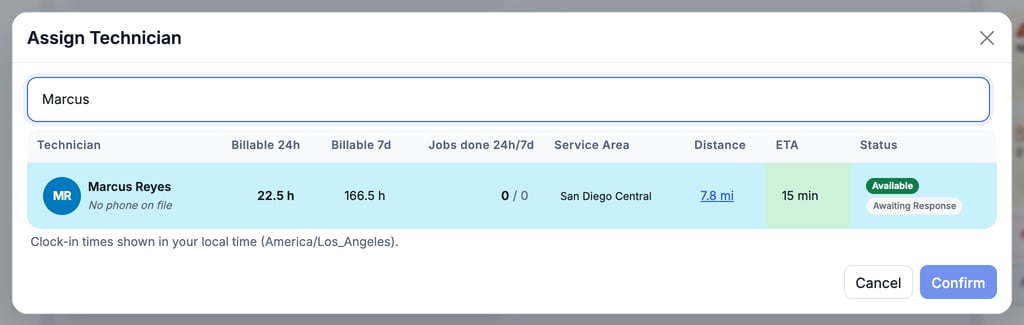
This example is filtered by the name "Marcus" on an order in San Diego Central, where Marcus's home area is San Diego Central. Click a row to select that tech. The Awaiting Response badge means the automatic offer on this order already reached Marcus. Techs who are unavailable stay in the list with the reason shown in Status.
Search, or reach into another area
Type a name in Search technicians by name… to filter the list. If the tech works in a different service area, the Other service areas — click to add a tech for this order section shows them with an Out of area flag. Click Add to list to bring them into the window.
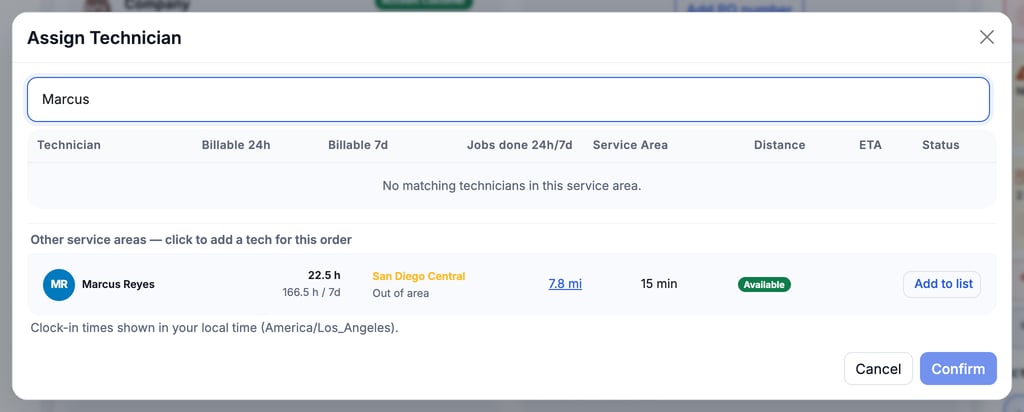
This is a different order, in San Diego East County. Marcus's home area is San Diego Central, so he shows as Out of area. When nobody in the order's area matches, the other-area match appears below the empty list.
Confirm the assignment
The added tech is now selected in the main list. Click Confirm. The window closes, the tech appears on the Technicians card and is notified. There is no extra "are you sure?" step.
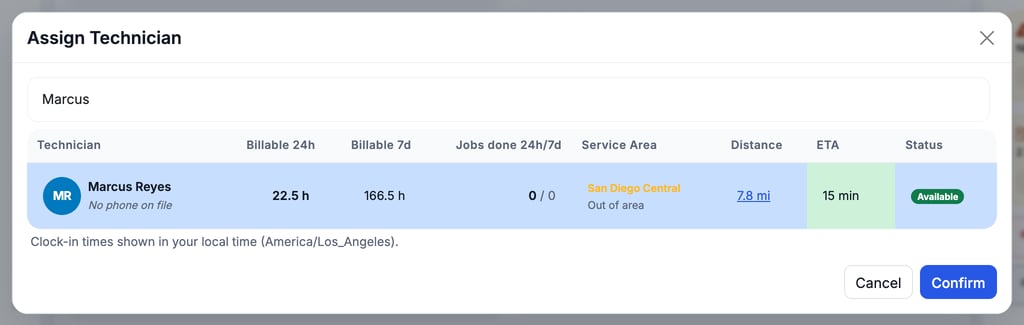
Manual vs. automatic. The automatic offer only reaches clocked-in techs inside the order's area. The manual window is wider on purpose, so you can assign an off-shift or out-of-area tech when the situation calls for it.
Removing the only technician
If you click Remove on the only technician of a repair or tow order that has started (loading or in transit for a tow, or Technician Diagnosis through Repair In Progress), MetaFleet refuses: A started job needs a technician — assign a replacement instead of removing. On an Assigned or En route order, the order goes back to Unassigned with no text to the customer, and is offered again to the top candidates, never to the tech you removed. Removing a tech no longer marks them Awaiting Response, and you can still assign them by hand. This applies to repair and tow orders only, not to visit orders. An order with no service area is not offered again.
On a scheduled visit
On a scheduled visit's page, click Assign technician to open a similar ranked list. Once a tech is assigned, their row offers Change and Remove. You can't assign a tech to a visit that is completed, cancelled or declined.
On a booked repair, use the Technicians card on the repair's page. It's marked Optional and reads No technician yet. until you click + Assign technician. The first tech is the Lead. Click + Add technician to add more, Make lead to change the lead, or Remove. In the list, a tech who is already on the job shows On this job. The techs start the repair from their app on its day, and On My Way stays off until a tech is assigned. Changes on this page save as you make them. There's no Save button: the line at the top reads Saving…, then All changes saved.
Troubleshooting
| Symptom | Likely cause | Fix |
|---|---|---|
| "No matching technicians in this service area." | No tech in the list matches the order's area or your search | Look under Other service areas and click Add to list. |
| "Smart ranking unavailable" or "No technicians found within range." | The ranked list could not load, or the ranked list came back empty | Close the window and open it again. Check that the order has a service area and a unit location. |
| Distance and ETA show a dash | MetaFleet has no location for that tech right now | You can still select and confirm the tech. Use the Status column to judge availability. |
| ETA shows a dash for a tech whose location is known | The tech is off shift, or works in another area far from the job, so no drive time is worked out | You can still select and confirm the tech. Use Distance and Status to judge. |
| A tech is dimmed or marked Off shift | They are not clocked in. | You can still assign them. If your role can manage technician clock-ins, use Clock in in the Billable 24h cell of their row to start their shift. |
| Confirm is greyed out | No tech is selected yet | Click a candidate row, or use Add to list for a tech in another area. |
| Assign technician is greyed out | The order is still Pending, or a note appears under the button giving a reason | Wait for the order to leave Pending, or read the note under the button and fix what it names. |
| A person you expect is missing from the list | Their role doesn't allow repairs (for example office staff, an owner who works only in the office, or a tech whose Technician role was removed) | Ask an admin to give them a role that can do repairs, then reopen the window. |
| I can't select a tech | They are already on this order (Assigned ✓) | No action needed. |
FAQs
Can I assign a tech who isn't clocked in?
Yes. Off-shift techs stay in the manual list with Off shift in the Status column. Status can also read Available, Wrapping Up, On Site, En Route, PTO, Sick, Unpaid or Unavailable.
Can I assign more than one tech?
Yes. Click Edit/Add on the Technicians card and pick another tech.
Will the tech be notified?
Yes. They get an alert and a push notification once assigned.
Are techs from other service areas ranked with the rest?
No. They stay under Other service areas until you add them.