
For: Dispatchers and admins · Permission: Manage technician schedules · Time: ~5 minutes
Quick summary
- Open Technician Schedule in the left menu.
- Check the week, the overtime column and any warnings at the top.
- Change one day by dragging a shift or a Mark off pill onto it.
- Answer the requests listed above the grid.
Before you start
- You need the Manage technician schedules permission. Without it, the Technician Schedule menu item doesn't show.
- Shifts come from your catalog. Add them first in Set Up Technician Shifts.
- The weekly pattern for each technician is set in Give a Technician a Recurring Schedule. This page only changes single days.
Read the week
Click Technician Schedule in the left menu, under Service. The grid has one row per technician and one column per day.
- Use ‹ and › to move one week back or forward. Click Today to return to the current week.
- Each cell shows the shift name and hours. A technician with a multi-week rotation shows their own week under their name, such as "Week 2 of 3".
- Under each name, the line shows the PTO days a year and the sick-day cap. A technician with no pattern shows No recurring pattern.
- Technicians are listed 10 to a page. Use Previous, Next and Per page (10, 25 or 50) below the grid.
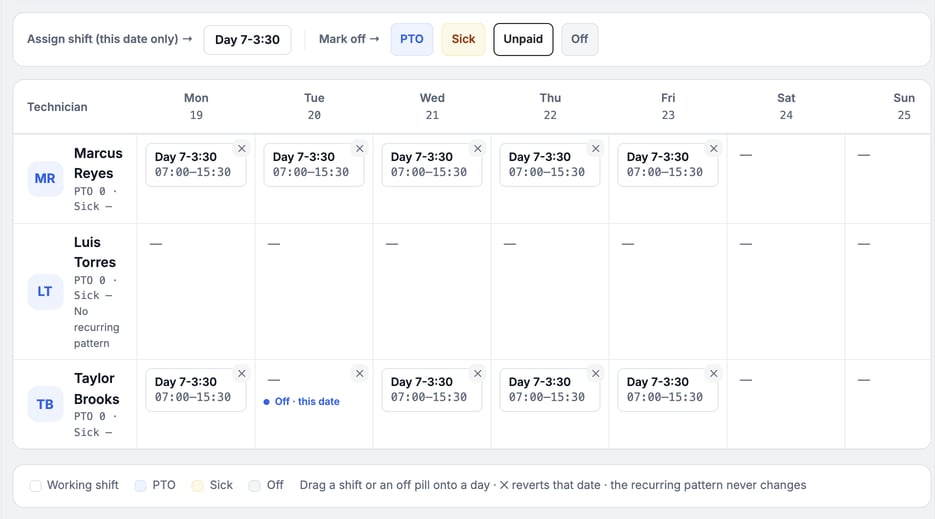
The legend under the grid explains the colors: Working shift, PTO, Sick and Off.
Change one day
The bar above the grid has your active shifts after Assign shift (this date only) and four pills after Mark off: PTO, Sick, Unpaid and Off.
- Assign a shift. Drag a shift name onto a technician's day.
- Mark a day off. Drag PTO, Sick, Unpaid or Off onto the day.
- Move a shift. Drag a shift from one cell to another. The new day gets the shift and the first day is cleared.
- Undo a change. Click the ✕ in the cell, or click the time-off pill in the cell. A changed day goes back to the recurring pattern.
Every drop saves right away. There is no Save button. A changed day is labeled Override · this date or Off · this date. The technician's recurring pattern never changes.
Clicking ✕ on a normal pattern day marks that one date off. Clicking it on a changed day puts the pattern back. If a drag shows an error, the day may have custom hours. Set that day from the technician's own schedule instead.
Check overtime
The last column, OT · this week, shows the overtime hours planned for the week, such as OT 2h. A week with none shows 0h; click it to see "No overtime this week." The service location whose rules apply is listed under the number.
- Click the overtime badge for a technician.
- Read the table. It lists each overtime line with its Day, Type and Hours.
- Click Close.
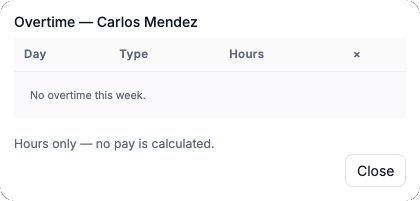
MetaFleet counts hours only. It does not calculate pay. Set the rules in Set Up Technician Shifts.
Answer requests
Open requests sit in cards above the grid. Technicians send them from the app. See Request Time Off and Swap Shifts for their side.
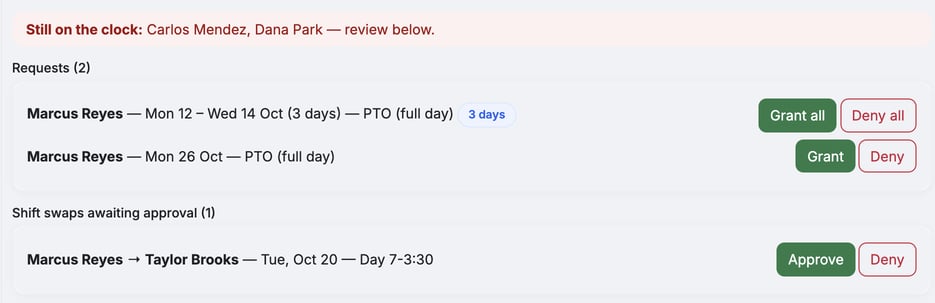
Time off. The Requests card lists each request with the technician, the dates and the type, such as "PTO (full day)".
- Click Grant to approve it, or Deny to turn it down. The technician is notified either way.
- A request for several days shows a "3 days" tag and the buttons read Grant all and Deny all. One click decides every day in the request.
- A granted day shows on the grid as a time-off pill. A denied request changes nothing on the grid.
Shift swaps. The Shift swaps awaiting approval card lists a swap only after another technician has taken the shift. It reads "Marcus Reyes → Taylor Brooks — Tue, Oct 20 — Day 7-3:30".
- Click Approve. The first technician is off that date and the second technician takes the shift. Both are notified.
- Click Deny. Nothing changes on the grid and the technicians are told.
If Approve fails. If the first technician no longer has a shift that day, you see "The offering technician no longer has a shift that day — the swap can't be approved." This happens when you or an approved time-off request already changed that day. Click Deny and ask the technicians to start again.
Handle "Still on the clock"
On the current week, a red banner at the top, Still on the clock, names technicians who are clocked in with no active job. A dot next to a technician's name marks them too: red for still clocked in, amber for on the clock with a job running.
- Click the dot next to the technician's name.
- Choose Send clock-out reminder to ask them to clock out.
- Or choose Clock out now to clock them out yourself.
- To fix a wrong time, click Adjust a clock entry…. Fill in Original entry start, Corrected start, Corrected end and an optional Note, then click Save correction. Click Back to leave without saving.
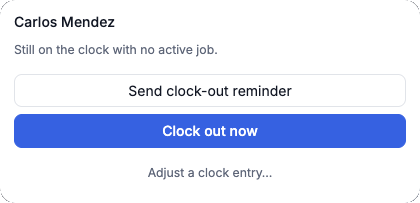
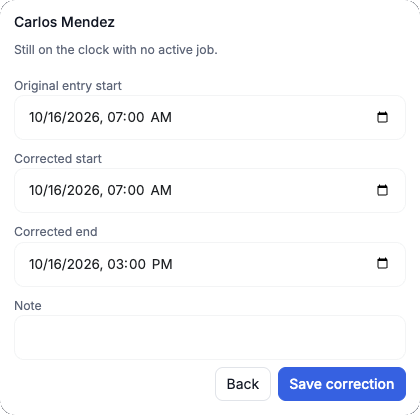
Adjust a clock entry… only shows for users who can edit technician time. Most dispatchers see the first two buttons only.
See Clock In, Clock Out and Track Job Time for what the technician sees.
Add or change shifts
Click Manage shifts at the top right of the page to open the technician shifts page.
Troubleshooting
| Symptom | Likely cause | Fix |
|---|---|---|
| No Technician Schedule in the menu | Your role lacks Manage technician schedules | Ask an admin to add the permission. |
| The Assign shift bar says "No active shifts" | The catalog is empty or every shift is deactivated | Add or reactivate a shift in Set Up Technician Shifts. |
| A technician's row shows No recurring pattern | No weekly schedule is saved for them | Set one in Give a Technician a Recurring Schedule. |
| A swap isn't in the swap list | The second technician hasn't taken the shift yet | Ask them to take it in the app. |
| A dragged day shows an error | The day has custom hours, or the save failed | Set the day from the technician's own schedule, or try again. |
FAQs
Does dragging a shift change the technician's weekly pattern?
No. It changes that one date. The pattern stays the same.
Is there a Save button?
No. Each drag, ✕ click, time-off Grant or Deny, and swap Approve or Deny saves when you do it.
What's the difference between Off and PTO?
Off clears the day. PTO, Sick and Unpaid record a typed absence.
Does MetaFleet calculate overtime pay?
No. It shows overtime hours only.