
For: Technicians · Permission: Technician login · Time: ~2 minutes
Quick summary
- Open My Schedule in the app.
- To take time off, fill in Request time off and tap Send request.
- To give a shift away, pick it under Swap a shift and tap Offer this shift.
- To pick up a shift, tap Take it under Shifts you can take.
- Your dispatcher approves or denies each one. You see the answer on the same page.
Before you start
- You need a technician login. Open My Schedule from the app menu.
- Your shifts come from the schedule your dispatcher set up. If your week shows Off everywhere, ask your dispatcher to set your shifts first.
- Nothing changes on your schedule until your dispatcher approves it.
Check your schedule
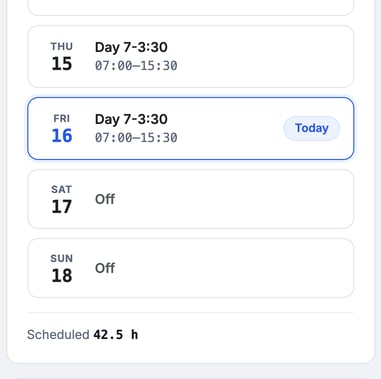
My Schedule opens on This week. Each day shows your shift name and hours, or Off. Today is marked Today. Scheduled at the bottom adds up your hours for the week.
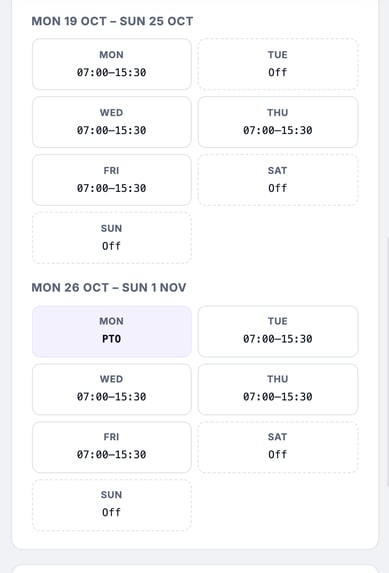
Scroll down to Next two weeks to see the 2 weeks after this one. It shows your regular pattern plus anything already approved.
The Time off card at the top shows each allowance your shop has set for this calendar year, for example PTO 5 of 10 left. If none is set, the card tells you to ask your dispatcher.
Request time off
Use the Request time off card.
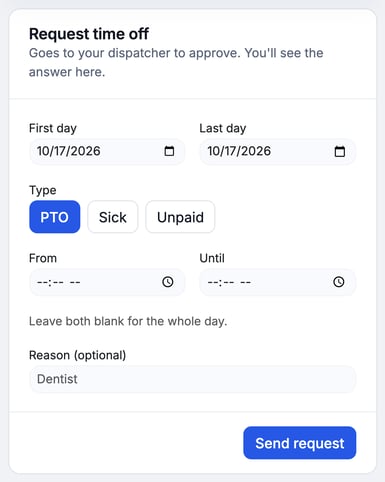
- Pick the days. Set First day and Last day. For one day, use the same date in both.
- Pick the type. Tap PTO, Sick or Unpaid.
- Set times for part of a day (optional). Use From and Until. Leave both blank for the whole day. A line under the fields says what your request will mean, such as Off for that part of the day.
- Add a reason (optional). A few words help your dispatcher decide.
- Tap Send request. You see Request sent — you'll see the answer under Your requests.
Over several days? The times apply to the whole stretch, not to each day. For a request from Thu to Mon, First day from is when you start on Thu and Last day until is when you stop on Mon. You are off continuously in between.
See the answer
Your 8 latest requests are listed under Your requests, newest date first. Each has a status:
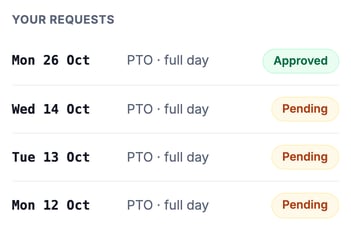
- Pending: your dispatcher hasn't answered yet. The day shows PTO · requested on your week, with Waiting on your dispatcher.
- Approved: the day shows as time off on your week.
- Denied: your shift stays as it was.
You can also get an alert or email when your dispatcher decides.
Offer one of your shifts
Use this when you can't work a shift and want another technician to cover it.
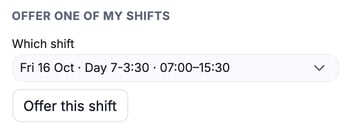
- Under Swap a shift, open Which shift and pick the day. The list shows your upcoming shifts only.
- Tap Offer this shift.
- You see Shift offered — an eligible tech can take it, then your dispatcher approves.
The shift is still yours until a dispatcher approves the swap. Technicians who share a service area with you can get an alert or email that a shift is available.
Take a shift someone offered
Open offers you can take are listed under Shifts you can take. Your own offers and offers on days you already work aren't listed. Each row shows the date, who offered it and the shift name.
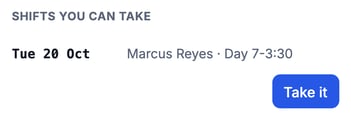
- Tap Take it on the shift you want.
- You see You took the shift — pending dispatcher approval.
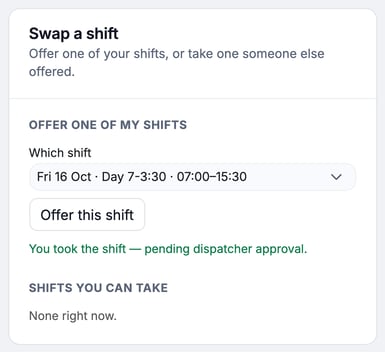
You can take a shift only if you are not already scheduled to work that day. If your schedule changed after you opened the list, you may see You're already scheduled to work that day. Once someone takes an offer, nobody else can.
What happens after a swap
- One technician offers a shift.
- Another technician who is free that day takes it.
- Your dispatcher can get an alert and an email. They approve or deny the swap on Technician Schedule.
- If they approve, the shift moves to the technician who took it and comes off the one who offered it. Both of you can get an alert or email that the schedule is updated.
- If they deny it, the original schedule stands. Both of you can get an alert or email.
Don't skip the approval. Until your dispatcher approves, the shift is still on the original technician's schedule. If you offered it, keep the day free until you hear back.
Troubleshooting
| Symptom | Likely cause | Fix |
|---|---|---|
| The shift list under Which shift is empty, or says You have no upcoming shifts to offer. | You have no upcoming shifts on This week or Next two weeks. | Ask your dispatcher to set your shifts, then try again. |
| You see You have no shift scheduled on that day to swap. | The day changed since you opened the page, for example approved time off landed on it. | Reload My Schedule and pick again. |
| You see You're already scheduled to work that day. | You have a shift on the day you tried to take. | Pick a different shift, or ask your dispatcher. |
| A shift I expected isn't under Shifts you can take | It's your own offer, or you already work that day. | Nothing to fix. Only shifts you can take are listed. |
| You see This offer is no longer open. | Another technician took it first. | Check Shifts you can take for another shift. |
| Your request stays Pending. | Your dispatcher hasn't decided yet. | Ask your dispatcher. They decide on Technician Schedule. |
FAQs
Can I cancel a request after I send it?
Not from My Schedule. Tell your dispatcher and they can deny it.
What is the difference between Unavailable and Request time off?
Unavailable is the quick on/off switch on your phone for right now. Request time off is for days you book ahead and need approved.
Do sick days come out of my PTO?
No. Each type has its own balance.
Can I swap a shift with a specific person?
No. An offer goes to any technician who can take it. Ask a coworker to look for it under Shifts you can take.
Where do I set up shifts, PTO days a year and holidays?
Your dispatcher or admin does that. See Set Up Technician Shifts.