
For: Admins and dispatchers · Permission: Manage technician schedules · Time: ~5 minutes
Quick summary
- Open Settings › Company › Service Locations and click the location.
- Open the Overtime Rules tab.
- Set the weekly limit, the 7th straight workday switch, the holiday rate and any daily steps.
- Click Save.
MetaFleet tracks overtime hours only. It never calculates pay.
Before you start
- You need the Manage technician schedules permission to save, and access to Service Locations in Settings to open the page. Without the permission, you can't save.
- The location must already exist. See Create a Service Location.
- Each technician needs this location set as their Service location on their recurring schedule. See Give a Technician a Recurring Schedule.
Which rules apply to a technician
- If you have saved overtime rules on the technician's service location, those rules apply.
- If you haven't, or the technician has no service location, the shop-wide Default overtime rules apply. You set those in Set Up Technician Shifts.
On the technician's weekly schedule, the rules follow the technician's service location.
Step 1: Open the location's Overtime Rules tab
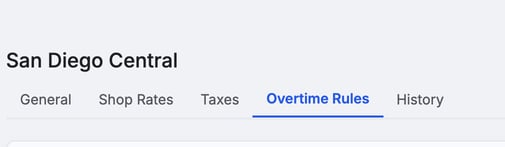
Go to Settings › Company › Service Locations. Click the location's name, then click Overtime Rules.
Step 2: Review the tab
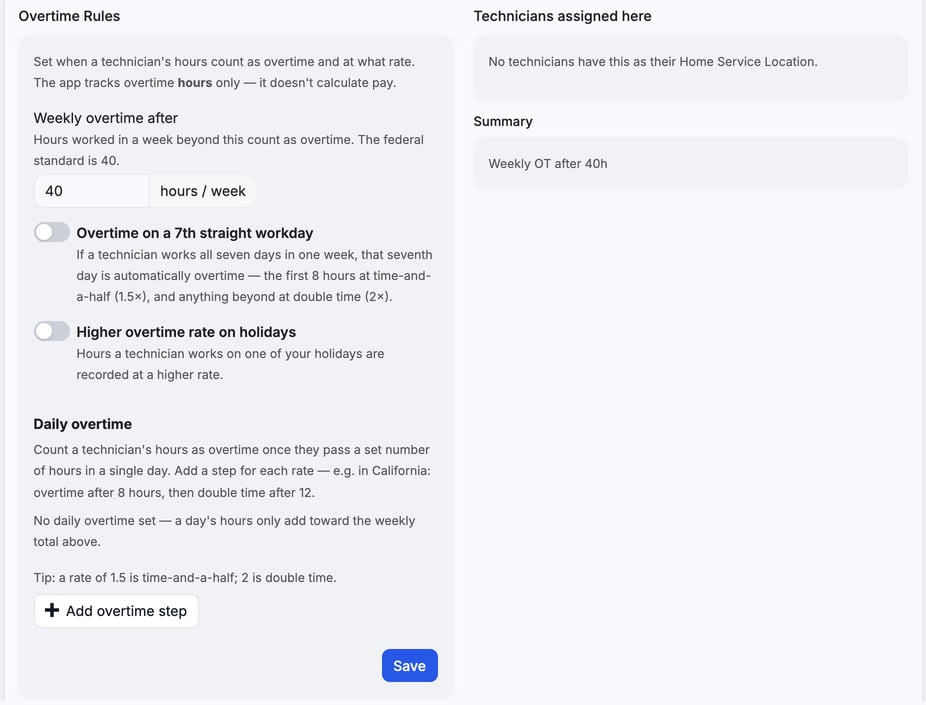
The tab opens with a weekly limit of 40 hours, both switches off and no daily steps ("No daily overtime set"). Those 40 hours are only the starting values on the form. Until you click Save, the location keeps using the shop-wide default. The card on the right, Technicians assigned here, lists the technicians who use this location. The Summary card repeats your rules in one line, such as "Weekly OT after 40h".
Step 3: Set the rules
- Weekly overtime after: enter the hours a technician can work in a week before overtime starts. The federal standard is 40.
- Overtime on a 7th straight workday: turn it on if a technician who works all seven days should get overtime on the seventh. The first 8 hours count at 1.5×, and anything beyond at 2×. These rates are fixed.
- Higher overtime rate on holidays: turn it on to record holiday hours at a higher rate. Then enter the rate next to Count holiday hours at, such as 1.5 or 2.
- Daily overtime: click Add overtime step for each daily rate. In each step, enter Overtime after (hours per day) and Rate (× normal). California, for example, uses one step after 8 hours at 1.5 and a second after 12 hours at 2.
- To drop a step, click the trash icon beside it. The tab has no reset button, so to remove every step, delete each one.
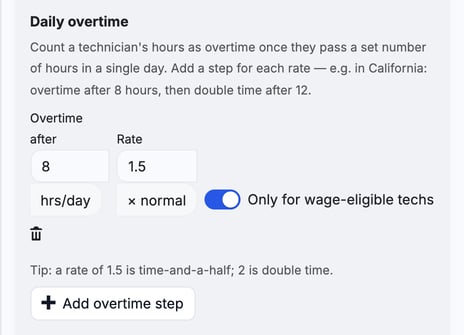
Wage-eligible steps. Turn on Only for wage-eligible techs on a step to apply it only to technicians marked Eligible for wage-conditional overtime on their recurring schedule. Other technicians skip that step.
Step 4: Save
Click Save. A green "Overtime rules saved." message appears. Nothing changes until you save, and leaving the page discards edits. There is no way back to "no rules": once you save here, this location stops using the shop-wide default.
Where you see the result
Overtime hours show in the OT · this week column on Technician Schedule. See Run the Weekly Technician Schedule.
Troubleshooting
| Symptom | Likely cause | Fix |
|---|---|---|
| You can't save | You lack the Manage technician schedules permission | Ask an admin to grant it. |
| Technicians assigned here says "No technicians have this as their Home Service Location." | No technician has this location as their service location | Set the location on each technician's recurring schedule. |
| A technician still gets the shop-wide rules | The technician has no service location, or this location has no saved rules | Set their service location, then save rules here. |
| A daily step doesn't count for a technician | The step is limited to wage-eligible techs | Turn on Eligible for wage-conditional overtime for that technician, or turn the step's switch off. |
FAQs
Does MetaFleet calculate overtime pay?
No. It tracks hours only. Multipliers here set how hours are counted.
Do these rules change the shop-wide default?
No. They apply only to technicians at this location.
Can I set different rules for each location?
Yes. Each location has its own Overtime Rules tab.