
For: Admins and shop owners · Permission: Admin, or a role that can manage service locations · Time: ~5 minutes
Quick summary
- Go to Platform Settings › Service Locations and click + New Service Area.
- Pick the address from the suggestions and enter a Location name.
- Click Save.
- Open the new location and select the services it offers.
- On the Taxes tab, bind the tax groups that apply.
Before you start
- Know the street address of the place you serve.
- Have the list of services this location offers.
- If you charge sales tax, set up your tax groups first. See Set Up Taxes by Jurisdiction.
Open Service Locations
Go to Platform Settings › Service Locations. The page lists every active location with its address, jurisdiction and tax group. A Not set tax group means no tax group is bound yet. Deactivated locations are on the Closed Service Areas tab.
Add the address
- Click + New Service Area.
- Type the street address in Address and click the matching suggestion. You can also click a spot on the map.
The state, county and city fill in from the address.
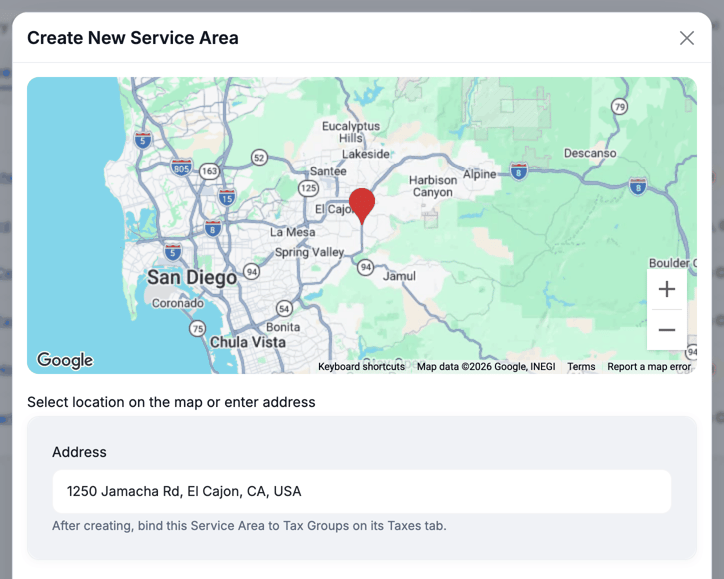
Name the location and save
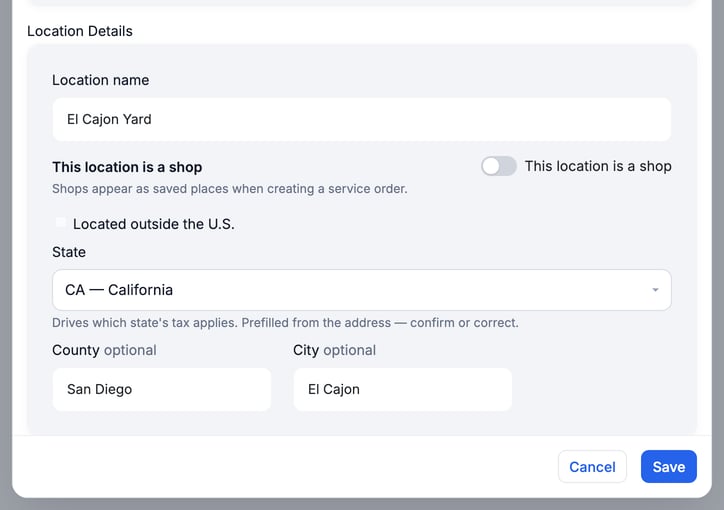
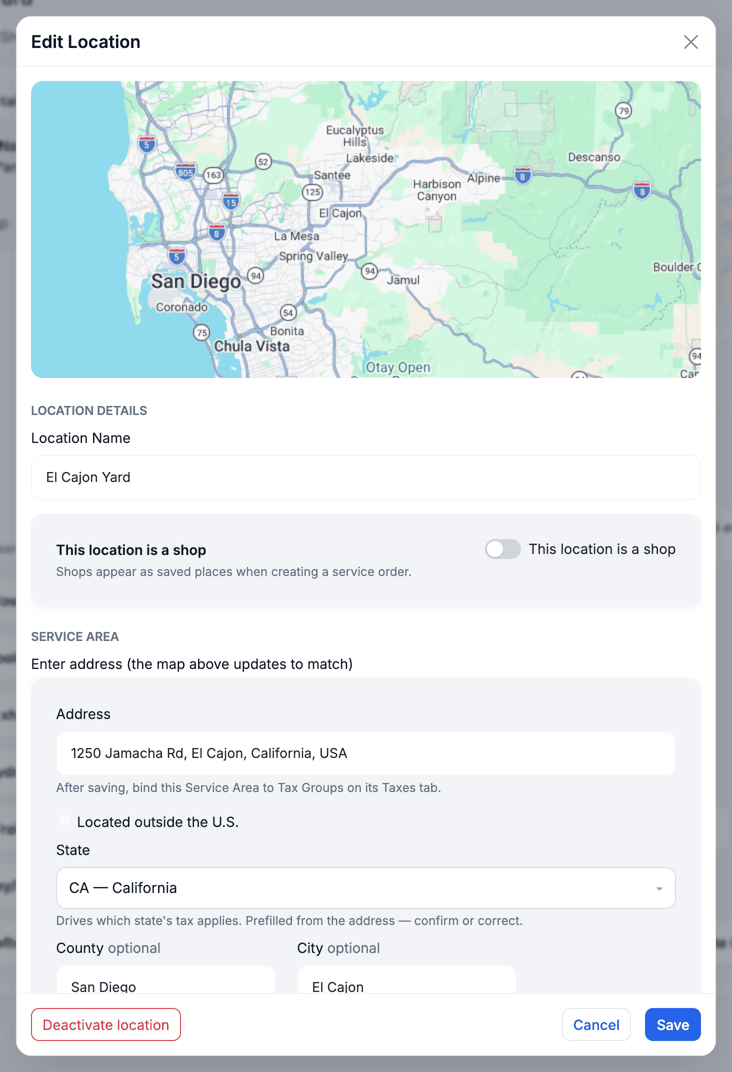
- Enter a clear Location name, for example "El Cajon Yard". The name is required.
- Check State. It decides which state's tax applies. Correct County and City if they are wrong.
- Turn on This location is a shop only if your team works from it. Shops appear as saved places when you create a service order.
- Check Located outside the U.S. for an address in another country.
- Click Save.
The saved location appears in the list.
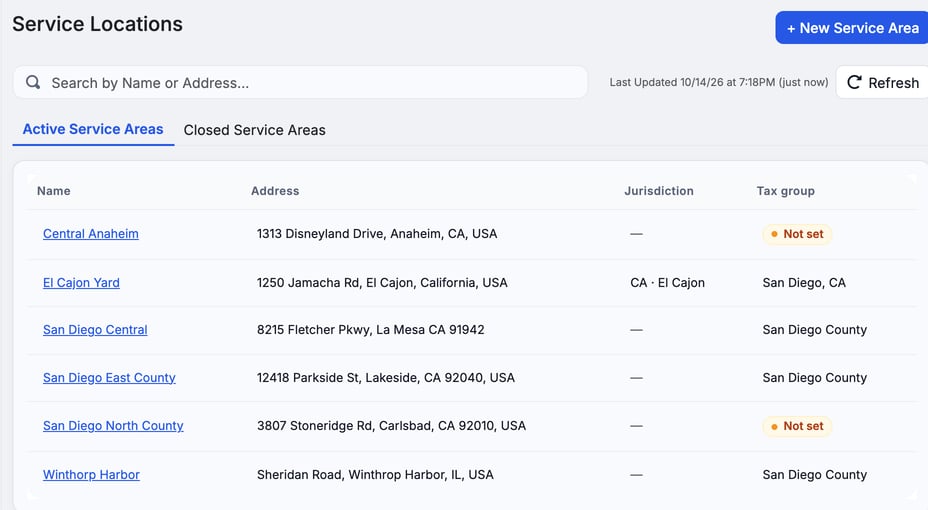
A location has no radius. Its address decides where it is, and its services decide what it offers.
Select the services it offers
Click the new location in the list. On the General tab, find the Services card and click each service this location offers. Selected services turn blue and the card shows a count, such as 5 of 23 selected.
Each click saves right away. There is no Save button on this card. Customers who request service at this location see only the services you select here.
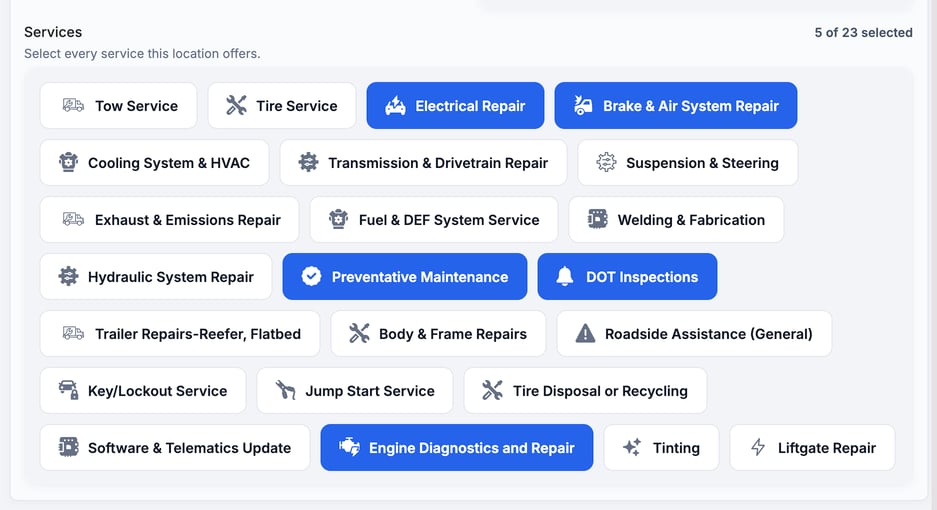
Bind the tax groups
- Open the Taxes tab.
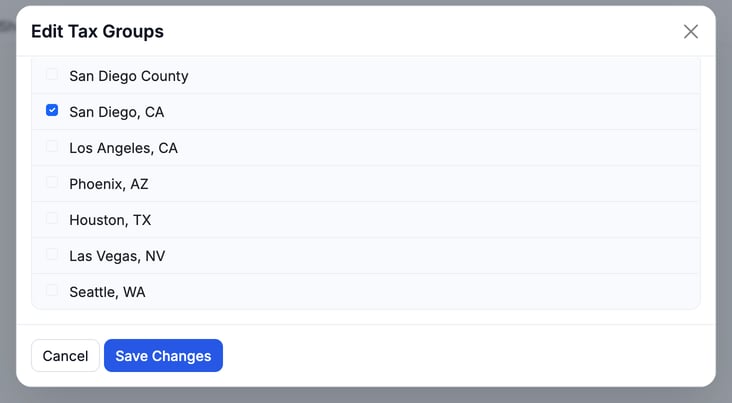
- On the Tax Groups card, click Edit.
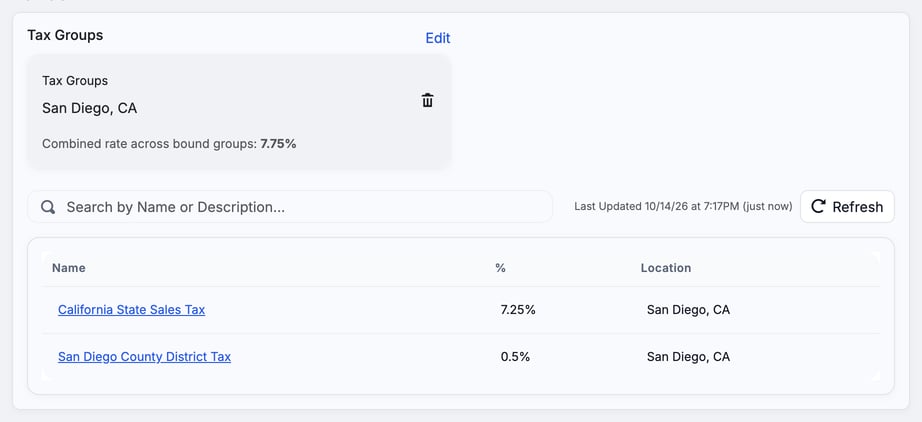
- Select the groups that apply, for example San Diego, CA, then click Save Changes.
The card then shows the combined rate and the taxes in the group.
Change or deactivate a location later
Open the location and click Edit to change the name, shop setting or address. The same window has a Deactivate location button. A deactivated location moves to the Closed Service Areas tab. Open it there and click Edit to activate it again.
Troubleshooting
| Symptom | Likely cause | Fix |
|---|---|---|
| Save is blocked with "Name is required" | The Location name is empty | Enter a name, then click Save. |
| The tax group shows Not set in the list | No tax group is bound yet | Open the location, go to Taxes and click Edit on the Tax Groups card. |
| The wrong tax applies | The State or tax group is wrong | Open the location, click Edit and correct the state. Check the groups on the Taxes tab. |
| A service is missing for a location | The service is not selected | Open the location and select it on the Services card. |
| Customers see a service you don't offer there | The service is selected on that location | Open the location and click the service on the Services card to deselect it. |
| Two locations cover the same place | Several admins added similar areas | Keep one, and deactivate the other. Agree on a naming pattern such as "North County". |
FAQs
Can I edit a Service Location after I create it?
Yes. Open it and click Edit for the name, shop setting and address. Services and tax groups change on their own tabs and cards.
Can a service belong to more than one location?
Yes. Select it on each location that offers it.
Do I have to bind a tax group?
No, but a location with Not set has no tax group of its own. Bind one if the location should be taxed.
What is the difference between a location and a shop?
Any location can be a service area. A shop is a location your team works from, and it appears as a saved place when you create a service order.