
For: Dispatchers and managers · Permission: permission to send estimates · Time: ~2 minutes
Quick summary
- Open the service order and click the Estimate tab.
- Click Send for approval on the Estimate Progress card.
- Check who it goes to and which jobs it asks about.
- Click Send for approval in the window. Nothing is sent until you do.
When to use it
Normally MetaFleet only asks the customer to approve an estimate when it has to. Use Send for approval when the customer doesn't have to approve, and you want their OK anyway. That is the case when:
- The estimate total is at or under the auto-approval limit that applies to this order.
- The estimate was already approved, by the auto-approval rule or by a manager.
- The Customer approval is required before work can begin toggle is off for your shop (Settings › Workflow › Approvals & Alerts, Service Order Settings card).
- The customer is set to never need approval.
If the estimate was already approved before work starts, sending it for approval puts it back to waiting. The technician can't start until the customer answers.
If the customer has to approve anyway, this button is hidden. Use Send Estimate to Customer (or Update Customer Estimate if one was sent before) instead. If the estimate is already waiting on the customer, use Resend Approval Email.
To see how the limit works, read Auto-Approval Threshold. To see where each gate sits, read Understanding the Approval Gates.
Before you start
- The diagnosis is finished and the order has at least one job on the estimate.
- Every job has its complaint and diagnosis written.
- You have permission to send estimates.
- The order has a contact with an email who can approve estimates. For who that is, read Build and Send an Estimate.
Open the Estimate tab
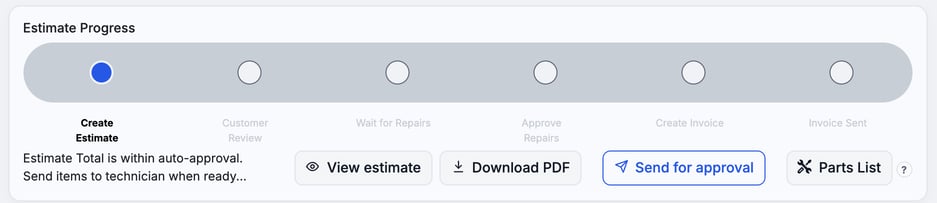
Open the service order and click Estimate. The Send for approval button sits on the Estimate Progress card, next to View estimate and Download PDF.
Click Send for approval
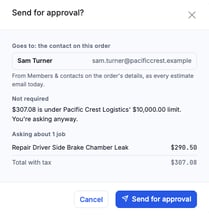
A window called Send for approval? opens. It shows:
- Goes to: the contact, or contacts, on this order who will get the email. It comes from Members & Contacts on the order's details, like every estimate email.
- Not required: why the customer didn't have to approve, for example "$307.08 is under Pacific Crest Logistics' $10,000.00 limit. You're asking anyway."
- Asking about: the jobs the customer will be asked to approve, with the total with tax.
If no contact on the order has an email, add one under Members & Contacts on the order's details first.
Confirm the send
Click Send for approval in the window. To back out, click Cancel or the X. The customer gets the usual estimate email.
The link expires. The approval link on a service order estimate works for 1 hour. If it runs out, use Resend Approval Email.
Before work starts and after work starts
What the customer is asked about depends on where the order is.
| Order is… | The customer is asked about… |
|---|---|
| Before work starts (any order not yet in Repair In Progress) | The whole estimate. A job the customer declined is left out. It goes back to them only through its Resubmit. |
| After work starts (Repair In Progress until the invoice stage) | Only the jobs that aren't approved yet, such as work a technician found mid-repair. |
After work starts, the customer is asked only about the new jobs. The technician keeps working on what's already approved, and the new job waits for the customer's OK. See Approve or Decline an Estimate.
See what happens next
The Estimate card shows a banner while you wait. It starts with Waiting on the customer's OK. and gives the estimate total. Before work starts it adds "The tech can't start until they OK it." It also says Sent by hand. and why the OK wasn't required: under their limit, your shop has customer approval off, or this customer doesn't OK estimates. For example, "Not required: under their $10,000 limit."

The customer answers like any estimate. See Approve or Decline an Estimate. If they decline everything before work starts, the order stays put. Send for approval stays greyed out until there is new work. To ask about a declined job again, use its Resubmit.
When the button is greyed out
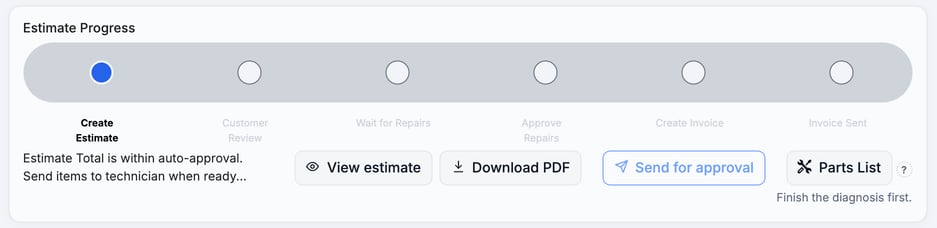
The button can show but be greyed out. The reason appears in small text under the buttons.
| Reason shown | What it means | Fix |
|---|---|---|
| Finish the diagnosis first. | The technician hasn't finished diagnosing. | Wait for Diagnosis Complete. |
| "[Job name]" still needs a complaint and a diagnosis. (With several jobs: "2 work items still need a complaint or a diagnosis: …") | A job on the estimate has no complaint or diagnosis yet, such as work a technician added mid-repair. | Open the job and fill in its complaint and diagnosis. |
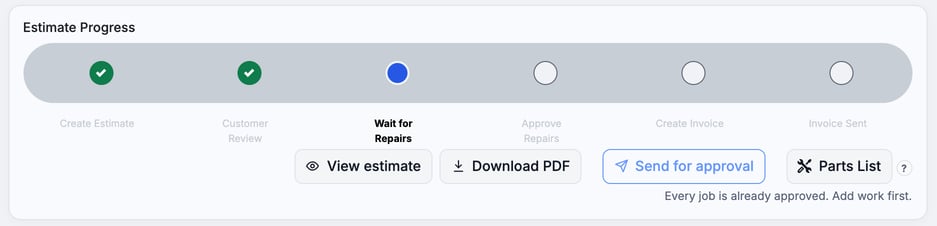
| Every job is already approved. Add work first. | There is nothing left to ask about. | Add a job to the estimate. |
| The new job needs your OK first. (or: The new jobs need your OK first.) | A technician added work that you haven't approved yet. | Approve or decline the new job on the order, then try again. |
| A manager has to approve the estimate first. | Manager approval is on and the estimate hasn't been through a manager. | Have a manager approve it. If Send to Manager for Approval shows beside the reason, click it. See Understanding the Approval Gates. |
| A manager has to approve the added work first. | Manager approval is on and the added work hasn't been approved by a manager. | If Send to Manager for Approval shows beside the reason, click it. If not, the estimate is already with a manager. |
| Nothing new to ask about. Add work, or Resubmit a declined job. | The customer declined, and nothing new has been added. | Add work, or use Resubmit on the declined job. |
Troubleshooting
| Symptom | Likely cause | Fix |
|---|---|---|
| I don't see Send for approval | Any of these:
| Use Send Estimate to Customer (or Update Customer Estimate) or Resend Approval Email, add a job, or ask an admin about your permissions. |
| The button shows but I can't click it | A reason is shown under it | Follow the table above. |
| The window shows no contact to send to | No contact on the order has an email | Add one under Members & Contacts on the order's details. |
| The customer says the link doesn't work | The link expired after 1 hour | Click Resend Approval Email. |
FAQs
Does the technician have to wait?
Before work starts, yes. After the customer's OK, the usual steps still release the technician (see Understanding the Approval Gates). After work starts, the technician keeps working on approved jobs. Only the new jobs wait.
Does it send anything when I open the window?
No. The email goes only after you click Send for approval in the window.
Who gets the email?
The order's contacts who can approve estimates. See Build and Send an Estimate.