
For: Fleet customers · Where: Your customer portal or the estimate approval email · Time: ~2 minutes
Quick summary
- Open the estimate from your portal or from the estimate approval email.
- Choose Approve or Decline for each item.
- Give a reason for every item you decline.
- Enter your name and email.
- Click Send my decision.
Open your estimate
- From your portal (always works): Open Service Orders. Orders that need you are marked Needs your approval. Click Review estimate (it can show the estimate total beside the label).
- Your portal status: While you decide, the order's status reads Needs your approval and the timeline step Estimate & your approval is current.
- From the email: The estimate approval email has a subject that starts with Estimate Ready for Approval and the PDF estimate attached. Click Review your work to approve to open the estimate review page. If the link doesn't open, use your portal.
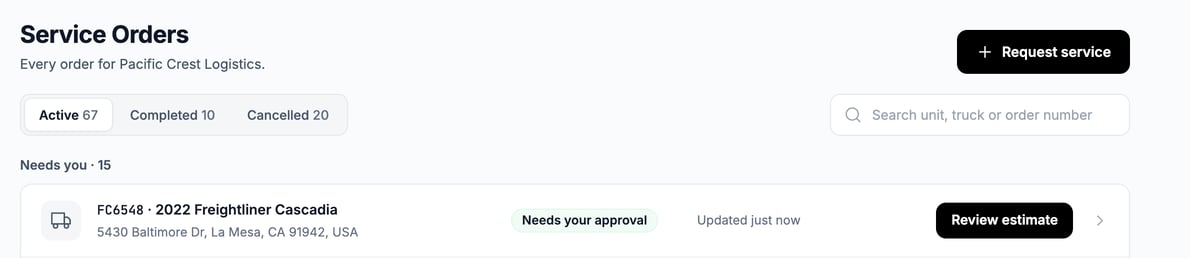
Orders waiting for you show Needs your approval and a Review estimate button.
Review each item
In your portal, the estimate card is headed Your estimate is ready, with the Estimate total at the top. The total drops as you decline items. From the email link, the page is titled Review your estimate and lists every item with its parts and labor. Each work item shows its description and price. In your portal, click Show parts and labor to see what makes up the price. Choose Approve for the work you want done.
With more than one item, use Approve all or Decline all to set every item at once, then change the ones that differ.
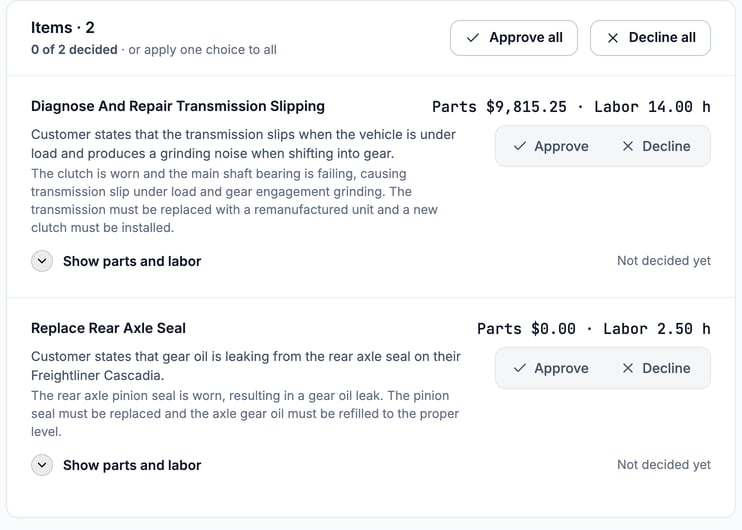
Each item has its own Approve and Decline choice, and Approve all and Decline all sit above the list.
If your shop bills labor for the whole order
Some shops price labor once for the whole job instead of on each item. Then each item shows its price plus its labor hours, for example Parts $9,815.25 · Labor 14.00 h. The labor itself is priced in Labor for the jobs you're approving, under the items. The block updates every time you change a choice.
Labor shows the hours your shop bills, not the hours typed on each item. Declining an item can lower them. The item tells you what that saves, for example Declining this job saves $218.40: $68.40 of parts, and $150.00 of labor (the order's labor goes from 3.50 h to 2.25 h).
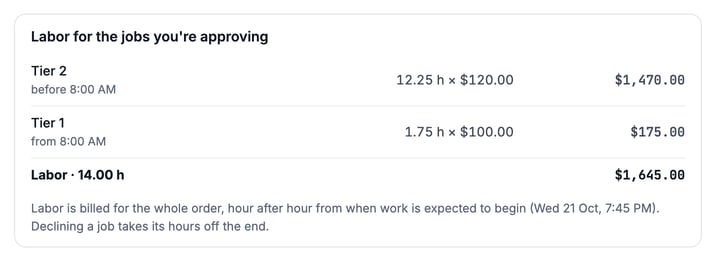
The labor for the items you approve, priced in one block.
Decline an item (optional)
Choose Decline on the item. A box asks Why are you declining this item? Type a short reason. The shop sees it with your decision, so they can adjust.
Send your decision
Above Send my decision, enter Your name and Your email. Your shop keeps them with your decision, so it knows who answered. In your portal, both fields are filled in from your account. Change them if someone else is deciding. From the email link, both fields start empty. Both are required, whether you approve or decline.
Click Send my decision. In your portal, the button stays off until every item has an answer, and a line under it says how many are left, for example Decide 1 more item to send.
The Your decision panel shows one Estimate total. If your shop adds tax, it shows Taxes and the total. The total drops as you decline items, and a note under it says how many items you're declining. If you decline every item and fees remain, the note reads You're declining every item. The shop's visit fees still apply.
If your name or email is missing or wrong, a message appears under the field:
- Enter your name.
- Enter your email.
- Check your email. It should look like name@company.com.
- Enter your name without line breaks or hidden characters.
After you send: the banner reads Your decision is sent. The page lists the items under Approved and Declined, with your reasons and the Estimate total your decision was sent at. Declined items are not billed.
Have a question first? Click Message (it carries your shop's name) before you decide. It's handy for asking about a line item.
What happens next
- You approved at least one item: The estimate counts as approved. Your shop starts the work you approved. Some shops also have a dispatcher confirm before the technician begins, so the start can take a little longer.
- You declined every item: The estimate counts as declined, and the shop gets your reasons. If the order carries shop fees, they stay in the total and the page says You declined every item. The shop's visit fees still apply. The page is headed Your estimate is back with your shop's name. They will reach out about next steps.
Good to know
- From the email, every item starts as Approve. The page says so at the top. Change any item you don't want before you send. From a decline link, every item starts as Decline and each one needs a reason. From your portal, every item starts undecided.
- A reason is required to decline. The decision won't send until every declined item has one.
- The email link expires. It works for about 1 hour for an estimate on a service order and 2 days (48 hours) for an estimate sent without a service order. After that, the page says This link has expired. Sign in to your portal or call your shop.
- You can't change a sent decision. If you open the link again, the page says This estimate already has your decision, with your shop's phone number. Your shop can't change your answer either. Call them: they can update an item you declined and send it to you again for a new answer.
- A newer estimate replaces the old one. If the shop resends an updated estimate, the old link says the estimate has been updated. Use the newest email or your portal.
Troubleshooting
| Symptom | Likely cause | Fix |
|---|---|---|
| This link has expired | The email link timed out | Sign in to your portal and click Review estimate, or call your shop. |
| Send my decision is grayed out | An item has no answer, or a declined item has no reason | Choose Approve or Decline on every item and add a reason to each declined one. |
| Enter your name. / Enter your email. | The name or email field is empty | Type your name and a valid email above Send my decision. |
| We couldn't send your decision | The connection dropped | Try again. If it keeps failing, call your shop. |
| This estimate already has your decision | You or a colleague already answered | Call your shop. They can update an item you declined and send it to you again. |
| This estimate isn't available | Your shop sent a newer estimate, or cancelled the service order | Open the newest estimate email, or sign in to your portal. A cancelled order's estimate can't be answered. Call your shop with questions. |
| I approved by mistake | Work may already have started | Message or call your shop right away. |
FAQs
Do I have to approve everything?
No. Approve some items and decline others. Each item is decided on its own.
Why didn't I get an estimate to approve?
Estimates go to the contacts on the order who have a valid email. If your company uses contact roles, only people with the Approve estimates permission get them. Small totals can also be approved automatically when they are at or under a limit your shop set, so there is nothing to review. Ask your shop to check who is on your account.
I can't approve the estimate. What do I see?
If you don't have approval rights, the order shows Waiting for approval and the card reads Estimate ready, with a note that someone with approval rights at your company needs to approve it.
What happens to a declined item?
It is removed from the work. It shows on your invoice as declined and isn't billed. Your reason goes to the shop. The estimate PDF and email list it as DECLINED (not charged) with your reason. The shop can't approve it for you. If the shop changes it and sends it again, you get one new estimate email for the changed items.
Can I do this from my phone?
Yes. The portal and the email link both work on a phone.