
For: Owners, managers and bookkeepers · Permission: Manage taxes to change Tax Groups and tax classes; Manage account settings to change the QuickBooks tab or send without the tax; Manage customers to change a customer's exemption · Time: 7-minute read
Every invoice you send to QuickBooks carries tax. MetaFleet works out that tax from your Tax Groups and sends it with its own tax rates. A setting in your QuickBooks company, which MetaFleet reads again every night, decides how QuickBooks takes it. Tax classes decide which charges are taxable. Exemptions decide which customers are not taxed.
Automated Sales Tax in QuickBooks
You don't need to turn off Automated Sales Tax. MetaFleet's Sales Tax is the default: an invoice goes to QuickBooks with MetaFleet's tax. The invoice your customer gets and the invoice in QuickBooks carry the same tax.
MetaFleet staff can turn invoice posting off for an Automated Sales Tax company. The QuickBooks tab then says Invoices aren't going to QuickBooks. An invoice sent while posting is off stays in MetaFleet with MetaFleet's own tax and is never sent to QuickBooks, even after posting is turned back on. It shows Not in QuickBooks, with invoice posting was off when this was sent and the date. There is no Retry or Sync now for it. Customers, parts, vendors, purchase orders and bills keep syncing, and so do payments on invoices already in QuickBooks. QuickBooks Pay Link isn't offered while posting is off. The Customers pay through QuickBooks setting shows Needs invoice posting on. An invoice sent before posting went off goes once it is back on.
What goes to QuickBooks and what stays in MetaFleet
| In MetaFleet | In QuickBooks | When it syncs | Where you set it |
|---|---|---|---|
| Sales tax mode (Automated Sales Tax Yes, No or Not set up) | Your company's own sales tax setup | Read again every night and when you open the QuickBooks tab. | Not editable. Shown on Settings › Integrations, QuickBooks tab, Settings tab, Sales tax. |
| Tax on an invoice | Each line marked taxable or non-taxable, plus the Tax Code and the tax amount, or a Sales tax line when sales tax is Not set up | When you send the invoice | Settings › Pricing & Rates › Taxes |
| Tax class on each kind of charge | Taxable or non-taxable on the invoice line | When you send the invoice | Settings › Pricing & Rates › Taxes, Tax classes tab |
| Full tax exemption and its reason | Customer marked not taxable, with the same reason | When the customer is sent to QuickBooks, and in the nightly sync when a certificate lapses or is renewed | Company Details › Companies, open the company, Taxes tab |
| Tax Groups and their tax rates | One Tax Code for each Tax Group, with each tax filed to a Tax Agency | When you create, save, archive or activate the Tax Group, every night, and when an invoice needs a code | Settings › Pricing & Rates › Taxes |
| Per-group exemptions and certificate files | Nothing. They stay in MetaFleet. | Never | The company's Taxes tab |
An order taxed by more than one Tax Group gets a Tax Code for that combination the first time an invoice needs it.
Your choices: how QuickBooks takes the tax
You don't pick the mode. MetaFleet reads it from QuickBooks and shows it on Sales tax. The three answers mean this:

- Yes (Automated Sales Tax): QuickBooks can work out tax itself, but MetaFleet sends its own tax and Tax Code on every invoice, when the invoice is created and on every update. If QuickBooks records a different tax, the invoice shows up on the Needs attention list. To bill QuickBooks' own figure instead, see Use QuickBooks' Sales Tax below.
- No (manual rates): MetaFleet works out the tax from your Tax Groups and sends the exact amount, with the Tax Code for the Tax Group.
- Not set up: your QuickBooks company has no sales tax yet. MetaFleet works out the tax from your Tax Groups and sends it as its own line, which posts to the Sales tax row under Posting accounts. MetaFleet reads this again every night and when you open the QuickBooks tab. Once you set up sales tax in QuickBooks, MetaFleet picks up the new setting and follows it from then on.
MetaFleet follows QuickBooks. If you change the setting in QuickBooks, for example by turning Automated Sales Tax off, MetaFleet picks it up the next time it reads, and adds one row to Activity.
Nothing sends until the mode is read. If QuickBooks doesn't answer when you connect, the QuickBooks tab says MetaFleet couldn't read this company's sales-tax setting and offers Try again. Until it's read, nothing syncs. An invoice shows Finish QuickBooks setup to send invoices and an Open QuickBooks setup button.
Sales tax rates: your Tax Codes in QuickBooks
Open Settings › Integrations, the QuickBooks tab, then the Settings tab. Sales tax rates shows each Tax Group's Tax Code and how it stands.

- A Tax Code reads In QuickBooks, Not in QuickBooks yet, Needs a Tax Agency (click Choose one ›) or Couldn't sync (click Try again).
- When you change a tax rate, MetaFleet makes a new Tax Code named with the rate. The old code reads Replaced with Make it inactive in QuickBooks. Do that in QuickBooks. MetaFleet can't.
- An invoice waits when its Tax Code can't be made yet. It shows Waiting for a Tax Agency for the tax name. Choose a Tax Agency in the Tax Agency column on the Tax Group page and the invoice goes.
- If QuickBooks uses its own tax code in place of MetaFleet's, the card warns QuickBooks applies its own tax to this company. Ask Intuit to let apps set sales tax on your company.
Use QuickBooks' Sales Tax on one order
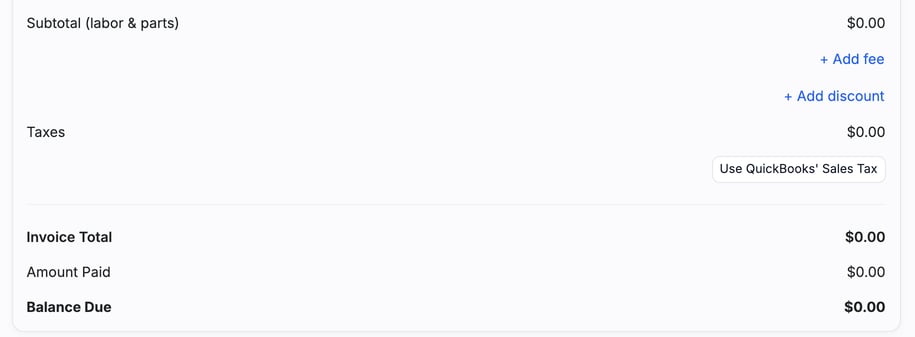
On an Automated Sales Tax company, the Estimate and Invoice tabs show Use QuickBooks' Sales Tax under Taxes. Click it to bill QuickBooks' own figure. Click Use MetaFleet's Sales Tax to go back.
Tax classes: which charges are taxable
A tax class is a kind of charge. Open Settings › Pricing & Rates › Taxes and select the Tax classes tab. The table lists each class, what uses it, and how many Tax Groups tax it under Taxed in.
| Class | What uses it |
|---|---|
| Labor | Labor lines, every rate |
| Parts | Parts and part sales |
| Travel time | The travel row |
| Surcharges | Every surcharge |
| Fees | Fees without a class of their own, and charges typed by hand |
| Late fees | Flat and percent late fees |
| Interest | Interest on overdue balances |
Click + New class to add your own, then give a fee that class. Each Tax Group decides, for each class, whether its taxes are charged on it. Open the Tax Group to set that.
On the invoice sent to QuickBooks, a line in a taxed class is marked taxable. A line in an untaxed class is marked non-taxable. If you set a second account for non-taxable lines, those lines post there. See How Posting Accounts Map to Your Chart of Accounts.
Fees have a Tax class field next to their QuickBooks account. Late Fees and Travel Time show their class and can't change it.
Exemptions and certificates
Open Company Details › Companies, open the company, and select the Taxes tab.
Fully exempt customers
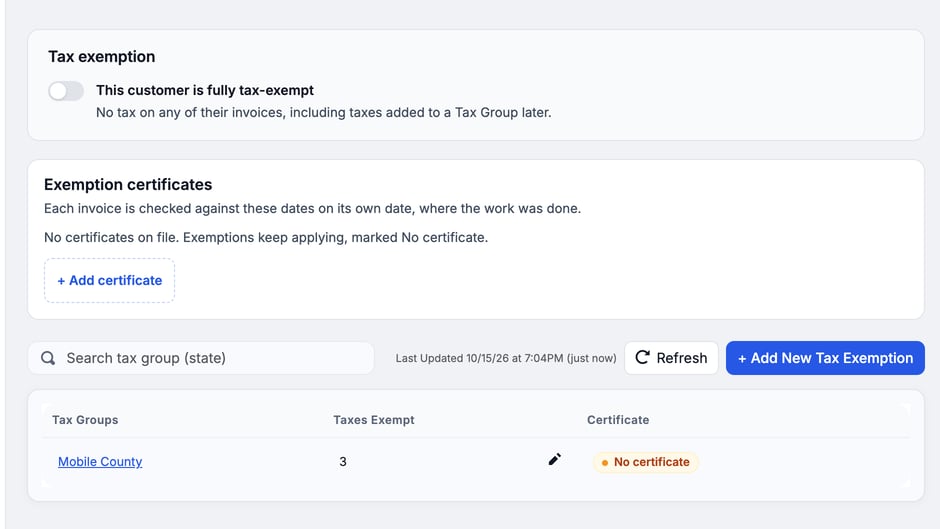
- Turn on This customer is fully tax-exempt.
- Pick a Reason from QuickBooks' own list.
- Click Save.
The customer pays no tax on any invoice, including taxes you add to a Tax Group later. QuickBooks gets the customer marked not taxable with the same reason. To exempt a customer from some Tax Groups only, click + Add New Tax Exemption. Per-group exemptions are used by MetaFleet's own tax math and aren't sent to QuickBooks as an exemption.
Certificates
The Exemption certificates card holds the paperwork. Click + Add certificate and fill in:
- Certificate number, Type and Issued by (a state).
- Valid from and Expires on. If the certificate prints no expiry, turn on No expiry date on the certificate.
- What it covers: the whole customer, or chosen Tax Groups. Add the per-group exemption first.
- A document: PDF, JPG or PNG, up to 10 MB. It stays in MetaFleet.
An exemption without a certificate still applies and shows No certificate. With a certificate, each invoice is checked on its own date, where the work was done. A certificate shows as Active, Expires in N days or Expired.
To renew a certificate, click Renew on its row in the Exemption certificates card. A renewal is saved as the next version. The older version stays on file under History, because invoices that relied on it keep pointing at it.
What happens when a certificate lapses
Invoices dated after the expiry date are taxed. MetaFleet's exemption switch stays on and shows Expired. In the nightly sync, MetaFleet marks the customer taxable in QuickBooks. When you record a renewal, MetaFleet marks the customer exempt again. The nightly check looks back 7 days, so one missed night catches up. This applies to a fully exempt customer whose certificate covers the whole customer.
Customers and the nightly sync are explained in How Customers Map to QuickBooks and How MetaFleet and QuickBooks Work Together.
When QuickBooks refuses the tax
Sometimes QuickBooks won't accept the Sales tax line. This happens only when sales tax is Not set up in QuickBooks and the tax goes as its own line. It doesn't apply to Automated Sales Tax or manual rates. The invoice tab shows QuickBooks didn’t take this invoice’s sales tax with QuickBooks' own reason underneath. Nothing has gone to QuickBooks yet. Users with the Manage account settings permission see two buttons:
- Send without the tax: the invoice goes without its tax. QuickBooks then shows a different tax from MetaFleet's invoice. The invoice is tagged Different tax in QuickBooks so nobody misses it.
- Choose another Sales tax account: pick a different account for the tax line, then send again.
The two totals no longer match. MetaFleet's invoice keeps its tax. QuickBooks records a different one. Look for the Different tax in QuickBooks tag when you reconcile.
Troubleshooting
| Symptom | Likely cause | Fix |
|---|---|---|
| Invoices won't send and the QuickBooks tab says MetaFleet couldn't read this company's sales-tax setting | QuickBooks didn't answer when MetaFleet asked about Automated Sales Tax. | Click Try again. If it keeps failing, disconnect and connect again, or contact MetaFleet support. |
| An invoice sits on Needs attention with a tax difference | Automated Sales Tax is on and QuickBooks recorded a different tax than MetaFleet sent. | See Fix What Needs Attention in QuickBooks. |
| Use QuickBooks' Sales Tax shows Couldn't get tax, try again. | QuickBooks didn't answer, or refused. | Click Use QuickBooks' Sales Tax again. Nothing was sent. |
| An invoice shows Waiting for a Tax Agency for a tax name | MetaFleet can't make that tax's Tax Code until it has a Tax Agency. | Open the Tax Group, choose a Tax Agency in the Tax Agency column, and the invoice goes out. Or click Choose one › on the Needs a Tax Agency row of Sales tax rates. |
| A Tax Code on Sales tax rates says Couldn't sync | QuickBooks didn't take the Tax Code. | Click Try again. |
| Use QuickBooks' Sales Tax is disabled with Customer isn't linked to QuickBooks | The customer has no QuickBooks customer yet. | Link or send the customer to QuickBooks, then try again. |
| A sent invoice says Not in QuickBooks and Tax worked out by MetaFleet | MetaFleet worked out this invoice's tax itself: when it was sent QuickBooks setup was unfinished or invoices were switched off. | It stays out of QuickBooks until you re-send it. Fix the cause first. |
| An invoice shows Skipped with Customer isn't linked to QuickBooks | The customer has no QuickBooks customer. | Link the customer, then click QB Sync on the Invoice tab. |
| A sent invoice says Not in QuickBooks and invoice posting was off when this was sent | MetaFleet staff had invoice posting off when it was sent. | It never goes to QuickBooks, even after posting is back on. Re-send and Retry don't apply. |
| QuickBooks shows $0 tax on an invoice sent with Use QuickBooks' Sales Tax | QuickBooks has no taxable jurisdiction for that customer, or the customer is marked exempt. | Check the customer's jurisdiction in QuickBooks and the Taxes tab on the company in MetaFleet. |
| A tax-exempt customer is being taxed | Their certificate expired, or the invoice date falls outside its valid dates. | Open the company's Taxes tab and click Renew on the certificate. |
| Tax is missing from a line | The line's tax class isn't taxed in that Tax Group. | Check Taxed in on the Tax classes tab and the Tax Group. |
FAQs
Can I switch between Yes and No?
You don't switch it. MetaFleet follows QuickBooks. It reads the setting again every night and when you open the QuickBooks tab, and changes with QuickBooks.
Does MetaFleet create my tax rates in QuickBooks?
Yes. Each Tax Group becomes a Tax Code in QuickBooks, with each tax filed to a Tax Agency. A changed rate makes a new Tax Code.
Does a per-group exemption reach QuickBooks?
No. Only the full exemption and its reason are sent.
Why are there gaps in my QuickBooks estimate numbers?
Each time MetaFleet asks QuickBooks for an invoice's tax (when you click Use QuickBooks' Sales Tax), it creates a throwaway estimate in QuickBooks and deletes it. Each one uses up a number.
Which sales tax account should I use?
Ask your accountant which account to use.