---
title: Set Up Taxes by Jurisdiction
description: "Set up sales tax by jurisdiction: build a Tax Group, pick the taxed charge types, attach it to a service location, and record exemption certificates."
---
[Skip to content](https://support.metafleet.ai/set-up-taxes-by-jurisdiction#main-content)
English
Show submenu for translations

Open main navigation
Close main navigation
- English
Show submenu for translations
- [Contact us](mailto:support@metafleet.ai)
[Contact us](mailto:support@metafleet.ai)
How can we help you?
- There are no suggestions because the search field is empty.
1. [MetaFleet Answer Hub](https://support.metafleet.ai/?hsLang=en)
2. [Admin & Settings](https://support.metafleet.ai/admin-settings?hsLang=en)
3. [Taxes](https://support.metafleet.ai/admin-settings?hsLang=en#taxes)
# Set Up Taxes by Jurisdiction
## Build a Tax Group for each area you work in, choose which charges it taxes, and attach it to the service location so estimates and invoices pick up the right rate.
**For:** Admins and accounting staff · **Permission:** Manage taxes (Manage customers for exemptions) · **Time:** ~12 minutes
### Quick summary
1. Create a Tax Group for the jurisdiction and add its taxes.
2. Set each tax class to Taxed or Not taxed.
3. Attach the group to a service location.
4. Record exemptions on the customer.
### How tax works
- **Tax Group:** a named jurisdiction, such as *Phoenix, AZ*, that bundles every tax that applies there.
- **Individual taxes:** the rate lines inside a group, such as a state, county or city tax. They add up to the group's combined rate.
- **Tax classes:** the kinds of charge a group can tax: Labor, Parts, Travel time, Surcharges, Fees, Late fees and Interest. For each group you choose which classes are **Taxed** and which are **Not taxed**.
- **Service location:** each location is attached to one or more Tax Groups. Jobs at that location use them.
- **Exemption certificates:** a record of why a customer isn't taxed, with dates, kept on the customer.
> **What changed.** The four Labor, Part, Surcharge and Fee columns on each tax line are gone. You now choose Taxed or Not taxed per tax class on the Tax Group. Customer exemptions now use certificates with dates. Rates can have up to 4 decimal places.
### Open Taxes
Go to **Settings › Pricing & Rates** and open the **Taxes** tab. Each Tax Group is listed with the individual taxes inside it. Use the **Active** and **Archived** tabs to switch between current and retired groups.
At the top, the **Tax orders by** card sets how an order's service area is picked: **Job location** (the default) or **Nearest service area**. Click **Save**. **Changes saved.** confirms it. If your role can't manage taxes, the card is read-only. Changing it affects new orders and address changes. Orders already priced keep their area, and an area picked by hand on an order always stays.
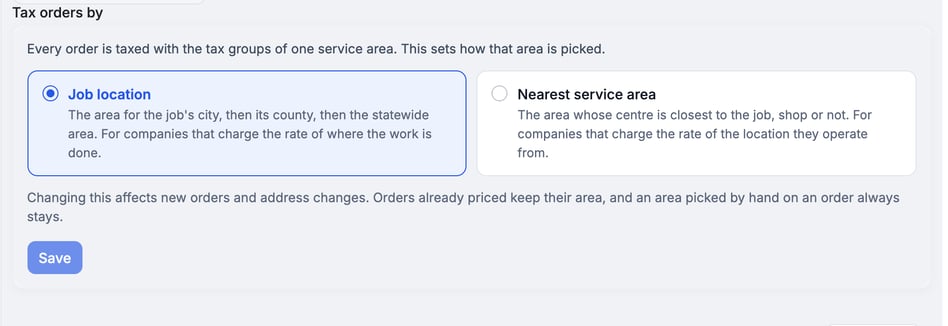
*The Tax orders by card.*
### Name the group and add its taxes
1. **Create the group.** Click **+ Create Tax Group** and name it for the jurisdiction, for example `Phoenix, AZ`.
2. **Add each tax.** Click **+ Add Tax**, then enter a **Name** and a **Rate %**. Add one line for the state, the county and any city or special-district tax. The **On** switch turns a line off without deleting it, and a rate must be from 0 to 100.
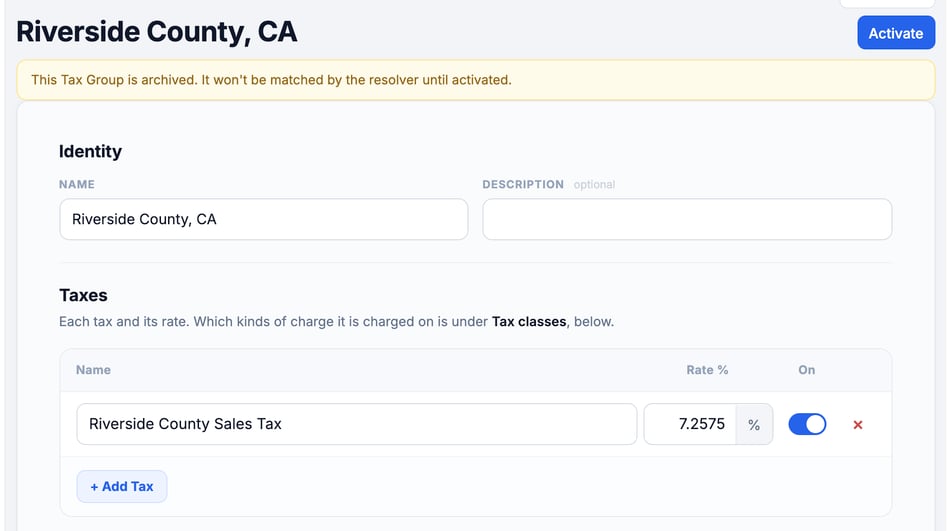
3. **Check the rate.** A rate can have up to 4 decimal places, such as `7.2575`, as in the Riverside County group below. If you type a fifth decimal, MetaFleet rounds it when you leave the box and shows the rounded rate.
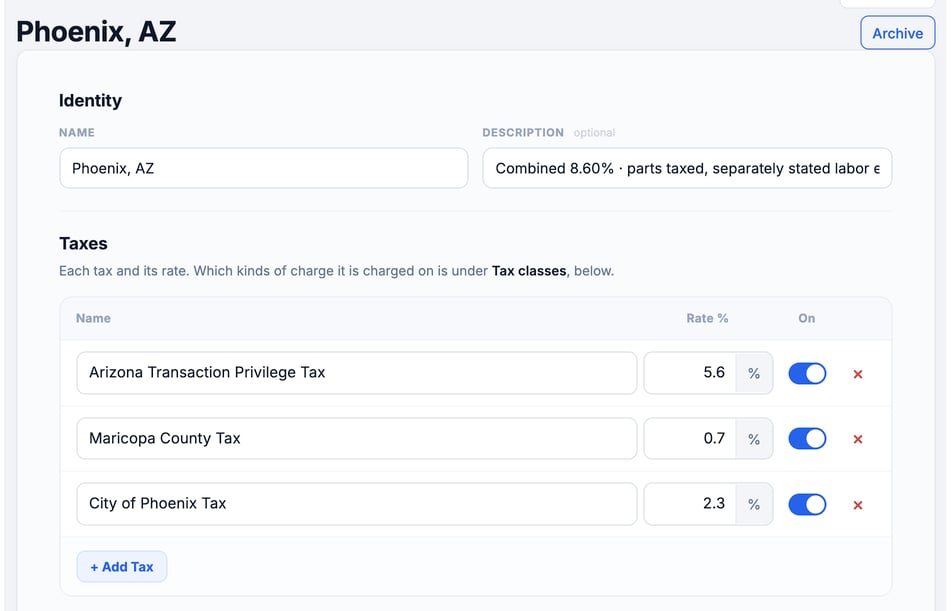
*Phoenix, AZ has three tax lines that add up to 8.6%.*
### Choose which charges are taxed
Under **Tax classes** on the same page, set each kind of charge to **Taxed** or **Not taxed** for this group. A class set to **Not taxed** adds no tax from this group.
> **Nothing is taxed by default.** A new group starts with every class set to **Not taxed**. Set **Taxed** on each kind of charge your state taxes. Not every state taxes labor, so check your state's rules. If nothing is set to **Taxed**, the group adds no tax.
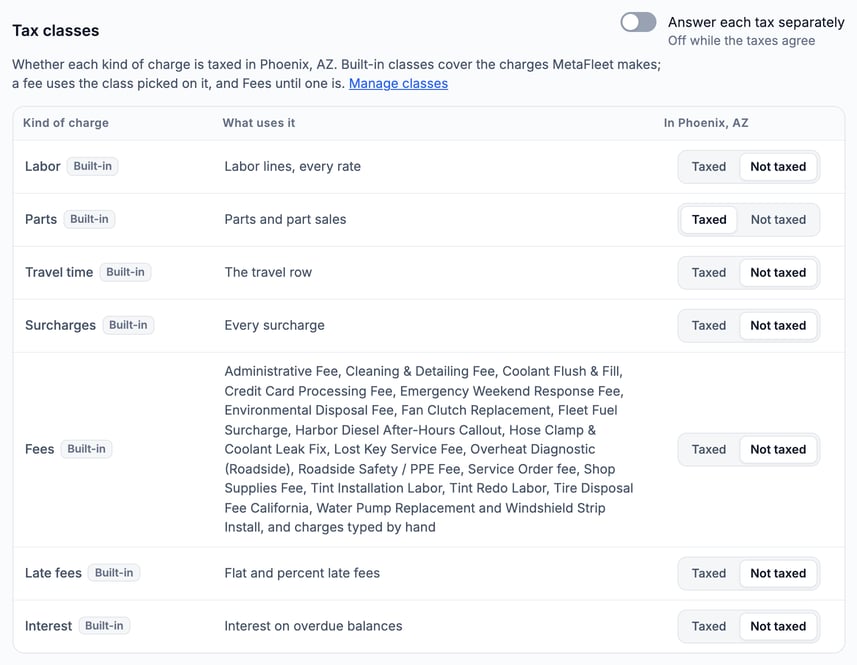
*Each group answers for each class on its own.*
- **Fees:** each fee uses the class picked on the fee itself, on **Settings › Fees & Surcharges**. Until you pick one, a fee uses **Fees**.
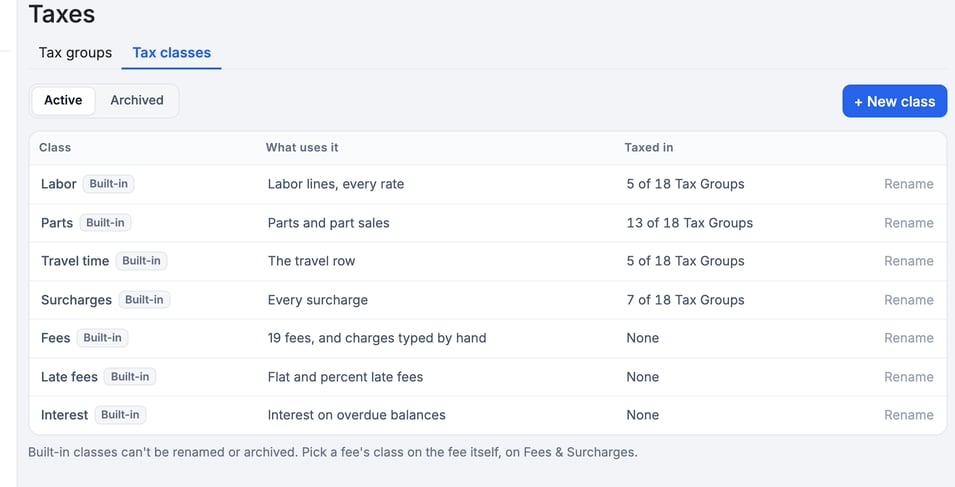
- **Manage classes:** click this link to see every class, what uses it, and how many Tax Groups tax it. Use **+ New class** to add your own.
- **Built-in classes** keep their names and can't be renamed or archived.
- **Your own classes** can be renamed and archived. Archived classes are on the **Archived** tab (next to **Active**), where you can **Restore** them. A class a fee uses can't be archived; the message names the fees.
- **A new class** starts with the same answers as **Fees**.
- **No answer:** if a class shows **No answer** on a Tax Group, a banner says so, and a fee in that class isn't taxed there until you choose **Taxed** or **Not taxed**.
- **Answer each tax separately:** turn this on at the top of **Tax classes** to let the state, county and city taxes in one group answer a class differently.
Click **Create Tax Group** to save. **Description** is optional, and each group needs a name no other group uses. On an existing group, **History** shows who changed which rate or class, and when.
### Attach a Tax Group to a service location
A Tax Group only does something once it's tied to where work happens.
1. Go to **Settings › Service Locations** and open a location.
2. Open the **Taxes** tab and click **Edit** next to **Tax Groups**.
3. In the **Edit Tax Groups** window, choose the Tax Groups that apply, then click **Save Changes**.
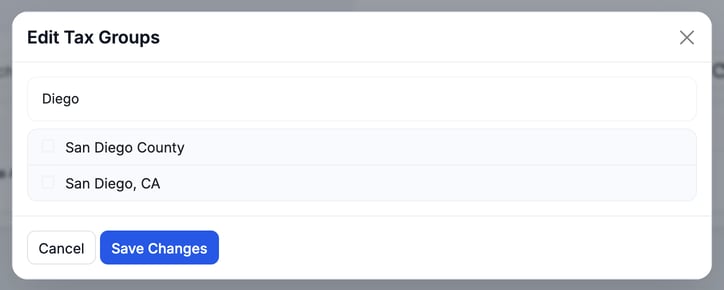
The **Service Locations** list shows each location's **Tax group**. **Not set** means no group is attached yet.
Several Tax Groups on one location all charge. A tax that sits in two of them is charged twice. The **Taxes** tab warns *Overlapping taxes: … will stack (be charged more than once). Remove the duplicate group or consolidate.* and shows the **Combined rate across bound groups**.
Two more warnings can show under **Tax Groups**. They never block a save. **Missing tax from** an area above means orders in this area are charged only this area's Tax Groups, so they won't include the groups above it. Click **Add** and the group's name to add it (**Add 2 tax groups** when several are missing). The button needs permission to manage taxes. **No county set** shows for a city area with no county. Click **Edit location** to add one. If both apply, the warning reads **No county set, and missing tax from** the area.
> **A location without a group charges no tax.** If a location has no Tax Group, its estimates show "No tax group is bound to this location" and tax stays $0.00. Attach a group to fix it.
### How a job gets its tax
A job's tax comes from the Tax Groups on the order's **Service area**, which is one of your service locations. On the **New Service Order** page, **Service area** fills in from the unit's location. How it is picked depends on the **Tax orders by** card:
- **Job location** (default): an area whose drawn boundary contains the job, else the area that names the job's city, then its county, then the statewide area. An area that names another county is never picked. The nearest center only breaks ties.
- **Nearest service area:** the closest center, ignoring county, city and boundaries.
Closed locations are never picked. An order is taxed with the Tax Groups of that one area only. A county or city area replaces the statewide area above it. It doesn't add to it, so give the narrower area the statewide groups too.
When no service area is in the job's state, a note under **Service area** names the state and the area it picked, for example *Outside your service areas (NV). Taxed as Phoenix, AZ, the nearest area. Review the tax, and change the service area above if needed.* If no area names the job's city or county, the note says *No service area for* that place and which area it taxed as. In **Nearest service area** mode it says the area is your nearest, as your tax settings say.
If you change **Service area** yourself, your pick stays. It isn't picked again when the address changes.
### Retire a Tax Group
Open the group and click **Archive**, then confirm. An archived group isn't matched to jobs until you click **Activate**. Find archived groups on the **Archived** tab.
### Exemptions
Exemptions live on the customer. Go to **Company Details › Companies**, open the company and click the **Taxes** tab.
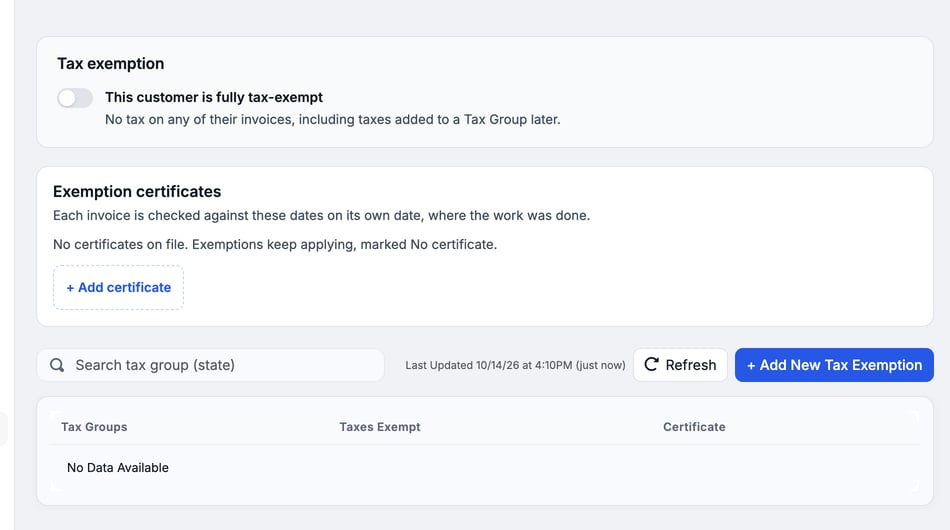
- **Tax exemption:** switch this on when the customer is fully tax-exempt. Their invoices carry no tax, including taxes you add to a Tax Group later. A **Reason** is required to turn it on, chosen from QuickBooks' list. It applies to invoices sent from now on; invoices already sent keep their tax.
- **Exemption certificates:** click **+ Add certificate** to record the paperwork. Without a certificate the exemption keeps applying and is marked **No certificate**.
- **Per-jurisdiction exemption:** to exempt a customer in one area only, click **+ Add New Tax Exemption**, pick the Tax Group and the taxes to exempt, then click **Make Taxes Exempt**. The table below lists each exempt Tax Group. These exemptions don't apply while the customer is fully exempt. They're kept, and apply again if you turn full exemption off.
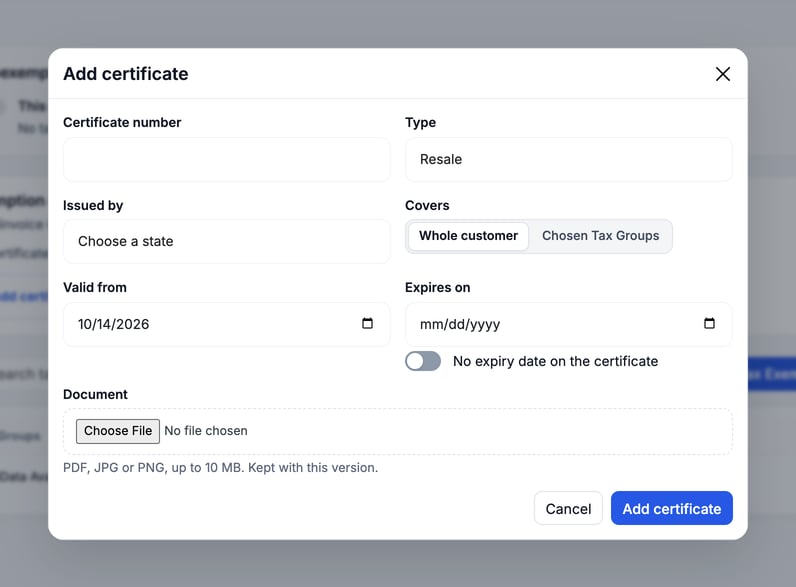
In the **Add certificate** window, fill in:
- **Certificate number** and **Type**: choose the kind of certificate, such as **Resale**.
- **Issued by:** the state.
- **Covers:** **Whole customer** or **Chosen Tax Groups**. Chosen Tax Groups needs a per-group exemption first: without one, the window says *This customer has no per-group exemptions yet. Add one below the certificates first.*
- **Valid from** and **Expires on**. Turn on **No expiry date on the certificate** if it has none.
- **Document:** a PDF, JPG or PNG up to 10 MB.
Each certificate shows its status: **Active**, **Expires in** a number of days (from 30 days before it ends), **Expired** with its last day, or **Replaced** with the day the renewal took over. A renewal's **Valid from** defaults to the day after the old certificate expires. If you record a renewal early and it starts the day after the old certificate ends, the old one stays **Active** until the renewal starts. The renewal waits under it, marked **Valid from** and its start date. A renewal that starts later leaves a gap, so the old certificate keeps its expiry warning and the banner names the days that will be taxed.
To renew, open the certificate's row and choose to renew it. The same window opens with the details and dates filled in, and the button reads **Save version 2**.
> **Dates matter.** Each invoice is checked against these dates on its own date, where the work was done.
### If you use QuickBooks
MetaFleet works out the tax from your Tax Groups and sends it to QuickBooks with each invoice, unless you choose **Use QuickBooks' Sales Tax** for that invoice. That includes a QuickBooks company that uses **Automated Sales Tax**. Each Tax Group becomes a QuickBooks Tax Code. Estimates carry MetaFleet's tax too.
- **Tax Agency:** with QuickBooks connected, each tax on the Tax Group page has a **Tax Agency** column. Pick one under **Choose a Tax Agency**, then click **Save changes**. A group shows **Needs a Tax Agency** until you do, and an invoice that needs that tax waits until you choose one.
- **QuickBooks line:** the Tax Group page shows the group's Tax Code and how it stands: **In QuickBooks**, **Not in QuickBooks yet**, **Needs a Tax Agency** or **Couldn't sync**. Click **Sales tax rates ›** to see every group.
- **Syncing:** creating, archiving or activating a Tax Group updates its Tax Code in QuickBooks. If you change a rate, MetaFleet makes a new Tax Code for it.
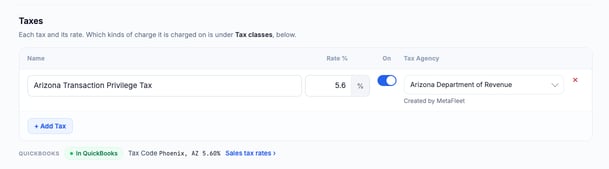
*Once the agency is saved, the group shows In QuickBooks and its Tax Code.*
For the full setup, see [How Sales Tax and Exemptions Work with QuickBooks](https://support.metafleet.ai/quickbooks-sales-tax-reference?hsLang=en).
### Tax on reports
Pull the **Sales Tax Export** from Reports. It is grouped by state, with a subtotal per state and a grand total, so you can file per jurisdiction. For each column and section, see [File Sales Tax With the Sales Tax Export](https://support.metafleet.ai/sales-tax-export-report?hsLang=en).
### Troubleshooting
| Symptom | Likely cause | Fix |
| --- | --- | --- |
| An estimate says no tax group is bound to the location | That location has no Tax Group attached | Open the service location, then **Taxes** › **Edit**, and choose a group. |
| I can't find the Labor, Part, Surcharge and Fee columns | Tax classes replaced them | Set each class to **Taxed** or **Not taxed** on the Tax Group. |
| Labor, parts or a fee isn't taxed | Its class is set to **Not taxed** in the location's Tax Group, or the fee uses a different class | Check the Tax classes on the group, and the class picked on the fee. |
| The wrong rate applied to a job | The location's Tax Group is wrong, or the rate inside it is off | Check the location's Tax Groups, then the taxes in each group. |
| A tax is charged twice | The same tax is in two Tax Groups on the location, so they stack | Open the location's **Taxes** tab, read the **Overlapping taxes** warning, then remove the duplicate group or consolidate. |
| A Tax Group no longer applies | It was archived | Open it and click **Activate**. |
| A customer was taxed who shouldn't be | No exemption on file, or the certificate has expired or doesn't cover that Tax Group | Check the customer's **Taxes** tab: the exemption switch or the per-group table first, then add or renew a certificate. |
| The Tax Group page says *Read-only — you don't have permission to manage taxes.* | Your role lacks the Manage taxes permission | Ask an admin to change your role or make the edit. |
### FAQs
**What happened to tax categories?**
They're gone. Use Tax Groups made of individual taxes, attached to service locations.
**How does a job know which tax to use?**
From the order's service location, whose Tax Groups set the rate. See How a job gets its tax above.
**How do I tax a multi-rate area?**
Add each rate as an individual tax inside one Tax Group, such as state, county and city. The group combines them: Phoenix, AZ adds a 5.6% state tax, a 0.7% county tax and a 2.3% city tax for a combined 8.6%.
**How do I choose what gets taxed?**
Set each tax class to **Taxed** or **Not taxed** on the Tax Group.
**How do I handle a tax-exempt customer?**
Open the company's **Taxes** tab, turn on the exemption, or use **+ Add New Tax Exemption** for one Tax Group, then add a certificate with its dates.
**Where do I get numbers for filing?**
The **Sales Tax Export** under Reports, organized by state.
### Related articles
- [Build & Send an Estimate](https://support.metafleet.ai/build-and-send-an-estimate?hsLang=en)
- [Approve & Send an Invoice](https://support.metafleet.ai/approve-and-send-an-invoice?hsLang=en)
- [Late Fees & Interest on Overdue Invoices](https://support.metafleet.ai/late-fees-and-interest-on-overdue-invoices?hsLang=en)
- [How Tax Is Worked Out on an Invoice](https://support.metafleet.ai/how-tax-is-worked-out-on-an-invoice?hsLang=en)
- [Start Here](https://support.metafleet.ai/start-here?hsLang=en)
- [Companies & Contacts](https://support.metafleet.ai/companies-contacts?hsLang=en#main-content)
- [Create/Edit Companies](https://support.metafleet.ai/companies-contacts?hsLang=en#create-edit-companies)
- [Contacts](https://support.metafleet.ai/companies-contacts?hsLang=en#contacts)
- [Vehicles](https://support.metafleet.ai/companies-contacts?hsLang=en#vehicles)
- [Work Intake (Requests & Service Orders)](https://support.metafleet.ai/work-intake-requests-service-orders?hsLang=en#main-content)
- [Creating Service Orders](https://support.metafleet.ai/work-intake-requests-service-orders?hsLang=en#creating-service-orders)
- [Customer & Partner Requests](https://support.metafleet.ai/work-intake-requests-service-orders?hsLang=en#customer-partner-requests)
- [Reference](https://support.metafleet.ai/work-intake-requests-service-orders?hsLang=en#reference)
- [Customer Portal](https://support.metafleet.ai/work-intake-requests-service-orders?hsLang=en#customer-portal)
- [Estimates & Approvals](https://support.metafleet.ai/estimates-approvals?hsLang=en#main-content)
- [Approval Gates](https://support.metafleet.ai/estimates-approvals?hsLang=en#approval-gates)
- [Estimates](https://support.metafleet.ai/estimates-approvals?hsLang=en#estimates)
- [Invoices](https://support.metafleet.ai/estimates-approvals?hsLang=en#invoices)
- [Billing](https://support.metafleet.ai/estimates-approvals?hsLang=en#billing)
- [Parts, Inventory & Vendors](https://support.metafleet.ai/parts-inventory-vendors?hsLang=en#main-content)
- [Add Parts & Kits](https://support.metafleet.ai/parts-inventory-vendors?hsLang=en#add-parts-kits)
- [Stock & Counts](https://support.metafleet.ai/parts-inventory-vendors?hsLang=en#stock-counts)
- [Locations & Bins](https://support.metafleet.ai/parts-inventory-vendors?hsLang=en#locations-bins)
- [Purchase Orders](https://support.metafleet.ai/parts-inventory-vendors?hsLang=en#purchase-orders)
- [Parts Catalog](https://support.metafleet.ai/parts-inventory-vendors?hsLang=en#parts-catalog)
- [Vendors & Manufacturers](https://support.metafleet.ai/parts-inventory-vendors?hsLang=en#vendors-manufacturers)
- [Pricing](https://support.metafleet.ai/parts-inventory-vendors?hsLang=en#pricing)
- [Service Vehicles](https://support.metafleet.ai/parts-inventory-vendors?hsLang=en#service-vehicles)
- [Sourcing & Hand-Off](https://support.metafleet.ai/parts-inventory-vendors?hsLang=en#sourcing-hand-off)
- [Part Numbers](https://support.metafleet.ai/parts-inventory-vendors?hsLang=en#part-numbers)
- [Notifications](https://support.metafleet.ai/parts-inventory-vendors?hsLang=en#notifications)
- [Reports](https://support.metafleet.ai/parts-inventory-vendors?hsLang=en#reports)
- [Invoicing & Payments](https://support.metafleet.ai/invoicing-payments?hsLang=en)
- [Dispatch & Scheduling](https://support.metafleet.ai/dispatch-scheduling?hsLang=en#main-content)
- [Preventative Maintenance](https://support.metafleet.ai/dispatch-scheduling?hsLang=en#preventative-maintenance)
- [Technician Assignment](https://support.metafleet.ai/dispatch-scheduling?hsLang=en#technician-assignment)
- [Scheduling & Calendar](https://support.metafleet.ai/dispatch-scheduling?hsLang=en#scheduling-calendar)
- [Technician Schedule](https://support.metafleet.ai/dispatch-scheduling?hsLang=en#technician-schedule)
- [Technicians & Mobile App](https://support.metafleet.ai/technicians-mobile-app?hsLang=en#main-content)
- [Time Tracking](https://support.metafleet.ai/technicians-mobile-app?hsLang=en#time-tracking)
- [Tech Workflow](https://support.metafleet.ai/technicians-mobile-app?hsLang=en#tech-workflow)
- [Evidence & Photos](https://support.metafleet.ai/technicians-mobile-app?hsLang=en#evidence-photos)
- [AI Assistant](https://support.metafleet.ai/technicians-mobile-app?hsLang=en#ai-assistant)
- [Alerts, Alarms & Notifications](https://support.metafleet.ai/alerts-alarms-notifications?hsLang=en#main-content)
- [Email/SMS/App Settings](https://support.metafleet.ai/alerts-alarms-notifications?hsLang=en#email-sms-app-settings)
- [Reporting & Dashboards](https://support.metafleet.ai/reporting-dashboards?hsLang=en)
- [Admin & Settings](https://support.metafleet.ai/admin-settings?hsLang=en#main-content)
- [Rates & Fees](https://support.metafleet.ai/admin-settings?hsLang=en#rates-fees)
- [Branding](https://support.metafleet.ai/admin-settings?hsLang=en#branding)
- [Roles, Permissions & Users](https://support.metafleet.ai/admin-settings?hsLang=en#roles-permissions-users)
- [Service Areas](https://support.metafleet.ai/admin-settings?hsLang=en#service-areas)
- [Workflows](https://support.metafleet.ai/admin-settings?hsLang=en#workflows)
- [Taxes](https://support.metafleet.ai/admin-settings?hsLang=en#taxes)
- [Integrations](https://support.metafleet.ai/admin-settings?hsLang=en#integrations)
- [Integrations](https://support.metafleet.ai/integrations?hsLang=en#main-content)
- [Phone Setup](https://support.metafleet.ai/integrations?hsLang=en#phone-setup)
- [AI Assistant Access](https://support.metafleet.ai/integrations?hsLang=en#ai-assistant-access)
- [QuickBooks](https://support.metafleet.ai/integrations?hsLang=en#quickbooks)
- [Getting Around](https://support.metafleet.ai/getting-around?hsLang=en#main-content)
- [Search & Command Bar](https://support.metafleet.ai/getting-around?hsLang=en#search-command-bar)
[](http://www.metafleet.ai)
[mailto:support@metafleet.ai](mailto:support@metafleet.ai)
Copyright © 2025, MetaFleet, Inc