
For: Owners, managers and bookkeepers · Permission: Manage account settings to change rows (anyone can read them) · Time: ~6 minutes
MetaFleet sends each kind of sale, cost and payment to its own account in your QuickBooks Online chart of accounts. The Posting accounts list shows which account each one uses. This page explains every row.
It says what posts where. It does not say which account to pick. Ask your accountant which account to use.
Where you see the list
Open Settings › Integrations, then the QuickBooks tab, then its Settings tab. Posting accounts sits below Where your accounts are set. The same list is Step 3 of 3 (Check where your money posts) when you first connect. You need the Manage account settings permission to change it. Without it you can only read it.
Rows are in four groups: What you sell, Money in, Money out and Write-offs. Under each row, a caption says what posts there. Click a row's picker (Choose an account) to see only the accounts QuickBooks accepts for that row. If the account you want isn't listed, add it in QuickBooks, then click Refresh.
Each row also shows a status: Filled in, Chosen (you picked it), Choose one, New in QuickBooks (for a payment method QuickBooks doesn't have yet) or Not used now.
Changes apply to new postings only. Invoices already in QuickBooks keep the accounts they were sent with. Click Save changes after you change a row.
Some rows are hidden. A row shows only while the thing it serves is turned on under What syncs. Payment rows need Payments on. Freight and vendor-tax rows show while Bills & Expenses or Purchase Orders is on. Paid at the counter and Company card need Bills & Expenses. Parts on the shelf, Stock adjustments and Parts used in the shop need Parts on. See Choose What Syncs with QuickBooks.
What you sell
These rows are the income side of an invoice. Unless noted, each accepts an Income or Other Income account in QuickBooks.
| Row | What posts there | Accepts |
|---|---|---|
| Labor | Labor on repairs, PM and inspections | Income, Other Income |
| Parts | Parts with no QuickBooks item of their own, and parts MetaFleet adds. Part items already in QuickBooks keep their accounts. | Income, Other Income. If your QuickBooks company tracks inventory, only a Sales of Product Income account. |
| One row for each fee | Captioned From your fee list. Until you pick one, the row reads Same as Other charges. | Income, Other Income |
| Travel time | Billed drive time | Income, Other Income |
| Other charges | Misc items and one-off surcharges that aren't on your lists | Income, Other Income |
| One row for each surcharge | Captioned From your surcharges | Income, Other Income |
| Card processing fee | The card surcharge | Income, Other Income |
| Late fees | Flat and percentage late fees | Income, Other Income |
| Interest | Interest on overdue balances | Income, Other Income |
| Discounts | Invoice discounts, and discounts given after the invoice (statement and bulk discounts, credit adjustments) as credit memos | Income, Expense |
| Sales tax | Used only while your QuickBooks sales tax mode is Not set up. In the other modes, QuickBooks books tax to its tax agency's account. See How Sales Tax and Exemptions Work with QuickBooks. | Other Current Liability. Shows Not used now unless the mode is Not set up. |
A fee or surcharge you remove from its list keeps its row while invoices sent earlier still post through it. Its caption changes to No longer on your fee list or No longer on your surcharges.
Some rows can also be set per fee or per location. See Set an account for one fee, rate or location below.
Money in
| Row | What posts there | Accepts |
|---|---|---|
| Unpaid invoices | Accounts receivable | Accounts Receivable |
| Payments received | Where customer payments are deposited, unless their method has its own account. Card refunds come out of here too, because a card refund goes back through Stripe. | Bank, Other Current Asset |
| One row per payment method, under By payment method | Payments of that method. The Deposit to column reads same as Payments received until you give a method its own account. | Bank, Other Current Asset |
| Refunds paid out | Refunds you pay back by check, cash or transfer | Bank, Credit Card |
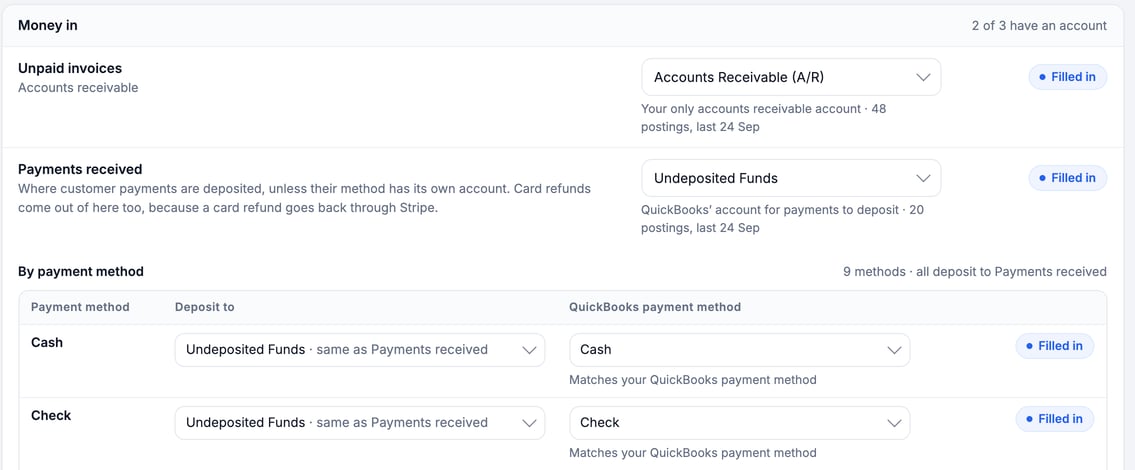
The payment methods are Cash, Check, Credit/Debit Card, ACH, Wire Transfer, EFS, T-Chek, Comdata Check and Other. Credit card and debit card share one row.
Money out
| Row | What posts there | Accepts |
|---|---|---|
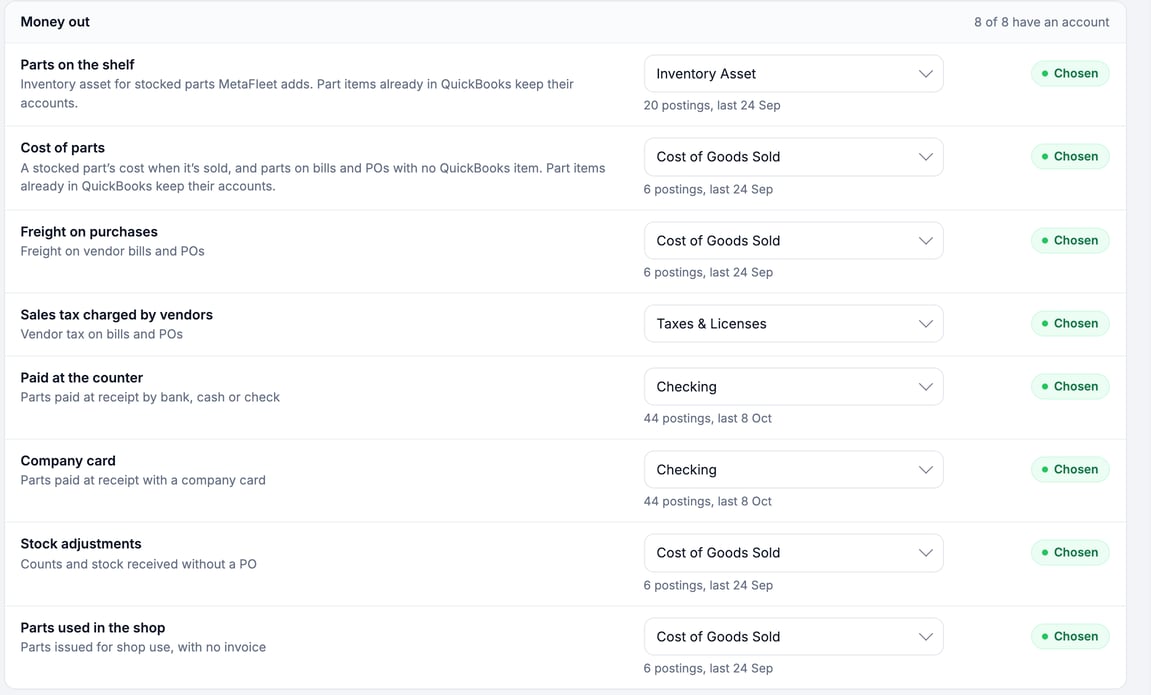
| Parts on the shelf | Inventory asset for stocked parts MetaFleet adds. Part items already in QuickBooks keep their accounts. | Other Current Asset. If your QuickBooks company tracks inventory, only an Inventory account. |
| Cost of parts | A stocked part's cost when it's sold, and parts on bills and POs with no QuickBooks item | Cost of Goods Sold, Expense. If your QuickBooks company tracks inventory, only Cost of Goods Sold. |
| Freight on purchases | Freight on vendor bills and POs | Cost of Goods Sold, Expense |
| Sales tax charged by vendors | Vendor tax on bills and POs. It is a cost, not tax you owe. | Cost of Goods Sold, Expense |
| Paid at the counter | Parts paid at receipt by bank, cash or check | Bank, Credit Card |
| Company card | Parts paid at receipt with a company card | Credit Card |
| Stock adjustments | Counts, and stock received without a PO | Cost of Goods Sold, Expense |
| Parts used in the shop | Parts issued for shop use, with no invoice | Cost of Goods Sold, Expense |
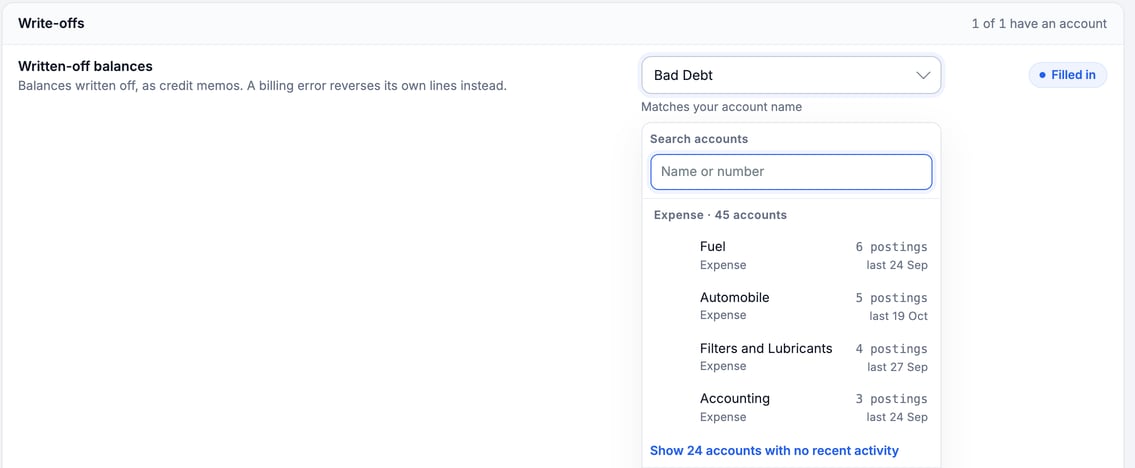
Write-offs
| Row | What posts there | Accepts |
|---|---|---|
| Written-off balances | Balances written off, as credit memos. A billing error reverses its own lines instead. | Expense |
How MetaFleet fills the rows
When you first connect, MetaFleet reads your chart of accounts and your items and fills in what it can. Nothing in QuickBooks is created or changed at that point. Under each row, a line tells you why it chose the account, for example Matches your account name, From your QuickBooks item or Same as Labor: travel is billed as labor time. Some rows follow another row until you give them their own account. Check every row before you click Start syncing (or Add N items and start syncing when MetaFleet will create items for you).
Post non-taxable lines to a second account
The Labor and Other charges rows have an optional picker, Non-taxable lines post to. Choose an account there and non-taxable lines post to it instead. MetaFleet adds a matching non-taxable item in QuickBooks (named like Labor (non-taxable)) when you approve setup. Choose No second account to post everything to the row's own account.
Set an account for one fee, rate or location
The rows above are the defaults. Some things can have an account of their own, set where you edit them. The Where your accounts are set block has a button for each place:
- Fees & Surcharges ›: the QuickBooks account column on Active Fees while QuickBooks is connected. It is the same setting as the fee's row above. A fee with no account of its own posts to Other charges.
- Pricing & Rates › Global Rates ›: the QuickBooks account column on each rate.
- Service Fee ›: the service fee.
- Inventory Locations ›: one account for each location. It must be an inventory account.
The block also links to Late Fees › and Billing Hub › every invoice ›.

When an account breaks
An account is broken when someone makes it inactive in QuickBooks. A banner on the QuickBooks tab's Settings tab names the rows that post to it and how many invoices, payments or bills are waiting. In a fee or surcharge list the account shows a Broken badge.
Click Choose another account, pick a new one and save. Everything that waited then goes to QuickBooks on its own. The rest keeps syncing in the meantime. Waiting items show under Needs a home on the Review tab.
FAQs
Do my old invoices move if I change an account?
No. A change applies to new postings only. Invoices already in QuickBooks keep their accounts.
Why can't I find my account in the picker?
Each picker lists only the account types QuickBooks accepts for that row. If the account is the wrong type, or new in QuickBooks, add or fix it there, then click Refresh.
Why do I see no payment rows?
Rows show only for what you turned on under What syncs. Payment rows need Payments on. Freight and vendor-tax rows need Bills & Expenses or Purchase Orders. Stock rows need Parts.
Which account should I use for each row?
Ask your accountant. MetaFleet only shows which account types each row accepts.