---
title: Send an Invoice and Check It in QuickBooks
description: "Send an invoice and check it reached QuickBooks: read the status pill, use Read back now, and handle Off by, Waiting, Failed and Resend."
---
[Skip to content](https://support.metafleet.ai/send-an-invoice-to-quickbooks#main-content)
English
Show submenu for translations

Open main navigation
Close main navigation
- English
Show submenu for translations
- [Contact us](mailto:support@metafleet.ai)
[Contact us](mailto:support@metafleet.ai)
How can we help you?
- There are no suggestions because the search field is empty.
1. [MetaFleet Answer Hub](https://support.metafleet.ai/?hsLang=en)
2. [Integrations](https://support.metafleet.ai/integrations?hsLang=en)
3. [QuickBooks](https://support.metafleet.ai/integrations?hsLang=en#quickbooks)
# Send an Invoice and Check It in QuickBooks
## Send a customer invoice from MetaFleet, then check on the order that QuickBooks has it and that the totals match.
**For:** Dispatchers and billing staff · **Time:** ~3 minutes
### Quick summary
1. Open the order's **Invoice** tab and click **Send Invoice**.
2. Open the **Billing** tab and find the **QuickBooks** panel.
3. Read the status pill. **In step** means QuickBooks holds the same total and the same balance owed.
4. Click **Read back now** to check again.
### Before you start
- QuickBooks is connected and setup is finished. See [Connect QuickBooks Online to MetaFleet](https://support.metafleet.ai/connect-quickbooks-online?hsLang=en).
- The customer company is linked to a QuickBooks customer, or you are fine with MetaFleet creating one. See [Link a Customer to QuickBooks](https://support.metafleet.ai/link-a-customer-to-quickbooks?hsLang=en).
- The company has at least one contact with the **Receive invoices** permission. Without one, the dialog is titled **Generate Invoice**. It records the invoice and sends no email.
- **Read back now** needs the **Manage account settings** permission.
- The QuickBooks panel only shows when your shop has a QuickBooks connection.
### Send the invoice
1. Open the order and click the **Invoice** tab.
2. Click **Send Invoice** (see [Approve and Send an Invoice](https://support.metafleet.ai/approve-and-send-an-invoice?hsLang=en)). The dialog names who gets the email, for example "Invoice will be emailed to" followed by the contact's name and email.
3. Click **Send**.
The invoice goes to QuickBooks at the same time. Sending the invoice is what sends it to QuickBooks. After that, **QB Sync** on the **Invoice** tab can send it again (see below).
> **Send is disabled with "Finish QuickBooks setup to send invoices"?** MetaFleet could not read your QuickBooks sales-tax setting. Click **Open QuickBooks setup** and finish setup. The invoice sends once setup is done.
### What happens in QuickBooks
MetaFleet works in this order:
1. **Finds the customer.** It uses the QuickBooks customer the company is linked to. If there is no link and no match, it creates the customer in QuickBooks. If it finds a near match and cannot be sure, the invoice waits as **Skipped** until you pick the right customer.
2. **Creates one QuickBooks invoice** with a line for each work item, fee, surcharge and discount. Invoices go with MetaFleet's Tax Code and tax, unless you chose **Use QuickBooks' Sales Tax** (below). It attaches the invoice PDF.
3. **Reads the invoice back** and compares its total and its balance with MetaFleet's to the cent.
On some Automated Sales Tax companies MetaFleet staff turn invoice posting off. The invoice then stays in MetaFleet only, with MetaFleet's tax, and the QuickBooks card reads **Invoices aren't going to QuickBooks**.
If your QuickBooks company uses Automated Sales Tax, the **Invoice** tab sends MetaFleet's tax. To send QuickBooks' own figure instead, click **Use QuickBooks' Sales Tax** under Taxes. **Use MetaFleet's Sales Tax** undoes it. MetaFleet asks QuickBooks for the tax when you click it. If QuickBooks does not answer, the line under Taxes reads "Couldn't get tax, try again." and MetaFleet's tax stays. Click it again. The button is greyed out with "Customer isn't linked to QuickBooks" until the customer is linked.
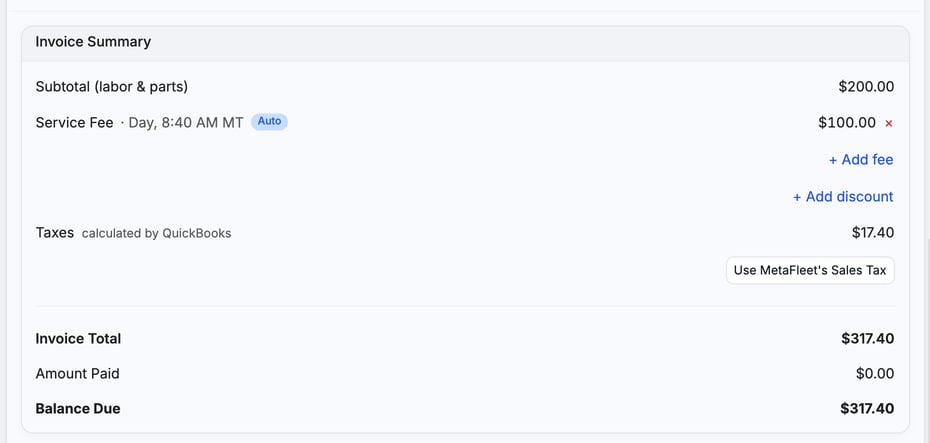
For the full field list, see [How Invoices Map to QuickBooks](https://support.metafleet.ai/quickbooks-invoice-reference?hsLang=en).
### Check the QuickBooks panel on the order
1. Open the order and click the **Billing** tab.
2. Find the **QuickBooks** panel below Payment History.
3. Read the status pill in the panel header. The table below explains each one.
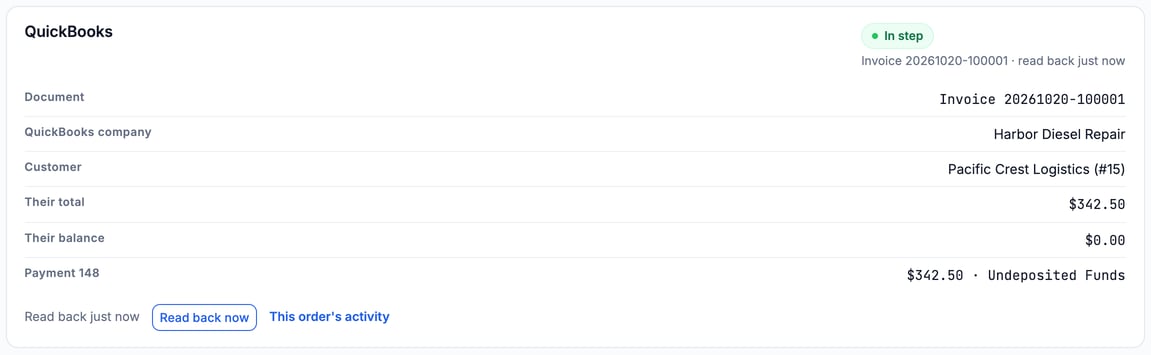
The panel lists these rows, when they apply: **Document**, **QuickBooks company**, **Customer**, **Their total**, **Their balance**, one row per payment, and **Waiting since**. The footer shows when the invoice was last read, for example "Read back 5 min ago", and a **This order's activity** link.
### What the status pills mean
| Pill | What it means | What to do |
| --- | --- | --- |
| **In step** | QuickBooks holds the invoice at the same total and the same balance owed. The line under it shows the invoice number and when it was read back. | Nothing. |
| **Sent** | The invoice went to QuickBooks and has not been read back yet. The line under it reads "not read back yet". | Wait, or click **Read back now**. |
| **Off by $X** | QuickBooks holds a different total. | See the next sections. |
| **Voided in MetaFleet** | The line reads "Still open in QuickBooks". You voided the invoice here and QuickBooks still holds it open. | Void it in QuickBooks too, then click **Read back now**. |
| Anything else | The line under the pill says why, for example "Customer isn't linked to QuickBooks". | Follow the line. Every status is explained in [How Invoices Map to QuickBooks](https://support.metafleet.ai/quickbooks-invoice-reference?hsLang=en). This order's activity calls a balance or void mismatch read **Divergent**. |
If a credit memo exists, a second line under the pill reads "Credited $X" with the date. See [Refund, Credit or Write Off an Invoice](https://support.metafleet.ai/refunds-credits-and-write-offs-in-quickbooks?hsLang=en).
### Check again with Read back now
Every night MetaFleet reads back the invoices that still matter: ones not read yet, not in step, still owing on either side, or created recently. A settled invoice that was in step is left alone. To check any invoice sooner, click **Read back now** in the panel footer. The button appears once the invoice is in QuickBooks. It only reads. It never changes anything in QuickBooks or MetaFleet. You can use it once a minute. An invoice left out at account setup, on Automated Sales Tax billed before the start date, or sent while invoice posting was off, is never read back, so the panel shows the reason and no button.

### Fix an Off by $X banner
The pill reads **Off by $56.40**, for example, and the line under it gives the reason. A banner repeats it. Compare **Their total** in the panel with the MetaFleet total to see the two amounts. The reasons are:
- **Edited in QuickBooks on** a date: someone changed the invoice there.
- **QuickBooks worked out its own tax**: your QuickBooks company uses Automated Sales Tax and calculated a different amount, mostly on invoices sent before Oct 29, 2026, or QuickBooks has no sales tax set up. See [How Sales Tax and Exemptions Work with QuickBooks](https://support.metafleet.ai/quickbooks-sales-tax-reference?hsLang=en).
- **A charge didn't reach QuickBooks**: a line is missing there.
- **QuickBooks balance $X · ours $Y**: the totals match but the balances do not. The banner reads "QuickBooks has $X owed; this invoice has $Y owed". One side has a payment or credit the other lacks. The banner then says either "QuickBooks has a payment or credit this invoice doesn't. Record it here, or remove it in QuickBooks." or "This invoice has a payment or credit QuickBooks doesn't. Record it in QuickBooks, or void it here."
- **Sent without the tax by** a name: that person chose to send the invoice without tax.
For a total difference the banner adds: "Change it back there, or credit the difference here. Nothing is sent over it." MetaFleet never overwrites a QuickBooks invoice because of a mismatch. After you fix it, click **Read back now**.
### If you change an invoice after sending
After a send, the button on the Invoice tab reads **Resend**. What it does depends on the invoice:
- **Nothing changed:** MetaFleet emails the same invoice again. Nothing is sent to QuickBooks. A green message says "Sent again".
- **The invoice changed:** MetaFleet builds a new version and edits the same QuickBooks invoice in place. Until you resend, QuickBooks keeps the old version. A green message says "Re-issued" with the new total. If no one can receive invoices, it adds "not emailed".
**QB Sync** sits before **Preview** on the **Invoice** tab and on the visit's invoice row. It shows once the invoice has been sent and QuickBooks is connected, and needs the **Manage account settings** permission. It sends the version the customer got and updates the same QuickBooks invoice. It never makes a second one. A banner on the tab shows the result, for example "In QuickBooks as invoice 20261112-100207." A green result closes by itself after a few seconds. If it is greyed out, hover it to see why. If the order or its Sales Tax choice changed after sending, use **Resend** first.

If the customer is not linked to QuickBooks, QB Sync does not change that. The QuickBooks line stays **Skipped** with "Customer isn't linked to QuickBooks" and a **Link customer** link. Link the customer, then use QB Sync again.

On a partially paid order that is waiting for payment, the Billing tab also shows **Re-issue Invoice**. The dialog shows the **Outstanding Balance** and the **Customer**, and says the previous payment link will be replaced with a new one for the outstanding balance. Confirm the dialog to re-issue. The button reads "Re-issuing…" while it works.
### Void a visit invoice
Voiding a visit invoice also voids it in QuickBooks. In the Billing Hub, the row action **Void invoice** reads "Voids the visit invoice, here and in QuickBooks." Type the reason and click **Void invoice**. You need both the **Approve invoice** and **Manage Billing Hub** permissions to see **Void invoice**. It is greyed out, with the reason, once the visit invoice holds a payment. Repair order invoices have no void.
### Fix a wrong repair invoice you already sent
A sent repair invoice can't be voided. Pick the fix that matches the mistake:
| The mistake | What to use | What QuickBooks gets |
| --- | --- | --- |
| The invoice is right but has an error, such as a wrong price, quantity or line | Fix the order, then **Resend** (or **Re-issue Invoice** on the **Billing** tab) | The same invoice, edited in place with the new lines and total. The new PDF replaces the old one. |
| The invoice should never have existed, such as the wrong customer or a duplicate | **Write off** the whole balance with the reason **Billing error: they never owed it** | A credit memo that reverses each original line and its tax. The wrong invoice stays in QuickBooks, cancelled out by the credit memo. The order closes as **Closed, written off**. |
After a billing-error write-off, bill the right customer or amount on a new service order. The write-off steps are in [Refund, Credit or Write Off an Invoice](https://support.metafleet.ai/refunds-credits-and-write-offs-in-quickbooks?hsLang=en).
> **Books already closed for that month?** Re-issue edits an invoice dated in that month, so it changes a closed period. Ask your accountant before you re-issue.
### See QuickBooks status for many orders
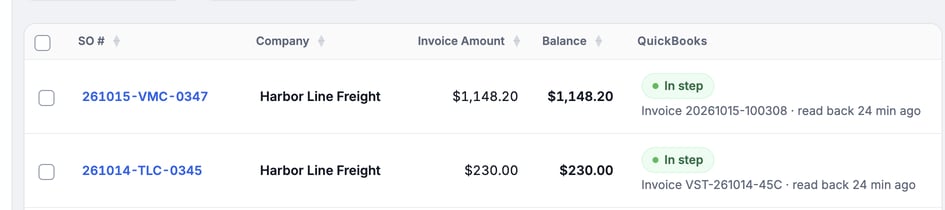
Open the **Billing Hub** (see [Find and Collect Unpaid Invoices in the Billing Hub](https://support.metafleet.ai/use-the-billing-hub?hsLang=en)). The **Service Orders** and **Statements** lists each have a **QuickBooks** column with the same pills. On **Statements**, the pill covers the statement's invoices, and counts how many of the statement's invoices are in step. The **Payments** list shows a **QuickBooks** column too.
### Troubleshooting
| Symptom | Likely cause | Fix |
| --- | --- | --- |
| No QuickBooks panel on the Billing tab | QuickBooks is not connected, or not turned on for the account | See [Connect QuickBooks Online to MetaFleet](https://support.metafleet.ai/connect-quickbooks-online?hsLang=en). No QuickBooks tab? Contact MetaFleet support to turn QuickBooks on for your account. |
| **Use QuickBooks' Sales Tax** shows "Couldn't get tax, try again." | QuickBooks did not answer | MetaFleet's tax stays. Click it again, or send with MetaFleet's tax. |
| Pill says **Not syncing** | The company is set not to sync with QuickBooks | Click **Open the company** and change the QuickBooks setting on the company card. |
| Pill says **Not in QuickBooks** with "Not sent" after you sent the invoice | The send has not run yet, or it is queued | Wait a minute, then check **This order's activity**. |
| Pill says **Waiting**, for example "Waiting for setup" or "Waiting for an account" | QuickBooks setup or an account is still missing; the line under the pill says which | Finish it on the QuickBooks card, or choose a Tax Agency on the Tax Group page when the line asks for one. The invoice goes to QuickBooks on its own. No Resend needed. |
| Pill says Skipped, "This order changed after its invoice was sent" | You changed the order after sending, and there is no new version of the invoice yet | Click **Resend** on the Invoice tab. The updated version replaces the old one in QuickBooks. |
| Pill says Skipped, customer not linked | The invoice was sent before the customer was linked. The line reads "Customer isn't linked to QuickBooks". **This order's activity** gives the full reason: "Not synced to QuickBooks: the customer for this invoice isn't mapped to a QuickBooks customer. Map the customer, then re-send the invoice." Or MetaFleet found a near match and needs you to confirm it | Click **Link customer**. It opens the QuickBooks card's Review lane; link the customer there. Back on the order, the line reads "Customer is now linked. Ready to sync." Click **Re-sync on the Invoice tab** in the panel, then **QB Sync**. In **This order's activity**, the newest skipped row has **Re-sync**, which opens the same tab. For a visit invoice, open the visit and click **QB Sync** on its invoice row (the QuickBooks card still says "Re-send it from the visit"). **Re-sync** and **QB Sync** need the **Manage account settings** permission. See [Link a Customer to QuickBooks](https://support.metafleet.ai/link-a-customer-to-quickbooks?hsLang=en). |
| Pill says **Not in QuickBooks** with "invoice posting was off when this was sent" | MetaFleet staff turned invoice posting off for your Automated Sales Tax company. The QuickBooks card shows "Invoices aren't going to QuickBooks". | Nothing was sent and it is not retried. Contact MetaFleet support. |
| Pill says Failed | QuickBooks refused the invoice | Read the reason in the banner. Fix the cause, then use **Retry** from **This order's activity**. Look up the reason in [QuickBooks Error Messages and How to Fix Them](https://support.metafleet.ai/quickbooks-error-messages?hsLang=en). Give the Support ref to MetaFleet support if you need help. Once a failed push goes through, its row in **Activity** reads **Sent since** and leaves the Failed tab. |
| Pill says Off by $X | The QuickBooks invoice was edited, taxed differently, is missing a line, or holds a different balance | Change it back in QuickBooks or credit the difference in MetaFleet, then click **Read back now**. |
| Dialog is titled Generate Invoice | No contact has the Receive invoices permission | Open Company Details › Companies, open the company, and give a contact the **Receive invoices** permission. |
### FAQs
**Is there a button to send an invoice to QuickBooks?**
Not for the first send. Sending the invoice from MetaFleet sends it to QuickBooks. Once it is sent, **QB Sync** sends it again.
**Does Read back now change anything?**
No. It only reads the invoice from QuickBooks and compares the totals and the balances owed.
**Does MetaFleet fix an Off by $X difference for me?**
No. It shows you the difference. You change it in QuickBooks or credit it in MetaFleet.
**Do customers get an email from QuickBooks?**
The invoice PDF is attached to the QuickBooks invoice but is not included when you email from QuickBooks. MetaFleet sends the customer email.
### Related articles
- [Link a Customer to QuickBooks](https://support.metafleet.ai/link-a-customer-to-quickbooks?hsLang=en)
- [How Invoices Map to QuickBooks](https://support.metafleet.ai/quickbooks-invoice-reference?hsLang=en)
- [Fix What Needs Attention in QuickBooks](https://support.metafleet.ai/fix-quickbooks-sync-problems?hsLang=en)
- [Refund, Credit or Write Off an Invoice](https://support.metafleet.ai/refunds-credits-and-write-offs-in-quickbooks?hsLang=en)
- [Start Here](https://support.metafleet.ai/start-here?hsLang=en)
- [Companies & Contacts](https://support.metafleet.ai/companies-contacts?hsLang=en#main-content)
- [Create/Edit Companies](https://support.metafleet.ai/companies-contacts?hsLang=en#create-edit-companies)
- [Contacts](https://support.metafleet.ai/companies-contacts?hsLang=en#contacts)
- [Vehicles](https://support.metafleet.ai/companies-contacts?hsLang=en#vehicles)
- [Work Intake (Requests & Service Orders)](https://support.metafleet.ai/work-intake-requests-service-orders?hsLang=en#main-content)
- [Creating Service Orders](https://support.metafleet.ai/work-intake-requests-service-orders?hsLang=en#creating-service-orders)
- [Customer & Partner Requests](https://support.metafleet.ai/work-intake-requests-service-orders?hsLang=en#customer-partner-requests)
- [Reference](https://support.metafleet.ai/work-intake-requests-service-orders?hsLang=en#reference)
- [Customer Portal](https://support.metafleet.ai/work-intake-requests-service-orders?hsLang=en#customer-portal)
- [Estimates & Approvals](https://support.metafleet.ai/estimates-approvals?hsLang=en#main-content)
- [Approval Gates](https://support.metafleet.ai/estimates-approvals?hsLang=en#approval-gates)
- [Estimates](https://support.metafleet.ai/estimates-approvals?hsLang=en#estimates)
- [Invoices](https://support.metafleet.ai/estimates-approvals?hsLang=en#invoices)
- [Billing](https://support.metafleet.ai/estimates-approvals?hsLang=en#billing)
- [Parts, Inventory & Vendors](https://support.metafleet.ai/parts-inventory-vendors?hsLang=en#main-content)
- [Add Parts & Kits](https://support.metafleet.ai/parts-inventory-vendors?hsLang=en#add-parts-kits)
- [Stock & Counts](https://support.metafleet.ai/parts-inventory-vendors?hsLang=en#stock-counts)
- [Locations & Bins](https://support.metafleet.ai/parts-inventory-vendors?hsLang=en#locations-bins)
- [Purchase Orders](https://support.metafleet.ai/parts-inventory-vendors?hsLang=en#purchase-orders)
- [Parts Catalog](https://support.metafleet.ai/parts-inventory-vendors?hsLang=en#parts-catalog)
- [Vendors & Manufacturers](https://support.metafleet.ai/parts-inventory-vendors?hsLang=en#vendors-manufacturers)
- [Pricing](https://support.metafleet.ai/parts-inventory-vendors?hsLang=en#pricing)
- [Service Vehicles](https://support.metafleet.ai/parts-inventory-vendors?hsLang=en#service-vehicles)
- [Sourcing & Hand-Off](https://support.metafleet.ai/parts-inventory-vendors?hsLang=en#sourcing-hand-off)
- [Part Numbers](https://support.metafleet.ai/parts-inventory-vendors?hsLang=en#part-numbers)
- [Notifications](https://support.metafleet.ai/parts-inventory-vendors?hsLang=en#notifications)
- [Reports](https://support.metafleet.ai/parts-inventory-vendors?hsLang=en#reports)
- [Invoicing & Payments](https://support.metafleet.ai/invoicing-payments?hsLang=en)
- [Dispatch & Scheduling](https://support.metafleet.ai/dispatch-scheduling?hsLang=en#main-content)
- [Preventative Maintenance](https://support.metafleet.ai/dispatch-scheduling?hsLang=en#preventative-maintenance)
- [Technician Assignment](https://support.metafleet.ai/dispatch-scheduling?hsLang=en#technician-assignment)
- [Scheduling & Calendar](https://support.metafleet.ai/dispatch-scheduling?hsLang=en#scheduling-calendar)
- [Technician Schedule](https://support.metafleet.ai/dispatch-scheduling?hsLang=en#technician-schedule)
- [Technicians & Mobile App](https://support.metafleet.ai/technicians-mobile-app?hsLang=en#main-content)
- [Time Tracking](https://support.metafleet.ai/technicians-mobile-app?hsLang=en#time-tracking)
- [Tech Workflow](https://support.metafleet.ai/technicians-mobile-app?hsLang=en#tech-workflow)
- [Evidence & Photos](https://support.metafleet.ai/technicians-mobile-app?hsLang=en#evidence-photos)
- [AI Assistant](https://support.metafleet.ai/technicians-mobile-app?hsLang=en#ai-assistant)
- [Alerts, Alarms & Notifications](https://support.metafleet.ai/alerts-alarms-notifications?hsLang=en#main-content)
- [Email/SMS/App Settings](https://support.metafleet.ai/alerts-alarms-notifications?hsLang=en#email-sms-app-settings)
- [Reporting & Dashboards](https://support.metafleet.ai/reporting-dashboards?hsLang=en)
- [Admin & Settings](https://support.metafleet.ai/admin-settings?hsLang=en#main-content)
- [Rates & Fees](https://support.metafleet.ai/admin-settings?hsLang=en#rates-fees)
- [Branding](https://support.metafleet.ai/admin-settings?hsLang=en#branding)
- [Roles, Permissions & Users](https://support.metafleet.ai/admin-settings?hsLang=en#roles-permissions-users)
- [Service Areas](https://support.metafleet.ai/admin-settings?hsLang=en#service-areas)
- [Workflows](https://support.metafleet.ai/admin-settings?hsLang=en#workflows)
- [Taxes](https://support.metafleet.ai/admin-settings?hsLang=en#taxes)
- [Integrations](https://support.metafleet.ai/admin-settings?hsLang=en#integrations)
- [Integrations](https://support.metafleet.ai/integrations?hsLang=en#main-content)
- [Phone Setup](https://support.metafleet.ai/integrations?hsLang=en#phone-setup)
- [AI Assistant Access](https://support.metafleet.ai/integrations?hsLang=en#ai-assistant-access)
- [QuickBooks](https://support.metafleet.ai/integrations?hsLang=en#quickbooks)
- [Getting Around](https://support.metafleet.ai/getting-around?hsLang=en#main-content)
- [Search & Command Bar](https://support.metafleet.ai/getting-around?hsLang=en#search-command-bar)
[](http://www.metafleet.ai)
[mailto:support@metafleet.ai](mailto:support@metafleet.ai)
Copyright © 2025, MetaFleet, Inc
```json
{
"@context" : "https://schema.org",
"@type" : "VideoObject",
"caption" : {
"@type" : "MediaObject",
"contentUrl" : "https://support.metafleet.ai/media-transcripts/413935000273/en.vtt",
"inLanguage" : "en",
"name" : "en Captions"
},
"contentUrl" : "https://242389063.fs1.hubspotusercontent-na2.net/hubfs/242389063/video_assets/413935000273/inherited/web_optimized.mp4",
"dateModified" : "2026-10-21T16:38:57.987Z",
"duration" : "PT55S",
"height" : 1080,
"name" : "how-to-send-an-invoice-to-quickbooks-v2",
"thumbnailUrl" : "https://242389063.fs1.hubspotusercontent-na2.net/hubfs/242389063/knowledge-base/howto-videos/how-to-send-an-invoice-to-quickbooks-v2.mp4/medium.jpg",
"uploadDate" : "2026-10-21T16:38:48.356Z",
"width" : 1920
}
```