
For: Owners, managers and bookkeepers · Permission: Manage account settings to change a link (anyone who can open a company can see its card) · Type: Reference
In MetaFleet, a customer is a company. In QuickBooks Online, it is a customer. MetaFleet links each company to one QuickBooks customer, and every invoice and payment for that company goes to the linked customer. This page explains what is sent, how MetaFleet finds the right customer, and what each choice on the company's QuickBooks card does.
What maps to what
| In MetaFleet | In QuickBooks | Direction | When it syncs | Where you set it |
|---|---|---|---|---|
| Company name | Customer name | Both ways | When the customer is created. After that, a rename on either side is picked up by the nightly sync. | Company Details › Companies, then the company |
| Owner's email | Customer email | MetaFleet to QuickBooks | When the customer is created. Also used to find a match. | The company's owner |
| Billing address | Billing address | MetaFleet to QuickBooks | When you click Create in QuickBooks | The company's Details tab |
| Full tax exemption and its reason | Customer marked not taxable, with a reason | MetaFleet to QuickBooks | When the customer is created, when you change the exemption, and nightly when a certificate runs out | The company's Taxes tab |
| Service location | Shipping address on each invoice (not on the customer) | MetaFleet to QuickBooks | With each invoice | The order |
Tax exemptions have their own rules. See How Sales Tax and Exemptions Work with QuickBooks.
How MetaFleet finds the QuickBooks customer
MetaFleet looks for a customer when the first invoice for a company is sent, and again in the nightly sync. If Customers are turned off for the connection, or you have not finished choosing which customers sync, nothing is linked or created and the invoice waits. Otherwise it tries these steps in order and stops at the first one that works:
- An existing link. If the company is already linked on this QuickBooks connection, MetaFleet uses that customer.
- The same name. A QuickBooks customer with exactly the company's name (capital letters don't matter) is linked automatically.
- The same email. A QuickBooks customer with the owner's email is linked automatically.
- A close name. A name that is at least 82% similar is not linked. It goes to Possible duplicates so a person decides.
- No match. MetaFleet creates a new customer with the company's name, the owner's email and its tax exemption. The billing address is sent only when you click Create in QuickBooks yourself.
A QuickBooks customer that is already linked to another company is never offered as a match. Neither is one you marked Not a match.
Invoices wait for the link. While a company's customer is waiting in Possible duplicates, its invoice is skipped and shows under Needs attention with Map customer…. Once you link the customer, open the order's Invoice tab and click Resend. The invoice then goes through.
Your choices on a company
Open the company (Company Details › Companies, then the company). The QuickBooks card shows a status of Linked, Not linked or Not syncing. A linked card lists the QuickBooks customer, the QuickBooks company, the date it was linked, and how many invoices and payments are in QuickBooks.
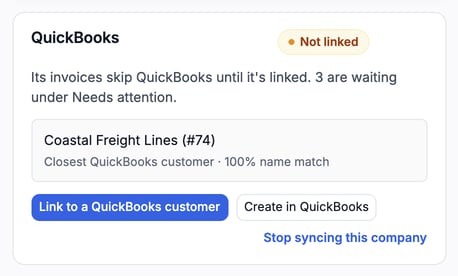
This card is from before the first invoice. MetaFleet links an exact name automatically at the first invoice or in the nightly sync, so a close customer can show here until then.
A card that is Not linked says its invoices skip QuickBooks until it is linked, and how many are waiting under Needs attention.
Link to a QuickBooks customer
Use this when the customer already exists in QuickBooks. Click Link to a QuickBooks customer, search with Search QuickBooks customers, pick the customer and click Link to this customer. Each result shows its name match, for example "100% name match". The card also shows the closest customer it found.
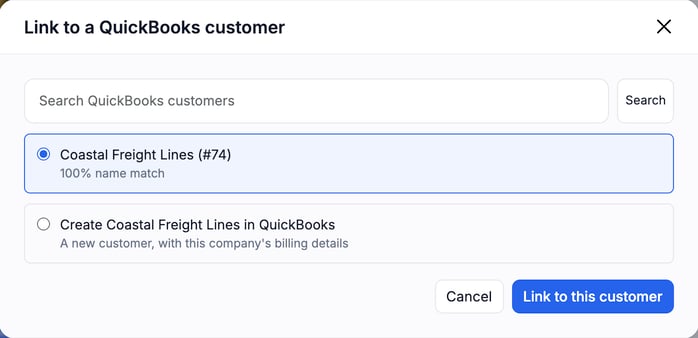
The dialog also offers a choice to create a new customer from the company.
Linking takes QuickBooks' name on your main QuickBooks company. If the names differ (not just in capital letters or spaces around the name), the dialog warns you that the company will take the QuickBooks name before you confirm. If QuickBooks' name is longer than MetaFleet's 100-character limit, the company keeps its name, nothing is renamed in QuickBooks, and the nightly sync lists the company as skipped until the name is shortened in QuickBooks.
Create in QuickBooks
Use this when the customer is not in QuickBooks yet. Create in QuickBooks makes a new customer with the company's name, the owner's email, its billing address and its tax exemption, then links it. If QuickBooks already has a customer with that name that MetaFleet missed, MetaFleet links it instead of creating a second one. A customer that is already linked to another company is never taken. In that case nothing is created, and MetaFleet tells you the name is already linked to another company and asks you to rename this company. You can also link it to a different customer instead.
Change the match
On a linked company, click Change the match to pick another QuickBooks customer, or create a new one. The dialog is titled Change the QuickBooks customer. Once you pick another customer, it shows a note called What stays where. Invoices already in QuickBooks stay on the old customer, and payments on them still go there. New invoices and payments go to the new customer.
Possible duplicates and Not a match
Open Settings › Integrations, the QuickBooks tab, then the Review tab. Close name matches are listed under Possible duplicates. Click Review match… on the row. The dialog is titled Map "<company>" to QuickBooks and asks "Is this the same customer?" Then choose one:
- Confirm links the two customers. No duplicate is created. It also gives the company the QuickBooks customer's name. When the names differ, the warning shows next to that customer before you click.
- Not a match tells MetaFleet these two are different. MetaFleet remembers it and never suggests that pair again.
If nothing similar exists, the dialog says "No similar QuickBooks customers found. Create one in QuickBooks, then re-sync." You can also use Create in QuickBooks on the company.
Remove the match
Click Remove the match to unlink a company. The Remove the QuickBooks match? dialog explains what stays in QuickBooks. Nothing already there is deleted. After the match is removed, the card shows Not linked and new invoices skip QuickBooks until the company is linked again. MetaFleet does not look for a new match on its own. Link the company again yourself.
Stop syncing this company
Click Stop syncing this company for a company you do not want in your books. Its invoices and payments stay out of QuickBooks, and nothing waits for it. The company's card shows Not syncing. The card records who stopped it and when. To turn it back on, click Start syncing again.
Renaming a company later
The nightly sync compares the company's name on both sides with the name they shared at the last sync.
- Renamed only in MetaFleet: QuickBooks gets the new name.
- Renamed only in QuickBooks: MetaFleet gets the new name.
- Renamed in both: the QuickBooks name wins.
Names that differ only in capital letters or spaces around the name count as the same name. Neither side is renamed for them.
Brands with their own QuickBooks company
Links belong to one QuickBooks company. If a brand is connected to its own QuickBooks company, a customer link there is separate from the link to your main company. The same MetaFleet company can be linked to different customers in each. A link made through a brand's own QuickBooks company does not rename the company. The rename on linking applies to your main QuickBooks company only. See Disconnect, Reconnect and Use Brands with QuickBooks.
What QuickBooks never gets
- Contacts other than the owner's email. MetaFleet sends the company, not its individual contacts.
- Service locations as customers. They only appear as the shipping address on an invoice.
FAQs
Will MetaFleet create a duplicate customer in QuickBooks?
Not when the name or email matches exactly, or when a close name is waiting in Possible duplicates. A new customer is created only when nothing similar is found.
Does removing a match delete anything in QuickBooks?
No. Invoices and payments already in QuickBooks stay where they are.
Can I turn off one company without turning off QuickBooks?
Yes. Use Stop syncing this company on that company's card.
Why did my company's name change after I linked it?
Linking to your main QuickBooks company takes the QuickBooks customer's name. The dialog warns you before you confirm.
I can see the QuickBooks card but the buttons are missing.
Changing a link needs the Manage account settings permission. Ask an owner or manager.
Where do I fix an invoice that is waiting for its customer?
See Fix What Needs Attention in QuickBooks.