
For: Owners, managers and bookkeepers · Permission: None to read; Manage account settings to change an account · Time: 6-minute read
Every line on a MetaFleet invoice has to name an item in QuickBooks Online. This article shows which item each kind of line uses and which MetaFleet screen controls it. Parts are items that sync both ways. Labor, fees, surcharges and discounts use service items that MetaFleet picks from your Posting accounts.
The mapping at a glance
| In MetaFleet | In QuickBooks | Direction | When it syncs | Where you set it |
|---|---|---|---|---|
| Part | Item (Inventory type) | Both ways | Nightly, and when you click Sync now on Parts | Step 2 of setup (Choose what syncs); the Parts, Cost of parts and Parts on the shelf rows for new items |
| Labor line | Service item for the Labor row | MetaFleet to QuickBooks | When you send the invoice | Labor row; Settings › Pricing & Rates › Global Rates (All labor posts to) |
| Travel time line | Service item for the Travel time row | MetaFleet to QuickBooks | When you send the invoice | Travel time row (follows Labor until you change it) |
| Fee | Service item for the fee's own row, or Other charges | MetaFleet to QuickBooks | When you send the invoice | Settings › Fees & Surcharges › QuickBooks account |
| Surcharge | Service item for the surcharge's own row, or Other charges | MetaFleet to QuickBooks | When you send the invoice | Settings › Fees & Surcharges › QuickBooks account |
| Service fee | Service item for its own row | MetaFleet to QuickBooks | When you send the invoice | Settings › Fees & Surcharges › QuickBooks account on the Service Fee row |
| Card processing fee | Service item for the Card processing fee row | MetaFleet to QuickBooks | When you send the invoice | Card processing fee row |
| Invoice discount | Discount line on the Discounts item | MetaFleet to QuickBooks | When you send the invoice | Discounts row |
| Discount given after the invoice | Credit memo line on the Discounts item | MetaFleet to QuickBooks | When you give the discount | Discounts row |
| Written-off balance | Credit memo line on the Written-off balances item, or each invoice line's own item for a billing error | MetaFleet to QuickBooks | When you write off the balance | Written-off balances row |
The rows in bold are on Posting accounts: open Settings › Integrations, the QuickBooks tab, then Settings › Posting accounts. During setup they are the Posting accounts step (see Choose Where Your Money Posts in QuickBooks). See How Posting Accounts Map to Your Chart of Accounts for what each row needs. For when each sync runs, see How MetaFleet and QuickBooks Work Together.
Late fees, interest and sales tax lines are covered in Payments, Refunds, Credits and Late Fees in QuickBooks and How Sales Tax and Exemptions Work with QuickBooks.
Your choices: parts
A part is the only thing on this page that syncs as an item in both directions. A part and a QuickBooks item are matched during setup. After that they stay linked.
| Part detail | Item field in QuickBooks | What happens |
|---|---|---|
| Name | Name | Syncs both ways. If someone renames the item in QuickBooks, the part takes the new name. If two parts share a name, the second item is named with its part number in parentheses. Names that differ only in capitals or extra spaces before or after the name count as the same name, so nothing is renamed. Emoji are taken out of part names, and QuickBooks gets the name without them. |
| Cost | Purchase cost | Sync both ways. If both sides change between two syncs, QuickBooks wins. |
| Description, SKU | Description, SKU | Sync both ways, like the name. If both sides change between two syncs, QuickBooks wins. |
| Sales price | Sales price | Never sent and never read. The price on the invoice comes from MetaFleet. |
| Quantity on hand | Quantity on hand | MetaFleet sets the opening count once, when it creates the item. It is never pulled back. See How Stock Adjustments and Inventory Value Reach QuickBooks. |
Parts that already exist in QuickBooks. MetaFleet links to the item and keeps the accounts it already has. It does not change them.
Parts that only exist in MetaFleet. MetaFleet creates an Inventory item for them. The item uses the accounts from the Parts, Cost of parts and Parts on the shelf rows. If your QuickBooks plan has no inventory items, MetaFleet creates no part items. Part lines still post through the Parts row.
Parts with no item of their own. A part line posts through the Parts row. To add parts, see Add New Parts to Your Inventory.
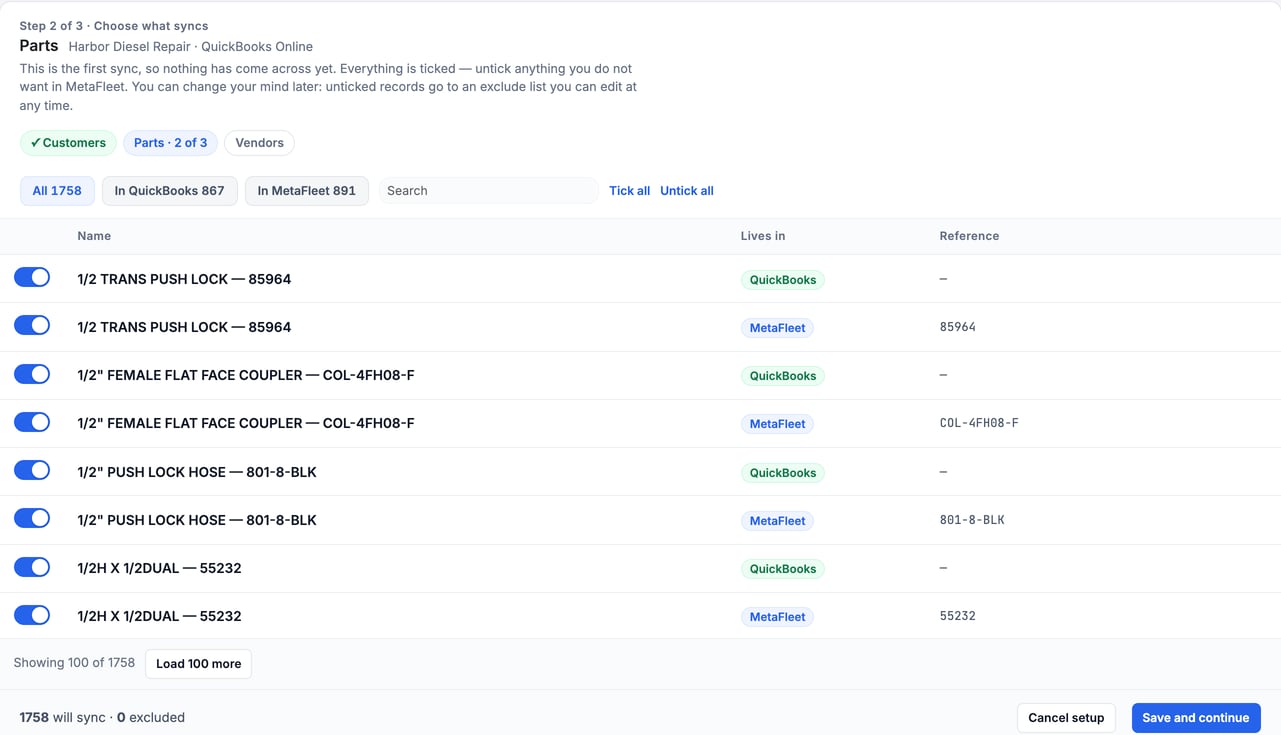
Choose which parts sync. On Step 2 of setup, tick the parts to sync. Filter by category, or use Ungrouped for parts with no category. A part you exclude never syncs, in either direction, and nothing is deleted. Its invoice lines still post through the Parts row.
On a QuickBooks plan without inventory items, parts don't sync. That is not a problem to review. On the QuickBooks card's Sync tab, the line for Parts says Parts don't sync: this QuickBooks plan has no inventory items.
If a part's item is gone in QuickBooks. MetaFleet removes the link and the invoice stops with a message naming the part. Click Sync now on Parts to relink the part or create its item, then send the invoice again.
Your choices: labor and travel
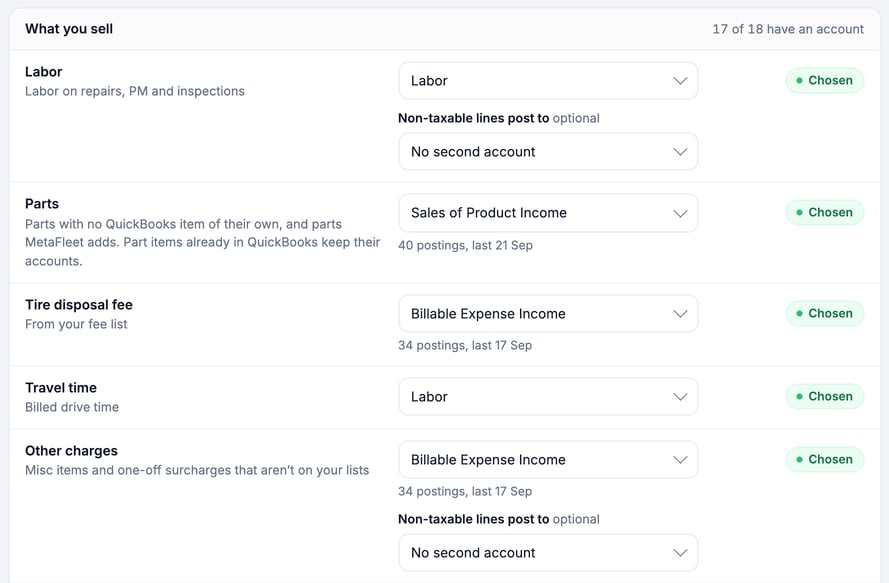
All labor posts through the Labor row. Emoji are taken out of labor line names too. Travel time has its own row, and it uses the same account as Labor until you pick another one. You can also change it under Settings › Pricing & Rates › Travel Time, in Where travel time lands; Same as Labor is the default there.
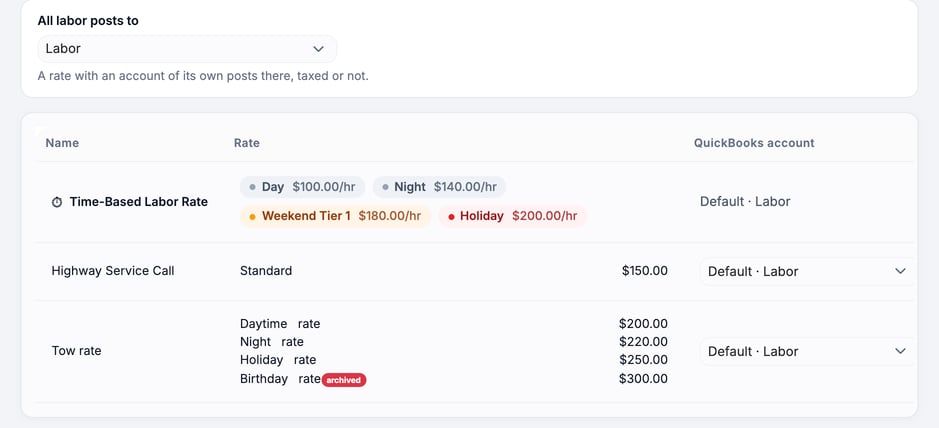
- A Global Rate with its own account. Under Settings › Pricing & Rates › Global Rates, the All labor posts to line shows your Labor account. Each rate has a QuickBooks account cell. It reads Default · Labor until you pick another account for that rate. Lines billed at that rate then get their own item, named after the rate. To create rates, see Create and Edit Global Rates.
- Non-taxable labor. If you choose a second account for non-taxable lines, MetaFleet adds an item called Labor (non-taxable). The steps are in How Posting Accounts Map to Your Chart of Accounts.
Your choices: fees, surcharges and other charges
Each fee and each surcharge gets its own row on the Posting accounts step, labeled From your fee list or From your surcharges.
- With an account. Pick one in the QuickBooks account column under Settings › Fees & Surcharges. Lines for that fee post through its own item.
- Without an account. The cell reads Other charges' account followed by that account's name in parentheses. The line posts through the Other charges item, along with miscellaneous items and one-off surcharges.
- Broken. A cell reads Broken when QuickBooks made the account inactive or changed its type. The invoices that need it wait until you pick a new account. See When an account breaks in How Posting Accounts Map to Your Chart of Accounts.
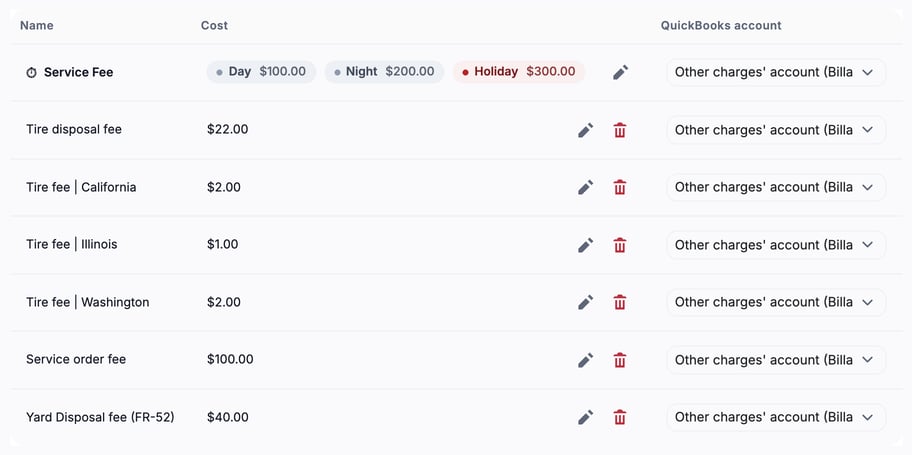
Under the Tax class and QuickBooks account fields, a sentence says what creating the fee adds to QuickBooks. When you edit a fee it says where the fee posts. Fees you archive stay mapped to their item for old invoices. Emoji are taken out of fee names, and QuickBooks gets the name without them. If you type one, the dialog says Emoji taken out. Invoices can't print them.
The service fee and the card processing fee work the same way. The service fee has its own row in the same QuickBooks account column. The card processing fee has its own row, and its line on the invoice shows the percentage, for example Card processing fee (3%).
Your choices: discounts and write-offs
- A discount on the invoice becomes a discount line on the Discounts item.
- A discount you give after you send the invoice becomes a credit memo line on the same item.
- A write-off for a billing error credits each invoice line through that line's own item. A write-off for any other reason becomes one credit memo line on the Written-off balances item.
The Discounts row starts with your QuickBooks default discount account when you have one. See Payments, Refunds, Credits and Late Fees in QuickBooks for how credits and write-offs are sent.
What QuickBooks never gets
- A part's sales price.
- Stock counts after the item is created. Later changes reach QuickBooks as adjustments and bills.
- Parts you exclude (untick) on Step 2 of setup. Their lines still post through the Parts row.
- Anything for a kind you turn off under What syncs.
Troubleshooting
| Symptom | Likely cause | Fix |
|---|---|---|
| An invoice won't send and names a part | That part's item no longer exists in QuickBooks | Click Sync now on Parts to relink the part or create its item. Then send the invoice again. |
| A fee posts to the wrong account | The fee has no account of its own, so it uses Other charges | Pick an account in the QuickBooks account column under Settings › Fees & Surcharges. |
| A row or cell says Broken | The account was made inactive or changed type in QuickBooks | Click Choose another account on Posting accounts (Settings › Integrations, QuickBooks tab). Waiting invoices send on their own after you save. |
| Parts don't sync | Your QuickBooks plan has no inventory items | Nothing to fix. Part lines post through the Parts row. |
| A part's cost changed back after you edited it | The cost was also changed in QuickBooks, and QuickBooks wins | Change the cost in QuickBooks, or edit it again after the next sync. |
FAQs
Does MetaFleet send my part prices to QuickBooks?
No. It sends the cost only. The price on each invoice line comes from MetaFleet.
Does MetaFleet create the labor and fee items for me?
Yes. It reads your items during setup and uses a matching one when it finds it. If it finds none, it adds a service item once you approve the setup.
Can I change an account after I start syncing?
Yes. A change affects new postings only. Invoices already in QuickBooks stay as they are.
Do archived fees still appear in QuickBooks?
Old invoices keep the item they were sent with.