---
title: Create and Edit Global Rates
description: Create a Global Rates category, add its rates, then edit, archive or restore rates under Settings › Pricing & Rates › Global Rates.
---
[Skip to content](https://support.metafleet.ai/creating-global-rates#main-content)
English
Show submenu for translations

Open main navigation
Close main navigation
- English
Show submenu for translations
- [Contact us](mailto:support@metafleet.ai)
[Contact us](mailto:support@metafleet.ai)
How can we help you?
- There are no suggestions because the search field is empty.
1. [MetaFleet Answer Hub](https://support.metafleet.ai/?hsLang=en)
2. [Admin & Settings](https://support.metafleet.ai/admin-settings?hsLang=en)
3. [Rates & Fees](https://support.metafleet.ai/admin-settings?hsLang=en#rates-fees)
# Create and Edit Global Rates
## Add a category of standard prices under Settings, then edit, archive or restore those rates when your pricing changes.
**For:** Admins and managers · **Permission:** Manage Account Settings and Manage Rates · **Time:** ~5 minutes
### Quick summary
1. Go to **Settings › Pricing & Rates** and open the **Global Rates** tab.
2. Click **+ New Global Rate**.
3. Enter a **Category Name** and **Description**.
4. Add each rate with a name, description and amount.
5. Click **Create**. To change a category later, click the pencil on its row.
### Before you start
- You need a role that has the **Manage Account Settings** and **Manage Rates** permissions. Admins have them. Without Manage Rates you can't save a category.
- Confirm the standard price for each service you offer.
- Staff pick these rates when they add a work item to a service order, estimate or invoice.
- Decide how to group the rates. A category holds related rates, such as all suspension and steering work.
### Open Global Rates
Go to **Settings › Pricing & Rates** and click the **Global Rates** tab. The page has three tabs: **Active Rates**, **Archived Rates** and **Time-Based Rates**. Use the search box to find a category or rate by name or description. If QuickBooks is connected, Active Rates also shows a **QuickBooks account** column with the account each rate posts to, and an **All labor posts to** line above the table. See [How Parts, Labor and Fees Map to QuickBooks Items](https://support.metafleet.ai/quickbooks-items-reference?hsLang=en).
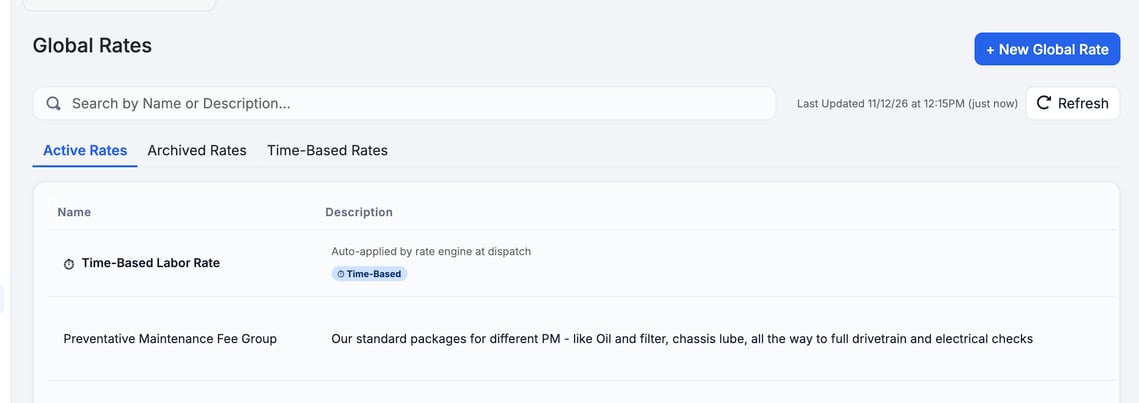
> Time-based labor rates are set on the **Time-Based Rates** tab. See [Set Up Time-Based Labor Rates](https://support.metafleet.ai/set-up-time-based-labor-rates?hsLang=en). This article covers the category rates on the other two tabs. The **Time-Based Labor Rate** row at the top of Active Rates has a pencil too, but it opens the Time-Based Rates tab, not the **Edit Rate** window.
### Create a category with its rates
1. **Open the form.** Click **+ New Global Rate**. The window is titled **Create Override Rate**.
2. **Name the category.** Enter a **Category Name**, for example *Suspension and Steering Services*.
3. **Describe it.** Enter a **Description** that says what work the category covers. It is required and needs at least 5 characters. The category name needs 3 to 50.
4. **Add the first rate.** Fill in **Rate Name**, **Rate Description** and **Amount**, for example *Air Suspension Replacement*, *Replace defective air bag, inspect air lines* and `525.00`.
5. **Add more rates.** Click **+ Add Additional Rate** for each one, such as *Shock Absorber Replacement*.
6. **Save.** Click **Create**. Click **Cancel** to close the window without saving.
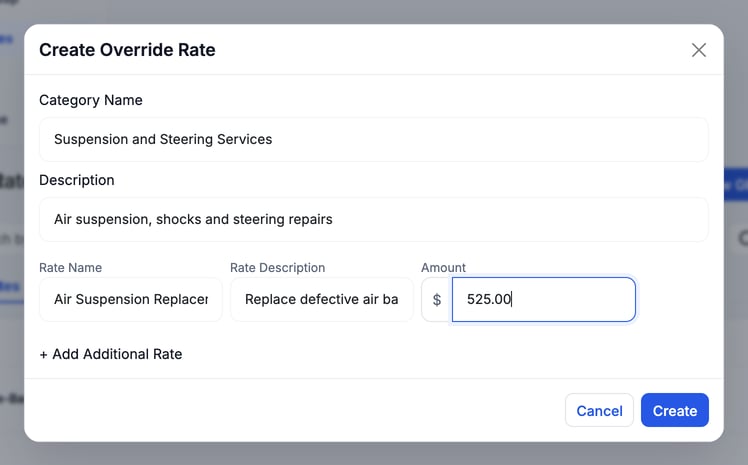
> Type the amount with the decimal point, like `525.00`. Typing digits only, such as `525`, can fill the field as 5.25.
### Edit a category or its rates
1. **Find the category** on **Active Rates**. If the description is long, scroll the table sideways to reach the end of the row.
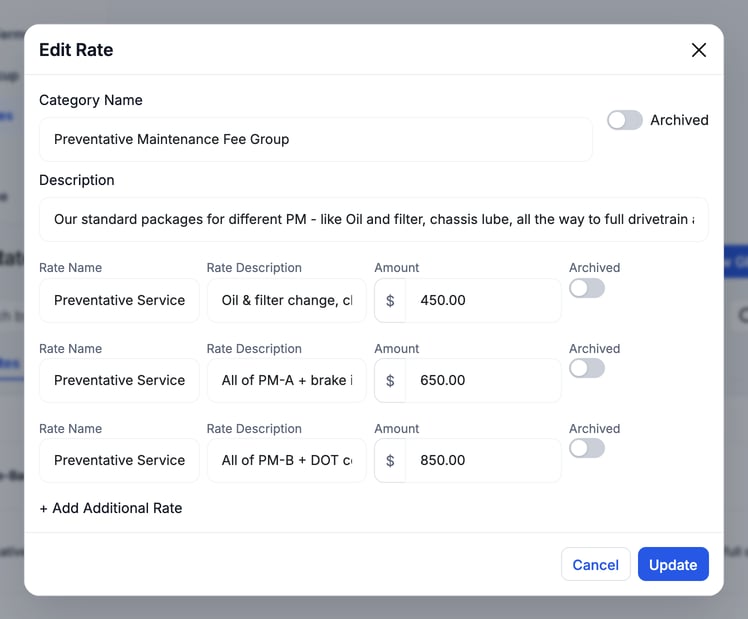
2. **Open it.** Click the pencil icon. The **Edit Rate** window opens.
3. **Change what you need.** Edit the **Category Name** or **Description**. Change any rate's name, description or amount. Click **+ Add Additional Rate** to add a rate to the category.
4. **Save.** Click **Update**.
### Archive a rate or a whole category
Archive what you no longer use instead of deleting it.
1. Open the category with the pencil icon.
2. To archive one rate, turn on the **Archived** switch at the end of that rate's line.
3. To archive the whole category, turn on the **Archived** switch next to the **Category Name**.
4. Click **Update**.
An archived rate's fields are locked. Turn its **Archived** switch off to edit it again.
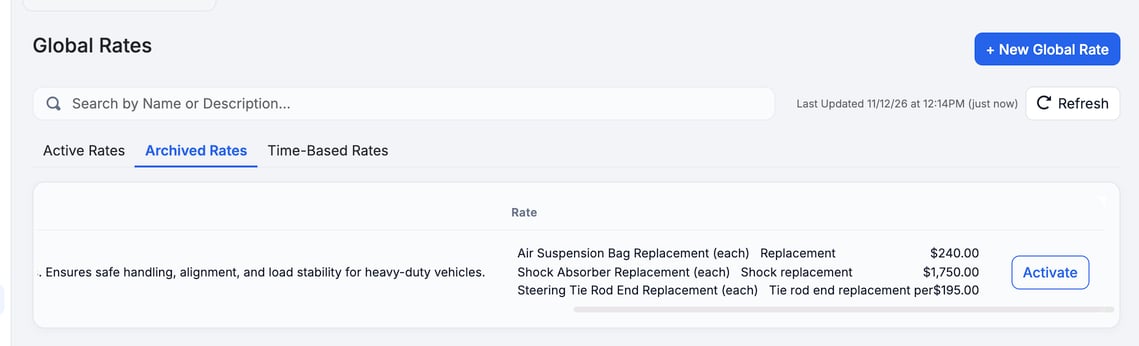
An archived category moves to the **Archived Rates** tab. An archived rate stays in its category and shows an **archived** badge.
### Restore an archived category
Open the **Archived Rates** tab and click **Activate** at the end of the category's row. It returns to **Active Rates**.
### Troubleshooting
| Symptom | Likely cause | Fix |
| --- | --- | --- |
| You can't find a category | It's archived | Open **Archived Rates** and click **Activate**. |
| The pencil icon is out of view | The table is wider than the window | Scroll the table sideways. |
| The amount shows 5.25 instead of 525.00 | You typed digits without a decimal point | Retype the amount as `525.00`. |
| **Create** or **Update** is greyed out | A required field is empty or too short | Category Name needs 3 to 50 characters and Description at least 5. Every rate needs a name and an amount. |
| The form won't accept the category name | A category with that name already exists, maybe on **Archived Rates** | Open the existing category with the pencil, or click **Activate** on Archived Rates, instead of creating another. |
| "Permission denied: ManageRates." when you save | Your role lacks the **Manage Rates** permission | Ask an admin to change your role or to save the change. |
### FAQs
**Can I set different rates for one customer?**
Yes. Global rates are your defaults. Each customer company has a **Company Rates** tab where you can override them. See [Set Company Rates and Customer Billing Overrides](https://support.metafleet.ai/set-company-rates-and-billing-overrides?hsLang=en).
**Can I rename or reprice a rate?**
Yes. Open the category with the pencil icon, change the field and click **Update**.
**Can I add a rate to an existing category?**
Yes. Open the category, click **+ Add Additional Rate** and click **Update**.
**Can I bring back an archived rate?**
Yes. Open the category with the pencil icon and turn its **Archived** switch off. For a whole archived category, use **Activate** on the **Archived Rates** tab.
### Related articles
- [Set Up Time-Based Labor Rates](https://support.metafleet.ai/set-up-time-based-labor-rates?hsLang=en)
- [Set Company Rates and Customer Billing Overrides](https://support.metafleet.ai/set-company-rates-and-billing-overrides?hsLang=en)
- [How Parts, Labor and Fees Map to QuickBooks Items](https://support.metafleet.ai/quickbooks-items-reference?hsLang=en)
- [Start Here](https://support.metafleet.ai/start-here?hsLang=en)
- [Companies & Contacts](https://support.metafleet.ai/companies-contacts?hsLang=en#main-content)
- [Create/Edit Companies](https://support.metafleet.ai/companies-contacts?hsLang=en#create-edit-companies)
- [Contacts](https://support.metafleet.ai/companies-contacts?hsLang=en#contacts)
- [Vehicles](https://support.metafleet.ai/companies-contacts?hsLang=en#vehicles)
- [Work Intake (Requests & Service Orders)](https://support.metafleet.ai/work-intake-requests-service-orders?hsLang=en#main-content)
- [Creating Service Orders](https://support.metafleet.ai/work-intake-requests-service-orders?hsLang=en#creating-service-orders)
- [Customer & Partner Requests](https://support.metafleet.ai/work-intake-requests-service-orders?hsLang=en#customer-partner-requests)
- [Reference](https://support.metafleet.ai/work-intake-requests-service-orders?hsLang=en#reference)
- [Customer Portal](https://support.metafleet.ai/work-intake-requests-service-orders?hsLang=en#customer-portal)
- [Estimates & Approvals](https://support.metafleet.ai/estimates-approvals?hsLang=en#main-content)
- [Approval Gates](https://support.metafleet.ai/estimates-approvals?hsLang=en#approval-gates)
- [Estimates](https://support.metafleet.ai/estimates-approvals?hsLang=en#estimates)
- [Invoices](https://support.metafleet.ai/estimates-approvals?hsLang=en#invoices)
- [Billing](https://support.metafleet.ai/estimates-approvals?hsLang=en#billing)
- [Parts, Inventory & Vendors](https://support.metafleet.ai/parts-inventory-vendors?hsLang=en#main-content)
- [Add Parts & Kits](https://support.metafleet.ai/parts-inventory-vendors?hsLang=en#add-parts-kits)
- [Stock & Counts](https://support.metafleet.ai/parts-inventory-vendors?hsLang=en#stock-counts)
- [Locations & Bins](https://support.metafleet.ai/parts-inventory-vendors?hsLang=en#locations-bins)
- [Purchase Orders](https://support.metafleet.ai/parts-inventory-vendors?hsLang=en#purchase-orders)
- [Parts Catalog](https://support.metafleet.ai/parts-inventory-vendors?hsLang=en#parts-catalog)
- [Vendors & Manufacturers](https://support.metafleet.ai/parts-inventory-vendors?hsLang=en#vendors-manufacturers)
- [Pricing](https://support.metafleet.ai/parts-inventory-vendors?hsLang=en#pricing)
- [Service Vehicles](https://support.metafleet.ai/parts-inventory-vendors?hsLang=en#service-vehicles)
- [Sourcing & Hand-Off](https://support.metafleet.ai/parts-inventory-vendors?hsLang=en#sourcing-hand-off)
- [Part Numbers](https://support.metafleet.ai/parts-inventory-vendors?hsLang=en#part-numbers)
- [Notifications](https://support.metafleet.ai/parts-inventory-vendors?hsLang=en#notifications)
- [Reports](https://support.metafleet.ai/parts-inventory-vendors?hsLang=en#reports)
- [Invoicing & Payments](https://support.metafleet.ai/invoicing-payments?hsLang=en)
- [Dispatch & Scheduling](https://support.metafleet.ai/dispatch-scheduling?hsLang=en#main-content)
- [Preventative Maintenance](https://support.metafleet.ai/dispatch-scheduling?hsLang=en#preventative-maintenance)
- [Technician Assignment](https://support.metafleet.ai/dispatch-scheduling?hsLang=en#technician-assignment)
- [Scheduling & Calendar](https://support.metafleet.ai/dispatch-scheduling?hsLang=en#scheduling-calendar)
- [Technician Schedule](https://support.metafleet.ai/dispatch-scheduling?hsLang=en#technician-schedule)
- [Technicians & Mobile App](https://support.metafleet.ai/technicians-mobile-app?hsLang=en#main-content)
- [Time Tracking](https://support.metafleet.ai/technicians-mobile-app?hsLang=en#time-tracking)
- [Tech Workflow](https://support.metafleet.ai/technicians-mobile-app?hsLang=en#tech-workflow)
- [Evidence & Photos](https://support.metafleet.ai/technicians-mobile-app?hsLang=en#evidence-photos)
- [AI Assistant](https://support.metafleet.ai/technicians-mobile-app?hsLang=en#ai-assistant)
- [Alerts, Alarms & Notifications](https://support.metafleet.ai/alerts-alarms-notifications?hsLang=en#main-content)
- [Email/SMS/App Settings](https://support.metafleet.ai/alerts-alarms-notifications?hsLang=en#email-sms-app-settings)
- [Reporting & Dashboards](https://support.metafleet.ai/reporting-dashboards?hsLang=en)
- [Admin & Settings](https://support.metafleet.ai/admin-settings?hsLang=en#main-content)
- [Rates & Fees](https://support.metafleet.ai/admin-settings?hsLang=en#rates-fees)
- [Branding](https://support.metafleet.ai/admin-settings?hsLang=en#branding)
- [Roles, Permissions & Users](https://support.metafleet.ai/admin-settings?hsLang=en#roles-permissions-users)
- [Service Areas](https://support.metafleet.ai/admin-settings?hsLang=en#service-areas)
- [Workflows](https://support.metafleet.ai/admin-settings?hsLang=en#workflows)
- [Taxes](https://support.metafleet.ai/admin-settings?hsLang=en#taxes)
- [Integrations](https://support.metafleet.ai/admin-settings?hsLang=en#integrations)
- [Integrations](https://support.metafleet.ai/integrations?hsLang=en#main-content)
- [Phone Setup](https://support.metafleet.ai/integrations?hsLang=en#phone-setup)
- [AI Assistant Access](https://support.metafleet.ai/integrations?hsLang=en#ai-assistant-access)
- [QuickBooks](https://support.metafleet.ai/integrations?hsLang=en#quickbooks)
- [Getting Around](https://support.metafleet.ai/getting-around?hsLang=en#main-content)
- [Search & Command Bar](https://support.metafleet.ai/getting-around?hsLang=en#search-command-bar)
[](http://www.metafleet.ai)
[mailto:support@metafleet.ai](mailto:support@metafleet.ai)
Copyright © 2025, MetaFleet, Inc