---
title: Payments, Refunds, Credits and Late Fees in QuickBooks
description: See how payments, refunds, credit memos, write-offs and late fees from MetaFleet appear in QuickBooks Online, and where you set each account.
---
[Skip to content](https://support.metafleet.ai/quickbooks-payments-reference#main-content)
English
Show submenu for translations

Open main navigation
Close main navigation
- English
Show submenu for translations
- [Contact us](mailto:support@metafleet.ai)
[Contact us](mailto:support@metafleet.ai)
How can we help you?
- There are no suggestions because the search field is empty.
1. [MetaFleet Answer Hub](https://support.metafleet.ai/?hsLang=en)
2. [Integrations](https://support.metafleet.ai/integrations?hsLang=en)
3. [QuickBooks](https://support.metafleet.ai/integrations?hsLang=en#quickbooks)
# Payments, Refunds, Credits and Late Fees in QuickBooks
## See which QuickBooks document each kind of money in MetaFleet becomes, which account it posts to, and when it gets there.
**For:** Owners, office managers and bookkeepers · **Time:** ~6 minutes
When you record a payment, refund, credit, write-off or late fee in MetaFleet, the app sends a matching document to QuickBooks Online. This article lists each one, the account it posts to and what you can change. For invoices themselves, see [How Invoices Map to QuickBooks](https://support.metafleet.ai/quickbooks-invoice-reference?hsLang=en).
These documents are sent when you save them. If QuickBooks refuses or can't be reached, MetaFleet tries again within a few minutes, and a nightly check sends anything still unsent.
### What each kind of money becomes
| In MetaFleet | In QuickBooks | Direction | When it syncs | Where you set it |
| --- | --- | --- | --- | --- |
| Payment recorded by hand, by card, ACH or payment link | Payment, linked to the invoice | MetaFleet to QuickBooks | When you record it | **Payments received** row and the payment method rows under it |
| Payment recorded in QuickBooks | Payment, copied into MetaFleet | QuickBooks to MetaFleet | Usually within a minute. The nightly sync at 11:00 PM in your shop's time zone and **Sync now** catch anything missed | Nothing to set |
| Refund of a bill that came down | Refund receipt | MetaFleet to QuickBooks | When you save the refund | **Refunds paid out** row for a refund paid back by hand; the card payment's deposit row for a refund through Stripe |
| Refund of money that wasn't owed | Nothing | None | Not sent | Nothing to set |
| Discount after the invoice was sent | Credit memo, applied to the invoice | MetaFleet to QuickBooks | When you save it | **Discounts** row |
| Credit a line, or a Billing error write-off, after the invoice was sent | Credit memo, applied to the invoice | MetaFleet to QuickBooks | When you save it | Nothing to set. Each line uses the item it was invoiced on. |
| Write-off for any other reason | Credit memo, applied to the invoice | MetaFleet to QuickBooks | When you save it | **Written-off balances** row |
| Late fee or interest on an invoice already in QuickBooks | Its own one-line invoice | MetaFleet to QuickBooks | When the fee is applied | **Late fees** and **Interest** rows, and the Late Fees page |
The posting account rows are in **Settings › Integrations**, the **QuickBooks** tab, its **Settings** tab, under **Posting accounts**. [Choose Where Your Money Posts in QuickBooks](https://support.metafleet.ai/choose-quickbooks-posting-accounts?hsLang=en) shows how to fill them in. Ask your accountant which account to use for each row.
> **Where the QuickBooks tab is.** The tab appears only after MetaFleet turns QuickBooks on for your account. No QuickBooks tab? Contact MetaFleet support to turn QuickBooks on for your account.
### Payments
Each payment goes to the customer that QuickBooks holds the invoice under, and is linked to that invoice. It carries the amount, your reference, such as a check number or a card charge ID, and the date. The date is the day in your shop's time zone, or the day you picked for a backdated payment. QuickBooks accepts at most 21 characters in that reference, so MetaFleet shortens a longer one.
A card, ACH or payment-link payment that comes to more than the bill is recorded in full, and its payment status reads **Overpaid** on the company's Billing tab. QuickBooks gets the whole payment. It is applied up to what QuickBooks shows open on the invoice, and the rest stays unapplied as the customer's credit.
The **Payments received** row is the default deposit account. Under it, a **By payment method** table lets each method deposit somewhere else and carry its own QuickBooks payment method. The columns are **Payment method**, **Deposit to** and **QuickBooks payment method**. The methods are:
- Cash
- Check
- Credit/Debit Card
- ACH
- Wire Transfer
- EFS
- T-Chek
- Comdata Check
- Other
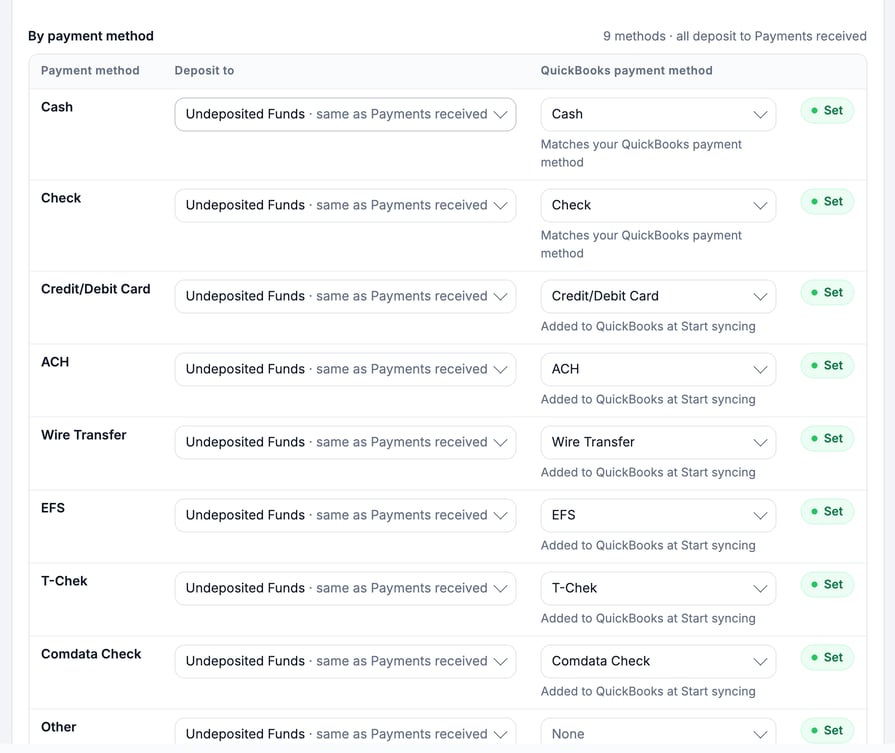
A row that reads *same as Payments received* deposits to the default account. A row that is filled in reads **Set**. A method that doesn't exist in QuickBooks yet is marked **Added to QuickBooks at Start syncing** or **New in QuickBooks**, and MetaFleet creates it when you start syncing. **Other** carries no payment method.
A method with no account of its own deposits to **Payments received**. If a deposit account is broken in QuickBooks, for example made inactive, its payments wait until you pick a new account.
Payments recorded in QuickBooks usually come back to MetaFleet within a minute. The nightly sync and **Sync now** catch anything missed. MetaFleet matches them to the invoice by their reference. It never matches on the customer or the amount alone.
A payment that comes back is recorded as card, ACH or other, the way QuickBooks took it. Any Stripe pay link on the order closes, so the customer can't pay twice. A repair or towing order paid in full moves to **Finalized**.
If you unapply a payment from a [payment batch](https://support.metafleet.ai/manage-statements-and-payment-batches?hsLang=en), an order that owes again goes back to **Pending Payment** and the linked statement is restated. The batch is voided once every row is unapplied. The payment itself stays in QuickBooks.
### Refunds
On a paid invoice, click **Refund**. First pick the payment in **Refund from**, then pick a **Reason**. The reason decides what QuickBooks gets.
| Reason | Invoice | QuickBooks |
| --- | --- | --- |
| **Work not performed** | The bill comes down | Refund receipt |
| **Billing error** | The bill comes down | Refund receipt |
| **Goodwill** | The bill comes down | Refund receipt |
| **Customer dispute** | The bill comes down | Refund receipt |
| **Customer was charged twice or overpaid** | The bill was right, so it stays | Nothing. QuickBooks never received this money. |
A reason that brings the bill down can't take it below $0.00. If the amount is more than is left of the bill, MetaFleet refuses it and says how to split it: refund what is left, then refund the rest as **Customer was charged twice or overpaid**.
A card payment goes back through Stripe. The drawer says *Nothing to fill in*. If the card payment isn't in QuickBooks yet, the refund receipt goes once it is.
A payment you paid back by hand asks **How it was paid back** (Check, Cash, ACH, Wire or Other) and asks for the check or transfer number and the date. Its refund receipt posts from the **Refunds paid out** row. A card refund leaves the account its payment was deposited to (the **Credit/Debit Card** row's deposit account).
### Credits and write-offs
A discount after the invoice was sent, a **Credit a line** and a write-off all go to QuickBooks as a credit memo. MetaFleet then applies the memo to the invoice with a $0 payment. QuickBooks only applies what the invoice still owes there.
- **Discounts** after the invoice was sent post through the **Discounts** row.
- **Credit a line** spreads over the lines you picked. Each line uses the item and account it was invoiced on, so there is nothing to set.
- **Write-offs** offer five reasons: **Uncollectable: the customer won't pay**, **Customer out of business**, **Below collection threshold**, **Goodwill** and **Billing error: they never owed it**. The first four post to **Written-off balances**. The memo keeps the invoice's tax, and the Sales Tax Export report does not change. Ask your accountant how to treat it.
- **Billing error** reverses each original line through its own item, account and tax. Its tax comes out of that month's Sales Tax Export report, because the sale was never owed. Nothing posts to **Written-off balances**.
A write-off or refund after a line credit spreads over what each line still owes, so a credited line is not credited twice.
The written-off amount leaves AR aging and is never counted as cash received. A partial write-off leaves the rest open. A fully written-off order reads **Closed, written off**.
> **Credit left as customer credit.** If nothing is open on the invoice in QuickBooks when the memo arrives, QuickBooks keeps it as the customer's credit. The line under the order reads *left as customer credit*.
### Late fees
A late fee applied after the invoice is already in QuickBooks goes as its own one-line invoice. The order's Billing tab shows **Late fees and interest** as one row. Open it to see each fee with its date, tax and QuickBooks status. A reversed fee stays listed and is marked reversed. QuickBooks gets a credit memo against that fee's invoice, applied by a $0 payment.
Two rows set where late fees post: **Late fees** (flat and percentage fees) and **Interest**. The **Where late fees land** card on the **Late Fees** tab of **Settings › Fees & Surcharges** shows the same account and the tax class.
### What never goes as a payment
- Write-offs and discounts. They go as credit memos and are never counted as cash.
- A released card hold. MetaFleet records it as a reversal and never as a payment.
- A refund of money that wasn't owed.
### Check where a document stands
Under each refund, credit, write-off and late fee, a **QuickBooks** line shows the document and its number. A refusal shows **QuickBooks refused it** and a **See why** link. Nothing is created in QuickBooks to fill a gap, so fix the cause and the document goes on the next retry. [Fix What Needs Attention in QuickBooks](https://support.metafleet.ai/fix-quickbooks-sync-problems?hsLang=en) covers refusals.
### Troubleshooting
| Symptom | Likely cause | Fix |
| --- | --- | --- |
| A refund shows "Nothing goes to QuickBooks" | You picked **Customer was charged twice or overpaid**, so the bill didn't change | Nothing to fix. QuickBooks never received that money. |
| A payment or refund is waiting | A row's account is missing or broken in QuickBooks | Open **Settings › Integrations**, the **QuickBooks** tab, its **Settings** tab, and under **Posting accounts** pick an account for the row, and the document goes on its own, or use **Retry** once the cause is fixed. |
| A refund doesn't appear yet | The card payment it returns isn't in QuickBooks yet | Wait for the payment to reach QuickBooks. The refund follows. |
| A credit memo shows "left as customer credit" | Nothing was open on the invoice in QuickBooks | Nothing to fix. QuickBooks holds the memo as the customer's credit. |
### FAQs
**Can I send a payment to QuickBooks by hand?**
Payments go when you record them. If QuickBooks refuses one, MetaFleet tries again within a few minutes, and a nightly check sends anything still unsent.
**Which account should each row use?**
Ask your accountant which account to use.
### Related articles
- [Manage Statements and Payment Batches](https://support.metafleet.ai/manage-statements-and-payment-batches?hsLang=en)
- [How Invoices Map to QuickBooks](https://support.metafleet.ai/quickbooks-invoice-reference?hsLang=en)
- [Refund, Credit or Write Off an Invoice](https://support.metafleet.ai/refunds-credits-and-write-offs-in-quickbooks?hsLang=en)
- [Choose Where Your Money Posts in QuickBooks](https://support.metafleet.ai/choose-quickbooks-posting-accounts?hsLang=en)
- [Start Here](https://support.metafleet.ai/start-here?hsLang=en)
- [Companies & Contacts](https://support.metafleet.ai/companies-contacts?hsLang=en#main-content)
- [Create/Edit Companies](https://support.metafleet.ai/companies-contacts?hsLang=en#create-edit-companies)
- [Contacts](https://support.metafleet.ai/companies-contacts?hsLang=en#contacts)
- [Vehicles](https://support.metafleet.ai/companies-contacts?hsLang=en#vehicles)
- [Work Intake (Requests & Service Orders)](https://support.metafleet.ai/work-intake-requests-service-orders?hsLang=en#main-content)
- [Creating Service Orders](https://support.metafleet.ai/work-intake-requests-service-orders?hsLang=en#creating-service-orders)
- [Customer & Partner Requests](https://support.metafleet.ai/work-intake-requests-service-orders?hsLang=en#customer-partner-requests)
- [Reference](https://support.metafleet.ai/work-intake-requests-service-orders?hsLang=en#reference)
- [Customer Portal](https://support.metafleet.ai/work-intake-requests-service-orders?hsLang=en#customer-portal)
- [Estimates & Approvals](https://support.metafleet.ai/estimates-approvals?hsLang=en#main-content)
- [Approval Gates](https://support.metafleet.ai/estimates-approvals?hsLang=en#approval-gates)
- [Estimates](https://support.metafleet.ai/estimates-approvals?hsLang=en#estimates)
- [Invoices](https://support.metafleet.ai/estimates-approvals?hsLang=en#invoices)
- [Billing](https://support.metafleet.ai/estimates-approvals?hsLang=en#billing)
- [Parts, Inventory & Vendors](https://support.metafleet.ai/parts-inventory-vendors?hsLang=en#main-content)
- [Add Parts & Kits](https://support.metafleet.ai/parts-inventory-vendors?hsLang=en#add-parts-kits)
- [Stock & Counts](https://support.metafleet.ai/parts-inventory-vendors?hsLang=en#stock-counts)
- [Locations & Bins](https://support.metafleet.ai/parts-inventory-vendors?hsLang=en#locations-bins)
- [Purchase Orders](https://support.metafleet.ai/parts-inventory-vendors?hsLang=en#purchase-orders)
- [Parts Catalog](https://support.metafleet.ai/parts-inventory-vendors?hsLang=en#parts-catalog)
- [Vendors & Manufacturers](https://support.metafleet.ai/parts-inventory-vendors?hsLang=en#vendors-manufacturers)
- [Pricing](https://support.metafleet.ai/parts-inventory-vendors?hsLang=en#pricing)
- [Service Vehicles](https://support.metafleet.ai/parts-inventory-vendors?hsLang=en#service-vehicles)
- [Sourcing & Hand-Off](https://support.metafleet.ai/parts-inventory-vendors?hsLang=en#sourcing-hand-off)
- [Part Numbers](https://support.metafleet.ai/parts-inventory-vendors?hsLang=en#part-numbers)
- [Notifications](https://support.metafleet.ai/parts-inventory-vendors?hsLang=en#notifications)
- [Reports](https://support.metafleet.ai/parts-inventory-vendors?hsLang=en#reports)
- [Invoicing & Payments](https://support.metafleet.ai/invoicing-payments?hsLang=en)
- [Dispatch & Scheduling](https://support.metafleet.ai/dispatch-scheduling?hsLang=en#main-content)
- [Preventative Maintenance](https://support.metafleet.ai/dispatch-scheduling?hsLang=en#preventative-maintenance)
- [Technician Assignment](https://support.metafleet.ai/dispatch-scheduling?hsLang=en#technician-assignment)
- [Scheduling & Calendar](https://support.metafleet.ai/dispatch-scheduling?hsLang=en#scheduling-calendar)
- [Technician Schedule](https://support.metafleet.ai/dispatch-scheduling?hsLang=en#technician-schedule)
- [Technicians & Mobile App](https://support.metafleet.ai/technicians-mobile-app?hsLang=en#main-content)
- [Time Tracking](https://support.metafleet.ai/technicians-mobile-app?hsLang=en#time-tracking)
- [Tech Workflow](https://support.metafleet.ai/technicians-mobile-app?hsLang=en#tech-workflow)
- [Evidence & Photos](https://support.metafleet.ai/technicians-mobile-app?hsLang=en#evidence-photos)
- [AI Assistant](https://support.metafleet.ai/technicians-mobile-app?hsLang=en#ai-assistant)
- [Alerts, Alarms & Notifications](https://support.metafleet.ai/alerts-alarms-notifications?hsLang=en#main-content)
- [Email/SMS/App Settings](https://support.metafleet.ai/alerts-alarms-notifications?hsLang=en#email-sms-app-settings)
- [Reporting & Dashboards](https://support.metafleet.ai/reporting-dashboards?hsLang=en)
- [Admin & Settings](https://support.metafleet.ai/admin-settings?hsLang=en#main-content)
- [Rates & Fees](https://support.metafleet.ai/admin-settings?hsLang=en#rates-fees)
- [Branding](https://support.metafleet.ai/admin-settings?hsLang=en#branding)
- [Roles, Permissions & Users](https://support.metafleet.ai/admin-settings?hsLang=en#roles-permissions-users)
- [Service Areas](https://support.metafleet.ai/admin-settings?hsLang=en#service-areas)
- [Workflows](https://support.metafleet.ai/admin-settings?hsLang=en#workflows)
- [Taxes](https://support.metafleet.ai/admin-settings?hsLang=en#taxes)
- [Integrations](https://support.metafleet.ai/admin-settings?hsLang=en#integrations)
- [Integrations](https://support.metafleet.ai/integrations?hsLang=en#main-content)
- [Phone Setup](https://support.metafleet.ai/integrations?hsLang=en#phone-setup)
- [AI Assistant Access](https://support.metafleet.ai/integrations?hsLang=en#ai-assistant-access)
- [QuickBooks](https://support.metafleet.ai/integrations?hsLang=en#quickbooks)
- [Getting Around](https://support.metafleet.ai/getting-around?hsLang=en#main-content)
- [Search & Command Bar](https://support.metafleet.ai/getting-around?hsLang=en#search-command-bar)
[](http://www.metafleet.ai)
[mailto:support@metafleet.ai](mailto:support@metafleet.ai)
Copyright © 2025, MetaFleet, Inc