
For: Admins and inventory managers · Permission: Manage Account Settings · Time: ~2 minutes
Quick summary
- Open Settings › Inventory and find the Email notifications card.
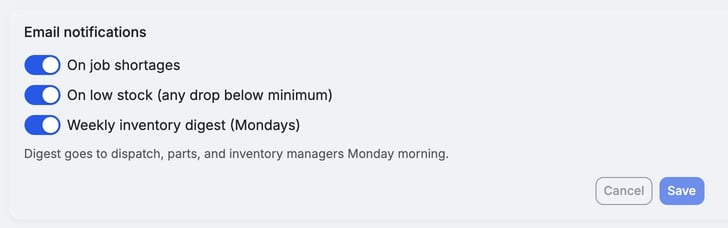
- Switch on the emails you want: On job shortages, On low stock (any drop below minimum) and Weekly inventory digest (Mondays).
- Click Save.
Before you start
- You need the Manage Account Settings permission. Without it, the card and the Email settings button don't appear.
- All three emails start On.
- Low-stock emails and the weekly digest only cover parts that have a Min quantity. To set one, open Parts & Inventory › Inventory Locations, click the location, and type the Min in its stock table, or choose Set Thresholds from the ⋮ menu next to + Receive Stock. To set many at once, see Set minimums for many parts at once below. See Receive, Issue and Adjust Stock.
Set minimums for many parts at once
Low-stock emails and the digest only cover parts with a Min, so a location with many parts is faster to set up in the bulk editor than one part at a time.
- Open Parts & Inventory › Inventory Locations and click the location.
- Open the Settings tab. The Thresholds & Reorder section lists each stocked part with its On Hand, Min and Max.
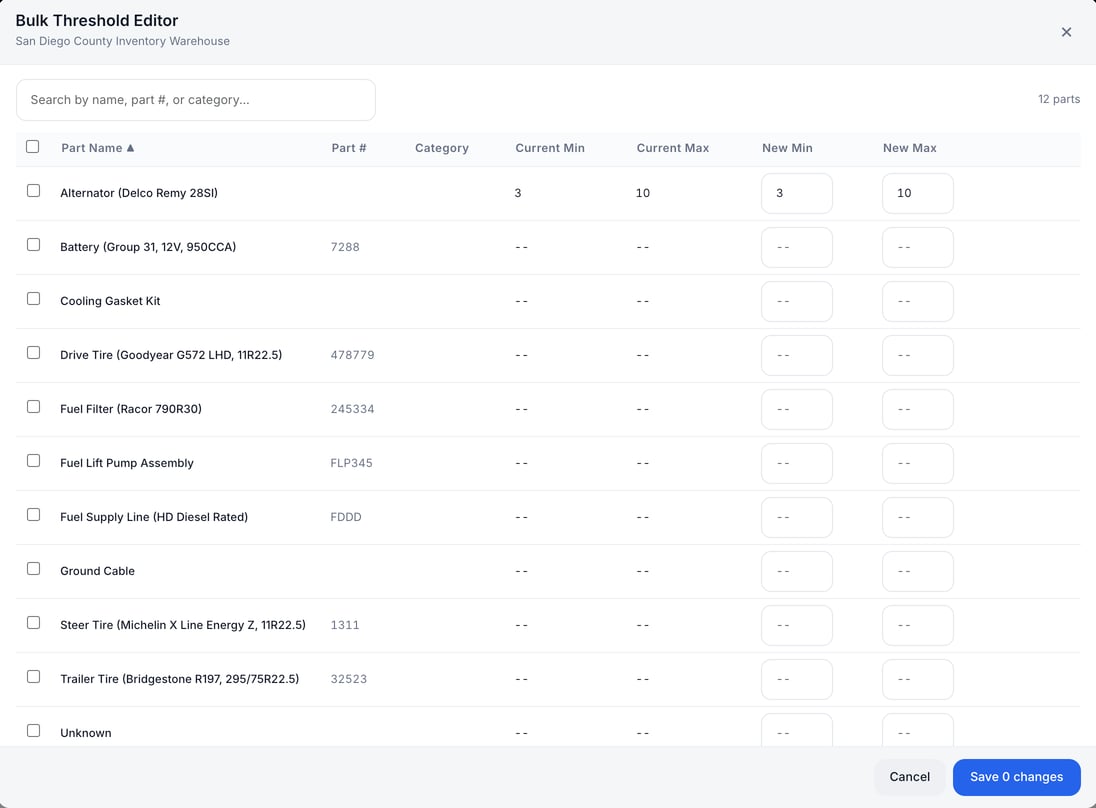
- Click Bulk Edit. The Bulk Threshold Editor opens with every stocked part at that location.
- Find parts with the search box (name, part # or category), or sort by any column heading.
- Type a New Min and New Max on each row. Or tick several rows, click Apply to N selected, enter a Min and Max, and click Apply to fill them in. The header checkbox ticks every row.
- Click Save N changes. Cancel closes the editor without saving.
Good to know:
- Save stays disabled until you change at least one row. Changed rows are highlighted, and the footer counts them.
- Min and Max can't be negative, and Max can't be lower than Min. A row that breaks a rule shows a message and blocks saving.
- Rows save one at a time ("Saving X of Y…"). If some fail, the editor shows how many and marks those rows so you can fix them and save again.
- Thresholds belong to one location. Repeat the steps for each location.
- If a location has no stock yet, the Settings tab shows "No stocked parts at this location. Receive stock first to configure thresholds."
To see which parts are below their minimum right now, open Parts & Inventory › Inventory Dashboard. They appear in the Needs attention list, which is based on available quantity (on hand minus reserved for jobs), so it can differ from the weekly digest. See Fix Parts That Didn't Come Out of Stock for parts that didn't come out of stock.
The three emails at a glance
| Switch | Sent when | Who receives it |
|---|---|---|
| On job shortages | A part can't be pulled for an active service order | The service writers on that order |
| On low stock (any drop below minimum) | A stock change takes a part below its Min | Users whose role can dispatch service orders, manage parts or manage inventory |
| Weekly inventory digest (Mondays) | Once a week, Monday morning | The same users as low stock |
A role with only view access to parts isn't on the list. A part at exactly its Min is healthy. A part with no stock always counts as low.
Open the Email notifications card
Go to Settings › Inventory. The Email notifications card sits below Variance Approval.
Choose your emails
- On job shortages. The email names the service order and the part that couldn't be pulled.
- On low stock (any drop below minimum). Sent when a part falls below its Min because of an adjustment, cycle count, issue, transfer, or an automatic deduction when a job is completed. The email lists the parts that crossed their minimum.
- Weekly inventory digest (Mondays). A summary of every part that has a Min: how many are out of stock, running low and healthy, with the out and low parts listed by location. Archived parts are left out.
Click Save. Cancel discards your changes. Both buttons stay disabled until you change a switch.
The digest counts what is on the shelf, not what is reserved for jobs. The Inventory Dashboard's Needs attention list uses available quantity instead.
Change the same switches from Parts Watch
Open Command Center, go to the Parts Watch tab and click Email settings.

The Part-needed emails panel opens with the same three switches. The digest switch reads Weekly digest (Mondays) here. Click Save settings when you're done.
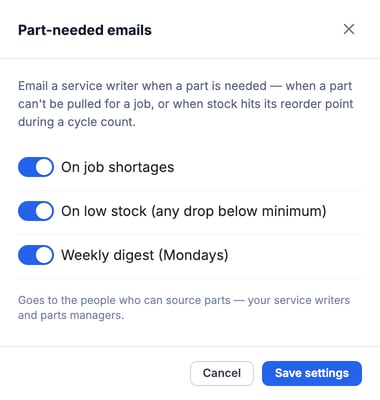
The panel's own text is shorter than the full behavior and calls Min the "reorder point". The triggers and recipients in the table above apply to both places.
The card and the panel change one shared setting, so they always match.
Troubleshooting
| Symptom | Likely cause | Fix |
|---|---|---|
| I can't see the Email notifications card or the Email settings button | Your role doesn't have Manage Account Settings | Ask an admin to make the change, or to give your role the permission. |
| A part ran low but no email came | The part has no Min, the low-stock switch is off, or the part was already below its Min | Set a Min on the part and check the switch. The email goes out when a stock change takes the part below its Min, not again while it stays low. |
| A part at its Min got no email | Low means below the Min | The next unit out triggers it. |
| A user doesn't get the emails | Their role can't dispatch service orders, manage parts or manage inventory | Check that the user's role has at least one of those permissions. |
| The weekly digest didn't arrive | The switch is off, or no active parts have a Min | Check the switch and set Min quantities. |
FAQs
Can I send these emails to a specific person?
No. The audience is set by role, not by name.
Does a shortage email mean the technician is blocked?
Not always. It means a part couldn't be pulled for that order. See Source and Hand Off Parts to a Technician for what to do next.