---
title: Run a Cycle Count
description: "Run a cycle count at a location: enter actual quantities, review the variances, and submit to correct your on-hand stock."
---
[Skip to content](https://support.metafleet.ai/run-a-cycle-count#main-content)
English
Show submenu for translations

Open main navigation
Close main navigation
- English
Show submenu for translations
- [Contact us](mailto:support@metafleet.ai)
[Contact us](mailto:support@metafleet.ai)
How can we help you?
- There are no suggestions because the search field is empty.
1. [MetaFleet Answer Hub](https://support.metafleet.ai/?hsLang=en)
2. [Parts, Inventory & Vendors](https://support.metafleet.ai/parts-inventory-vendors?hsLang=en)
3. [Stock & Counts](https://support.metafleet.ai/parts-inventory-vendors?hsLang=en#stock-counts)
# Run a Cycle Count
## Count the parts on a shelf, compare them with your system numbers, and submit to correct your on-hand stock.
**For:** Parts and inventory staff · **Permission:** Cycle count access · **Time:** About 5 minutes per location
### Quick summary
1. Open a location, stay on the **Stock** tab, and click **Start Cycle Count**.
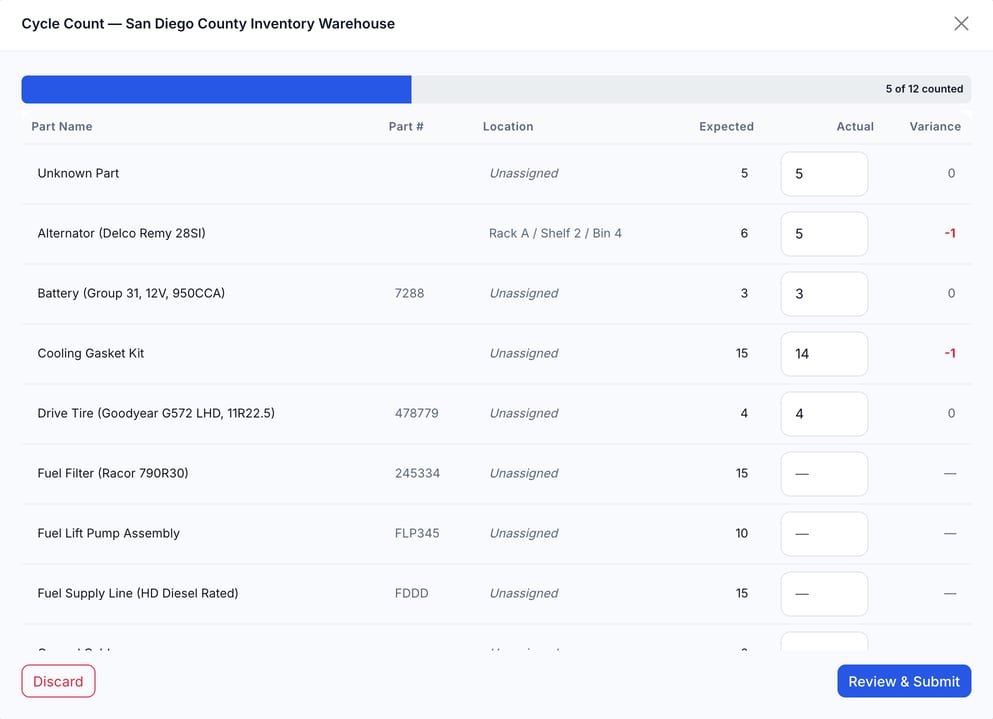
2. Enter the **Actual** count for each part. The **Variance** calculates as you type.
3. Click **Review & Submit**, then click **Submit Cycle Count** to correct on-hand numbers.
### Before you start
- **You'll need:** A location with parts in stock, and cycle count access. If you don't see **Start Cycle Count**, ask an admin to give your role cycle count access.
- **To see Expected and Variance:** Your role also needs inventory management access. Without it, the count sheet and review show only a **Counted** column.
- **Good to know:** Units set aside for active service orders are already left out of the **Expected** number. Count only what's on the shelf.
- **Service vehicles:** On a service vehicle, the button is labeled **Cycle Count**. The steps are the same.
- **This article covers the web app.** Technicians counting on the mobile app should see [Track Inventory on Service Vehicles](https://support.metafleet.ai/track-inventory-on-service-vehicles?hsLang=en).
### Open the count
Go to **Parts & Inventory**, then click **Inventory Locations**. Click the location's name to open it. On the **Stock** tab, click **Start Cycle Count** in the action bar, next to **+ Receive Stock**.

### Enter the Actual counts
For each part, type what you physically counted in the **Actual** column. The **Variance** column shows Actual minus Expected. A negative number means fewer units are on the shelf than the system shows. A zero means the count matches. The progress bar at the top shows how many parts you've counted, such as **3 of 12 counted**.
Leave a part blank if you haven't counted it yet. Blank parts aren't changed when you submit.
If the location has units set aside for active jobs, the sheet shows a notice such as **N units set aside for active jobs. Your expected counts already reflect this.** Each part with reserved units shows a **· N in use** tag.
> **Don't see Expected or Variance?** Your role counts without the system numbers. The sheet and the review show only a **Counted** column. Ask an admin for inventory management access to see **Expected** and **Variance**.
### Pause and resume a count
The count saves a draft each time your total of counted parts reaches a multiple of 5 (5, 10, 15, and so on). The draft is stored in the browser you used, so you can resume it only in that browser.
To pick it up later, open the location, stay on the **Stock** tab, and click **Start Cycle Count**. You'll see the time of your unfinished count and a choice to resume it. Click **Resume** to continue.
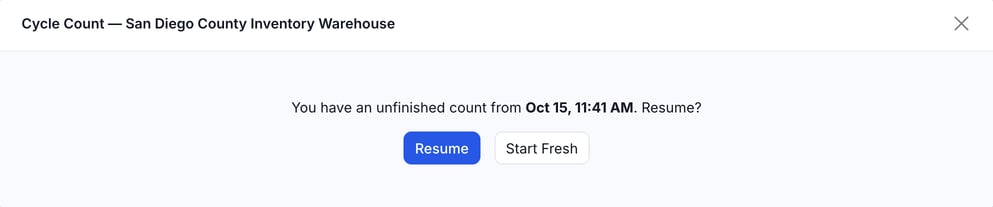
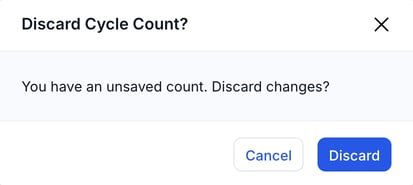
> **Parts counted after the last save aren't kept.** If you count 7 parts and then close only the browser tab, the draft holds the first 5. Count the other 2 again. Closing the count window and confirming **Discard** deletes the whole draft.
### Review & submit
When you're done, click **Review & Submit**. The review screen lists every part you counted, largest variance first. It shows **Match** where the count agrees, and a summary line such as **2 variances found, 3 matches**. Check the numbers.
When you click **Review & Submit**, the review checks your stock again. If stock for a part changed while you were counting, **Expected** shows the stock now, with a line under it such as **was 6** for what it showed when you started. A notice above the table reads **Stock changed for N parts while you were counting.** The variances and the summary use the stock now.
Click **Submit Cycle Count** to save the count. The system checks each part against its stock at that moment, records each variance as an inventory transaction, and corrects the on-hand number.
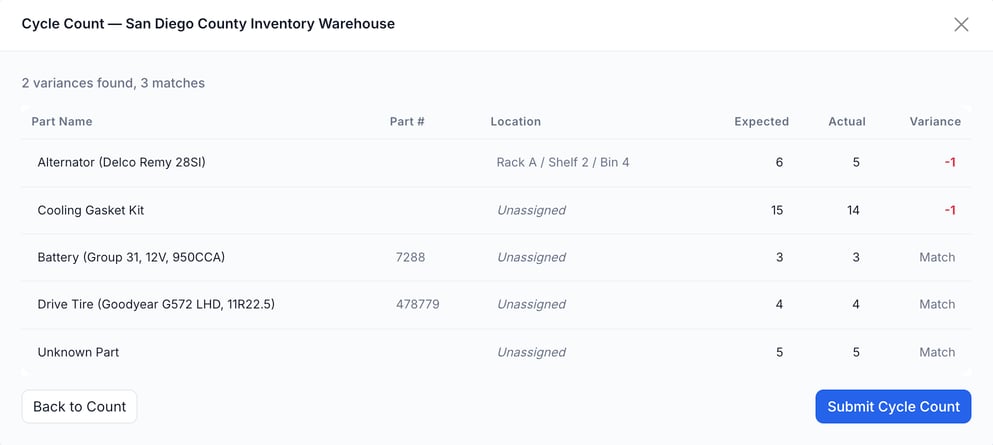
To keep counting, click **Back to Count**. To throw the count away, click **Discard** in the footer, then confirm. Click **Cancel** in the confirmation to keep the count open.
> **Parts on open jobs are handled for you.** Units allocated to active service orders are already part of the **Expected** figure, so you count what's physically present.
### Troubleshooting
| Symptom | Likely cause | Fix |
| --- | --- | --- |
| My count doesn't match Expected | That's the point of a cycle count. The difference is a variance. | Recount the part to confirm, then submit. |
| I closed the count by accident | Closing the count window asks you to discard the changes. Confirming deletes the draft. | Click **Cancel** in the confirmation if you can. If the draft is gone, count again. If you closed only the browser tab, open the location, click **Start Cycle Count**, and click **Resume**, in the same browser. |
| Expected looks low for a busy part | Some units are set aside for active service orders | That's expected. Count only what's on the shelf. |
| I don't want to keep this count | You changed your mind | Click **Discard**, then confirm. Nothing changes. |
| I don't see **Start Cycle Count** | Your role doesn't have cycle count access | Ask an admin to give your role cycle count access. On a service vehicle, look for **Cycle Count** instead. |
| I see only a **Counted** column | Your role doesn't have inventory management access | Ask an admin for inventory management access to see **Expected** and **Variance**. |
| A message says **Couldn't check current stock** | The review couldn't read your stock again | The review shows the numbers from when you started. You can still submit. Your count is checked against current stock when you submit. |
| A message says someone else is counting this location | Another user has an open count at the same location | You can continue, but your counts may overlap. Coordinate with the other person before you submit. |
| A message says there are no parts to count | The location has no parts in stock | Receive parts first, then start the count. |
### FAQs
**Do I have to count every part at once?**
No. Count what you can. Parts you leave blank aren't changed. A draft saves each time your count reaches a multiple of 5, so you can pause and finish later. See **Pause and resume a count** for how to pause safely.
**What does submitting actually change?**
It corrects each counted part's on-hand quantity so the available stock matches your Actual count. Units set aside for active jobs stay set aside. Each correction is recorded as an inventory transaction.
**Will this affect parts reserved for jobs?**
No. Units allocated to active service orders are already part of the Expected figure, so they aren't double-counted.
### Related articles
- [Receive, Issue & Adjust Stock](https://support.metafleet.ai/receive-issue-and-adjust-stock?hsLang=en)
- [Inventory Transactions & Transfers](https://support.metafleet.ai/inventory-transactions-and-transfers?hsLang=en)
- [Understanding Available, Allocated & Consumed](https://support.metafleet.ai/understanding-available-allocated-and-consumed?hsLang=en)
- [Track Inventory on Service Vehicles](https://support.metafleet.ai/track-inventory-on-service-vehicles?hsLang=en)
- [Fix Parts That Didn't Come Out of Stock](https://support.metafleet.ai/review-inventory-reconciliation?hsLang=en)
- [Start Here](https://support.metafleet.ai/start-here?hsLang=en)
- [Companies & Contacts](https://support.metafleet.ai/companies-contacts?hsLang=en#main-content)
- [Create/Edit Companies](https://support.metafleet.ai/companies-contacts?hsLang=en#create-edit-companies)
- [Contacts](https://support.metafleet.ai/companies-contacts?hsLang=en#contacts)
- [Vehicles](https://support.metafleet.ai/companies-contacts?hsLang=en#vehicles)
- [Work Intake (Requests & Service Orders)](https://support.metafleet.ai/work-intake-requests-service-orders?hsLang=en#main-content)
- [Creating Service Orders](https://support.metafleet.ai/work-intake-requests-service-orders?hsLang=en#creating-service-orders)
- [Customer & Partner Requests](https://support.metafleet.ai/work-intake-requests-service-orders?hsLang=en#customer-partner-requests)
- [Reference](https://support.metafleet.ai/work-intake-requests-service-orders?hsLang=en#reference)
- [Customer Portal](https://support.metafleet.ai/work-intake-requests-service-orders?hsLang=en#customer-portal)
- [Estimates & Approvals](https://support.metafleet.ai/estimates-approvals?hsLang=en#main-content)
- [Approval Gates](https://support.metafleet.ai/estimates-approvals?hsLang=en#approval-gates)
- [Estimates](https://support.metafleet.ai/estimates-approvals?hsLang=en#estimates)
- [Invoices](https://support.metafleet.ai/estimates-approvals?hsLang=en#invoices)
- [Billing](https://support.metafleet.ai/estimates-approvals?hsLang=en#billing)
- [Parts, Inventory & Vendors](https://support.metafleet.ai/parts-inventory-vendors?hsLang=en#main-content)
- [Add Parts & Kits](https://support.metafleet.ai/parts-inventory-vendors?hsLang=en#add-parts-kits)
- [Stock & Counts](https://support.metafleet.ai/parts-inventory-vendors?hsLang=en#stock-counts)
- [Locations & Bins](https://support.metafleet.ai/parts-inventory-vendors?hsLang=en#locations-bins)
- [Purchase Orders](https://support.metafleet.ai/parts-inventory-vendors?hsLang=en#purchase-orders)
- [Parts Catalog](https://support.metafleet.ai/parts-inventory-vendors?hsLang=en#parts-catalog)
- [Vendors & Manufacturers](https://support.metafleet.ai/parts-inventory-vendors?hsLang=en#vendors-manufacturers)
- [Pricing](https://support.metafleet.ai/parts-inventory-vendors?hsLang=en#pricing)
- [Service Vehicles](https://support.metafleet.ai/parts-inventory-vendors?hsLang=en#service-vehicles)
- [Sourcing & Hand-Off](https://support.metafleet.ai/parts-inventory-vendors?hsLang=en#sourcing-hand-off)
- [Part Numbers](https://support.metafleet.ai/parts-inventory-vendors?hsLang=en#part-numbers)
- [Notifications](https://support.metafleet.ai/parts-inventory-vendors?hsLang=en#notifications)
- [Reports](https://support.metafleet.ai/parts-inventory-vendors?hsLang=en#reports)
- [Invoicing & Payments](https://support.metafleet.ai/invoicing-payments?hsLang=en)
- [Dispatch & Scheduling](https://support.metafleet.ai/dispatch-scheduling?hsLang=en#main-content)
- [Preventative Maintenance](https://support.metafleet.ai/dispatch-scheduling?hsLang=en#preventative-maintenance)
- [Technician Assignment](https://support.metafleet.ai/dispatch-scheduling?hsLang=en#technician-assignment)
- [Scheduling & Calendar](https://support.metafleet.ai/dispatch-scheduling?hsLang=en#scheduling-calendar)
- [Technician Schedule](https://support.metafleet.ai/dispatch-scheduling?hsLang=en#technician-schedule)
- [Technicians & Mobile App](https://support.metafleet.ai/technicians-mobile-app?hsLang=en#main-content)
- [Time Tracking](https://support.metafleet.ai/technicians-mobile-app?hsLang=en#time-tracking)
- [Tech Workflow](https://support.metafleet.ai/technicians-mobile-app?hsLang=en#tech-workflow)
- [Evidence & Photos](https://support.metafleet.ai/technicians-mobile-app?hsLang=en#evidence-photos)
- [AI Assistant](https://support.metafleet.ai/technicians-mobile-app?hsLang=en#ai-assistant)
- [Alerts, Alarms & Notifications](https://support.metafleet.ai/alerts-alarms-notifications?hsLang=en#main-content)
- [Email/SMS/App Settings](https://support.metafleet.ai/alerts-alarms-notifications?hsLang=en#email-sms-app-settings)
- [Reporting & Dashboards](https://support.metafleet.ai/reporting-dashboards?hsLang=en)
- [Admin & Settings](https://support.metafleet.ai/admin-settings?hsLang=en#main-content)
- [Rates & Fees](https://support.metafleet.ai/admin-settings?hsLang=en#rates-fees)
- [Branding](https://support.metafleet.ai/admin-settings?hsLang=en#branding)
- [Roles, Permissions & Users](https://support.metafleet.ai/admin-settings?hsLang=en#roles-permissions-users)
- [Service Areas](https://support.metafleet.ai/admin-settings?hsLang=en#service-areas)
- [Workflows](https://support.metafleet.ai/admin-settings?hsLang=en#workflows)
- [Taxes](https://support.metafleet.ai/admin-settings?hsLang=en#taxes)
- [Integrations](https://support.metafleet.ai/admin-settings?hsLang=en#integrations)
- [Integrations](https://support.metafleet.ai/integrations?hsLang=en#main-content)
- [Phone Setup](https://support.metafleet.ai/integrations?hsLang=en#phone-setup)
- [AI Assistant Access](https://support.metafleet.ai/integrations?hsLang=en#ai-assistant-access)
- [QuickBooks](https://support.metafleet.ai/integrations?hsLang=en#quickbooks)
- [Getting Around](https://support.metafleet.ai/getting-around?hsLang=en#main-content)
- [Search & Command Bar](https://support.metafleet.ai/getting-around?hsLang=en#search-command-bar)
[](http://www.metafleet.ai)
[mailto:support@metafleet.ai](mailto:support@metafleet.ai)
Copyright © 2025, MetaFleet, Inc