
For: Service writers, parts staff and dispatchers · Permission: A role that can manage inventory or hand off parts, such as Parts Manager (admin for Email settings) · Time: ~5 minutes per part
Quick summary
- Open Command Center and select the Parts Watch tab.
- Find the blocked job and read what's short and where the nearest stock is.
- Click Pull from stock, or Order from vendor when nothing is nearby.
- Click Hand off and choose Pick up or Deliver.
- The technician confirms the part in the app, and the part shows Accepted.
Before you start
- A job whose technician flagged a part as short.
- A role that can manage inventory or hand off parts, such as Parts Manager. Without it, there is no Hand off button.
- Admin rights, only if you need to change Email settings.
How a job gets blocked on parts
While diagnosing or repairing, a technician flags a part they need but don't have. That part is marked short and the job appears on Parts Watch. The technician can keep working other items on the job. The work item that needs the part waits.
Read the Parts Watch board
Open Command Center and select the Parts Watch tab. Four counts sit across the top:
- Techs blocked: technicians waiting on a part, and how many service orders that covers.
- Parts short: parts that are short across all jobs.
- Sourceable in range: parts with stock inside your distance threshold.
- Need a vendor PO: parts with no nearby stock.
Search by technician, service order, vehicle or part. Filter with All blocked, Sourceable or Vendor only. Set Source within to 30 min, 1 hr · 60 mi, 2 hr or Any distance.
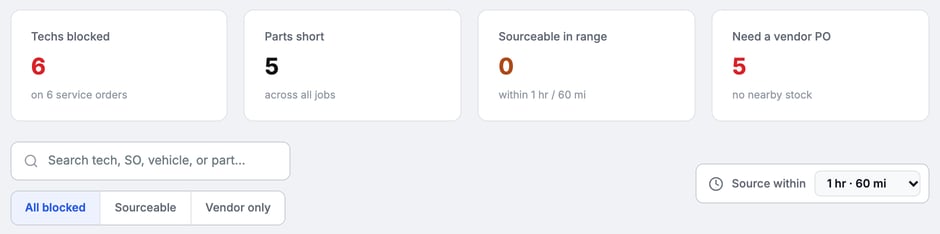
The counts, filters and the Source within distance at the top of Parts Watch.
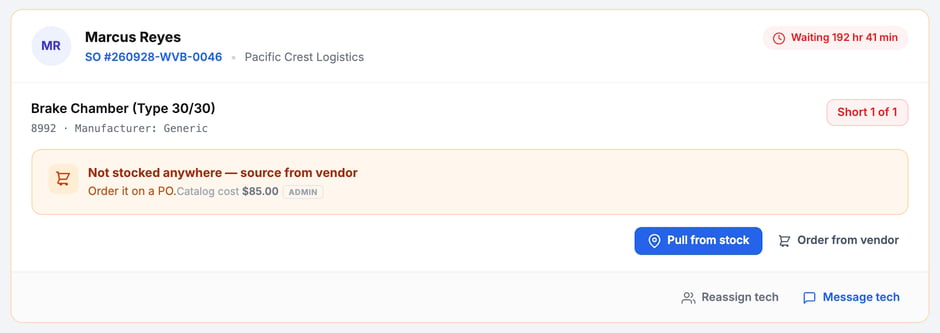
Each card is one blocked job. It shows the technician, the service order, the customer and a Waiting timer. The part line shows what's short (for example Short 1 of 1), the part number and the nearest stock with its distance.
Email alerts. Admins can choose which part-needed emails go out from Email settings on the board. See Low-Stock Alerts and the Weekly Inventory Digest.
Pull the part from stock
Click Pull from stock on the card. The picker lists the locations that have the part, nearest first, with the quantity available and the drive time. To control it yourself, pick a location to reserve the part for this job. The part then shows Pulled. The job's row changes from Short to Awaiting tech. That means the part is secured but the technician doesn't have it in hand yet. Nothing failed.
To reserve the whole shortfall at once, use Cover N from nearest stock. It reserves the missing quantity across the nearest stocked locations in one step. If the locations near the job can't cover it all, the picker tells you how many aren't available and offers Order from vendor for the rest.
If the job already holds some of the part, the window lists Already reserved for this line with one line per place, such as the technician's truck or a shop, so you can see what's covered before you pick more.
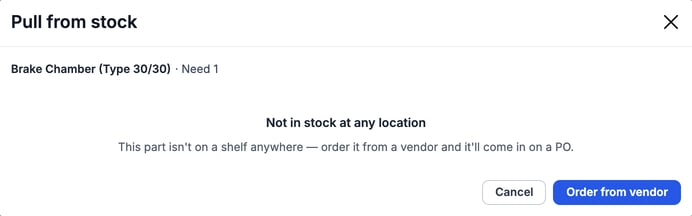
If no location has the part, the picker says Not in stock at any location and offers Order from vendor.
Some cards also list Other numbers that fit, in stock nearby. Click Use this number → to open the service order and pick the number you used. Allocation follows that part number.
Order the part from a vendor
- Click Order from vendor. The Create Purchase Order window opens.
- Pick the vendor. If it isn't listed, click Vendor not listed? Add one.
- Click Reserve PO number. You get a PO number to use at the counter right away.
If the part can't be added, the window stays open and tells you why, and nothing is reserved. For example, the PO number may already have been sent to the vendor. Fix what the message says, then click Reserve PO number again.
The card then shows an On order · PO chip with your PO number, such as PO-000002. Once the part is sourced, the row shows Awaiting tech until the technician has it. The purchase order itself is created when the service order is invoiced. See Create a PO from a Work Item or Service Order and Manage Purchase Orders.
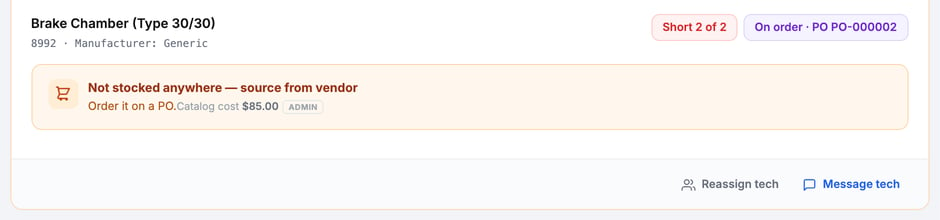
Two more actions on each card. Reassign tech moves the whole job to another technician, for example one who is closer to the part. Message tech sends the technician a quick note about the part.
Print the Parts List
Open the service order and go to the Estimate tab. Click Parts List to print the pick sheet: the parts to grab, where to grab them, the customer and the job site. It shows no pricing and reserves no stock. You don't need an estimate first.
Hand the part to the technician
- Click Hand off on the part once it shows Pulled.
- Choose how it gets there. Pick up means the technician goes and grabs it. Deliver means someone brings it to the job. For Deliver, add the courier and an ETA, such as
by 3pm. - Confirm. Click Hand off for pickup or Send for delivery.
The part shows Handed off with the technician's first name, or Out for delivery with the courier and ETA. The technician gets an alert in the app. It counts on their notification badge and shows in their Notifications feed, with Part ready to pick up or Parts on the way. Parts dropped on their truck show as Parts on your truck.
What the technician sees
In the MetaFleet app, a pill on the job shows the count, such as 1 part to pick up or 1 part on the way.
- Open the pill. The list groups parts under Ready to pick up and On the way to you. Each row names the part, the quantity, and where to pick it up or who is bringing it and the ETA.
- Confirm the part. Tap the check mark on that row, or Got the whole kit when several parts are inbound.
- Check the office side. The part shows Accepted.
A row that says No stock at source can't be confirmed yet.
A job stays on the board until its part is no longer short. Ordering or pulling doesn't clear it. The wait timer measures how long the job has been blocked on the part. If only some of the quantity has arrived, the part shows how many are in hand, such as 1 of 2 in hand.
Troubleshooting
| Symptom | Likely cause | Fix |
|---|---|---|
| Sourceable in range is 0 | No stock within your distance threshold | Widen Source within (for example Any distance), or use Order from vendor. |
| The picker says Not in stock at any location | No location carries the part | Click Order from vendor and reserve a PO number. |
| The job is still on the board after I ordered or pulled | The part is still short until the technician has it. A sourced part shows Awaiting tech, not an error. | Hand it off and have the technician confirm it. The job stays on the board until the part is no longer short. |
| Reserve PO number shows a message and the window stays open | The part couldn't be added to the purchase order, for example because it was already sent to the vendor | Read the message. Try again, or add the part on a new purchase order from Purchase Orders. |
| I can't find Hand off | The part isn't pulled yet | Click Pull from stock first. Hand off appears once the part shows Pulled. |
| The part shows Pulled but there's no Hand off button | Your role can't hand off parts. Dispatch rights alone don't include it. | Ask an admin to add the hand off parts permission to your role. |
| The office isn't getting part-needed emails | The toggles are off | Ask an admin to open Email settings on the Parts Watch board and turn on the ones you want. |
FAQs
Where do I find jobs waiting on parts?
Command Center, Parts Watch tab. Every blocked job is there with a wait timer and sourcing buttons.
What's the difference between Pull from stock and Order from vendor?
Pull from stock reserves a part you already have, nearest location first. Order from vendor reserves a PO number when nothing nearby has it.
What happens when the technician confirms the part?
The part shows Accepted with the technician's first name on the office side.
When does a job leave the Parts Watch board?
When the part is no longer short. Ordering or pulling alone doesn't clear it.
Can I give the job to a closer technician instead?
Yes. Click Reassign tech on the card.