
For: Dispatchers and drivers · Permission: Dispatcher access · Time: ~5 minutes
Quick summary
- Press ⌘K and choose New Towing Order.
- Pick the company, the vehicle, the pickup and drop-off addresses, and describe the problem.
- Click Create Towing Order, then assign a technician.
- The driver works the Tow Board: I'm On My Way, Arrived at pickup, then arrive at each destination.
- Send the invoice from the order's Invoice tab.
Before you start
- The company and the vehicle must already exist. You can add either from the form (+ Create a new company, + Create a new vehicle).
- You need a pickup address and at least one drop-off address.
- In this article, the driver is the technician you assign with Assign technician.
- Booking a tow needs dispatcher access. A driver only needs to be assigned. Stopping a tow early needs permission to cancel service orders, and sending the invoice needs invoice permission.
Open the towing form
Press ⌘K in the top bar and type tow. Choose New Towing Order (Dispatch a tow). The entry shows only when towing is turned on for your account. The New Towing Order page opens. A progress counter next to Create Towing Order shows how many sections are done, out of 5.
Fill in the order
- Company: search by name and select it. The order number appears at the top of the page as soon as you do.
- Vehicle: pick one of the company's vehicles, or click + Create a new vehicle.
- Route: click Set the pickup address and type an address, then pick it from the list. Do the same for Set the drop-off address. Click + Add destination for more stops. You can also click the map to place a stop.
- Tow Request: the Service Area fills in from the pickup. Describe the problem in Description.
- Time of the service: choose Now (breakdown or roadside, the tow starts today), Scheduled (book the exact date and time) or Unscheduled (add it now, pick the date and time later). With Scheduled, pick the date and time, and the button reads Book Towing. With Unscheduled, it reads Add without a date.
- Optional: Tow Type, Is the vehicle drivable?, Priority, Where are the keys?, a PO or reference number, and notes.
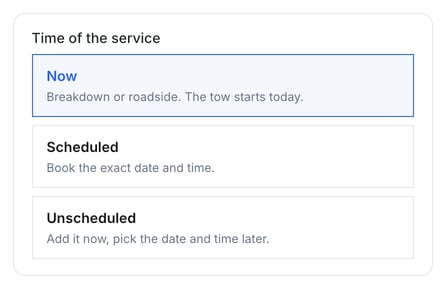
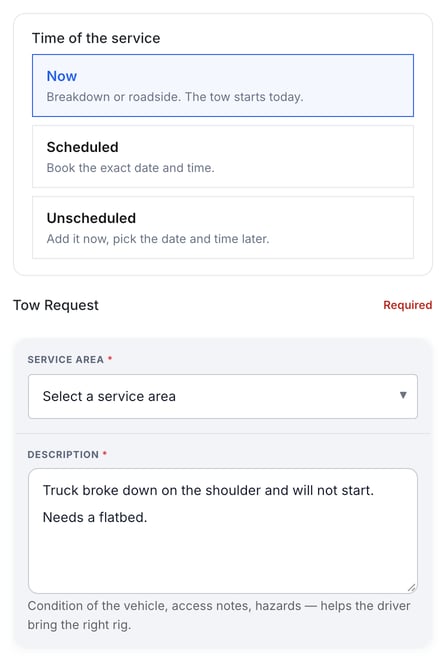
Create Towing Order stays grayed out until all 5 sections are complete. The steps below follow a Now tow.
Click Create Towing Order (or Book Towing / Add without a date, depending on the time you chose). The towing service order opens with its own order number and a Tow Board tab next to Details.
Assign a driver
- On the Details tab, click Assign technician.
- Select the driver in the Assign Technician window and click Confirm.
The order status changes to Assigned, and the tow shows on the driver's job list in the mobile app. Until a technician is assigned, the Tow Board is read-only: nothing can be navigated or marked as reached.
What dispatch sees
Open the Tow Board tab on the order. It shows the route with 0 of 1 destinations reached, a photo box at the pickup, an I'm on my way button until the driver has left, the Navigate and Arrived buttons for each stop, and the Delivery note. The tab replaces the Repair Board that repair orders have.
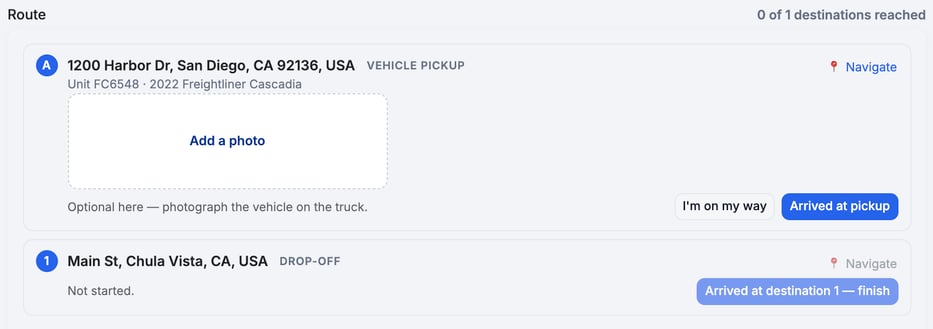
The Details tab holds the same route, the vehicle problem under What's wrong, and the towing details. A dispatcher can edit the delivery note.
Run the tow as the driver
Drivers use the MetaFleet mobile app. A tow opens on a short page with the vehicle, the pickup and each destination.
- I'm On My Way: tap it when the truck leaves for the pickup. It marks the departure. Navigate only opens the map, so tap it too if the driver wants directions. If the truck is already at the vehicle, tap Already here? Arrived at pickup instead.
- Add a photo: optional at the pickup. Photograph the vehicle on the truck.
- Arrived at pickup: tap it when the truck is at the vehicle.
- Next stop: tap Navigate for directions to the drop-off, then Arrived at destination 1. On the last stop it reads Arrived at destination N — finish, where N is that stop's number.
- Delivery note: write one note for the whole tow at the end, for example "Dropped at the north gate, keys left with the yard foreman". Dispatch can edit it later.
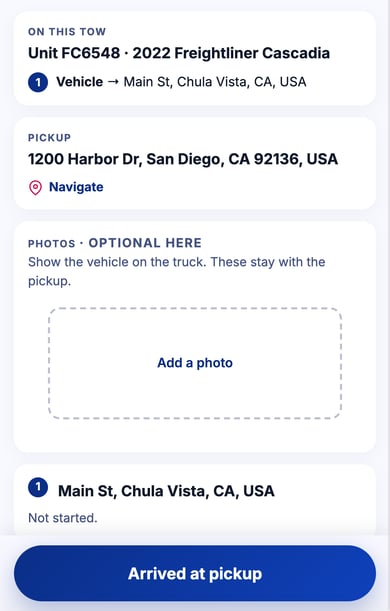
On the web: dispatchers and admins can work the same steps from the Tow Board tab of the order: I'm on my way, Navigate and Arrived for each stop, and the Delivery note.
Invoice the tow
Open the order's Invoice tab. A tow shows one Towing section for its charges.

- While the tow is still running, End work & invoice sits in the order header, next to Cancel Service Order, on every tab. It ends the tow early, releases the driver and keeps the call-out billable. You only see it with permission to cancel service orders.
- When Dispatcher approval is required before work can be completed is on (Settings › Workflow › Approvals & Alerts, Service Order Settings card; see Understanding the Approval Gates), a finished tow waits for a dispatcher. The Tow Board shows Waiting for approval and release.... Dispatchers who can approve repairs also see Make changes and Mark Work Complete. The Invoice tab shows Make changes and Finalize Approval. Make changes sends the tow back to the driver with an optional note about what needs to change. Approving moves the tow on to the invoice.
- Once every destination is reached, and the approval is done if your shop uses it, the button is Send Invoice. After you send it, it reads Resend.
- The vehicle needs a VIN, make and model before the invoice can be sent.
Check and correct the time on a tow
Dispatchers can see how long the driver spent on a tow. Each arrival the driver taps closes the running clock record and opens the next leg's, so every leg is timed on its own. Customers never see this time.
- Open the order's Invoice tab. Time on this tow lists Drive to pickup, Pickup → destination 1 (includes loading), Drive back and Total on the clock.
- To fix a time, click Correct hours. Type the right time on any line, or only the total. Every line scales in proportion, and Drive back stays equal to Drive to pickup.
- Give a reason and save. Corrected lines show a Corrected tag.
The Details tab shows the total with Correct total, which does the same thing. The Tow Board has no per-stop time correction. You need the technician time edit permission to see these buttons.
Book a tow from a repair order
If a vehicle on a repair order has to go to the shop, start the tow from the repair itself.
- Open the repair order. The dispatcher assigned to it sees Arrange tow above the order details, until the invoice is being finalized.
- Click Arrange tow. The New Towing Order page opens with the customer, vehicle and pickup already filled in. A banner reads Towing for repair with the repair number. Click Open the repair to go back to it.
- Add the drop-off and finish the form as described above.
A repair can have one tow. Once it has one, Arrange tow is replaced by a link on the repair: Tow draft (continue →) while the form is unfinished, or Tow booked, Tow unscheduled · not booked yet or the tow's order number (Open →) after that.
A technician assigned to the repair sees Vehicle beyond repair? Request a tow instead. They add the reason and tap Send request. The button is replaced by Tow requested — dispatch has been alerted. Dispatch then arranges the tow. The technician keeps working the repair as directed until dispatch confirms.
Troubleshooting
| Symptom | Likely cause | Fix |
|---|---|---|
| Create Towing Order is grayed out | One of the 5 sections is still incomplete | Check Company, Vehicle, Route and Description. If the description is typed but the counter doesn't move, click outside the box. |
| Navigate and Arrived are disabled | No technician is assigned | Click Assign technician on the Details tab. |
| Send Invoice is disabled | The vehicle is missing a VIN, make or model | Complete the vehicle record, then try again. |
| The tow doesn't show on the driver's job list | The order is assigned to a different technician, or none | Check the technician on the Details tab and reassign if needed. |
FAQs
Where do photos go?
The app shows one optional photo box, at the pickup. The on-screen text says these photos stay with the pickup.
Who writes the delivery note?
The driver writes it at the end, as one note for the whole tow. A dispatcher can edit it.
What if the tow can't finish?
Click End work & invoice in the order header. You need permission to cancel service orders. The call-out stays billable.