
For: Dispatchers and service writers · Permission: Manage all complaints · Time: ~3 minutes
Quick summary
- On Service Orders, click + New Service Order.
- Pick the company, then the vehicle.
- Set the unit location.
- Choose Now, Scheduled or Unscheduled.
- Pick the service area and service type, describe the issue, and click Create Service Order.
Before you start
- The customer's company needs to be in MetaFleet. You can add it from the form if it's new.
- Know the vehicle and where it is. Add the vehicle from the form if it isn't on file.
- Booking a Scheduled order also needs Manage appointments.
- The counter at the top of the form (for example 0/5) shows how many required pieces are filled, and the button turns on when it is full. The list depends on the time you choose:
- Now (5): Company, Vehicle, Unit location, Complaint description, Repair type.
- Scheduled (6): Company, Vehicle, Complaint description, Repair type, Date & time, Members.
- Unscheduled (5): Company, Vehicle, Complaint description, Repair type, Members.
Open the form
Go to Service › Service Orders and click + New Service Order. The arrow lists Repair, PM + Inspection and Towing; Repair is the default. This article covers the default repair form, titled New Repair Order.
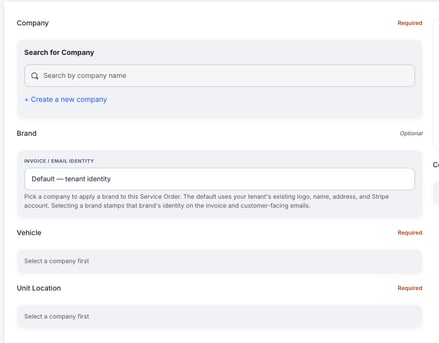
The blank form. Vehicle, Unit Location and Complaint & Service stay locked until you pick a company.
Choose the company
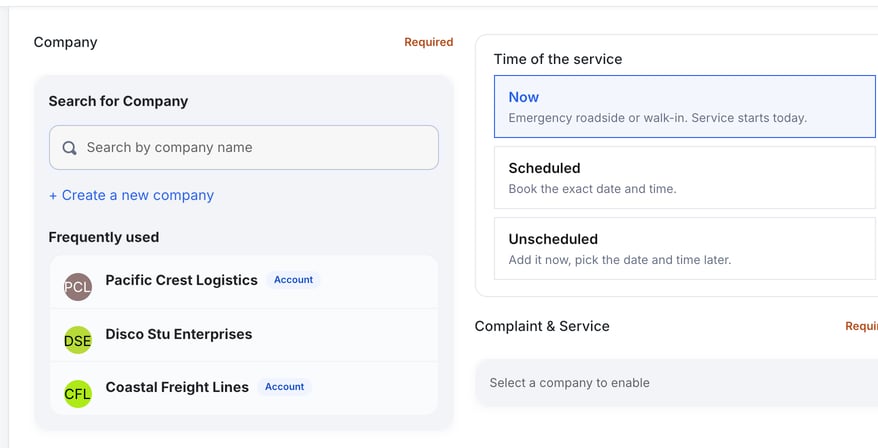
Type in Search by company name, or pick a company from the Frequently used list. If the company is new, click + Create a new company.
The Brand card is optional. It sets which identity appears on the invoice and customer emails. Leave Default — tenant identity unless the job belongs to one of your other brands.
Add a contact
A contact is optional for a Now order and required for Scheduled and Unscheduled orders. Under Members & Contacts, click Add member or contact. In the window that opens, pick someone from Frequently used, or fill in or add someone new: full name, email, phone and role.
- Authorizer can approve estimates.
- Accountant can receive invoices.
- Owner has full permissions to manage the order request hub.
- Driver on-site and Notify about this order are switches.
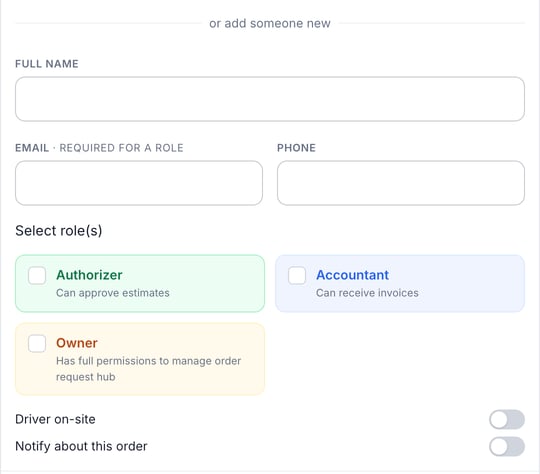
A contact needs a valid email to get a role and to receive estimates and invoices. For enterprise customers the role also decides: estimates go to Authorizer contacts, invoices to Accountant contacts.
Pick the vehicle
Search by unit number or VIN, or pick from Frequently used. Not on file? Click + Create a new vehicle and add it without leaving the order. Enter the VIN and MetaFleet fills in the make, model, year and specs. See Auto-Fill Vehicle Details from the VIN.
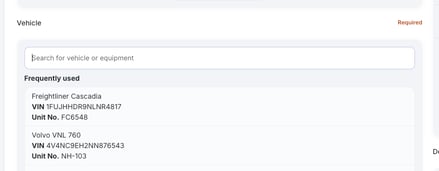
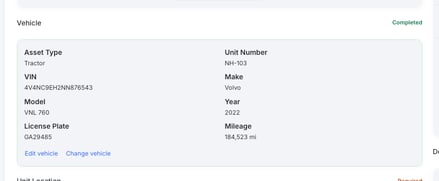
Once you pick one, the card shows its asset type, unit number, VIN, make, model, year, license plate and mileage. Empty optional fields are hidden. Use Edit vehicle to correct details or Change vehicle to pick another.
Set the unit location
Type an address and pick a suggestion from the list, or drop a pin on the map. The card shows the address and its coordinates. Use Description of your location (optional) for notes such as the gate or the row the truck is parked in. Check Save this address for this customer to reuse it on later orders.
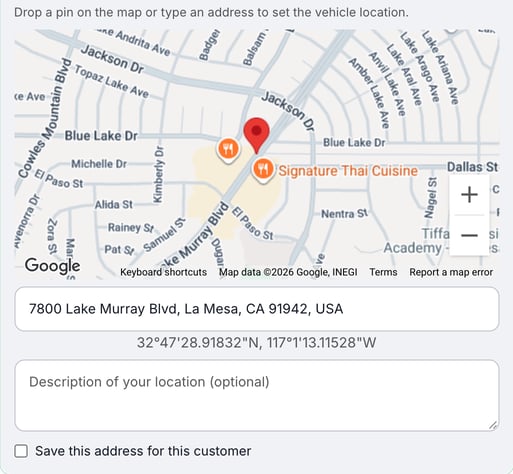
Pick a suggestion from the dropdown or drop the pin. A typed address that wasn't picked isn't set.
Check the billing panel
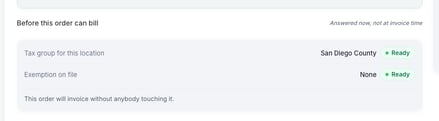
A Before this order can bill panel sits under the unit location. It shows Tax group for this location (Ready with the group's name, Not set with Needs fixing, No location yet, or Couldn't check) and Exemption on file (Whole customer, the group names, or None). It never blocks you: "This order will still be created and will still invoice. Not ready: …" names what to fix. Not set means the order bills $0.00 tax until the order's service area has a Tax Group bound to it (Settings › Pricing & Rates › Taxes). See Set Up Taxes by Jurisdiction.
Choose the time of the service
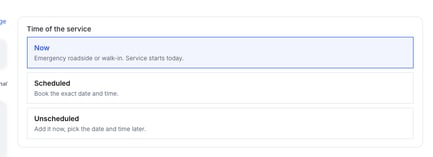
Under Time of the service, choose one:
- Now: emergency roadside or walk-in. Service starts today. The button at the top stays Create Service Order.
- Scheduled: book the exact date and time with a contact. A Date & Time section appears and the button becomes Book Appointment.
- Unscheduled: add the job now, with a contact, and pick the date and time later. The button becomes Add without a date, and the job waits in the Unscheduled list on the Appointment Requests page.
Describe the work
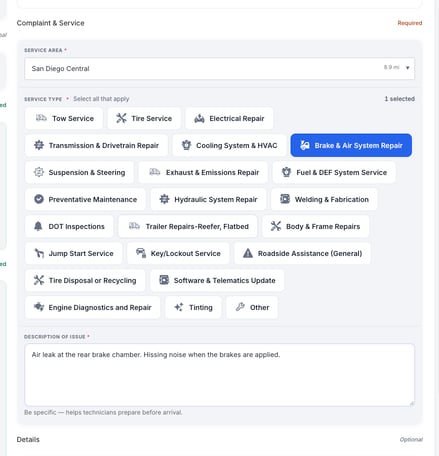
Under Complaint & Service:
- Service area: fills in with the best match for the address, usually the closest, once the unit location is set (the list still shows each one's distance). Change it if the job belongs elsewhere, and your pick stays. The Service area decides the order's tax. See Set Up Taxes by Jurisdiction.
- Service type: select every tile that applies, for example Brake & Air System Repair. The counter shows how many are selected.
- Description of issue: be specific so the technician can prepare.
- Details (optional): a PO or reference number, the payment method, and notes for dispatchers and technicians.
Create the order
When the counter is full (5/5 for a Now order), click Create Service Order. The order opens as Unassigned, ready for you to assign a technician. See Manually Assign a Technician.
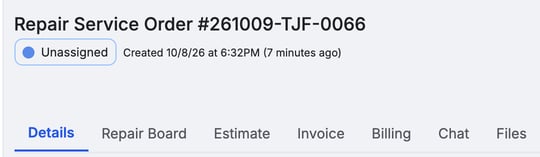
The order number is assigned when you open the form. If you click Cancel before creating, MetaFleet asks Discard this draft? Click Discard draft to delete what you entered.
Customers can also request service themselves in the portal. See Create a Service Order (Customer).
Orders also arrive as partner requests through FleetNet, and a dispatcher can turn a chat into an order.
Troubleshooting
| Symptom | Likely cause | Fix |
|---|---|---|
| Vehicle, Unit Location and Complaint & Service are greyed out | No company selected | Pick a company first. The other cards unlock. |
| Create Service Order stays disabled | A required piece is empty | Check the counter's list. It names what is still missing. |
| The counter stops at 4/5 after you type the description | The field hasn't been left yet | Click outside the description box so the form picks it up. |
| The vehicle isn't found | It isn't on that company yet | Click + Create a new vehicle in the picker. |
| The address won't stick | It wasn't picked from the suggestions | Pick a suggestion from the dropdown, or drop the pin on the map. |
FAQs
Do I have to add a contact?
For a Now order, no. Scheduled and Unscheduled orders need a contact.
What status does a new order start in?
Unassigned. Your next step is to assign a technician.
Can I create the company while making the order?
Yes. Use + Create a new company in the company search.
Can I pick more than one service type?
Yes. The tiles are multi-select.