---
title: Stop Work and Invoice Early
description: Stop work and invoice early when a customer calls a job off or a vehicle can't be fixed, and choose which parts were used so stock stays right.
---
[Skip to content](https://support.metafleet.ai/stop-work-and-invoice-early#main-content)
English
Show submenu for translations

Open main navigation
Close main navigation
- English
Show submenu for translations
- [Contact us](mailto:support@metafleet.ai)
[Contact us](mailto:support@metafleet.ai)
How can we help you?
- There are no suggestions because the search field is empty.
1. [MetaFleet Answer Hub](https://support.metafleet.ai/?hsLang=en)
2. [Invoicing & Payments](https://support.metafleet.ai/invoicing-payments?hsLang=en)
# Stop Work and Invoice Early
## End a job before it's finished, release the technician and move the order straight to invoicing, so you still bill what was done.
**For:** Dispatchers and managers · **Permission:** the one that lets you cancel a service order · **Time:** ~2 minutes
### Quick summary
1. Open the order and find **Stop work & invoice** (on a tow, **End work & invoice** at the top of the order).
2. Pick why the work is stopping.
3. Tick the parts the technician fitted.
4. Click **Stop work & invoice**, then review and send the invoice.
### Before you start
- Use this when the customer calls the job off at the door, the vehicle can't be fixed, or you need to stop and bill what was done.
- You need the same permission that lets you cancel a service order. On a repair or tow order the button doesn't show without it. On a visit the button shows, but the stop is refused with "You do not have permission to stop work on this service order."
- Make the call with the customer first. The technician is released as soon as you confirm.
- There is no way back. A stopped order can't return to in progress.
### Find the button
The button shows only while there is still work to stop. Where you look depends on the order type:
- **Repair order:** the **Invoice** tab. Once the technician has submitted all repairs, the button is replaced by **End Work & Review**.
- **Tow:** the top of the order, to the right of the title, next to **Cancel Service Order**. It shows on every tab until the tow is delivered and reads **End work & invoice**.
- **PM or inspection visit:** the visit page, on the invoice row next to **Preview**. It shows once the technician is on the way and the visit has a service order. It goes away when the order reaches invoicing or the visit invoice has been sent.


### Say why the work is stopping
Click the button. A window opens.
1. **Pick a reason.** **Customer cancelled** is preselected. The others are **Vehicle is not on-site**, **Site inaccessible**, **Area is not covered** and **Other**.
2. **Add a note** if it helps. The note is required for **Other**.
> The reason and note are internal. They go on the order's timeline and in reports. They don't appear on the invoice or in customer emails.
### Tell MetaFleet which parts were used
If the order has part lines, the window asks **Which parts were used?** Nothing is ticked at first.
1. **Tick each part the technician fitted.** The **Used** box fills with the full quantity.
2. **Lower the quantity** if only some were fitted. It can't be more than the quantity on the order.
3. **Check the line under the list.** It reads, for example, "1 part used. Everything else goes back to stock."
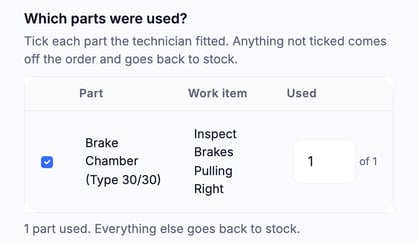
> Anything you don't tick comes off the order and goes back to stock. It isn't billed. If you skip every part, all of them go back.
A part line can show a note under its work item, such as "Estimate not sent · not on the invoice". That part wasn't going to be billed.
If the order has no part lines, the question doesn't show. A tow usually has none.
### Confirm the stop
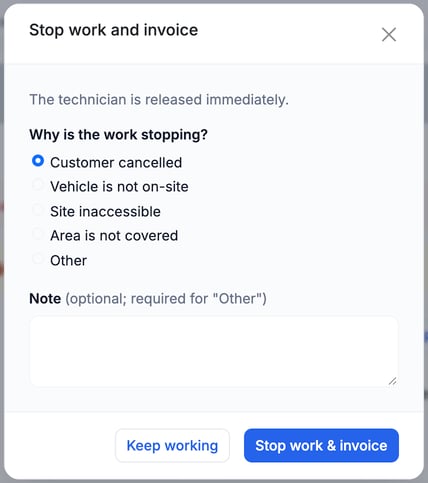
1. Click **Stop work & invoice** (on a tow, **End work & invoice**).
2. Fix anything the window flags. "Enter how many were used, or untick it." means a ticked part has no quantity.
To back out, click **Keep working** (on a tow, **Keep the tow running**). Nothing changes.
### What happens next
- The technician's work stops and the job closes on their device.
- The order reads **Work Stopped** until it is invoiced, not **Repair Complete**. On the Repair Board, the last step reads **Work Stopped** too.
- The order moves straight to invoicing. It skips diagnosis, estimate and repair approvals.
- Everything recorded so far stays on the invoice for you to review: labor, work items, the call-out charge and fees. Parts you didn't tick are gone.
- Work items that never reached approval don't block **Send Invoice**.
- On a visit, any truck already finished is still billed. Trucks not finished are canceled.
- The customer gets nothing at the moment of the stop. They hear about it when you send the invoice. The email is titled **Work Stopped: Invoice For Call-Out**, says the repairs were not completed, and gives your phone number for a new visit.
Open the **Invoice** tab, trim lines if you need to, then send. See [Approve and Send an Invoice](https://support.metafleet.ai/approve-and-send-an-invoice?hsLang=en).
### Stop work and invoice or Cancel Service Order?
| | Stop work & invoice | Cancel Service Order |
| --- | --- | --- |
| Technician | Released | Released |
| Invoice | Yes, from what was recorded | None. Nothing is billed |
| Order ends as | Invoicing, then paid | Canceled |
| Use it when | You want to bill the trip or the work done | The job should never be billed |
See [Manage a Service Order](https://support.metafleet.ai/manage-a-service-order?hsLang=en) for canceling.
### Troubleshooting
| Symptom | Likely cause | Fix |
| --- | --- | --- |
| I don't see the button | You don't have the permission that lets you cancel a service order | Ask an admin to add it to your role. |
| Confirm says "You do not have permission to stop work on this service order." | Visit pages show the button to everyone, but the stop needs the cancel permission | Ask an admin to add it to your role. |
| I see **End Work & Review**, not **Stop work & invoice** | The technician already submitted all repairs | Use **End Work & Review** to finish the job the usual way. |
| The button is gone on a visit | The visit has no service order yet, it already reached invoicing, or the visit invoice has been sent | Go on to the invoice. Stopping isn't needed. |
| Confirm says the order already reached invoicing, was invoiced or is closed | The technician finished, or someone else moved the order, while your page was open | Reload. Use **End Work & Review** or **Send Invoice** instead. |
| The window won't close on confirm | The reason is **Other** with no note, or a ticked part has no quantity | Add the note or the quantity, or untick the part. |
| A part I didn't use is still on the invoice | It was ticked in the window | Stopping can't be undone. Remove the line on the **Invoice** tab before you send. |
### FAQs
**Can the technician stop the job?**
No. Only a dispatcher or manager with the cancel permission can stop it.
**Will I still get the call-out charge?**
Yes. The order is invoiced, so the call-out charge and fees on it stay as recorded.
**Do I have to answer the parts question?**
Yes, if it shows. Nothing is ticked at first, so answering "none" means every part goes back to stock.
**Can I undo it?**
No. Stopped orders don't go back to in progress.
### Related articles
- [Approve and Send an Invoice](https://support.metafleet.ai/approve-and-send-an-invoice?hsLang=en)
- [Understand the Service Order Lifecycle](https://support.metafleet.ai/the-service-order-lifecycle?hsLang=en)
- [Book a Tow and Run the Tow Board](https://support.metafleet.ai/book-a-tow-and-run-the-tow-board?hsLang=en)
- [Review and Send a PM Visit Invoice](https://support.metafleet.ai/pm-invoicing?hsLang=en)
- [Start Here](https://support.metafleet.ai/start-here?hsLang=en)
- [Companies & Contacts](https://support.metafleet.ai/companies-contacts?hsLang=en#main-content)
- [Create/Edit Companies](https://support.metafleet.ai/companies-contacts?hsLang=en#create-edit-companies)
- [Contacts](https://support.metafleet.ai/companies-contacts?hsLang=en#contacts)
- [Vehicles](https://support.metafleet.ai/companies-contacts?hsLang=en#vehicles)
- [Work Intake (Requests & Service Orders)](https://support.metafleet.ai/work-intake-requests-service-orders?hsLang=en#main-content)
- [Creating Service Orders](https://support.metafleet.ai/work-intake-requests-service-orders?hsLang=en#creating-service-orders)
- [Customer & Partner Requests](https://support.metafleet.ai/work-intake-requests-service-orders?hsLang=en#customer-partner-requests)
- [Reference](https://support.metafleet.ai/work-intake-requests-service-orders?hsLang=en#reference)
- [Customer Portal](https://support.metafleet.ai/work-intake-requests-service-orders?hsLang=en#customer-portal)
- [Estimates & Approvals](https://support.metafleet.ai/estimates-approvals?hsLang=en#main-content)
- [Approval Gates](https://support.metafleet.ai/estimates-approvals?hsLang=en#approval-gates)
- [Estimates](https://support.metafleet.ai/estimates-approvals?hsLang=en#estimates)
- [Invoices](https://support.metafleet.ai/estimates-approvals?hsLang=en#invoices)
- [Billing](https://support.metafleet.ai/estimates-approvals?hsLang=en#billing)
- [Parts, Inventory & Vendors](https://support.metafleet.ai/parts-inventory-vendors?hsLang=en#main-content)
- [Add Parts & Kits](https://support.metafleet.ai/parts-inventory-vendors?hsLang=en#add-parts-kits)
- [Stock & Counts](https://support.metafleet.ai/parts-inventory-vendors?hsLang=en#stock-counts)
- [Locations & Bins](https://support.metafleet.ai/parts-inventory-vendors?hsLang=en#locations-bins)
- [Purchase Orders](https://support.metafleet.ai/parts-inventory-vendors?hsLang=en#purchase-orders)
- [Parts Catalog](https://support.metafleet.ai/parts-inventory-vendors?hsLang=en#parts-catalog)
- [Vendors & Manufacturers](https://support.metafleet.ai/parts-inventory-vendors?hsLang=en#vendors-manufacturers)
- [Pricing](https://support.metafleet.ai/parts-inventory-vendors?hsLang=en#pricing)
- [Service Vehicles](https://support.metafleet.ai/parts-inventory-vendors?hsLang=en#service-vehicles)
- [Sourcing & Hand-Off](https://support.metafleet.ai/parts-inventory-vendors?hsLang=en#sourcing-hand-off)
- [Part Numbers](https://support.metafleet.ai/parts-inventory-vendors?hsLang=en#part-numbers)
- [Notifications](https://support.metafleet.ai/parts-inventory-vendors?hsLang=en#notifications)
- [Reports](https://support.metafleet.ai/parts-inventory-vendors?hsLang=en#reports)
- [Invoicing & Payments](https://support.metafleet.ai/invoicing-payments?hsLang=en)
- [Dispatch & Scheduling](https://support.metafleet.ai/dispatch-scheduling?hsLang=en#main-content)
- [Preventative Maintenance](https://support.metafleet.ai/dispatch-scheduling?hsLang=en#preventative-maintenance)
- [Technician Assignment](https://support.metafleet.ai/dispatch-scheduling?hsLang=en#technician-assignment)
- [Scheduling & Calendar](https://support.metafleet.ai/dispatch-scheduling?hsLang=en#scheduling-calendar)
- [Technician Schedule](https://support.metafleet.ai/dispatch-scheduling?hsLang=en#technician-schedule)
- [Technicians & Mobile App](https://support.metafleet.ai/technicians-mobile-app?hsLang=en#main-content)
- [Time Tracking](https://support.metafleet.ai/technicians-mobile-app?hsLang=en#time-tracking)
- [Tech Workflow](https://support.metafleet.ai/technicians-mobile-app?hsLang=en#tech-workflow)
- [Evidence & Photos](https://support.metafleet.ai/technicians-mobile-app?hsLang=en#evidence-photos)
- [AI Assistant](https://support.metafleet.ai/technicians-mobile-app?hsLang=en#ai-assistant)
- [Alerts, Alarms & Notifications](https://support.metafleet.ai/alerts-alarms-notifications?hsLang=en#main-content)
- [Email/SMS/App Settings](https://support.metafleet.ai/alerts-alarms-notifications?hsLang=en#email-sms-app-settings)
- [Reporting & Dashboards](https://support.metafleet.ai/reporting-dashboards?hsLang=en)
- [Admin & Settings](https://support.metafleet.ai/admin-settings?hsLang=en#main-content)
- [Rates & Fees](https://support.metafleet.ai/admin-settings?hsLang=en#rates-fees)
- [Branding](https://support.metafleet.ai/admin-settings?hsLang=en#branding)
- [Roles, Permissions & Users](https://support.metafleet.ai/admin-settings?hsLang=en#roles-permissions-users)
- [Service Areas](https://support.metafleet.ai/admin-settings?hsLang=en#service-areas)
- [Workflows](https://support.metafleet.ai/admin-settings?hsLang=en#workflows)
- [Taxes](https://support.metafleet.ai/admin-settings?hsLang=en#taxes)
- [Integrations](https://support.metafleet.ai/admin-settings?hsLang=en#integrations)
- [Integrations](https://support.metafleet.ai/integrations?hsLang=en#main-content)
- [Phone Setup](https://support.metafleet.ai/integrations?hsLang=en#phone-setup)
- [AI Assistant Access](https://support.metafleet.ai/integrations?hsLang=en#ai-assistant-access)
- [QuickBooks](https://support.metafleet.ai/integrations?hsLang=en#quickbooks)
- [Getting Around](https://support.metafleet.ai/getting-around?hsLang=en#main-content)
- [Search & Command Bar](https://support.metafleet.ai/getting-around?hsLang=en#search-command-bar)
[](http://www.metafleet.ai)
[mailto:support@metafleet.ai](mailto:support@metafleet.ai)
Copyright © 2025, MetaFleet, Inc