
For: Dispatchers, technicians and managers · Permission: None · Time: ~5 minutes
Where to see the status
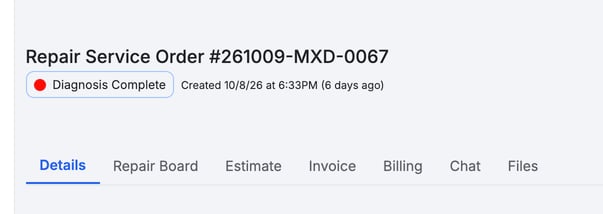
The status shows next to the order number at the top of every service order. It also shows in the Service Orders list and, in friendlier wording with a status tracker on each order, in the customer's portal.
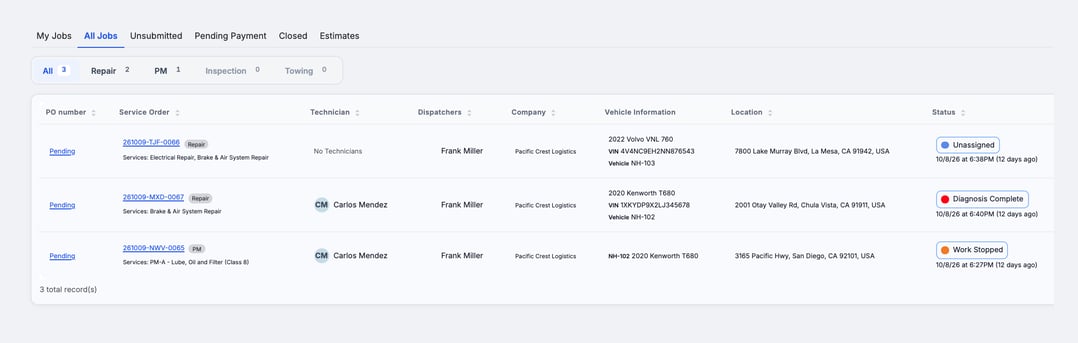
The list has tabs that group orders by where they are: My Jobs, All Jobs, Unsubmitted, Pending Payment, Closed and Estimates. Admins open on All Jobs; everyone else opens on My Jobs. The Status column shows each order's current status. Under the tabs, the All, Repair, PM, Inspection and Towing buttons narrow the list by order type (Towing only if your shop uses it).
The main flow of a repair order
A standard repair order moves through these statuses in order:
| Status | What it means |
|---|---|
| Unassigned | The order exists but has no technician. |
| Assigned | A technician is assigned. |
| En route | The technician is on the way. |
| Technician Diagnosis | The technician is diagnosing the problem. |
| Diagnosis Complete | Diagnosis is done. The order waits here while any approval you turned on is pending. |
| Repair In Progress | The technician is doing the repair. |
| In Review | The repair is submitted and, when the dispatcher gate is on, waits for a dispatcher to check it. |
| Repair Complete | The repair is approved and the invoice is ready to build. |
| Pending Payment | The invoice is sent and the order waits for payment. |
| Closed | The order is finished. |
A dispatcher can also stop work on an order and invoice it as is. The order then reads Work Stopped instead of Repair Complete (or Invoicing / Ready for Invoice on a visit or tow) while it waits to be invoiced. It goes straight to invoicing. Repair Complete is kept for jobs that really finished.
Cancelled can happen at any point if the job is called off.
If you don't use any approval gates, the order goes from Technician Diagnosis straight to Repair In Progress when the technician finalizes the diagnosis.
Paused
An order can show Paused in place of its normal status. It appears while the order is En route, in Technician Diagnosis or in Repair In Progress, when the technician clocks out or clocks into another job and no other technician is still working it. It clears when the order moves forward.
The approval gates (a parallel track)
Each approval gate is its own on/off setting, and they work independently. When a gate is on, the order stops until someone signs off.
- Estimate approvals: A manager can be required to approve the estimate before the customer sees it, and the customer can be required to approve it before repairs start. While the estimate waits, the order stays at Diagnosis Complete. On the Estimate tab, a status chip shows where the estimate stands: Estimate Needs Manager Review, Manager Rejected Estimate, Estimate Needs Customer Review, Customer Rejected Estimate, Estimate Approved by Manager, Estimate Approved by Customer or Auto-Approved. The order status stays at Diagnosis Complete the whole time. A rejected estimate is sent back. Adjust it and resubmit.
- Invoice Review: A manager must approve the invoice before it is sent. If the manager sends it back, the order shows Manager Rejected Invoice.
An estimate at or under the customer's auto-approve limit is approved on submit, and the customer is not emailed.
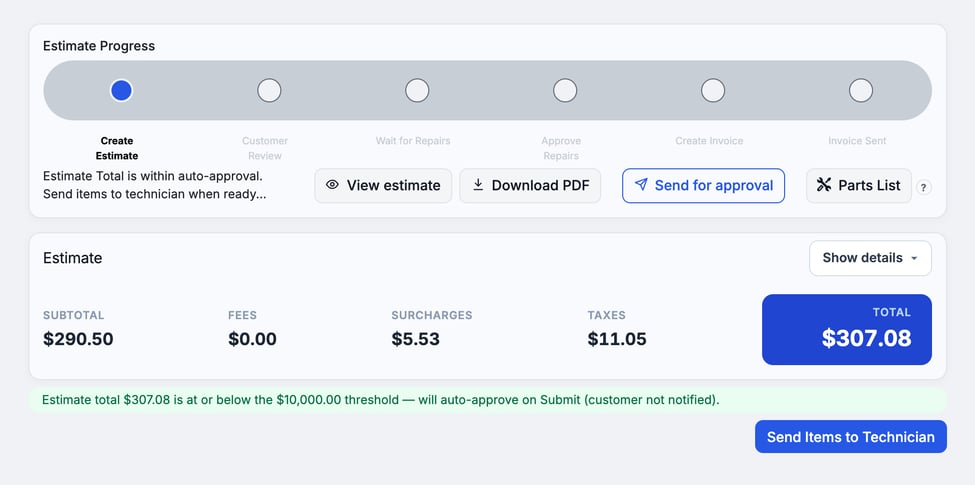
The dispatcher gates show up as waits rather than separate statuses. With Estimates require Dispatcher approval before sending to Customer on, the order stays at Diagnosis Complete after diagnosis until a dispatcher checks the estimate on the order's Estimate tab and sends it on: to a manager, to the customer, or to the technician. The last approval starts the work. With Dispatcher approval is required before work can be completed on, the order waits at In Review.
Which gates apply is up to your shop. You turn them on and off in Settings › Workflow › Approvals & Alerts, on the Service Order Settings card. See Understanding the Approval Gates and Configure Approval Options.
Visits and tows read differently. PM and Inspection visits have no diagnosis stage. In place of the diagnosis and repair statuses they show Service In Progress, then Invoicing instead of Repair Complete. The other statuses are the same. Towing orders go En route, Loading, In Transit, then Ready for Invoice, and continue to invoicing instead of the diagnosis and repair path. Older tows may still sit at Delivered, which also reads Ready for Invoice.
Troubleshooting
| Symptom | Likely cause | Fix |
|---|---|---|
| The order is stuck at Diagnosis Complete | An approval is pending: the dispatcher's check of the estimate, or a manager or customer approval. | Open the Estimate tab. A dispatcher sends the estimate on with the button there (for example Send Estimate to Customer or Send Items to Technician), or a manager approves it. |
| The order shows Paused | The technician stopped work and nobody else is working it. | The status clears when the order moves forward. |
| The order is at Invoice Review | Manager approval for invoices is on. | Have a manager approve the invoice, or turn the gate off (see Configure Approval Options). |
FAQs
What's the difference between "In Review" and "Invoice Review"?
In Review is the dispatcher's check of the finished repair, before invoicing. Invoice Review is a manager approving the invoice itself.
Why does my PM visit say "Service In Progress"?
Visits have no diagnosis stage, so they show Service In Progress and Invoicing in place of the repair statuses.
Where do I turn the approvals on or off?
Settings › Workflow › Approvals & Alerts, on the Service Order Settings card.
Where do customers see the status?
In their portal, with friendly labels and a status tracker on each order.