
For: Dispatchers and managers · Time: ~3 minutes
Quick summary
- Open the order's Invoice tab.
- Click Attach Photos to Invoice and tick at least one photo.
- Click Preview to check the customer's copy.
- Click Send Invoice and confirm.
Before you start
- A repair order whose work is finished. Its status shows Repair Complete (or Work Stopped if the work was stopped early), and the progress bar on the Invoice tab reads Finalize approval, Send Invoice, Invoice Sent.
- At least one photo on the order. Receipts and vehicle-reference photos are shop-only and can't go on the invoice.
- Someone to send it to: a company member with an email address and the Receive invoices permission. If nobody has that permission, a contact on the order with an email address works.
PM and Inspection visits: the status reads Invoicing and the progress bar reads Service completed, Review & send, Invoice sent. The send steps below work the same way.
Open the Invoice tab
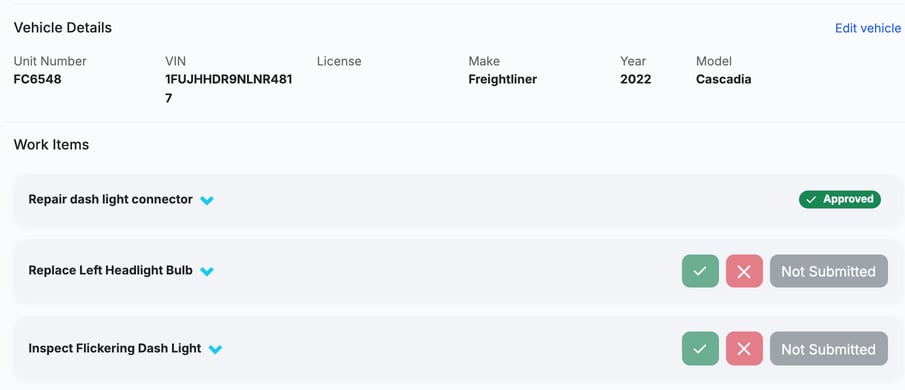
Click Invoice on the order. MetaFleet has already drafted it: invoice number, date, terms, due date, who it's billed to, the vehicle details and the work items.
Under Work Items, each item shows its status, such as Approved or Not Submitted, with a green check and a red X for the items that still need a decision.
Each work item can carry a correction summary, a short write-up of what was done. Edit it on the work item before you send.
On a repair order, time-based labor hours are priced once for the whole order. Below the work items, a Labor block lists one row per rate, such as Regular, with its rate, hours and amount. The work items themselves show in labor below instead of a price. Under that block, the Labor Details card compares Stated (the hours and dollars billed) with Actual (the time technicians were clocked in On Site). It's there to check against. It doesn't change the invoice. Open Labor Details, then click Show details to see the rates.
Time-based labor hours are rounded up once for the whole order, to your shop's labor rounding step, and shared across the jobs so the rows add up. Each job keeps the hours you typed. On each work item's labor line, the Invoice tab shows the billed hours with "typed 1.12" beside them when they differ, such as "Hours: 1.25 · typed 1.12". Your customer sees only the billed hours. See Choose How Labor Is Rounded.
Attach a photo
The tab shows At least 1 photo must be attached to invoice until a photo is chosen, and Send Invoice stays disabled.
- In the Photos card, click Attach Photos to Invoice.
- Tick the photos to print on the customer's invoice, then click Save.
- Confirm the Make photos customer facing? question with Yes, save.
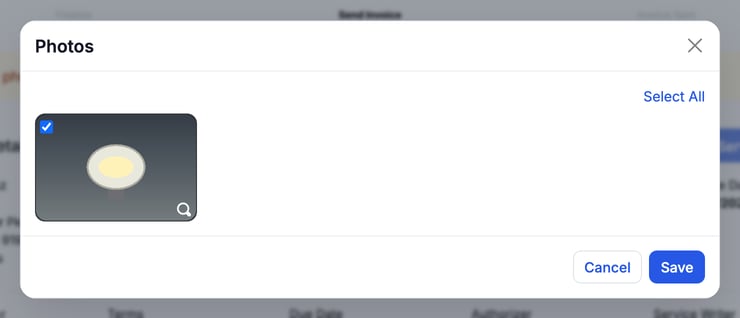
No photos listed? The window only shows photos that are on the order. Ask the technician to add a work photo, or add one from the order's Repair Board tab (+ Add Photos), then try again.
Vehicle details also matter: if the VIN, make or model is missing, a yellow alert asks you to add them before the invoice can be sent. Use Edit vehicle on the order.
Adjust fees and discounts
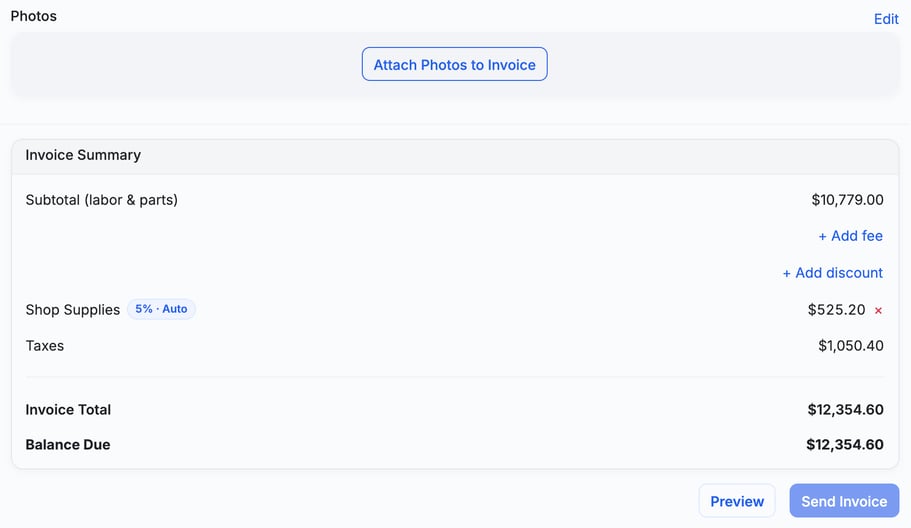
The Invoice Summary card adds everything up: the Subtotal (labor & parts), any fees and discount, taxes, the Invoice Total and the Balance Due.
- Use + Add fee or + Add discount to change this one invoice.
- To charge a fee at a different price on this order, pick it in + Add fee and change Price each. You can pick several fees at once, each with its own quantity and price. To change a fee that's already on, click Edit on its row. A fee at a changed price shows a Custom price tag. Only your team sees the tag.
- Shop Supplies, if your shop has it turned on, is added automatically and marked Auto. Click the × beside it to remove it from this invoice (the removal is logged to the order's activity log).
- If your shop has the automatic Service Fee on, it shows on the Invoice tab before you send, at the amount the invoice will bill. If you remove the Service Fee, it stays off the invoice. Use + Add fee to put it back.
- Travel time shows the billed minutes. Click it to change them. Each change, removal or add-back is written to the order's internal history. The customer doesn't see that history.
- Taxes are worked out from your tax settings. If the invoice has 2 or more taxes, click the info button beside Taxes (it says "Show each tax" when you hover) to see each tax with its rate and amount. Only your team sees this. Your customer sees one Taxes line.
- If your shop uses QuickBooks Automated Sales Tax, the invoice uses MetaFleet's tax unless you click Use QuickBooks' Sales Tax under Taxes. Click Use MetaFleet's Sales Tax to switch back. Sending the invoice also sends it to QuickBooks. After that, users who can manage account settings see QB Sync before Preview; click it to send the invoice to QuickBooks again. See Send an Invoice and Check It in QuickBooks.
Preview the invoice
Click Preview. The PDF opens in a new browser tab, so allow pop-ups for MetaFleet if nothing appears. This is the customer's copy: your logo, Bill To, service order number, terms, every work item and the terms and conditions at the end. The Authorizer is the person who approved the estimate. When the estimate was approved by someone, a line under it reads Approved by with their name, email and the date.
Send it
Click Send Invoice. A confirmation dialog shows Amount Due (the full invoice figure, Service Fee, travel and labor included) and who gets the email:
- Company members with Receive invoices: "Invoice will be emailed to:" then a list with each person's name, email and the role that gives it.
- Nobody holds it: the contacts on the order, in one line: "Invoice will be emailed to Name (email)." or "…to Name, Name and 2 others."
- No contact either: the dialog is titled Invoice can't be emailed and reads "No contact has the 'Receive invoices' permission or a valid email address, so this invoice can't be emailed. Add a contact with a valid email address to this service order to send it." Click Save invoice to record the invoice without emailing it, then print or email it yourself. If nobody can receive it when you press send, the send is refused with "Not sent. No contact has the right permission or a valid email address."
If the order is set to card payment, the first line reads "Payment link will be emailed to…" instead.
If any work item has a correction summary, the dialog also has an Include correction summaries switch. It prints each work item's summary on the PDF and in the email.
Click Send. The order moves to Pending Payment. The status line on the Invoice tab says who the invoice was emailed to, or that nobody was, or "The email couldn't be sent. Resend to try again." Track the order from the Billing tab or the Billing Hub. Once the due date has passed, the Billing tab shows one red banner that leads with the balance owed, such as "$319.65 is past due", with the invoice number, total, amount paid and due date under it.
Skip payment or mark as delivered
Two other buttons can appear on the Invoice tab:
- Skip payment (managers and users who can manage invoices): writes the invoice down to $0.00 while the work stays listed at full value. Pick a reason, add a note, and click Mark no charge. The order isn't closed until you click Send Invoice, which closes a no-charge order instead of moving it to Pending Payment.
- Mark as Manually Delivered: use it after you gave the customer the invoice yourself, instead of emailing it.
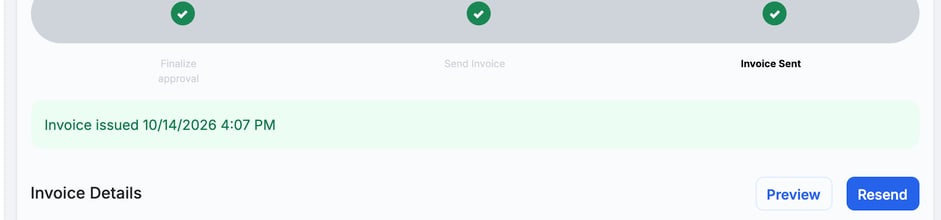
After sending, the bar reads Invoice Sent and Send Invoice becomes Resend.
Manager approval for invoices. If your shop requires it, a manager approves the invoice first, in the Finalize approval step. See Understanding the Approval Gates.
Parts still short? If a part on the job isn't fully sourced, MetaFleet shows a sourcing-shortage warning before the send. Review the flagged parts, then continue or fix the shortage first.
What your customer receives
The customer gets an email with the subject Invoice For Service, followed by the PO number if the order has one, otherwise the unit number, otherwise the service order number. For example: "Invoice For Service - Unit # FC6548". If the work was stopped early, the subject is Work Stopped: Invoice For Call-Out and the email is headed Work stopped — here's your invoice for the call-out. Otherwise the email is headed Your invoice is ready and says the invoice for the service order is ready. It lists the vehicle, the total invoice amount, the terms and the due date, then the work items and the totals, with a row for each fee, discount and tax. If the order has time-based labor, a Labor section lists each rate with its hours and amount, and the labor total. The PDF shows the same Labor section. The invoice PDF is attached.
The customer also gets a text: "Shop name update: Your invoice for $X is ready. View and pay it here: link". The amount is left out on a $0 invoice. If the work was stopped early, the text reads "Shop name update: Work on your service order has ended. Your invoice is ready."
When the order is set to card payment, the email also has a Pay now button with the balance due and the line "Pay your invoice online". The customer doesn't need to log in. If the order isn't set to card payment, the email has no payment link.

The top of the PDF the customer receives.
Your customer can find out what to do next in Review and Pay an Invoice.
Check Invoice History
The Invoice History table at the bottom logs each send with the date, who sent it, subtotal, discount, surcharges, taxes and total. Click Download to get that version.

Troubleshooting
| Symptom | Likely cause | Fix |
|---|---|---|
| There's no drafted invoice on the tab | The work isn't finished | Finish the repairs, or use Stop work & invoice on the order (see Stop Work and Invoice Early). |
| Send Invoice is greyed out | No photo is attached, or the VIN, make or model is missing | Read the alert at the top of the tab and clear it. For a photo, use Attach Photos to Invoice. |
| A photo I took isn't in the Photos window | It's a shop-only photo, such as a receipt or a vehicle-reference shot | That's expected. Only customer-facing work photos can go on an invoice. |
| The dialog is titled Invoice can't be emailed | Nobody has the Receive invoices permission, and no contact on the order has a valid email address | Give a contact the Receive invoices permission, or add a contact with a valid email address to the order, then send again. |
| An error says the payment account is not ready | The order is set to card payment and your shop's payment account isn't ready to create a payment link | Ask your admin to finish the payment account setup, or change the order's payment method to Manual Collection on the Details tab, then send again. |
| Preview doesn't open | The browser blocked the new tab, or the PDF couldn't be fetched ("We couldn't open the PDF. Try again.") | Allow pop-ups for MetaFleet and click Preview again. |
| The invoice waits for a manager | Manager approval for invoices is on | Have a manager approve it, or review the gate in Understanding the Approval Gates. |
| The total looks wrong | A fee, discount or work item is off | Adjust it in the Invoice Summary, or fix the work items on the order. |
FAQs
Why is a photo required?
It keeps a visual record of the work on every invoice. Send Invoice stays disabled until one photo is attached.
Which photos can go on the invoice?
Only customer-facing work photos. Receipts and vehicle-reference photos (VIN, plate, mileage, damage) stay on the job for your records and never print on the customer's invoice.
Who receives the invoice?
Every company member with an email address who holds the Receive invoices permission, whether or not they are on the order. An Enterprise company's owner who is on the order always receives it. If nobody holds the permission, the contacts on the order who have an email address. The send dialog names them before you confirm.
Can I resend an invoice?
Yes. After the first send, Send Invoice becomes Resend. Each send is recorded in Invoice History, and you can download past versions there. If the invoice went out with a payment link, the old link stops working when you resend. The customer must use the link in the newest email. The link also stops working as soon as the balance changes: a payment (even a partial one), a credit, a write-off or a reversal. Resend to give the customer a new link for today's balance. After a payment, credit or write-off, a resent invoice PDF shows the amount owed today.
What if the order changes after I sent the invoice?
The Billing tab warns "Changed after sending. Order now $X." and offers Resend invoice. On a Closed order, use Reopen and resend.
Where do I add a discount?
In the Invoice Summary, use + Add discount before you send. It comes off the whole order (labor, parts, fees and surcharges) before tax.
Can the customer pay from the invoice?
Once it's sent, the order moves to Pending Payment and you collect payment through your billing flow.