
For: Owners and admins · Permission: Manage account settings · Time: ~5 minutes
Quick summary
- Open Settings › Fees & Surcharges and click the Service Fee Config tab.
- Turn on the Service Fee switch.
- Set the Weekday tiers and the Holiday calendar.
- Pick the tax class on Where the service fee lands, then click Save changes.
Before you start
- You need permission to manage account settings.
- The Service Fee is one fee for the whole order. It is not tied to a single work item. To charge for one item, use a fee from Active Fees instead.
- The setting is shop-wide. After you save, it applies to every estimate and to every invoice not yet sent. An invoice already sent is not changed, and a Resend does not add the fee to it.
Open the Service Fee settings
Go to Settings › Fees & Surcharges. The page has four tabs: Active Fees, Archived Fees, Service Fee Config and Late Fees. Click Service Fee Config.
The breadcrumb inside the tab reads Settings › Rates & Fees › Service Fee. It's the same page.
The Service Fee title has a switch and an Enabled or Disabled label beside it. The Feature status card repeats the switch. While the fee is off, only this card appears.
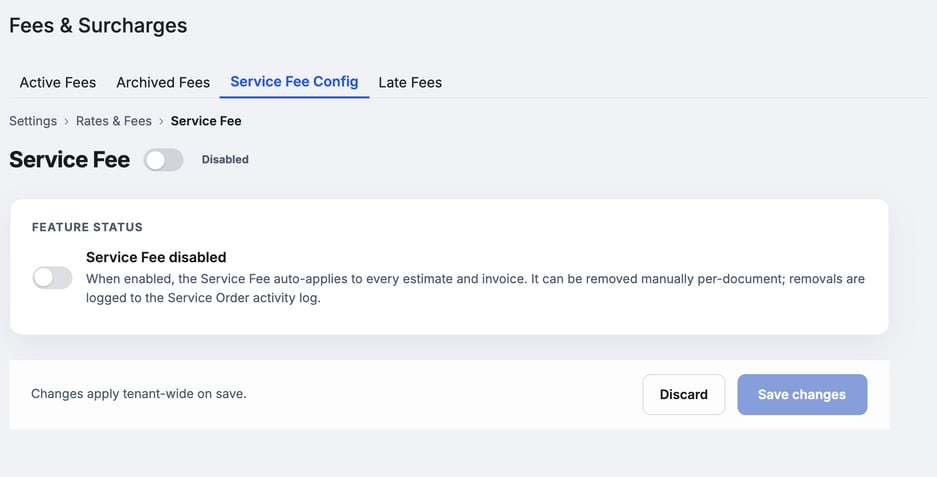
The Service Fee is off until you turn on the switch.
Turn it on
Click the switch on the Feature status card. When it's on, the Service Fee adds itself to every estimate and invoice. The page then shows the cards below. The Invoice tab shows the fee before you send, once the technician has an en route or arrival time.
Set the weekday tiers
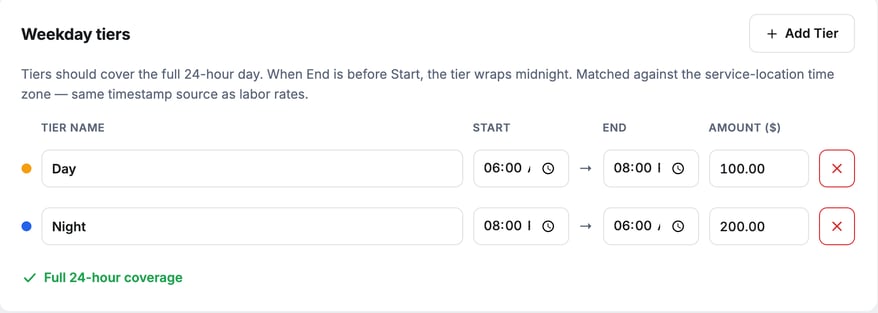
The Weekday tiers card sets the amount by time of day. Each tier is one row with a Tier name, a Start time, an End time and an Amount ($). The amount is a flat dollar figure, not a percent. The weekday tiers also apply on Saturday and Sunday.
MetaFleet picks the tier from the time the technician went en route or arrived. It uses the service location's time zone and keeps that tier. If the estimate is built before the technician is en route, MetaFleet uses the time the estimate is built and keeps that tier on the invoice. To re-price after a change, remove the fee and add it back.
- Click Add Tier to add a row.
- Type a name, the start and end times, and the amount.
- Click the × at the end of a row to remove that tier.
Tiers should cover the full 24-hour day. If End is earlier than Start, the tier runs past midnight.
Watch the coverage line. A row turns amber with a warning if it overlaps another tier or leaves a gap. A summary under the rows lists the gaps and overlaps by time. It reads Full 24-hour coverage when the day is complete.
Set the holiday fee
On the Holiday calendar card, a holiday replaces the weekday tiers for the whole calendar day.
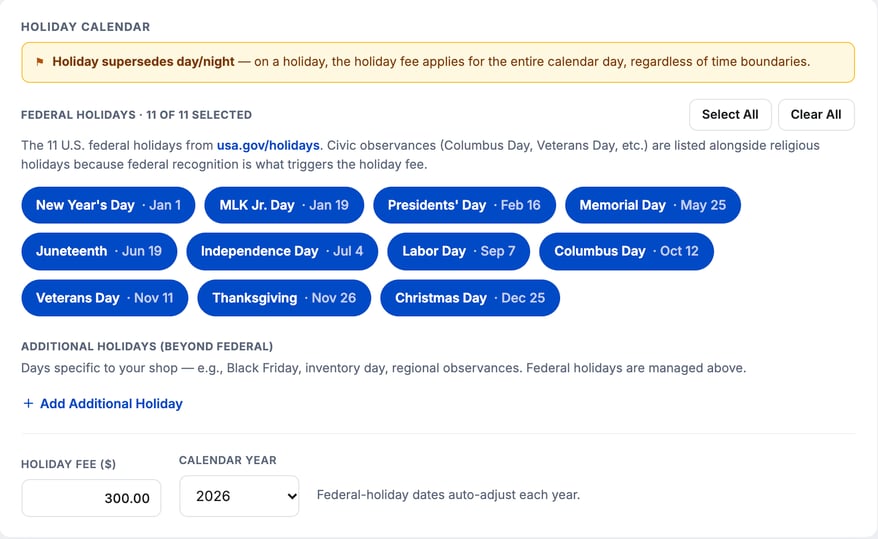
- Click each federal holiday that should charge the holiday fee to turn it on or off. Select All and Clear All change them all at once.
- Click Add Additional Holiday to add your own dates.
- Enter the Holiday fee ($).
- Choose the Calendar Year. Federal holiday dates adjust each year.
Choose the tax class
The Where the service fee lands card sets how the fee is taxed. Pick a tax class, and a line under it shows how that class is taxed. After your first save, if QuickBooks is connected, the card also has the QuickBooks account the fee posts to. See How Parts, Labor and Fees Map to QuickBooks Items and How Posting Accounts Map to Your Chart of Accounts.
Save your changes
Click Save changes at the bottom. Discard throws away what you typed since the last save. Nothing applies until you save, and then it applies to the whole shop.
Remove the fee from one order
On an estimate or invoice, the Service Fee line shows an Auto badge, the tier it used and the time. Users with Manage all service orders see an × at the end of the line.
- Click the × on the Service Fee line.
- The fee comes off the order. The removal is logged in the service order's activity log. MetaFleet doesn't add it back on its own, not even when the invoice is created.
To put it back, click + Add fee on the same document, pick the Service Fee and click Add fee. It is marked Time-based (auto) in the list, and shows On this order while it's on the document. There is no quantity or price to set: it is Priced by the time of day.
What the customer sees
On the customer's estimate review page and invoice, the fee is one line named Service Fee with its amount. The Auto badge and the tier are staff-only.
How it differs from other fees
| Service Fee | Other fees (Active Fees) | |
|---|---|---|
| Applies to | The whole order | What you add it to |
| Added | Automatically | By hand, with + Add fee |
| Amount | Set by time of day and holiday | One fixed cost |
| Where you set it | Service Fee Config tab | Active Fees tab |
Troubleshooting
| Symptom | Likely cause | Fix |
|---|---|---|
| The tier and holiday cards aren't on the page | The Service Fee is off | Turn on the switch on the Feature status card. |
| I can't click Save changes | Nothing has changed, or the tiers have a problem | Make a change, then fix any amber warning on the tiers. |
| The fee is missing from one estimate or invoice | Someone removed it from the order | Click + Add fee and pick the Service Fee. Check the activity log to see who removed it. |
| There is no × on the Service Fee line | Your user doesn't have Manage all service orders | Ask an admin to remove it. |
| Send Invoice fails with a generic error | The Service Fee is on and the order has no en route or arrival time | Have the technician mark en route or arrival, or remove the Service Fee line. |
| The Service Fee isn't in the + Add fee list | The Service Fee is off | Turn it on under Service Fee Config. |
FAQs
Does it replace the fees in Active Fees?
No. The Service Fee is one extra fee for the whole order. Your other fees stay as they are.
Is it a percent of the order?
No. Each tier and the holiday fee is a flat dollar amount.
Does the fee change when I turn it off?
No. Turning it off stops the fee being added to new estimates and invoices. A line already on a document stays until someone removes it with the ×.
Can I set it for one customer only?
No. The setting is the same for the whole shop. Remove it from a single order when a customer shouldn't pay it.