
For: Owners and admins · Permission: Manage account settings · Time: ~5 minutes
Quick summary
- Open Settings › Fees & Surcharges.
- For a fixed-price charge that staff pick job by job, click + New Fee.
- For a percentage charge that MetaFleet adds on its own, click + New Surcharge.
- Set the tax class (fees) or what it applies to (surcharges), then save.
Before you start
- You need the Manage account settings permission.
- Decide how each charge is taxed. Tax classes and Tax Groups are set up in Set Up Taxes by Jurisdiction.
Fees and surcharges: the difference
| Fee | Surcharge | |
|---|---|---|
| Amount | A fixed dollar price | A percentage, with an optional minimum and maximum |
| How it gets on a job | Staff pick it from the fee list | MetaFleet adds it to every order that has not been invoiced yet while it is Active |
| Example | Environmental Disposal Fee, $10.00 | Shop Supplies, 5% of parts |
Open Fees & Surcharges
Go to Settings › Fees & Surcharges. The page has 4 tabs: Active Fees, Archived Fees, Service Fee Config and Late Fees. On the Active Fees and Archived Fees tabs, the Surcharges list sits below the fee list.
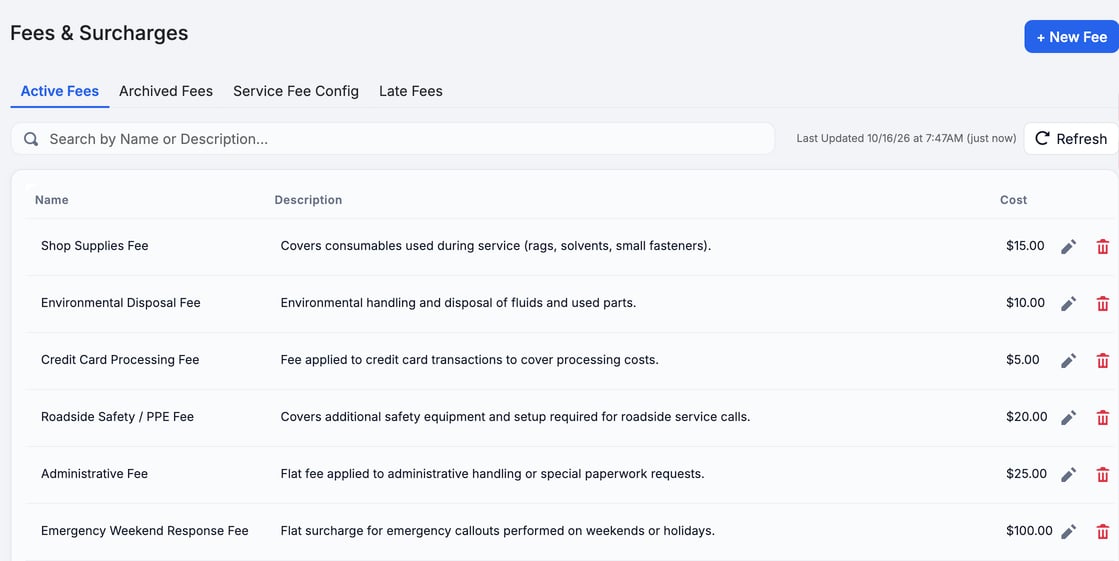
Each fee in Active Fees shows its name, description and cost, with a pencil and a trash icon.
Create a fee
- Start the fee. Click + New Fee.
- Fill in the details. Enter a Name, a Description and a Price in dollars.
- Pick a Tax class. Choose Fees, one of your own classes, or Labor, Parts, Surcharges or Travel time. Late fees and interest are not offered here. The note under the field says how that class is taxed. Fees is the default.
- Save. Click Create.
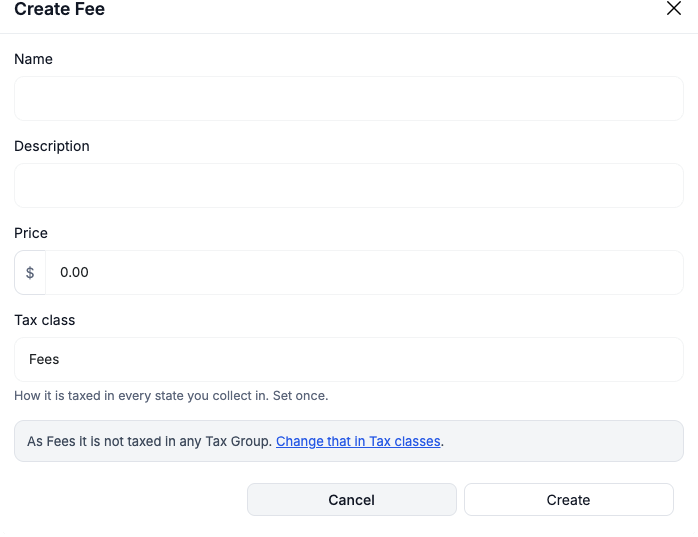
Emoji are taken out of fee names. Invoices can't print them. When you leave the Name box, a note under it says Emoji taken out. Invoices can't print them. The same note shows in Edit Fee. A name that is too short once the emoji are out (under 3 characters, or only emoji) is refused, and a message under Name says why. If the cleaned name matches another fee, the message asks you to add a word to tell them apart. Either way the window stays open with what you typed.
Tax class is set once. It decides how the fee is taxed in every state you collect in. To change what a class does, change it under Tax classes, not on the fee.
Edit or remove a fee
- Click the pencil icon on the fee's row to open Edit Fee. Change the fields (the price field is labeled Cost here) and click Update.
- Click the trash icon to remove a fee from Active Fees. The confirmation prompt says delete. The fee is archived: look on the Archived Fees tab. There is no restore button, so create the fee again if you need it back.
Create a surcharge
- Start the surcharge. In the Surcharges list, click + New Surcharge.
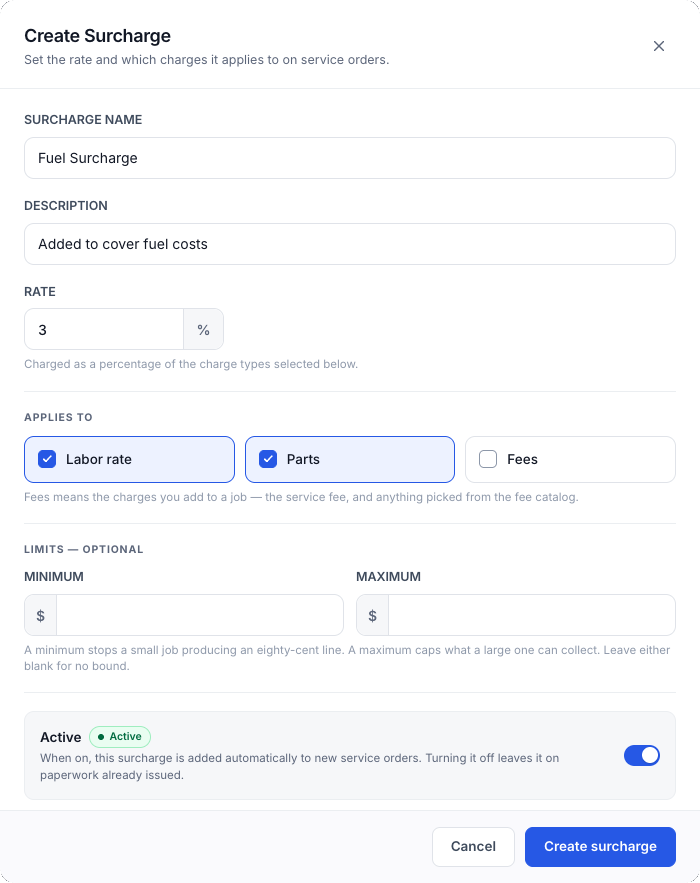
- Name it. Enter a Surcharge name. The Description is optional.
- Set the rate. Enter a percentage. MetaFleet charges that percentage of the charge types you pick next.
- Choose what it applies to. Check Labor rate, Parts, Fees, or any mix. You must pick at least one. Fees covers the charges you add to a job: the service fee and anything picked from the fee list.
- Add limits (optional). A Minimum stops a small job from producing a tiny line. A Maximum caps what a large job can collect. Leave either blank for no limit. If the charges it applies to add up to $0 or less, no surcharge line is added. Examples: a $0 job, or a labor-only surcharge on a parts-only job. The Minimum only applies once there is something to measure.
- Turn it on. Leave Active on. The surcharge is added to every order whose invoice has not been sent. The dialog says new service orders; any open order picks it up on its next recalculation too.
- Save. Click Create surcharge.
Surcharges have no Tax class of their own. All of them follow the Surcharges class under Tax classes.
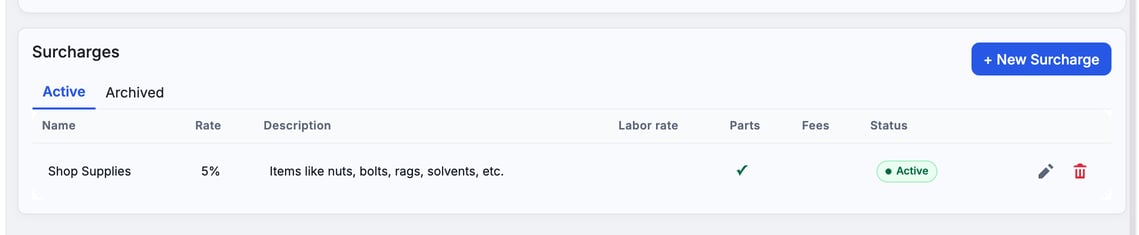
The surcharge then appears in the list with its rate, the charge types it applies to and a status.
Turning a surcharge off drops it from orders that have not been invoiced yet. Orders with a sent invoice keep it. On invoices sent since Oct 29, 2026, the surcharge keeps the amount it was sent with. Invoices sent before that keep their rate only while the order's lines are unchanged.
Edit or archive a surcharge
Click the pencil icon to edit a surcharge. Click the trash icon to archive it. The row moves to the Archived tab of the Surcharges list with its status set to Off, and the icon there puts it back. Turning Active off does the same thing.
Add a fee to a job
Fees reach a customer's paperwork when staff add them. On an order's Estimate or Invoice tab, click + Add fee and pick one or more fees from your list. Each one gets a quantity and a Price each, which starts at the price you set here. Staff can change it to charge a different price on one order. That order's log records the change, and your price here stays the same. It works the other way too: changing the price here later doesn't re-price orders that already have the fee, and those rows then show a Custom price tag.
Surcharges need no action: they are added for you. Staff can remove a surcharge from one order on the Invoice tab and add it back with + Add surcharge. Once an invoice is sent, the order keeps the surcharges it was billed: changing a surcharge in Settings later does not re-price it. On a sent order, + Add surcharge puts a removed surcharge back at the amount on the sent invoice. Removing a fee from an order is recorded in the order log.
Related fee settings
- Service Fee Config sets the fee added to every order. The Invoice tab shows that fee before you send. See Add a Service Fee to Every Order.
- Late Fees sets charges on overdue invoices. See Late Fees and Interest on Overdue Invoices.
- While QuickBooks is connected, each fee and surcharge also shows a QuickBooks account. See How Parts, Labor and Fees Map to QuickBooks Items.
Troubleshooting
| Symptom | Likely cause | Fix |
|---|---|---|
| I can't save a surcharge | No charge type is checked under Applies to | Check Labor rate, Parts or Fees. |
| A new surcharge is missing from an order | It is archived (Active is off), or the order's invoice was already sent when you added it | Turn on Active. Orders that are not yet invoiced pick it up on the next recalculation. |
| A fee is taxed the wrong way | The fee has the wrong Tax class | Edit the fee and pick the right class. |
| I can see the page but can't add or edit | Your role has Read account settings but not Manage account settings | Ask an admin to change your role. |
FAQs
Can a surcharge be a flat dollar amount?
No. A surcharge is a percentage. Use a fee for a flat price. The Minimum and Maximum limits bound what the percentage can produce.
Where do I set the tax on a fee?
Pick a Tax class on the fee. The classes themselves are managed under Tax classes. See Set Up Taxes by Jurisdiction.
Is a fee different from the service fee?
Yes. The service fee has its own tab, Service Fee Config. Fees in the list are the extra charges staff add to a job.