
Permission: Manage rates, plus access to Service Locations · Time: ~3 minutes
Quick summary
- Open Settings › Company › Service Locations and click the location.
- Click the Shop Rates tab.
- Find the Global Rate and click + (Add override) at the end of its row.
- Type your price in the Override box and click Create.
Before you start
- The Global Rate must already exist. See Create and Edit Global Rates.
- The location must exist. See Create a Service Location.
- You need the Manage rates permission and access to Service Locations.
What an override does. A Global Rate is your shop-wide price. A shop rate override is that location's own price for the same rate. Other locations keep the Global Rate.
Open the location's Shop Rates tab
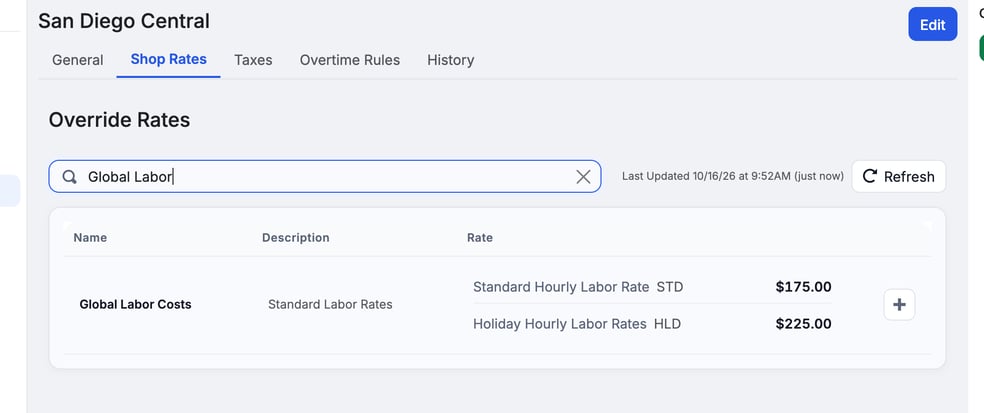
Go to Settings › Company › Service Locations. Click the location name, then click Shop Rates. The page header reads Override Rates. Each row is one Global Rate with its current price.
Find the rate you want
Type in the Search by Name or Description box and press Enter. Click the X in the box to clear the search. Click Refresh to reload the list.
Add an override
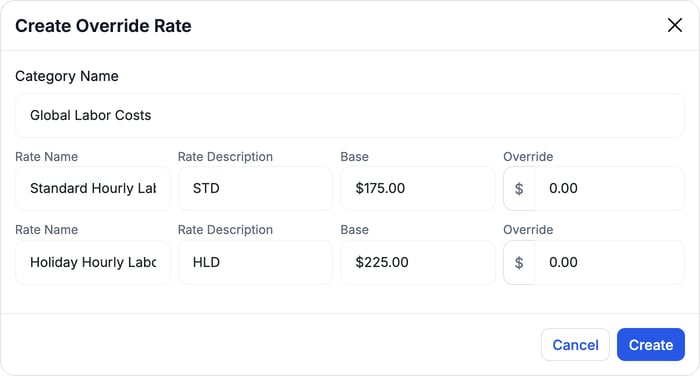
- Click + (Add override). It's at the end of the rate's row. The Create Override Rate window opens.
- Enter your price. Each price in the rate has an Override box next to its Base price. Type the location's price in dollars. Leave a box at 0.00 to keep the Global Rate for that price.
- Click Create. The row shows the Global Rate crossed out with your price beside it.
An override of $0.00 counts as no override. A company price that equals the Global Rate still counts: that company is billed it even at a location with a cheaper price.
Edit or clear an override
A rate with an override shows an Edit override button and a Delete override button where the + was. Use Edit to change the price. Use Delete, then confirm in Delete Override Rate?, to go back to the Global Rate.
Which price wins
A job picks one price for each rate, in this order:
- The company's override. If the customer's company has its own price, that price is used.
- The location's override. If there's no company price, the location's price is used.
- The Global Rate. If neither exists, the Global Rate is used.
The order applies to each price in a rate on its own. A company can override only the holiday price and still use the location's standard price.
A company price beats a location price. If a location price isn't being used, check the customer's company for an override of the same rate.
Time-based labor rate overrides are set on the company page, not on a location. See Set Up Time-Based Labor Rates.
Troubleshooting
| Symptom | Likely cause | Fix |
|---|---|---|
| I don't see a Shop Rates tab | You're on the Service Locations list, or your role can't open Service Locations | Open Settings › Company › Service Locations and click a location. If the page won't open, ask an admin for access. |
| A job still uses the Global Rate | The override is $0.00 | Enter a different price in the Override box. |
| A job uses a different price than the location's | The customer's company has its own override | Check the company page for an override of the same rate. |
| I can't find a rate | The search is too narrow | Click the X in the search box to clear it. |
| A price is marked archived and its Override box is grayed out | Archived prices can't take an override | Restore the price in Global Rates first. See Create and Edit Global Rates. |
FAQs
Does an override change the Global Rate?
No. The Global Rate stays the same for every other location.
Can I override one price in a rate and not the others?
Yes. Fill in only the Override boxes you want to change.
Where do I set a price for one customer?
On the customer's company page (Company Details › Companies, then the company). A company price beats a location price.