
For: Owners, managers and admins · Permission: Manage rates (rate-group overrides) · Manage account settings (time-based overrides, Travel billing and Late fees) · Time: ~5 minutes per customer
Quick summary
- Open Company Details › Companies and click the customer company.
- On the Company Rates tab, add an override to a rate group or type a company $/hr for a time-based tier.
- On the Details tab, click Edit on the Travel billing or Late fees card.
- Check the Effective for this customer line, then click Save.
Before you start
- The shop-wide prices must already exist. See Create and Edit Global Rates.
- An override changes one customer only. Leave a field empty and that customer follows the shop default.
- Saving an override changes what future estimates and invoices charge that customer. Automatic labor lines (diagnosis, visit labor and travel) follow it too. Lines already on an estimate or invoice are not re-priced. Open the form and click Cancel if you only want to look.
Open the customer company
Go to Company Details › Companies. Search by name if the list is long, then click the company. The company page has these tabs: Details, Contacts, Vehicles, Saved Locations, Company Rates, Taxes and Billing (needs the Manage billing hub permission). Rates are on Company Rates. Travel billing and late fees are cards on Details.
Set a company price for a rate group
- Click the Company Rates tab. The page is titled Override Rates. It lists the shop's Global Rates by group.
- Find the group. Use the search box if needed.
- Click the Add override icon at the end of its row.
- In the Create Override Rate window, type the customer's price in the Override field next to each rate. The Base column shows the shop price. A rate you leave at 0.00 is skipped and keeps the shop price.
- Click Create.
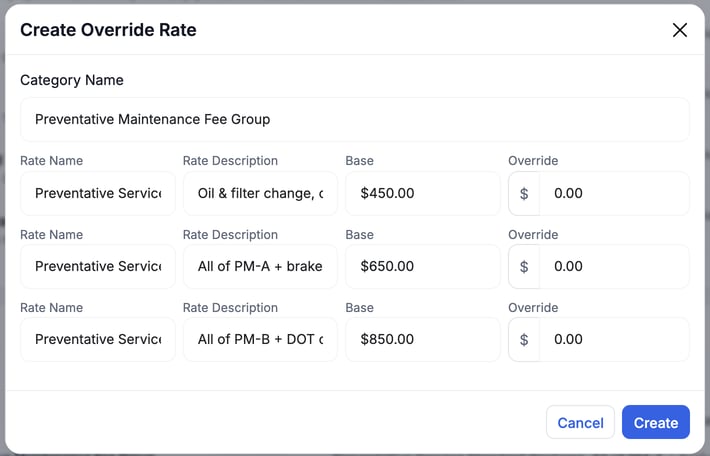
A row with an override shows the shop price crossed out and the company price next to it. Click the Edit override icon to change it. Click the Delete override icon to remove every override in that group. You confirm the delete first.
Set company prices for time-based labor
If your shop bills labor by time of day, the top of the Company Rates tab shows a Time-Based Labor Rate — Company Overrides section. To set up the tiers themselves, see Set Up Time-Based Labor Rates.
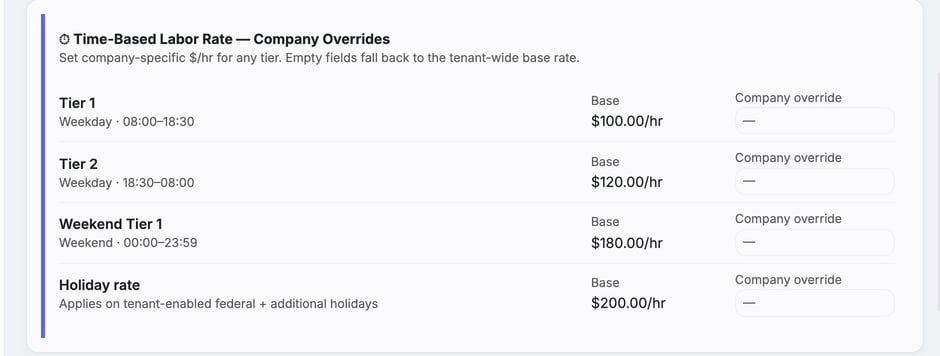
- Type this customer's $/hr in the Company override field for any tier. Each tier your shop set up is listed, with Holiday rate last. In the example above the tiers are Tier 1, Tier 2 and Weekend Tier 1. Yours will have the names you gave them. If a tier is the only weekday (or weekend) tier and starts and ends at the same time, it reads Weekday · All day (or Weekend · All day).
- Click Save overrides. The button appears after you change a value.
- To remove one, click Clear override (the ✕) next to it, then click Save overrides.
An empty field falls back to the shop's base rate for that tier.
Save overrides changes only this company. If someone else saved a different tier for the same company, their change stays. If you both change the same tier, the later save wins.
Sometimes the save is refused and a red message appears. Nothing is saved:
- Not saved: the shop's rate tiers changed after you opened this page. A tier was renamed or removed while you had the page open. Click Reload rates, then enter your change again.
- Not saved: someone else was saving at the same moment. Your changes stay on screen. Click Try again.
Override late fees
On the Details tab, find the Late fees card and click Edit, then set any of these. A blank field follows the brand's setting, or the shop default if the company has no brand:
- Charge late fees: Inherit, On or Off. The Inherit option also shows the shop's current setting.
- Grace days, Flat fee ($), Late fee (%) and Interest (%/mo).
- Late-fee notice for this customer — optional: text that prints instead of the default notice.
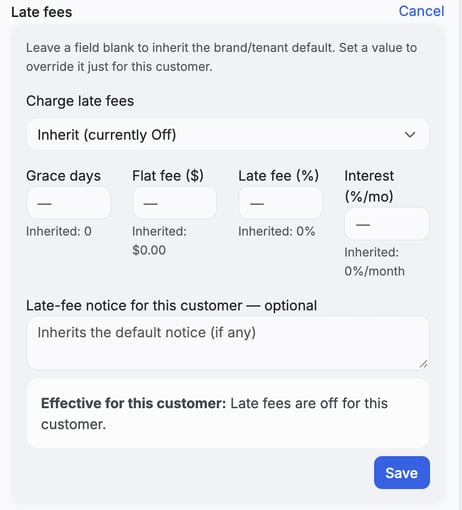
Check Effective for this customer, then click Save. How late fees work in general is in Late Fees and Interest on Overdue Invoices.
Payment terms for this company are on the Invoice terms card. See Set Your Payment Terms and Invoice Disclaimer.
Override travel billing
Below the Late fees and Invoice terms cards, the Travel billing card works the same way. Click Edit. Under How travel is charged, choose Inherit to follow the shop default (the option also shows the shop's current setting), or pick Not billed, Tracked drive time or By distance. Tracked drive time adds Round to, Minimum billable (min) and Return trip. Each field shows the shop default, either under it or in its Inherit option.
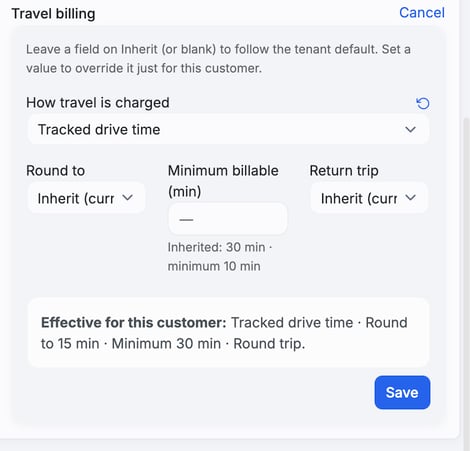
The Effective for this customer box restates what this customer will get. Click Save, or Cancel to leave the card unchanged. For the shop-wide setup, see Set Up Travel Time Billing.
Which price wins
Prices apply in this order: a company override first, then a service location's shop rate, then the Global Rate. The first one found is used. A company price that equals the shop price still counts as a company price, so it beats a lower location rate. See Set Shop Rates for a Service Location for location rates.
Troubleshooting
| Symptom | Likely cause | Fix |
|---|---|---|
| No time-based section on Company Rates | The shop doesn't use time-based labor rates | Turn them on first. See Set Up Time-Based Labor Rates. |
| The Details tab has no Travel billing or Late fees card | Your role lacks the Manage account settings permission | Ask an admin to change your role or make the edit. |
| A customer still gets the shop price | The override is empty or was never saved | Reopen the tab, check the value, and click Save overrides or Create. |
FAQs
Does an override change the shop's rates?
No. It applies to this customer only.
How do I go back to the shop default?
Delete the rate override, click Clear override on a time-based tier, or set a billing field back to Inherit. Then save.
Where do I see what a customer will be charged?
The Effective for this customer line on the Travel billing and Late fees cards.
Where do I add a new customer company?
See Create a Customer Company.