
For: Owners and inventory managers · Permission: Inventory manager role to change limits; a role that can approve variances to review · Time: ~3 minutes
Quick summary
- Open Settings › Inventory.
- Turn on Require approval for large cycle count variances.
- Enter a unit limit, a percentage limit, or both.
- Click Save.
- Review flagged counts on the Inventory Dashboard and click Approve or Reject.
Before you start
- A variance is the difference between the quantity MetaFleet expected and the quantity a technician counted. Run a Cycle Count explains how counts work.
- Variance approval is off until you turn it on.
Open Inventory Settings
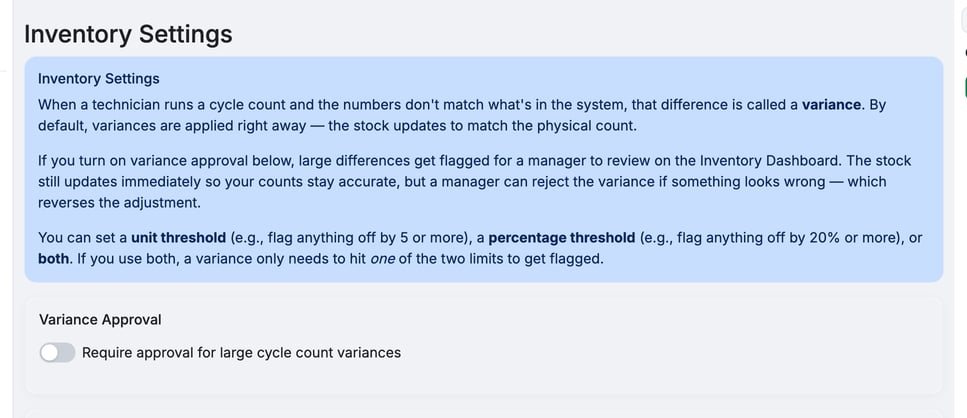
Go to Settings › Inventory. The Variance Approval card sits under the short explanation at the top of the page.
Turn on variance approval
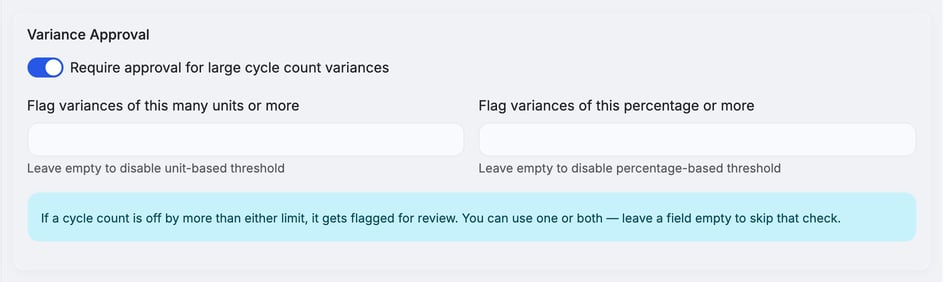
Switch on Require approval for large cycle count variances. Two limit fields appear.
Flagged counts are not held. Stock updates when the technician submits the count. Reject reverses it.
Set the limits
- Flag variances of this many units or more: enter a whole number of 1 or higher. Example:
5flags any part that is off by 5 or more. - Flag variances of this percentage or more: enter a number from 1 to 100. Example:
20flags any part that is off by 20% or more of the expected quantity.
Use one limit or both. A count is flagged when any part hits either limit. Leave a field empty to skip that check. If both are empty, nothing is flagged.
The percentage is measured against the expected quantity. If a part was expected at 0 and the technician counted any stock, MetaFleet treats it as 100%.
Save your changes
Click Save. The button stays grayed out until you change something on the page.
Review a flagged count
When a count goes over a limit, a yellow bar appears at the top of the Inventory Dashboard. It reads 1 Pending Variance Approval (or the number waiting). Only people whose role can approve variances see it.
- Click Review to open the list.
- Check the Location, Parts w/ Variance, Max Variance, Counted By and Count Date columns.
- Click the arrow at the start of a row to see each part with its Expected, Actual and Variance quantities.
- Click Approve to accept the count, or Reject to undo it.
Approve keeps the stock as counted. Reject reverses the adjustment the count made, putting each part back in the bin that was counted. Once a count is approved or rejected, it can't be reviewed again.
Turn it off
Open Settings › Inventory, switch off Require approval for large cycle count variances and click Save. Counts already flagged stay in the review list.
Troubleshooting
| Symptom | Likely cause | Fix |
|---|---|---|
| No limit fields on the card | The toggle is off. | Switch on Require approval for large cycle count variances. |
| A count with a variance wasn't flagged | Both limits are empty, or no part reached a limit. | Enter a limit, or lower it. A part that is off by exactly the limit is flagged. |
| No Pending Variance Approval bar | Nothing is waiting, or your role lacks the permission to approve variances. | Ask an admin to check your role. |
FAQs
Who can approve?
People whose role can approve variances. They see the yellow bar on the Inventory Dashboard.
What happens to stock if I reject a count?
MetaFleet reverses the adjustment, so each part goes back to the quantity it had before the count, in the bin that was counted.
Can I use only a percentage limit?
Yes. Leave the unit field empty.