
For: Managers · Permission: Approve estimates (ask an admin which role has it) · Time: ~2 minutes
Quick summary
- Open the estimate from the Review in admin portal button in the approval email, or wait for the technician to finalize the diagnosis, then open the order's Estimate tab.
- Check the work items and the total.
- Click Create Estimate, then Approve as Manager. If someone else sent it to you, click Approve Estimate or Reject Estimate.
Before you start
- Manager approval is on. Turn it on in Settings › Workflow › Approvals & Alerts: on the Service Order Settings card, click Edit, turn on Estimates require Manager approval before creation, then Save. The card then shows Require Manager Approval for Estimates as On. See Configure Approval Options.
- The order is at Diagnosis Complete. The estimate is built from the work items. See Build and Send an Estimate.
- Your access. You need the permission to approve estimates. If you can't see the approval button, ask an admin.
Get the approval email
When an estimate needs your approval, you get an email labeled APPROVAL NEEDED with the subject "Estimate for SO #<number> awaiting your approval". It tells you the estimate for that customer and service order needs your approval before it can move forward. Click Review in admin portal. Log in if asked. You land on the estimate.
Review the estimate
Open the service order and go to the Estimate tab. With manager approval on, the Estimate Progress bar has an extra Estimate Approval step between Create Estimate and Customer Review. The summary card shows the subtotal, fees, taxes and total. Scroll down to the work items to check the labor and parts behind the number before you approve. A work item still missing its complaint or diagnosis keeps the send and approve buttons off, names that work item, and offers Go to it.
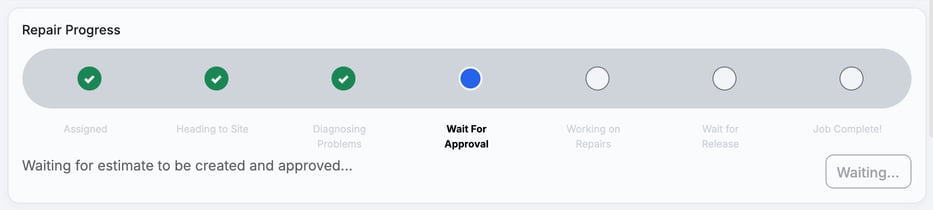
While the technician waits, the order's Technician Hub tab shows Wait For Approval and the message Waiting for estimate to be created and approved. Technicians don't see an Estimate tab.
Approve the estimate
Click Create Estimate. The button changes to Approve as Manager. Click it to clear the manager step. The line above the button shows the auto-approval limit that applies to this order (a partner limit, then the customer's own, then the shop default) and whether the total is at or below it. At or below the limit, the estimate auto-approves and the customer is not notified. A dispatcher then releases the technician from the Estimate tab with Apply Updates (the button reads Send Items to Technician when no estimate was made yet).
When the customer has to approve, the estimate goes to them, the progress bar moves to Customer Review, and the card shows Awaiting customer approval and a Resend Approval Email button. After the customer answers, the card shows who approved, with their email and the time. See Understanding the Approval Gates.
Who receives the estimate. The email goes to the order's contacts who have a valid email. For enterprise customers the contact also needs the Authorizer role. If nobody qualifies, the estimate is held. Add or fix the contact and it goes out on its own, or a dispatcher can click Send Estimate to Customer.
A quote made before any service order exists goes straight to the customer and skips the manager. When you Resubmit a declined job, it goes to the manager only if it costs more than when it was declined.
Reject the estimate
If a service writer (anyone without approval rights) sent the estimate with Send to Manager for Approval, you see Approve Estimate and Reject Estimate instead of a single button. The writer sees a disabled Awaiting Manager Approval until you decide. If a manager creates their own estimate, they get one Approve as Manager button and no reject option.
Click Reject Estimate to send it back to the writer. Reject doesn't ask for a reason, so tell the writer what to change, such as a missing part, in chat or in person. The writer's Estimate tab shows Manager rejected this estimate. Update the work items and send for approval again. They revise the work items and send it to you again. In the technician's job page, the order shows Sent back with the message that the estimate needs another look before the repair can start.
Troubleshooting
| Symptom | Likely cause | Fix |
|---|---|---|
| I don't see an approval button | Your role can't approve estimates, or manager approval for estimates is off | Ask an admin for access, or turn on Require Manager Approval for Estimates under Settings › Workflow › Approvals & Alerts, on the Service Order Settings card. |
| I only see Approve as Manager, no Reject | The estimate hasn't been sent for manager review yet, so your click sends and approves it in one step | Approve it, or edit the work items first. Reject appears once someone has sent the estimate to you for approval. |
| There is no estimate at all | The technician hasn't finalized the diagnosis yet | Ask them to finalize the diagnosis so the order reaches Diagnosis Complete. |
| I approved it but the customer never got an email | No contact on the order can receive it, or the total is at or below the auto-approval threshold | Add a contact with a valid email to the order (enterprise customers: one with the Authorizer role). The estimate then goes out on its own, or click Send Estimate to Customer. Also check the Auto-Approval Threshold. |
| I rejected it, now what? | It's back with the writer | They revise the work items and send it for approval again. |
FAQs
Does approving send it straight to the customer?
It clears your step. The customer gets an email unless the estimate auto-approves at or below their threshold.
Does the customer see a rejected estimate?
No. A rejected estimate never leaves the shop. The customer is not emailed.
Can I edit the estimate myself instead of rejecting?
Yes, if you can edit work items. Fix the work items yourself, then approve.
Where do I turn this on or off?
Settings › Workflow › Approvals & Alerts, on the Service Order Settings card.