
For: Owners, managers and accountants · Permission: Manage Billing Hub · Time: ~5 minutes
Quick summary
- Open Billing Hub, select a customer's orders and click Create Statement.
- Click Send Statement to save the statement and email it, or Preview to save it as a draft without emailing anyone. Use Resend on the statement page if the customer needs another copy.
- When the customer pays, open the statement and click Mark as Paid. MetaFleet records the payment as a payment batch.
- To fix a mistake, use Edit, Void or Refund on the statement, or reverse orders on the payment batch.
Before you start
- The orders must be invoiced and still owe a balance. They show on the Service Orders tab of the Billing Hub.
- A statement covers one customer company. Select orders for one company at a time.
- To find the right orders first, see Find and Collect Unpaid Invoices in the Billing Hub.
Create a statement
- Select the orders. On the Service Orders tab, tick the checkbox on each order for the customer.
- Click Create Statement. A panel opens with the statement number, the statement date, the selected orders and an aging preview. A PM or Inspection invoice shows the day it was sent as its date.
- Pick a Payment Channel. Manual Collection is the only channel you can pick. It sends the statement with no payment information, and you record the payment yourself later. The other two tiles are grayed out.
- Add an extra recipient or a message if you need to. Fill in Send to (additional email) or Message to customer. Both are optional. The panel says who the statement will be emailed to.
- Click Send Statement. MetaFleet saves the statement and emails it to the customer's contacts. Or click Preview to save it as a draft and open it without emailing anyone. Click Cancel to leave without creating anything. If no contact has an email, the statement is saved as a draft.
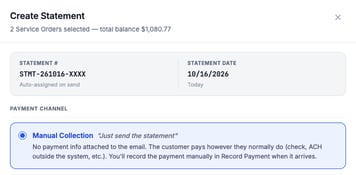
The panel shows a placeholder number. MetaFleet assigns the real number, like ST-2026-0001, when it saves the statement. Check who it will be emailed to in the panel before you click Send Statement.
Find a statement
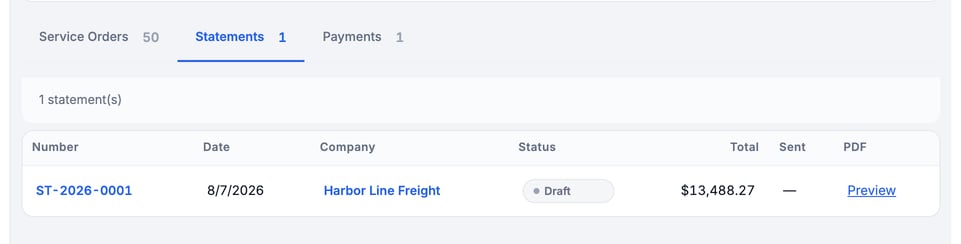
Open the Statements tab in the Billing Hub. Each row shows the statement Number, Date, Company, Status, Total, how many times it was Sent (for example 1x, or — if never) and a PDF column with a Preview link. The column shows — until the statement has a PDF. Click the statement number to open it. Preview opens a fresh copy of the PDF in a new tab. If it can't, you see "We couldn't open the PDF. Try again."
Read the statement page
The top of the page shows the statement number, the customer, a status badge and whether it has been sent. A new statement reads "Not sent yet. This statement is a draft." The buttons across the top are Download PDF, Edit, Void, Mark as Sent, Send and Mark as Paid. Download PDF opens a fresh copy of the statement PDF in a new tab. If it can't, the page shows "We couldn't open the PDF. Try again." Refund appears when some money can go back to the customer and you have the Approve invoice permission.

Under the buttons you see Total Outstanding, Statement Date, As Of and Due Date. Below them are an Aging Summary (Current, 1–30, 31–60, 61–90 and 90+ days) and the Line Items, one row per order.
Resend a statement
- Click Send. After the first send, the button reads Resend.
- Type the Recipient Email. On a resend you can choose Resend to original recipient or Send to new email.
- Click Send, or Cancel to close the form.
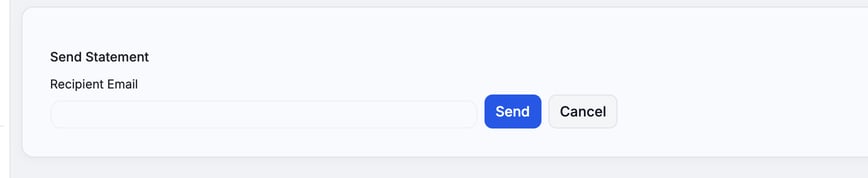
Once a statement is sent, a banner shows when and to whom. A Send history section lists every send.
Mark as Sent is only on a draft. Use it when you gave the customer the statement another way. It changes the status without emailing anyone.
Change which orders are on a statement
- Click Edit. A banner reads "Editing statement".
- Click + Add Service Order to add an order, or click the ✕ (Remove from statement) on a line to take one off.
- Click Done Editing to save, or Cancel to discard. Done Editing stays grayed out until you change something, and the page shows Unsaved changes until you save.
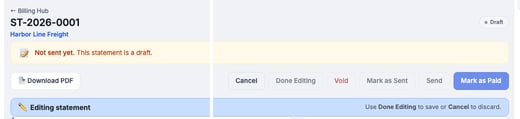
The other buttons are switched off while you edit. Edit is not offered on a paid or voided statement.
If the statement has linked payments, the page warns that editing can orphan the link. Check the payments under Linked Payments before you change the orders.
Mark a statement as paid
- Click Mark as Paid. The Record Payment panel opens for the statement with all its orders already selected.
- Enter the Total received, the Method (for example Check), the Payment date and a Remittance # if you have one. If you enter a Discount %, a Discount note is required. The date you pick is the date shown under Linked Payments on the statement and on the customer's receipt email and PDF.
- Check the Cash applied column for each order. An order that changed after its invoice was sent shows an "Invoice out of date" line under its number. The payment pays off the amount the customer was billed. Resend the invoice from the order to bill any difference. If an order was refunded as Customer was charged twice or overpaid, the refunded amount is owed again and is included in that order's balance here.
- Click Record Payment.
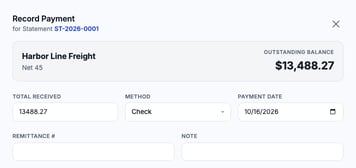
MetaFleet records the payment as a payment batch and moves the statement to Paid, or to partly paid if the payment doesn't cover every order. The panel's receipt options are the same as in Record a Payment and Apply Customer Credit.
Refund an invoice on a statement
Click Refund at the top, or Refund on a paid line. A drawer opens. If you started from the top button, it asks which invoice. The refund shows in Linked Payments on the statement, and the statement's total due doesn't change.
Void a statement
- Click Void.
- Type a reason in Reason (required, audit trail).
- Click Void Statement, or Cancel to keep it.
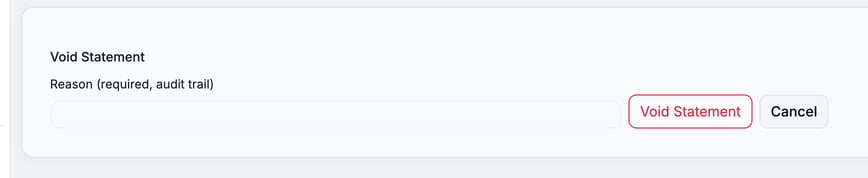
You can't void without a reason. The reason stays on the statement for your records.
What a payment batch is
A payment batch is a payment recorded through Record Payment in the Billing Hub, including Mark as Paid on a statement. It can cover several orders. The batch keeps the total received, the method, the reference, the date, who recorded it and how much went to each order.
Batches show on the Payments tab of the Billing Hub. The Source column shows Batch for these, Individual for payments recorded on one order's Billing tab, and Stripe for card payments. A batch row links to the batch page. A batch tied to a statement also shows under Linked Payments on that statement.
Reverse orders from a payment batch
- Open the batch from the Payments tab.
- In the Allocations table, tick each order to take back. The table shows Cash Applied, Discount and any credit applied.
- Click Unapply with the count, for example Unapply 2.
- Type a reason in Reason (required for audit), then click Reverse Selected.
A closed repair or tow order that owes money again goes back to Pending Payment. The linked statement is updated to Paid, Partially paid or Sent.
When every order on the batch has been unapplied, even over several unapplies, the batch is voided. Unapplying doesn't void the payment in QuickBooks.
A voided batch shows a VOIDED badge and can't be changed.
QuickBooks
If you use QuickBooks, see Payments, Refunds, Credits and Late Fees in QuickBooks for how payments and refunds sync.
Troubleshooting
| Symptom | Likely cause | Fix |
|---|---|---|
| Send, Void and Mark as Paid are grayed out | The statement is in edit mode | Click Done Editing or Cancel. |
| There is no Mark as Sent button | The statement has already been sent or paid | Use Resend if the customer needs another copy. |
| There is no Mark as Paid button | The statement is already paid or voided | Open the payment under Linked Payments to review it. |
| There is no Refund button | No invoice on the statement has money that can go back, or you don't have the Approve invoice permission | Check the paid lines on the statement, or ask an admin about the permission. |
| Void Statement shows an error | The reason is empty | Type a reason, then click Void Statement again. |
| Mark as Paid says only part of the company credit is left | The credit was spent on another payment after you opened the panel | Nothing was saved. Close the panel, open Mark as Paid again and check the amounts. |
| Mark as Paid says "A payment for this invoice is already in progress" and names the order | A card charge on that order has not finished | Wait for the charge to settle, then try again. |
| Unapply says "The following Service Orders have already been unapplied from this batch" | Someone else unapplied the same order at the same moment | Nothing more to do. Reload the page to see the result. |
FAQs
Does Mark as Sent email the customer?
No. It changes the status only. Use Send to email the statement.
Where do I find a payment I recorded for several orders?
On the Payments tab, where the batch has its own row.