
For: Accountants, managers and admins · Permission: see Before you start · Time: ~2 minutes
Quick summary
- Open the service order and go to the Billing tab, or select invoices in the Billing Hub.
- Click Record Payment.
- Enter the amount, method and reference.
- If the amount is more than the balance, choose Apply to credit balance or Refund.
- Save the payment.
Before you start
- The order must be at Pending Payment or Account Collection. Record Payment shows for invoices you collect yourself, such as Account and COD customers. A closed order whose batch payment was unapplied and now owes again goes back to Pending Payment.
- Record Payment is hidden on a no-charge invoice, because nothing is owed.
- An order refunded in full because the bill was wrong has no Record Payment, because nothing is owed. A refund for Customer was charged twice or overpaid that the customer hasn't paid back counts as owed again: a closed order returns to Account Collection, and Record Payment and the Billing Hub batch count that amount.
- A repair or tow invoice is locked while a card charge is unconfirmed (see below).
- A PM or inspection order billed on a visit can't take a payment on the order. Record it on the visit invoice.
- To record from an order's Billing tab you need the Manage all complaints permission.
- To record from the Billing Hub you need the Manage Billing Hub and Approve invoice permissions.
- Have the amount, the payment method and a check number or transaction ID ready.
Record a payment on one invoice
Open the service order and go to the Billing tab. The Invoice Summary shows the invoice total, the amount paid and the Balance Due.
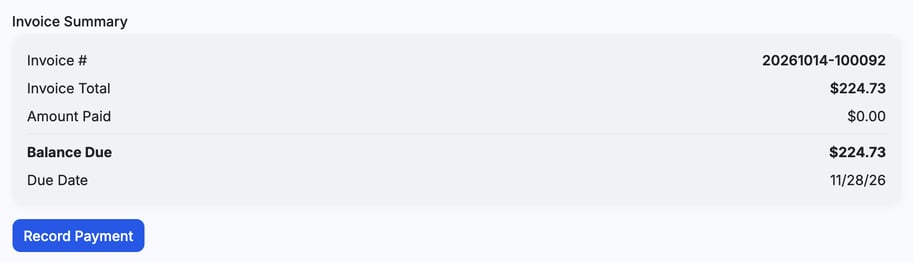
- Open the dialog. Click Record Payment. The top line shows the Balance due.
- Enter the amount. Amount received starts at the balance due. Type over it if the customer paid a different amount.
- Pick the method. Choose from Cash, Check, Wire Transfer, ACH, Credit/Debit Card, EFS, T-Chek, Comdata Check or Other.
- Add details. Reference # and Notes are optional. Use them for a check number or transaction ID.
- Save. Click Submit. If the invoice changed after it was sent and this payment would pay it off, a Changed after sending dialog opens first (see below).
If the order changed after the invoice was sent
When the invoice changed after it was sent, the Billing tab shows the banner Changed after sending. Order now $Y. If this payment would pay the invoice off, clicking Submit opens a Changed after sending dialog that reads "Billed $X, order now $Y." Choose one:
- Close at $X: record the payment against the amount you billed and close the order.
- Record and resend: record the payment and send the customer an invoice for the rest.
If no contact on the order has an email address, the second button reads Record without emailing and the invoice isn't sent.
If a card charge wasn't confirmed
When Stripe doesn't answer a card charge on a repair or tow order, you see the message "Stripe didn't answer, so we don't know yet whether the card was charged. The invoice is locked so the card can't be charged twice." The Billing tab then shows an amber banner: "A card charge started at [time] and hasn't been confirmed." Charge Card and Record Payment are hidden while it is locked.
- Wait. Check Stripe turns on 8 minutes after the charge started. The banner shows "Available at [time]" until then.
- Click Check Stripe. If the card was charged, the payment is recorded. If it wasn't, the invoice unlocks.
- If Stripe still can't be reached, Record payment by hand appears. It warns that the card may already have been charged.
You need the Approve invoice permission to see Check Stripe.
While the invoice is locked, it can't be marked Pending Payment.
When the customer pays more than the balance
If the amount is higher than the balance, the dialog says how much the payment exceeds it and asks what to do with the extra:
- Apply to credit balance: the extra becomes credit on the customer's company. It is the default.
- Refund to customer (Refund in the Billing Hub): the extra is recorded as refunded.
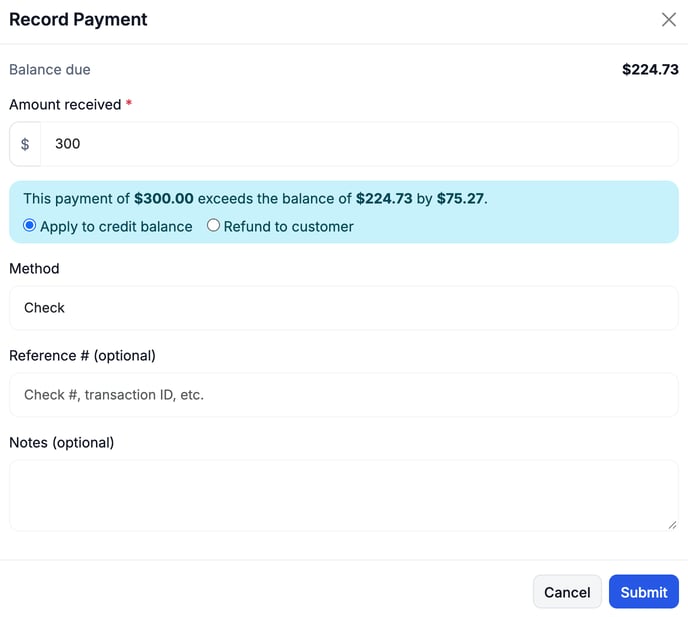
The warning doesn't block you. Check the choice before you click Submit, because it decides whether the customer gets credit or money back.
An order with no customer company on file has no place to hold credit. The dialog says the surplus will be recorded as refunded.
If a customer pays a visit invoice through a payment link for more than it still owes, the invoice is paid in full and the extra goes to the company's credit. Admins get an alert. With no customer company on file, the alert says a refund is needed.
Record payments in the Billing Hub
Use the Billing Hub when one check covers several invoices, or when you want to work from the list of outstanding invoices.
- Select invoices. Go to Billing › Billing Hub and tick the invoices on the Service Orders tab.
- Open the panel. Click Record Payment. The panel fills Total received with what the customer owes after any discount and any credit on file.
- Adjust the payment. Change Total received if the customer paid a different amount. Set the Method, Payment date, Remittance # and Note. Pick the day the customer actually paid. That day shows on the Payments tab, the statement, the receipt and the Daily Payments and AR Aging reports.
- Check the split. The table lists each invoice with its balance and the cash applied to it. The totals at the bottom show Total received, Cash applied and Surplus / shortfall. If the customer paid less than the balance, choose Apply to oldest balance first or Split proportionally.
- Choose the receipt. Under Send receipt to customer, keep Email receipt selected to email the receipt to the first contact on the company who has Receive Invoices and an email address. The panel says who: Receipt PDF will be emailed to followed by the contact's name. Clear it if you don't want an email. The receipt PDF is on the Payments tab after the batch is recorded.
- Save. Click Record Payment.
The date opens on today at the shop, in the shop's time zone. A day after the shop's today is refused with a message like "It's still Oct 28 at the shop. Pick Oct 28 or earlier: the day the money arrived."
On an order's Payment History, a payment entered on one day but paid on another has a muted line under it, such as Paid 10/18/26.
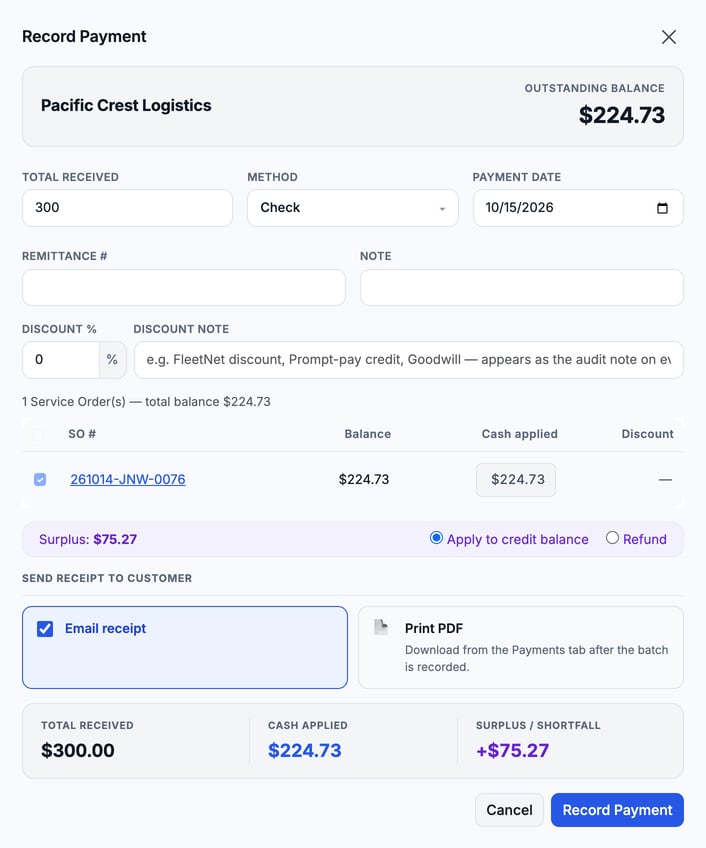
The panel also has a Discount % field with a Discount note. The note appears as the audit note on each discount entry.
Surplus works the same way as on a single invoice: Apply to credit balance or Refund.
Use customer credit on a later invoice
Credit is held per customer company. When the company has credit on file, the payment screens show it.
- On an order: the Record Payment dialog adds Apply company credit with the amount available. Type an amount, or click Apply full credit. The dialog then shows Cash due after credit.
- In the Billing Hub: the panel shows Credit balance available and an Apply customer credit switch. It is on by default and spreads the credit across the selected invoices, oldest first. Turn it off to set every invoice back to $0 of credit.
Credit lowers the cash the customer has to pay. It doesn't change the invoice total.
If QuickBooks is connected, credit from a payment's surplus goes to QuickBooks as its own unapplied payment. A surplus you refund sends nothing.
Troubleshooting
| Symptom | Likely cause | Fix |
|---|---|---|
| No Record Payment button on the order | The order isn't at Pending Payment or Account Collection, it's a no-charge invoice, it was refunded in full because the bill was wrong, the customer pays by card or payment link, or a card charge is unconfirmed | Check the order status and the Billing tab banner. For a no-charge or fully refunded order, nothing is owed. |
| "This order is billed on its visit invoice. Record the payment on the visit invoice instead." | It is a PM or inspection order billed on a visit | Record the payment on the visit invoice. |
| The customer says no receipt arrived | No contact on the company has the Receive Invoices permission and an email address, so the panel doesn't email it | Give a contact that permission, then get the receipt from the Payments tab. |
| No credit option in the dialog | The company has no credit on file | Credit appears after a payment is saved with Apply to credit balance. |
| The extra went to the wrong place | The surplus choice was left on the default | Check Apply to credit balance or Refund before you save. |
| "A payment for this invoice is already in progress." | A card payment or card hold is being applied to that order | Wait for the card payment to finish, then record the payment again. |
| "Only $X.XX of company credit is left now. Nothing was saved." | Another payment spent some of the company credit after you opened the dialog | The dialog stays open. Check the credit and cash amounts, then submit again. |
FAQs
Does the customer get an email when I record a payment?
In the Billing Hub, Email receipt sends a receipt to the first company contact with Receive Invoices and an email address. Clear it if you don't want an email. The receipt PDF stays on the Payments tab.
Can I record a payment for several invoices at once?
Yes. Select them in the Billing Hub. The panel splits the payment across the selected invoices.