---
title: Find and Collect Unpaid Invoices in the Billing Hub
description: Find unpaid invoices by age and status in the Billing Hub, then send a statement or record a payment for one or several service orders.
---
[Skip to content](https://support.metafleet.ai/use-the-billing-hub#main-content)
English
Show submenu for translations

Open main navigation
Close main navigation
- English
Show submenu for translations
- [Contact us](mailto:support@metafleet.ai)
[Contact us](mailto:support@metafleet.ai)
How can we help you?
- There are no suggestions because the search field is empty.
1. [MetaFleet Answer Hub](https://support.metafleet.ai/?hsLang=en)
2. [Estimates & Approvals](https://support.metafleet.ai/estimates-approvals?hsLang=en)
3. [Billing](https://support.metafleet.ai/estimates-approvals?hsLang=en#billing)
# Find and Collect Unpaid Invoices in the Billing Hub
## Use the Billing Hub to see what customers owe, send them a statement, and record the payments that come in.
**For:** Owners, managers and billing staff · **Permission:** Manage Billing Hub · **Time:** ~5 minutes
### Quick summary
1. Open **Billing › Billing Hub** and check the aging cards.
2. Narrow the list with the filters or the search box.
3. Select the service orders you want to bill or collect on. Pick orders from one customer, because a statement or payment covers one company.
4. Click **Create Statement** to ask the customer to pay, or **Record Payment** when money has arrived.
5. Check the **Statements** and **Payments** tabs for the record.
### Before you start
- You need the Manage Billing Hub permission. If **Billing Hub** is missing under **Billing** in the left menu, ask an admin.
- The invoice must already be sent. See [Approve and Send an Invoice](https://support.metafleet.ai/approve-and-send-an-invoice?hsLang=en).
- A statement goes to the company's contacts listed under **Customer**. A receipt goes to the billing contact. Open the panel and read who it goes to before you send.
### Read the Billing Hub
Open **Billing › Billing Hub** in the left menu. The top of the page shows how many service orders still owe money and their total. Paid orders stay in the list but aren't counted. Four cards split that total by age: **Current**, **31–60 days**, **61–90 days** and **90+ days**. Each card shows a dollar amount and a count of service orders.
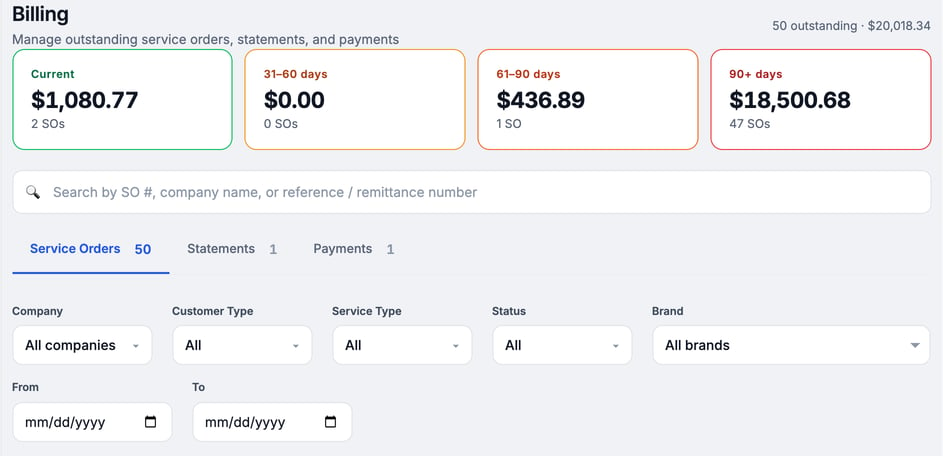
Below the cards you have three tabs: **Service Orders**, **Statements** and **Payments**. Each tab shows a count.
### Find the invoices you need
Type in the search box to find an order by service order number, company name, or reference or remittance number. You can also use these filters:
- **Company:** pick one or more customers.
- **Customer Type:** **Account** or **COD**.
- **Service Type:** for example Repair or PM.
- **Status:** **Unpaid**, **Partial**, **Paid**, **Written off** or **Refunded**.
- **Brand:** one of your brands.
- **From** and **To:** a date range.
The table lists **SO #**, **Company**, **Type**, **Service**, **Invoice Date**, **Invoice Amount**, **Paid**, **Balance**, **Status**, **Age** and **Invoice PDF**. **Age** counts days since the invoice date, at the shop, and the aging cards count the same days. On PM and Inspection orders, the invoice date is the day the invoice was sent, the same date as on its PDF. The date filter, sort and Create Statement use it too. Click a column heading arrow to sort. The **⋯** at the end of a row holds **Credit a line**, **Write off** and **Refund**. See [Record a Payment and Apply Customer Credit](https://support.metafleet.ai/record-payments-and-customer-credit?hsLang=en). A row shows what is left after refunds, with a line such as "$40.00 refunded" under the status. An order refunded in full shows a grey **Refunded** status, and its **Age** reads **Refunded** with the date. Click **Preview** in the **Invoice PDF** column to open a fresh copy of the invoice in a new tab. If it fails, you see "We couldn't open the PDF. Try again."
### Select service orders
Select the box at the start of each row. A bar appears above the table with the number of orders selected, the customer, and their combined balance. If you pick orders from several companies, the bar shows a count, such as **2 companies**, instead of a name, and **Create Statement** and **Record Payment** ask you to unselect or filter by company. Click **Clear** to start over.
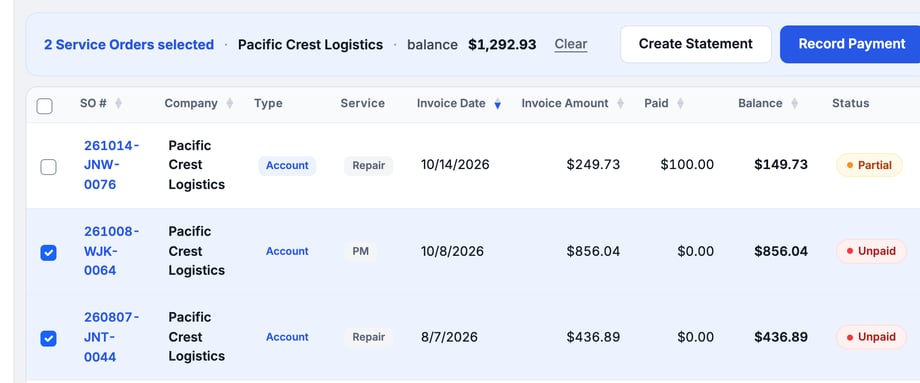
The bar holds the two actions: **Create Statement** and **Record Payment**.
### Send a statement
1. **Select the orders.** Select every order the statement should cover.
2. **Click Create Statement.** A panel opens on the right with the total balance.
3. **Leave Manual Collection selected.** It is the only channel you can choose. **Send Payment Link** and **Charge Card on File** are greyed out. The statement carries no payment link. The customer pays the way they usually do. Record the payment when it arrives.
4. **Check the recipients.** Under **Customer**, check who gets the email. Use **Send to (additional email)** to add or override an address. Add a **Message to customer** if you want a note in the email.
5. **Review, then send.** Click **Preview** to see the statement. Click **Send Statement** to send it.
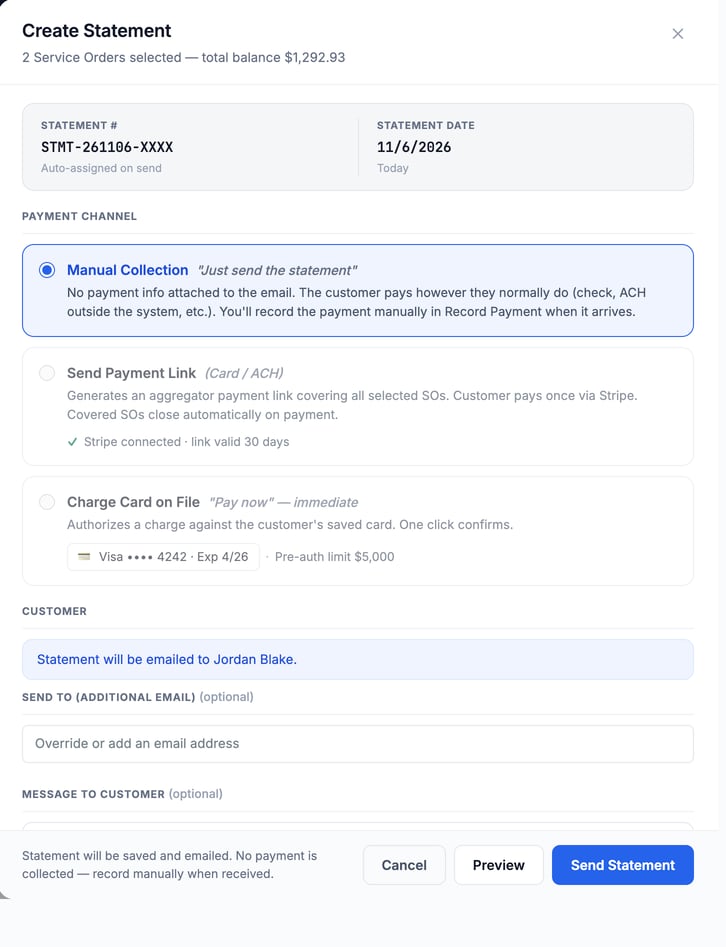
> Clicking **Send Statement** saves and emails the statement at once. No payment is collected. Record it when it arrives.
### Record a payment
1. **Select the orders** the payment covers.
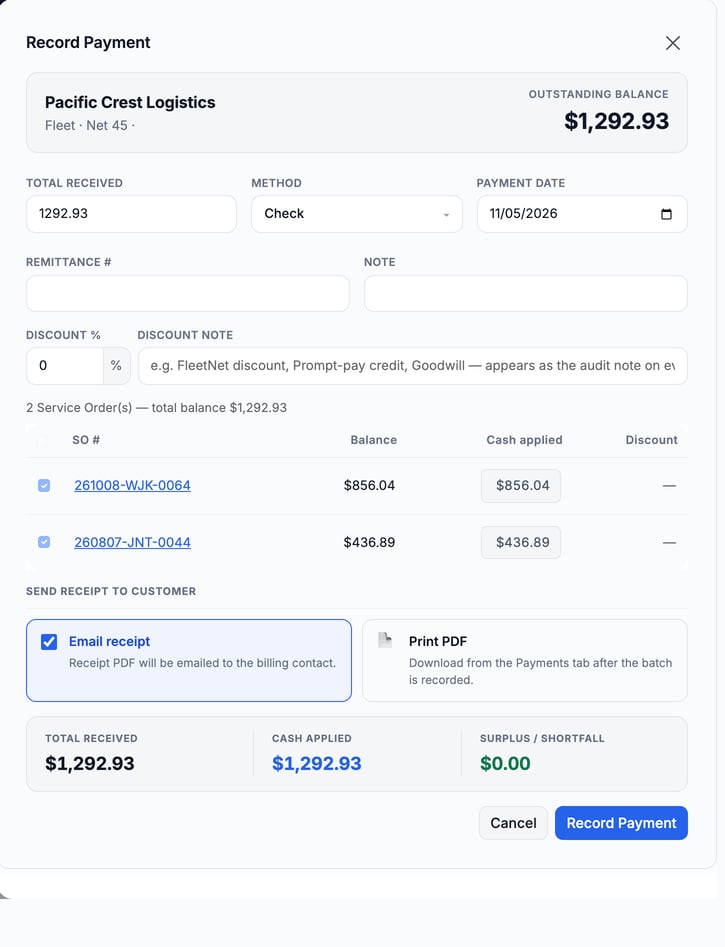
2. **Click Record Payment.** A panel opens with the customer's outstanding balance.
3. **Fill in the payment.** Enter **Total received**, choose the **Method** and set the **Payment date**. The date can't be after today at your shop. If you pick a later day, the panel says "It's still \[today's date\] at the shop. Pick \[today's date\] or earlier: the day the money arrived." Add a **Remittance #** or a **Note** if you have one. If customer credit covers the whole balance, **Total received** can stay at $0.00.
4. **Add a discount if one applies.** Enter a **Discount %** and a **Discount note**.
5. **Check the split.** The table shows each order's **Balance**, the **Cash applied** and any **Discount**. At the bottom, **Surplus / Shortfall** should read $0.00. If you received more than the balance, choose whether the surplus becomes customer credit or a refund.
6. **Watch for an out-of-date warning.** If an order's invoice changed after it was sent, a line under its number reads *Invoice out of date* and says what the customer was billed and what the order totals now. The payment still pays off the invoice you sent. Resend the invoice from the order to bill the difference.
7. **Choose a receipt.** **Email receipt** sends a PDF to the billing contact. No receipt goes out when **Total received** is $0.00. **Print PDF** lets you download it from the **Payments** tab afterward.
8. **Click Record Payment.**
### Check statements and payments
The **Statements** tab lists each statement with its **Number**, **Date**, **Company**, **Status**, **Total**, when it was **Sent**, and a **PDF** to preview.
The **Payments** tab lists each recorded payment with its **Payment #**, **Date** (the day you picked as the **Payment Date**), **Company**, **Source**, **Method**, **Reference**, **Total**, who it was **Recorded By**, and its **Status**.
### Troubleshooting
| Symptom | Likely cause | Fix |
| --- | --- | --- |
| Billing Hub is missing under Billing in the left menu | Your role doesn't include the Manage Billing Hub permission | Ask an admin to give you access. |
| An order you expect isn't in the list | A filter or the search box is narrowing the list | Untick every option so each filter reads **All**, clear the search box and clear the dates. |
| Record Payment is greyed out | None of the selected orders can take a payment | Click **Clear** and select orders that still show a balance. Hover the button to see why it is disabled. |
| A message says "A payment for this invoice is already in progress." | A card payment on that order is still being processed, so it can't be part of a batch or credit yet | Wait for the card payment to finish, or clear that order from the selection and try again. If Stripe never answered, the invoice stays locked. After 8 minutes, click **Check Stripe** on the repair order's Billing tab. See [Connect Stripe to Take Card Payments](https://support.metafleet.ai/connect-stripe-for-card-payments?hsLang=en). |
| A message says "Only $X.XX of company credit is left now" | Someone else used the customer's credit first | Nothing was saved. Check the amounts and record the payment again. See [Record a Payment and Apply Customer Credit](https://support.metafleet.ai/record-payments-and-customer-credit?hsLang=en). |
| "Total received must be greater than zero." | **Total received** is $0.00 and no customer credit is applied | Enter the amount you received, or turn on **Apply customer credit**. See [Record a Payment and Apply Customer Credit](https://support.metafleet.ai/record-payments-and-customer-credit?hsLang=en). |
| The Surplus / Shortfall isn't $0.00 | The amount received doesn't match the balances | Change **Total received**, or lower the selection so it matches the money you got. |
| The statement didn't reach the customer | The recipient on the **Customer** line isn't the right contact | Check the contacts on the company. You can add another address in the panel. |
### FAQs
**What's the difference between a statement and an invoice?**
An invoice covers one service order. A statement bundles the open balance of several orders into one request for payment.
**Do I have to send a statement to record a payment?**
No. Record Payment works on its own whenever money arrives.
**Can I see a paid order?**
Yes. Set **Status** to **Paid**. The **Age** column then reads **Paid** with the payment date. On a repair order, that's the **Payment date** picked when the payment was recorded.
**Where do late fees come from?**
See [Late Fees and Interest on Overdue Invoices](https://support.metafleet.ai/late-fees-and-interest-on-overdue-invoices?hsLang=en).
### Related articles
- [Approve and Send an Invoice](https://support.metafleet.ai/approve-and-send-an-invoice?hsLang=en)
- [Late Fees and Interest on Overdue Invoices](https://support.metafleet.ai/late-fees-and-interest-on-overdue-invoices?hsLang=en)
- [Record a Payment and Apply Customer Credit](https://support.metafleet.ai/record-payments-and-customer-credit?hsLang=en)
- [Manage Statements and Payment Batches](https://support.metafleet.ai/manage-statements-and-payment-batches?hsLang=en)
- [Start Here](https://support.metafleet.ai/start-here?hsLang=en)
- [Companies & Contacts](https://support.metafleet.ai/companies-contacts?hsLang=en#main-content)
- [Create/Edit Companies](https://support.metafleet.ai/companies-contacts?hsLang=en#create-edit-companies)
- [Contacts](https://support.metafleet.ai/companies-contacts?hsLang=en#contacts)
- [Vehicles](https://support.metafleet.ai/companies-contacts?hsLang=en#vehicles)
- [Work Intake (Requests & Service Orders)](https://support.metafleet.ai/work-intake-requests-service-orders?hsLang=en#main-content)
- [Creating Service Orders](https://support.metafleet.ai/work-intake-requests-service-orders?hsLang=en#creating-service-orders)
- [Customer & Partner Requests](https://support.metafleet.ai/work-intake-requests-service-orders?hsLang=en#customer-partner-requests)
- [Reference](https://support.metafleet.ai/work-intake-requests-service-orders?hsLang=en#reference)
- [Customer Portal](https://support.metafleet.ai/work-intake-requests-service-orders?hsLang=en#customer-portal)
- [Estimates & Approvals](https://support.metafleet.ai/estimates-approvals?hsLang=en#main-content)
- [Approval Gates](https://support.metafleet.ai/estimates-approvals?hsLang=en#approval-gates)
- [Estimates](https://support.metafleet.ai/estimates-approvals?hsLang=en#estimates)
- [Invoices](https://support.metafleet.ai/estimates-approvals?hsLang=en#invoices)
- [Billing](https://support.metafleet.ai/estimates-approvals?hsLang=en#billing)
- [Parts, Inventory & Vendors](https://support.metafleet.ai/parts-inventory-vendors?hsLang=en#main-content)
- [Add Parts & Kits](https://support.metafleet.ai/parts-inventory-vendors?hsLang=en#add-parts-kits)
- [Stock & Counts](https://support.metafleet.ai/parts-inventory-vendors?hsLang=en#stock-counts)
- [Locations & Bins](https://support.metafleet.ai/parts-inventory-vendors?hsLang=en#locations-bins)
- [Purchase Orders](https://support.metafleet.ai/parts-inventory-vendors?hsLang=en#purchase-orders)
- [Parts Catalog](https://support.metafleet.ai/parts-inventory-vendors?hsLang=en#parts-catalog)
- [Vendors & Manufacturers](https://support.metafleet.ai/parts-inventory-vendors?hsLang=en#vendors-manufacturers)
- [Pricing](https://support.metafleet.ai/parts-inventory-vendors?hsLang=en#pricing)
- [Service Vehicles](https://support.metafleet.ai/parts-inventory-vendors?hsLang=en#service-vehicles)
- [Sourcing & Hand-Off](https://support.metafleet.ai/parts-inventory-vendors?hsLang=en#sourcing-hand-off)
- [Part Numbers](https://support.metafleet.ai/parts-inventory-vendors?hsLang=en#part-numbers)
- [Notifications](https://support.metafleet.ai/parts-inventory-vendors?hsLang=en#notifications)
- [Reports](https://support.metafleet.ai/parts-inventory-vendors?hsLang=en#reports)
- [Invoicing & Payments](https://support.metafleet.ai/invoicing-payments?hsLang=en)
- [Dispatch & Scheduling](https://support.metafleet.ai/dispatch-scheduling?hsLang=en#main-content)
- [Preventative Maintenance](https://support.metafleet.ai/dispatch-scheduling?hsLang=en#preventative-maintenance)
- [Technician Assignment](https://support.metafleet.ai/dispatch-scheduling?hsLang=en#technician-assignment)
- [Scheduling & Calendar](https://support.metafleet.ai/dispatch-scheduling?hsLang=en#scheduling-calendar)
- [Technician Schedule](https://support.metafleet.ai/dispatch-scheduling?hsLang=en#technician-schedule)
- [Technicians & Mobile App](https://support.metafleet.ai/technicians-mobile-app?hsLang=en#main-content)
- [Time Tracking](https://support.metafleet.ai/technicians-mobile-app?hsLang=en#time-tracking)
- [Tech Workflow](https://support.metafleet.ai/technicians-mobile-app?hsLang=en#tech-workflow)
- [Evidence & Photos](https://support.metafleet.ai/technicians-mobile-app?hsLang=en#evidence-photos)
- [AI Assistant](https://support.metafleet.ai/technicians-mobile-app?hsLang=en#ai-assistant)
- [Alerts, Alarms & Notifications](https://support.metafleet.ai/alerts-alarms-notifications?hsLang=en#main-content)
- [Email/SMS/App Settings](https://support.metafleet.ai/alerts-alarms-notifications?hsLang=en#email-sms-app-settings)
- [Reporting & Dashboards](https://support.metafleet.ai/reporting-dashboards?hsLang=en)
- [Admin & Settings](https://support.metafleet.ai/admin-settings?hsLang=en#main-content)
- [Rates & Fees](https://support.metafleet.ai/admin-settings?hsLang=en#rates-fees)
- [Branding](https://support.metafleet.ai/admin-settings?hsLang=en#branding)
- [Roles, Permissions & Users](https://support.metafleet.ai/admin-settings?hsLang=en#roles-permissions-users)
- [Service Areas](https://support.metafleet.ai/admin-settings?hsLang=en#service-areas)
- [Workflows](https://support.metafleet.ai/admin-settings?hsLang=en#workflows)
- [Taxes](https://support.metafleet.ai/admin-settings?hsLang=en#taxes)
- [Integrations](https://support.metafleet.ai/admin-settings?hsLang=en#integrations)
- [Integrations](https://support.metafleet.ai/integrations?hsLang=en#main-content)
- [Phone Setup](https://support.metafleet.ai/integrations?hsLang=en#phone-setup)
- [AI Assistant Access](https://support.metafleet.ai/integrations?hsLang=en#ai-assistant-access)
- [QuickBooks](https://support.metafleet.ai/integrations?hsLang=en#quickbooks)
- [Getting Around](https://support.metafleet.ai/getting-around?hsLang=en#main-content)
- [Search & Command Bar](https://support.metafleet.ai/getting-around?hsLang=en#search-command-bar)
[](http://www.metafleet.ai)
[mailto:support@metafleet.ai](mailto:support@metafleet.ai)
Copyright © 2025, MetaFleet, Inc