
For: Dispatchers and managers · Permission: Access to Service Orders · Time: ~3 minutes
Quick summary
- Click Service › Service Orders in the sidebar.
- Pick the tab that matches where the job is in its life.
- Click Repair, PM, Inspection or Towing to narrow by job type.
- Type an order number, PO, unit, VIN, company or technician in the search box and press Enter.
- Click a card to open its orders, then click the order number to open the order.
Before you start
- You can see Service Orders in the sidebar. That is all you need to find and open orders. The + New Service Order button needs extra permission.
- To look for something from any screen, use the search bar at the top. See Search Anything and Run Commands (⌘K).
Open the Service Orders list
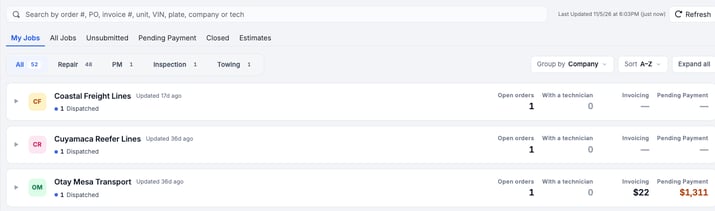
Click Service in the sidebar, then Service Orders. The list opens as one card per company. Each card shows a stage summary and four figures: Open orders, With a technician, Invoicing and Pending Payment. Click a card to open that company's orders. To see one row per order, set Group by to None (see Group the list below).
Pick a tab
Each tab shows orders at one point in their life. Estimates and drafts can also show in more than one tab (see below).
| Tab | What it shows |
|---|---|
| My Jobs | Active orders where you are a dispatcher or an assigned technician. |
| All Jobs | Every active order in the shop, whoever owns it. Technicians without Dispatch or Manage all service orders don't see this tab. |
| Unsubmitted | Drafts that were started but never submitted. Their status reads Pending Submission with a DRAFT tag. An estimate that was never finished can show here too. |
| Pending Payment | Orders that are done and waiting for the customer to pay. |
| Closed | Finished and cancelled orders. Use it as the archive. Its cards show Closed and Cancelled counts and cover the 1,000 most recently closed orders. |
| Estimates | Every order that started as an estimate, whatever happened to it afterward. The status shows an Estimate badge next to Draft, Sent or Approved. |
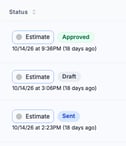
The same order can show in two tabs. The Estimates tab is a shortcut to every estimate, so an estimate can also appear in Unsubmitted or another tab. If a row looks like a duplicate, check its status.
Narrow by job type
Under the tabs, the buttons All, Repair, PM, Inspection and Towing each show a count. Click one to see only that type. The counts follow the tab you are on and your search.
Group the list
Use Group by, next to the job type buttons, to pick None, Company or Technician. Company is the default. Technician cards show Open orders, With a technician, Paused and Invoicing (a count).
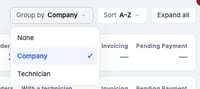
- While the list is grouped, Sort offers A–Z, Most owed, Latest update and Most open. On Closed it offers A–Z, Latest update and Most orders.
- Expand all and Collapse all open or close every card.
- If a grouped list has more than 1,000 orders, a yellow notice above the cards says so, for example Showing 1,000 of 1,342 orders, the most recently updated. Some companies may be missing. Search or pick a type to narrow the list. On My Jobs the first sentence reads Showing the first 1,000 of 1,342 orders. On Closed it ends the most recently closed. A count with a grey +, such as 12+, may be higher than shown.
- When you open an order and go back, the list returns to the same view.
Search
Click Search by order #, PO, invoice #, unit, VIN, plate, company or tech, type your text and press Enter. The search runs inside the tab you are on. To clear it, click the X in the box.
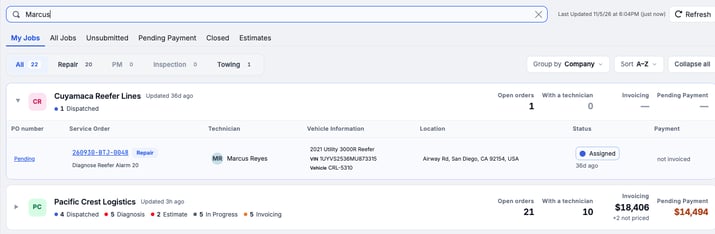
It finds orders by:
- Order number, such as
261015-TJK. Any part of the number works, in any case. - PO number.
- Invoice number.
- Vehicle unit number, such as
FC6548. - VIN.
- Plate.
- Company name.
- Technician name (the name only, not the email or phone).
- Vehicle make or model, such as
Cascadia.
It does not search locations or services. To find those, set Group by to None, open the tab and sort by the matching column.
Nothing found? Check the tab first. A closed order won't show while you search on My Jobs.
Read the columns
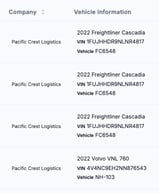
Set Group by to None to see one row per order. Each row shows the PO number, the order number with its job type and job titles, the technician, the dispatchers, the company and the vehicle.
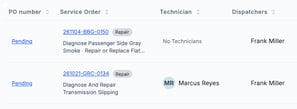
An order with no titles yet shows what the visit is booked for, or the complaint as written. If nothing was written, it shows No complaint written. Titles that don't fit show as +N more. Hover to see them all.
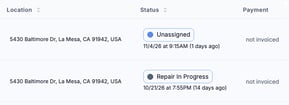
Scroll right for Location, Status and Payment. Inside an opened card you also get Location, Status and Payment, without sorting. Status shows the current step and when it last changed. Payment shows the invoice state, such as not invoiced.
Money is hidden for some roles. Invoicing, Pending Payment, Billed, the Payment column and the Most owed sort show for people with Dispatch, Manage all service orders or Manage estimate. An estimator who can't see every job sees money only on their own orders. Technicians see counts only.
Sort the list
To sort by a column, set Group by to None. Click a column heading to sort by it. Click it again to reverse the order. An arrow beside the heading shows the sort. Vehicle Information and Payment have no sort arrow and can't be sorted.
Page through the results
The list shows 10 orders at a time. Use Previous, the page numbers and Next at the bottom. A Show picker (10, 20, 50 or 100 records) appears bottom-left once a list has more than 10 orders. Each opened card pages on its own. Click Refresh at the top to reload the list. Last Updated beside it shows when it last loaded.
Open an order
If the list is grouped, click the card first. Then click the order number in the Service Order column. For what you can do on an order, see Manage a Service Order. To see how an order moves through its statuses, see The Service Order Lifecycle.
Pick up an unsubmitted draft
A draft is an order you started with + New Service Order and left before submitting. Nothing is lost.
- Open the tab. Click Unsubmitted.
- Click the order number. If the list is grouped, open the company card first. The order opens in the create screen with what you already entered.
- Finish and submit it. See Create a Service Order.
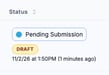
Drafts you started also show in the Unsubmitted section of the Alerts panel on the right, so you can resume one from any page.
Be careful with Cancel. The draft cards in the Alerts panel have a Cancel button. Use it only when you want to throw the draft away.
Troubleshooting
| Symptom | Likely cause | Fix |
|---|---|---|
| An order is missing from My Jobs | You are not a dispatcher or technician on it | Click All Jobs. |
| A finished order isn't in the list | It moved to Pending Payment or Closed | Open that tab and search again. |
| The list looks stale | It loaded a while ago | Click Refresh. |
| A draft I started is gone from my tab | It is on Unsubmitted, not on My Jobs or All Jobs | Open Unsubmitted. |
FAQs
Which tab should I use every day?
Start on My Jobs to see your own work. Use All Jobs when you need to cover for someone or check the whole shop.
Where did a finished order go?
Look in Pending Payment if it is waiting to be paid, or Closed if it is paid or cancelled.
Why is the same estimate on two tabs?
The Estimates tab lists every estimate. The order can also show on the tab that matches its current status.
Can I search from any page?
Yes. Use the bar at the top of the screen or press ⌘K. See Search Anything and Run Commands (⌘K).