
For: Everyone who uses the web app · Permission: None to open it; some results and commands may depend on your role · Time: ~2 minutes
Quick summary
- Press ⌘K (Mac) or Ctrl+K (Windows), or click the search box in the top bar.
- Type an order code, a fleet name, a unit, a part or a PO number.
- Use ↑ and ↓ to pick a result, then press ↵ to open it.
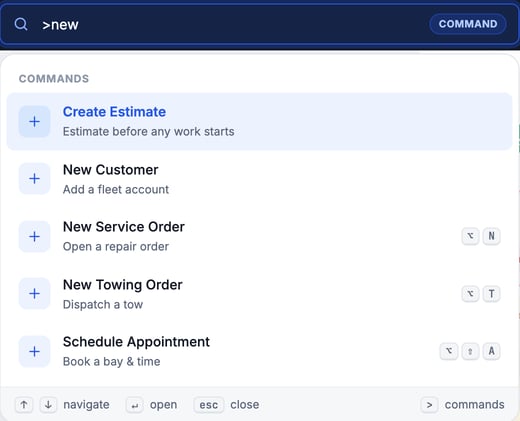
- To run a command instead, start with >, for example > new.
Before you start
- The search box sits in the top bar on every page of the web app.
- Some commands and result types may not appear, depending on your role. If one you expect is missing, ask an admin about your permissions.
Open the search box
Any of these opens it:
- Press ⌘K on a Mac or Ctrl+K on Windows. This works from anywhere, even while you're typing in another field.
- Press / when your cursor is not in a text field.
- Click the search box in the top bar.

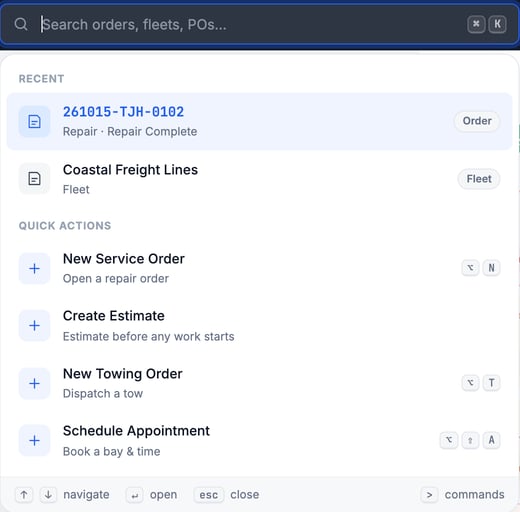
Before you type, the list shows your Recent records and your Quick actions.
Search for a record
Type at least part of a name or code. Results update as you type and appear in one list, best match first. A tag on the right of each row tells you what it is:
| Tag | What it opens |
|---|---|
| Order | A service order. Searching an invoice number finds its order too. |
| Appt | An appointment |
| Fleet | A customer company |
| Unit | A vehicle |
| Part | A part |
| PO | A purchase order |
| Partner | A partner request |
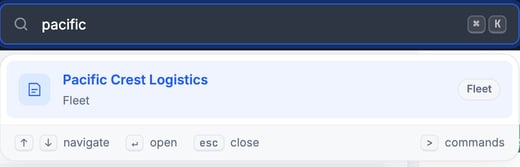
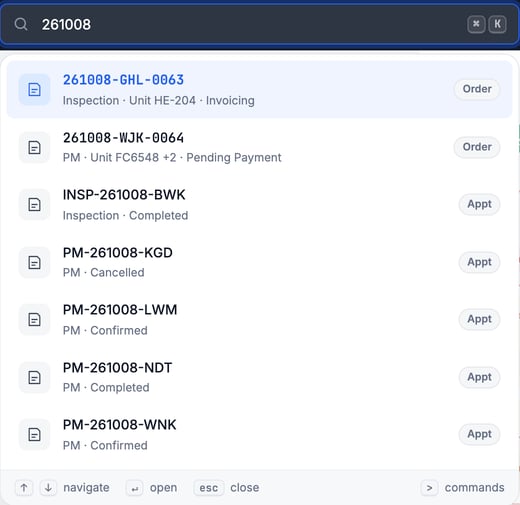
An order code finds the order and its related appointments:
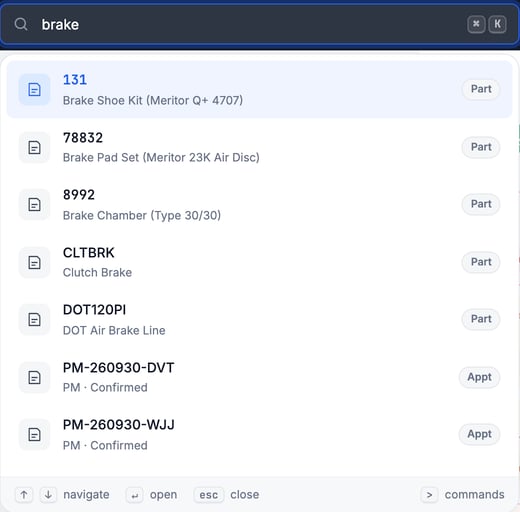
Parts match on part number and description:
Open a result with the keyboard
- Move: press ↑ or ↓. The highlighted row is the one that opens.
- Open: press ↵. You can also click a row.
- Close: press esc, or click anywhere outside the box.
The hints at the bottom of the box repeat these keys.
Run a command
Type > as the first character. The box switches to Command mode and lists commands only. Keep typing to narrow the list, then press ↵ to run the highlighted one.
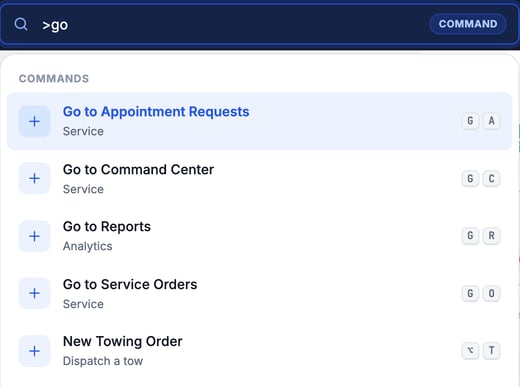
Commands that start with "Go to" take you to a page. The list scrolls, so type more letters to narrow it:
Commands and shortcuts
Shortcuts work when your cursor is not in a text field. On Windows, ⌥ is Alt.
| Command | What it does | Shortcut |
|---|---|---|
| New Service Order | Opens a repair order | ⌥ N |
| Create Estimate | Starts an estimate before any work starts | None |
| New Towing Order | Dispatches a tow (shown only if towing is on for your company) | ⌥ T |
| Schedule Appointment | Books a bay and time | ⌥ ⇧ A |
| New Customer | Adds a fleet account | None |
| Join FleetNet Request | Opens the partner request queue | None |
| Go to Command Center | Opens the Command Center | G, then C |
| Go to Service Orders | Opens the service orders list | G, then O |
| Go to Appointment Requests | Opens appointment requests | G, then A |
| Go to Reports | Opens reports | G, then R |
For "G, then C", press G, release it, then press C right after.
Commands open a page. See Create a Service Order and Create and Send an Estimate Without a Service Order for what to do next.
Troubleshooting
| Symptom | Likely cause | Fix |
|---|---|---|
| "Nothing matches" appears | The text doesn't match any record you can see | Try a shorter piece of the code or name, or check the spelling. You can also try > new order. |
| "No command matches" appears | The command isn't spelled that way, or it isn't available to your role | Try a shorter word such as new, schedule or go. |
| A command or record type you expect is missing | Your role doesn't include it, or towing is off for your company (New Towing Order only) | Ask an admin to check your permissions. |
| An Option or Alt shortcut does nothing | Your cursor is in a text field | Click outside the field, then press the shortcut again. Option and Alt shortcuts and G chords don't run while you type in a field. |
| A "G, then" shortcut does nothing | The second key didn't follow quickly enough | Press G, then the second key right away. |
FAQs
Is it ⌘K or Ctrl+K?
Use ⌘K on a Mac and Ctrl+K on Windows. The hint on the box shows the one for your computer.
Why are my results not grouped?
Once you type a search, results appear in one list, best match first. The Recent, Quick actions and Commands headings show only before you type and in command mode.
Can I search for a person?
No. The box finds orders, appointments, fleets, vehicles, parts, POs and partner requests.