
For: Technicians · Permission: Assigned to the order · Time: ~5 minutes per problem
Quick summary
- Open your service order in the technician app and tap Type it in the Add more findings. card.
- Enter the Complaint and the Cause & Correction, add parts or tick No parts needed, and set the Effort hours.
- Tap Add finding. Repeat for each problem.
- When every finding is complete, tap Send for approval.
Before you start
- The service order is assigned to you and you are shown as on site. The order reads Diagnosis in progress with a count of findings.
- Findings the app starts from the job description are already listed under Your findings, with a short title such as Diagnose Intermittent No Start. Open one to fill it in.
Add a finding
Under Add more findings., tap Type it. Each finding you add stacks up under Your findings, with its hours and a trash icon to remove it. You can only add a finding on an order you are assigned to, and only the technician who started a finding can confirm it.
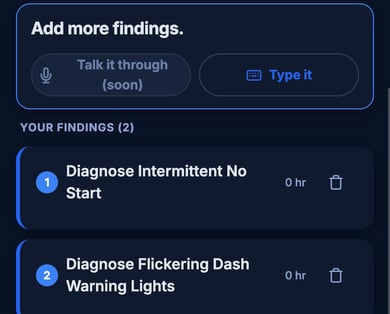
Voice isn't available yet. Talk it through is greyed out. Use Type it to enter a finding.
Fill in the finding
A New finding sheet opens for the unit and service order. Short and plain is fine; the assistant tidies the wording for the estimate.
- Complaint: what's wrong in the customer's words, such as "dash lights flicker and truck will not start sometimes."
- Cause & Correction: why it failed and what fixes it, such as "loose ground at battery post, cleaned and tightened."
- Notes (optional): tap Add note. Notes are visible to dispatch and on customer paperwork, so keep them professional.
- Parts: tap Add a part..., or tick No parts needed for a labor-only repair.
- Effort: tap + to set the hours. The finding needs at least 0.25 hours.
- Tap Add finding.
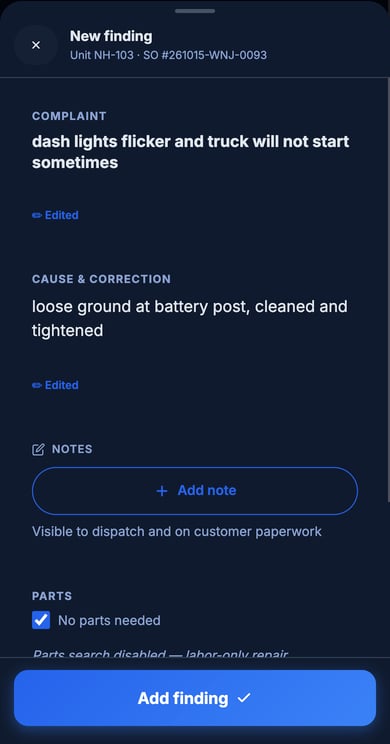
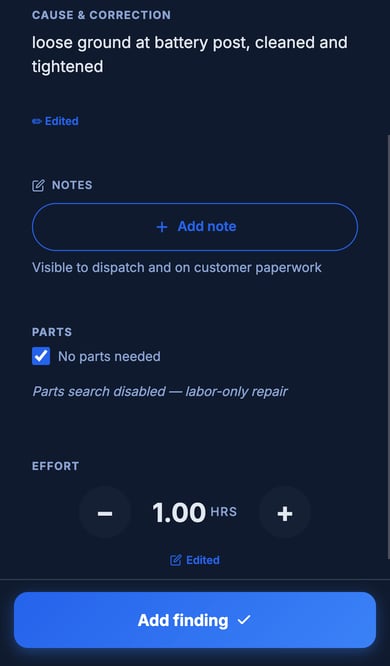
Until the sheet is complete, a line above Add finding reads Still needed: and lists what is missing, such as a diagnosis, hours or a part.
Send it for approval
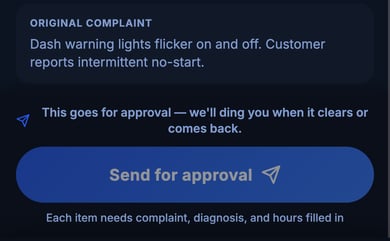
When each finding has a complaint, a cause and correction, and hours, tap Send for approval at the bottom of the order. It goes to the office, and you get a notice when it clears or comes back. Until then the button is greyed out and reads Each item needs complaint, diagnosis, and hours filled in. See Submit Repairs for the repair stage.
On the web
In a browser, the same work is done on the repair order page, where each finding is a work item. Finalize Diagnosis there is the same action as Send for approval in the app.
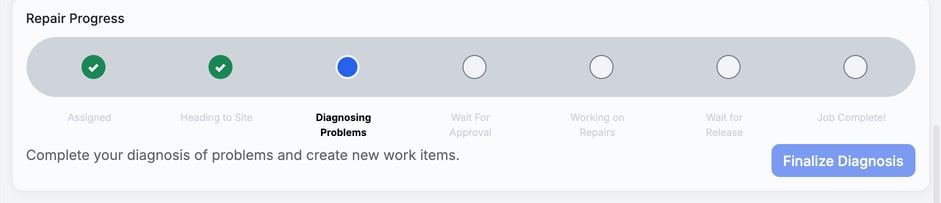
The Repair Progress card shows Diagnosing Problems and the Finalize Diagnosis button.
Open or add a work item
Scroll to Work Items on the repair order. Open the card for the problem. To add another problem, click Create New Work Item. Each work item becomes its own line on the estimate. Save Changes won't add a work item until it has a complaint and a diagnosis.
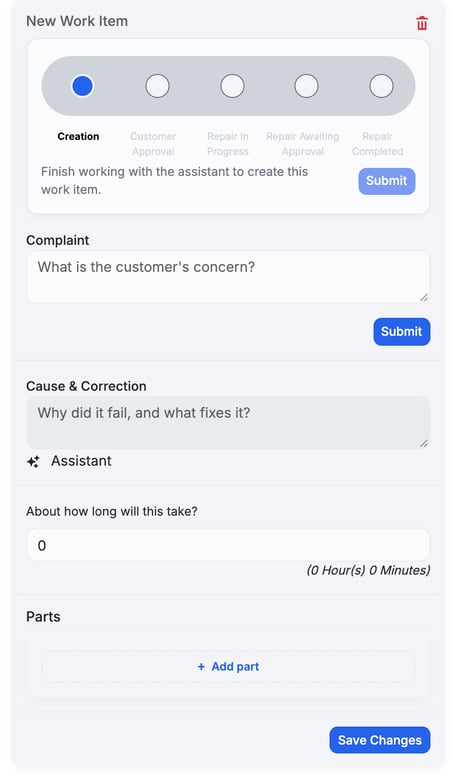
Enter the complaint
Under Complaint, write what the customer reported in plain words, such as "truck pulls to the left when braking." Click the Submit under Complaint (not the one at the top of the card). The assistant rewrites it as a clear complaint and keeps your original line under it, marked Generated from. If the review fails, your complaint saves as you typed it, with the note Saved as you typed it. We couldn't review the complaint right now. and Cause & Correction opens.
Enter the cause and correction
Under Cause & Correction, write why it failed and what fixes it. Shorthand is fine. Click the Submit under Cause & Correction. The assistant rewrites it the same way. After you save, this text shows as Diagnosis on the card.
Set the hours and add parts
- Hours: enter the time in hours under About how long will this take? For example,
1shows as 1h:00m. - Parts: click Add part for each part the repair needs.
- Click Save Changes.
The card now reads Ready for Estimate Creation. Use Add note on the card for anything extra.
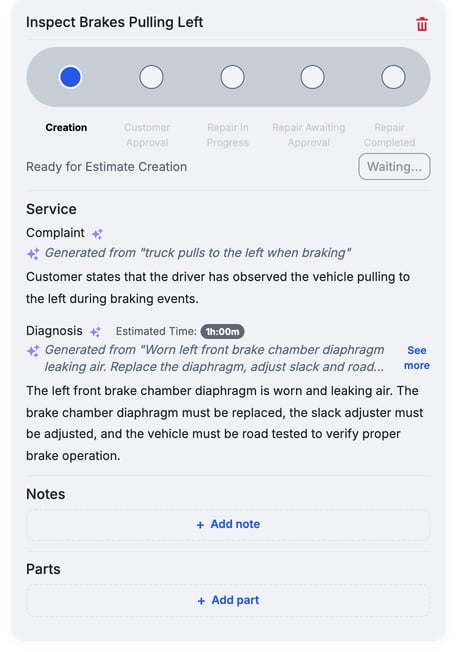
Finalize the diagnosis
Repeat for every problem. Then click Finalize Diagnosis. The order moves to Diagnosis Complete and the stepper moves to Wait For Approval. If your shop requires approval after diagnosis, the Repair Progress card reads Waiting for estimate to be created and approved.... If no contact on the order can receive estimates, the card says the estimate is held until the shop adds one. What happens next depends on your shop's approval settings. See Understanding the Approval Gates.
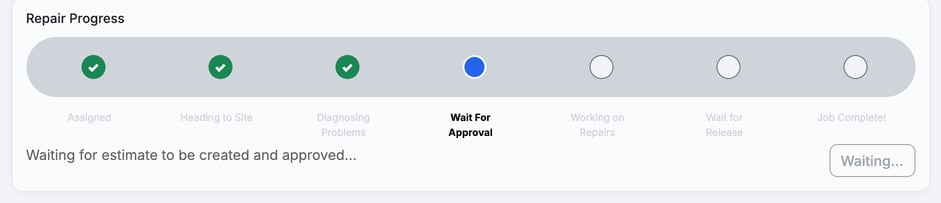
Finish every work item first. Finalize Diagnosis stays greyed out until every problem has a work item. A work item with no complaint or no diagnosis can't be sent, approved or skipped: the Send and approve buttons stay off and name it, such as "Gladhand seals" still needs a complaint and a diagnosis. Click Go to it, finish that card and try again.
Troubleshooting
| Symptom | Likely cause | Fix |
|---|---|---|
| Talk it through is greyed out | Voice isn't available yet | Use Type it. It captures the same finding. |
| Add finding is greyed out | The sheet is missing something | Read the Still needed: line above the button and fill in what it lists. |
| Send for approval or Finalize Diagnosis is greyed out | A finding or work item has no complaint, cause and correction, or hours | Open each one and finish it. On the web, every problem also needs its own work item. |
| Send or approve is off and names a work item | It has no complaint or no diagnosis | Click Go to it and finish the card. |
| The wording changed after I submitted | The assistant rewrites it for the estimate | On the web, your original line stays under it as Generated from. |
| My complaint shows Saved as you typed it | The review didn't run | Nothing is lost. Go on to Cause & Correction, which is already open. |
| I can't find Finalize Diagnosis; the card reads Waiting for technician to arrive on site and start diagnosis... | The order hasn't reached Diagnosing Problems | Ask dispatch to click Show Technician as On Site on the repair order. |
| I added a finding or work item by mistake | — | Tap or click the trash icon on it. |
FAQs
Who sees my notes?
Notes are visible to dispatch and can appear on customer paperwork.
Do I have to write it up perfectly?
No. Keep it quick. The assistant cleans up the wording, and the office can adjust before it reaches the customer.
Can I add more than one finding?
Yes. Add one for each problem. Each becomes its own line on the estimate.
Can I add parts here?
Yes. Add parts on the finding, or tick No parts needed.
Where does a finding's title come from?
When the app starts one from the job description, it writes a short title, such as Diagnose Intermittent No Start. A work item you add yourself on the web is called New Work Item until you submit the complaint.