
For: Admins and user managers · Permission: Manage Users · Time: ~3 minutes
Quick summary
- Open Settings › Users and click the person.
- In Personal Details, click Edit, type the new email and click Save.
- Check the new email in the confirmation window and click Change email.
- When someone leaves, first remove them from call groups and clear their recurring schedule.
- Click Deactivate on their page, choose who takes their open jobs, type their name and confirm.
- Then revoke their AI assistant connections.
Before you start
- You need the Manage Users permission to change another person's account.
- To change someone else's email, you must also hold every permission that person holds. If they hold a permission you don't, ask someone who holds all of them, such as an administrator.
- You can't deactivate yourself, your company's owner, or someone with access you don't have. The button is greyed and says why.
- To clear a recurring schedule, you also need permission to manage technician schedules.
- Your own email is different. Change it from My Account.
Open the user
Go to Settings › Users. The list shows each person's name, email, role, extension, service area and Status. Click a name to open the Manage User page. Deactivated users are on the Inactive tab, not under All users.
A user shown as Inactive can't sign in. For Invited, Not invited yet and Invite expired (the Not joined yet tab), see Add a User and Set Their Role, Service Area and Skills.
Deactivate a user
Deactivate someone when they leave. They can't sign in again until you reactivate them.
- Start: go to Settings › Users, click the person, and click the red Deactivate at the top right of Manage User. Or click ⋯ on their row and choose Deactivate.
- Hand off their jobs: for each open job, pick who takes it. Use Give all to for one person, choose one at a time, or pick Leave unassigned. Every job needs a choice. A started job that only they are on can also be kept with them until someone takes it (Keep with them until someone takes it).
- Confirm: type the person's full name, then click Deactivate. Click Cancel to stop.

The Deactivate button on Manage User.
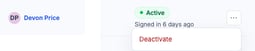
The same action from the row's ⋯ menu.
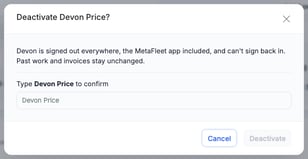
The confirm window. Deactivate stays greyed until every job has a choice and the name matches.
When you confirm, the person is signed out everywhere, their clock-in closes, and calls to their extension stop ringing them. They move to the Inactive tab. If MetaFleet couldn't do something, it's listed under Still to do by hand. A deactivated person who tries to sign in sees You can't sign in to this company and a Go to sign in button.

The History card at the bottom of Manage User lists each Deactivated by and Reactivated by line, newest 5 first. Click Show all (with the count) for the rest.

Reactivate a user
Open the Inactive tab, click ⋯ on the person and choose Reactivate. Or open their page and click Reactivate. MetaFleet asks you to confirm first. Their jobs and clock-in are not given back. They sign in with the same email, roles and extension, and MetaFleet doesn't tell them, so let them know.
Change the email
- Edit: in the Personal Details card, click Edit.
- Type the new email: replace the old address in the email field.
- Save: click Save. A window opens: Change this user's email?
- Confirm: read the new address in the window. Click Change email to apply it, or Cancel to keep the old one.
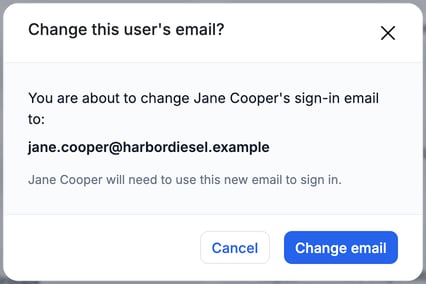
The window repeats the new address. The user signs in with it from then on.
Saving a name change alone doesn't open this window. After an email change, the person's web sessions end and they sign in again with the new address.
Change your own email
You can change your own sign-in email from My Account. You don't need to open Settings › Users.
- Open My Account: open the profile menu (your name at the bottom of the left menu, or your picture at the top) and click My Account.
- Edit: in the Personal Details card, click Edit.
- Type the new email: replace the address in the Email field.
- Save: click Save. The Change your email? window shows the new address. Check it and click Change email.
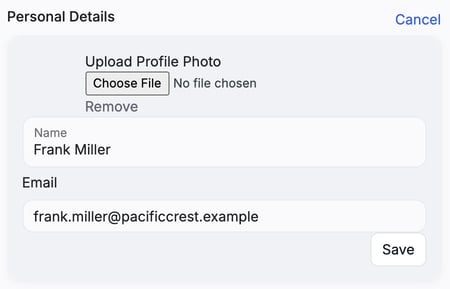
The Email field in edit mode.
Within about 30 seconds you are signed out of every session. Sign back in with the new email. Changing only your name skips the window and keeps you signed in.
When someone leaves
Do these two steps before you deactivate. Once someone is inactive, every card on their page is locked until you reactivate them.
If their invite is still open (Invited or Invite expired), click ⋯ on their row and choose Cancel invite. This removes the account.
Each item is a separate step.
- Remove them from call groups. On their user page, click Edit next to Call Groups and remove each group.
- Clear their recurring schedule. Open their user page and clear the schedule in the Recurring schedule card.
- Deactivate them. Follow Deactivate a user above. It signs them out, hands off their open jobs and closes their clock-in.
- Revoke their AI assistant connections and personal access tokens. Their AI assistant connections stop working while they are inactive, but they are not removed. Revoke them so they don't work again if the person is reactivated. See Connect Claude, ChatGPT, or Perplexity to MetaFleet.
Troubleshooting
| Symptom | Likely cause | Fix |
|---|---|---|
| I can't open the user, or the Edit buttons don't save | You don't have Manage Users | Ask an admin to give you the permission. |
| The email change is refused | The person holds a permission you don't hold | Ask someone who holds every permission the person has, such as an administrator. |
| No confirmation window after Save | You changed only the name, or the email is unchanged | Check the email field, then click Save again. |
| Deactivate is greyed out | It's your own page, your company's owner, or someone with access you don't have | The reason shows under the button. Your own page: ask someone else who manages users. The owner: can't be deactivated; if the owner is leaving, contact MetaFleet support. Someone with access you don't have: ask a person who has that access. |
| The user can't sign in with the old email | The email was changed | Tell them to sign in with the new address. |
FAQs
How do I change my own email?
Open My Account and follow Change your own email above.
Can I delete a user?
Only someone whose invite is still open (Invited or Invite expired): use Cancel invite on their row. For anyone else, use Deactivate.
Do I get their jobs back when I reactivate someone?
No. Their jobs and clock-in are not given back. Assign them again by hand.