
For: Admins · Permission: Manage account settings · Time: ~10 minutes
Quick summary
- Go to Settings › Phone System.
- Click Add on the Call Groups card and create a group for each team that takes calls.
- Click Edit on the Menu Options card and pick a group for each keypad number from 2 to 9.
- Edit the phone menu message so it matches your keypad choices, then click Save.
- Open each user and add them to their call groups.
Before you start
- You need the Manage account settings permission. Without it, the Edit links on Company Phone Numbers and Menu Options are hidden, and MetaFleet refuses new call groups and renames.
- If MetaFleet manages your number, your Twilio integration must be active.
- Your business number must already show under Company Phone Numbers. If it doesn't, contact your CSM or the MetaFleet Support team.
- Create your users first, with the right roles. See Add a User and Set Their Role, Service Area and Skills.
Open Phone System
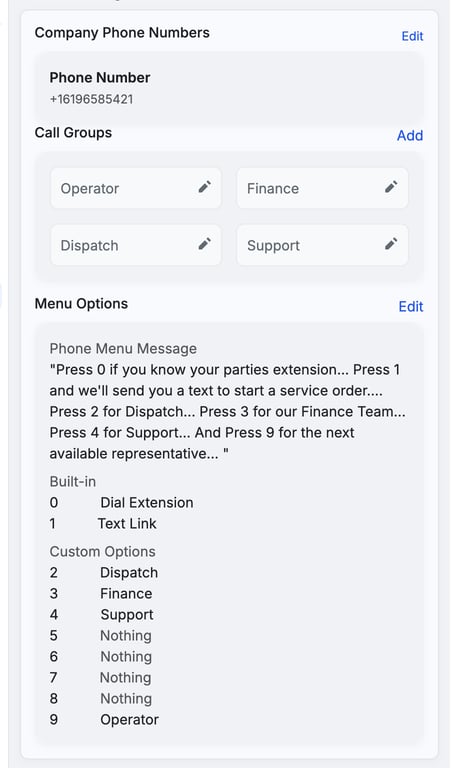
Click Settings, then Phone System. The page has three cards: Company Phone Numbers, Call Groups and Menu Options.
Check your business number
Your number appears under Company Phone Numbers. To change it, contact Support. The Edit link on this card doesn't save a new number.
Create a call group
- Start the group. On the Call Groups card, click Add.
- Name it. Enter a short name, such as Dispatch, Finance or Operator.
- Save it. Click Submit.
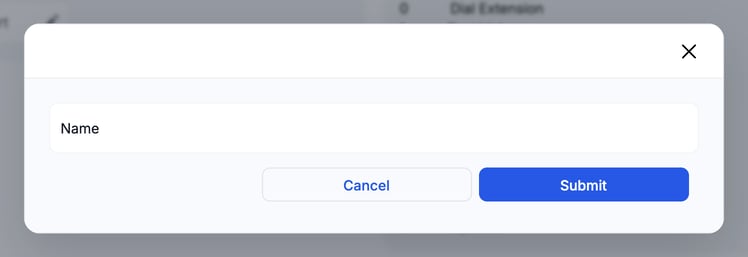
To rename a group, click the pencil icon on its tile, change the name and click Submit.
Assign groups to keypad numbers
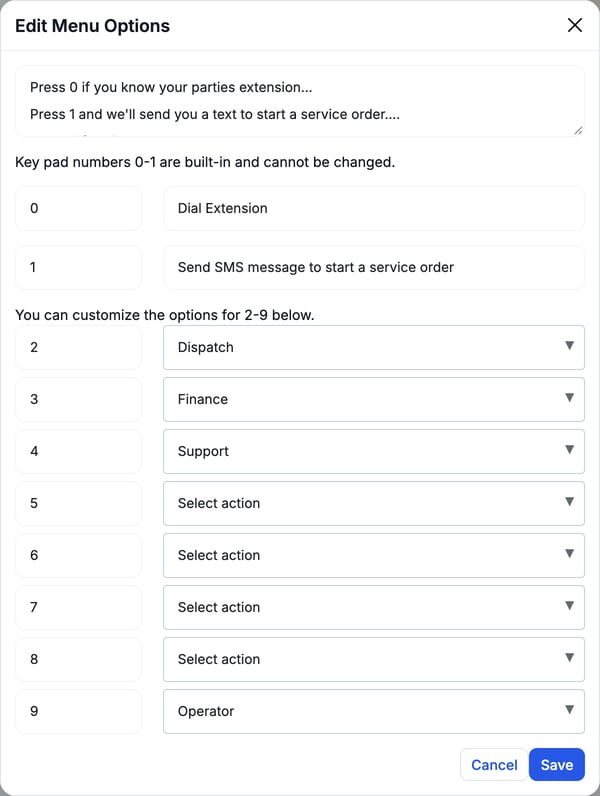
Keypad numbers 0 and 1 are built in and can't be changed. 0 is Dial Extension. 1 texts the caller a link to start a service order. You choose what 2 through 9 do.
- Open the menu. On the Menu Options card, click Edit.
- Pick a group. For each number from 2 to 9, open the dropdown and choose a call group. Leave it on Select action to turn that number off.
- Save. Click Save.
The Menu Options card then lists the built-in keys and your custom keys. Keys with no group show Nothing.
Edit the phone menu message
The unlabeled text box at the top of the Edit Menu Options window is your menu message. The Menu Options card shows it as Phone Menu Message. Write one phrase for each keypad number you use, and keep it in step with your choices above. For example:
Press 0 if you know your party's extension... Press 2 for Dispatch... Press 3 for our Finance Team... And press 9 for the next available representative...
The default message separates each phrase with an ellipsis (...). Do the same to keep the phrases apart.
Click Save. The new message shows on the Menu Options card.
Add users to call groups
A group only rings the users who belong to it.
- Open the user. Go to Settings › Users and click the person.
- Edit their groups. On the Call Groups card, click Edit.
- Select groups. Click each group tile the user should get calls for.
- Finish. Click Done.
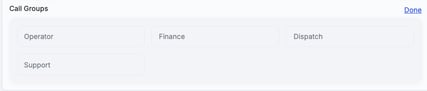
The same page has a Personal Extension card. It goes with keypad number 0, Dial Extension.
Test it
Call your business number and press each key. Check that the call rings in MetaFleet for the right users.
Troubleshooting
| Symptom | Likely cause | Fix |
|---|---|---|
| Incoming calls don't ring a user | The user isn't signed in to MetaFleet on the web, or isn't in the group | Ask the user to sign in. Then check their Call Groups card. |
| The wrong team gets the call | A keypad number points at the wrong group | Click Edit on Menu Options and change the group for that number. |
| A group is missing from the dropdown | The group wasn't created | Click Add on the Call Groups card and create it. |
| Callers hear options that don't match the keys | The menu message wasn't updated | Edit the Phone Menu Message so it matches your keypad choices. |
| Adding or renaming a call group fails | Your role can't manage account settings | Ask an admin with the Manage account settings permission to add or rename the group. |
| No call rings anyone | The Twilio integration is off or set up incorrectly | Contact your CSM or the MetaFleet Support team. |
| You don't see the Edit link on Company Phone Numbers or Menu Options | Your role can view account settings but not manage them | Ask an admin with the Manage account settings permission to make the change. |
FAQs
Can I port my existing business number?
Yes. MetaFleet can port your existing number. Contact your CSM or Support to start.
Do users need to be signed in to get calls?
Yes. A group call shows up as an incoming call in MetaFleet, so users need to be signed in on the web.
Can I route calls to a mobile phone?
Not from this page. Calls ring users inside MetaFleet.
Can I delete a call group?
The Call Groups card only lets you add and rename groups. To stop using a group, set its keypad number to Select action and clear it from each user.
Can I record my own greeting?
No. You edit the text of the menu message, and MetaFleet reads it to callers.
Does MetaFleet take voicemail?
No. MetaFleet doesn't record voicemail.