
For: Admins who set up shop locations · Permission: Manage bays · Time: ~2 minutes per bay
Quick summary
- Open Settings › PM & Inspections › Bay Management.
- Pick the Service location.
- Click + New Bay, type a name and click Create Bay.
Before you start
- The shop location must already exist. See Create a Service Location.
- You need the Manage bays permission to add, deactivate or reactivate a bay.
- Each bay belongs to one location. You pick the location when you create the bay, and you can't move the bay later.
- Each bay holds one visit at a time.
Open Bay Management
Go to Settings › PM & Inspections and click the Bay Management tab. Next to it are Service Tasks and Service Programs (and Inspection Library, if you have that permission). See Set Up Service Tasks and PM Programs.
Choose a location in the Service location list. Active bays are listed. Tick Show inactive bays to see the rest.
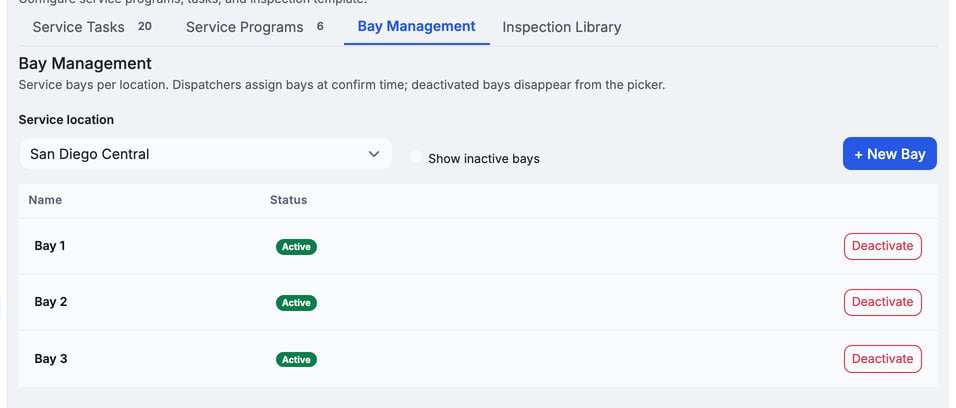
Add a bay
- Click + New Bay with the right location chosen. A New Bay form opens.
- Type a name. Use a name the dispatchers will recognize, for example
Bay 1. The name is required. - Click Create Bay. A message confirms the new bay, and it shows as Active.

You can't rename a bay. To change a name, deactivate the bay and add a new one with the name you want.
Deactivate or reactivate a bay
Click Deactivate on the bay's row when you stop using it. It disappears from the list dispatchers pick from. Appointments already on that bay stay as they are.
To bring it back, tick Show inactive bays and click Reactivate on the bay's row.
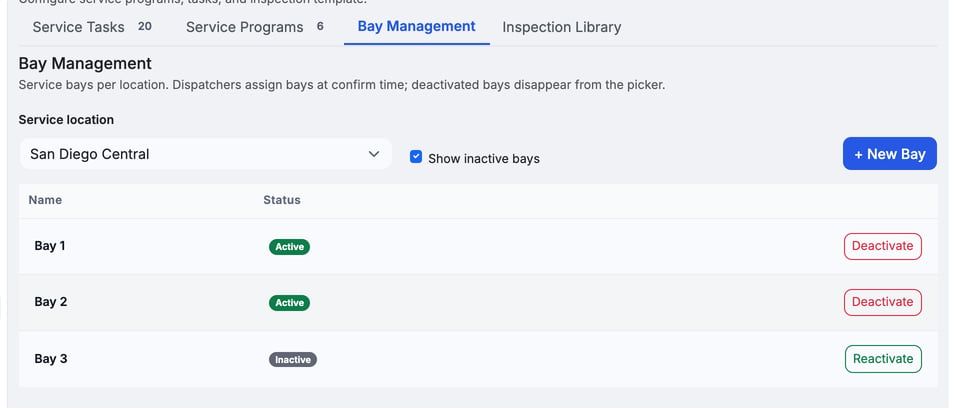
How dispatchers pick a bay
Dispatchers pick a bay when they confirm a shop visit. On a Requested visit, the Bay card is marked Optional and lists the location's active bays and a No bay choice. Picking a bay is not required to confirm.
- A bay that is already booked for an overlapping time shows as busy and can't be picked.
- Back-to-back visits are fine. A bay is free again when the earlier visit ends.
- If a visit has no end time, MetaFleet uses its estimated duration, or 1 hour if there is none.
- Cancelled and declined appointments don't hold a bay.
- A bay with a job still open past its booked end shows a Running over tag. You can still pick it. When you do, a note names the job still in the bay and how long it is over, so check with the shop floor first. This only shows when the visit starts within 24 hours.
- Visits at an address other than the shop's (mobile service) never take a bay.
- The card doesn't appear if the location has no active bays.
The busy marks are for the day and time the visit is set to. Moving a visit that holds a bay to a time when that bay is taken is refused with the same Bay is already booked for ... line. Pick another time, or change the bay.
For the full confirm steps, see Confirm, Decline, Reschedule & Cancel Appointments.
If someone else takes the bay while you are confirming, the confirm is refused with a line such as Bay is already booked for Oct 21, 9:00 AM–10:00 AM. Pick another bay or No bay, then confirm again.
Troubleshooting
| Symptom | Likely cause | Fix |
|---|---|---|
| The list shows "Pick a service location above to manage its bays." | No location is selected | Choose a location in Service location. |
| A bay you added earlier is missing | The bay is inactive | Tick Show inactive bays, then click Reactivate. |
| The Bay card is missing on a visit | The visit is not Requested, it is mobile service, or the location has no active bays | Add a bay for that location, or confirm without one. |
| A bay shows as busy | Another active appointment overlaps that time | Pick another bay or No bay. To change the visit time, see Confirm, Decline, Reschedule & Cancel Appointments. |
| Confirm says "Bay is already booked for ..." with a date and time | The bay you picked is taken for that window, for example because someone else took it while you were confirming | Pick another bay or No bay, then confirm again. To change the visit time instead, see Confirm, Decline, Reschedule & Cancel Appointments. |
| Confirm says "That time has already passed. Pick a time from now on." | The start time is earlier than now | Pick a start time from now on in the Date & time card, then confirm. |
| Confirm fails with "We couldn't confirm this appointment right now. Please try again or contact your administrator." | A failure that isn't a bay or time conflict | Try again. If it fails again, contact your administrator. |
FAQs
Can I move a bay to another location?
No. Deactivate it and add a new bay at the other location.
Do I have to use bays?
No. The Bay card is optional, and you can confirm a visit with No bay.
Where do dispatchers pick a bay when they book?
Bays are chosen when a visit is confirmed. For booking, see Book a PM, Inspection or Repair Appointment.
Can two visits share a bay?
Not at the same time. Visits that follow each other can.
Does deactivating a bay cancel its appointments?
No. Existing appointments keep their bay.