
For: Dispatchers and managers · Permission: Read All Calls to browse and hear calls, Dispatch Calls to join and take them · Time: ~5 minutes
Quick summary
- Open Service › Call Log.
- Use the Active tab for calls in progress and the Resolved tab for finished calls.
- Click a call's date to open it.
- On a live call, click Join Call. Once you're on it, use Resolve Call when the call is done.
- On a resolved call, review the recordings, transcription and call analysis.
Before you start
- You need the Read All Calls permission to list calls, open them and hear recordings.
- You need the Dispatch Calls permission to join a call, add people to it or take it.
- Dispatch Calls alone shows the Call Log menu item but not the list of calls. Dispatchers who take calls usually need both.
- Your phone menu and call groups decide which calls reach dispatchers. To set them up, see Set Up Your Phone Menu and Call Groups.
Open the Call Log
In the left menu, open Service and click Call Log. The page is titled Customer Calls. Click Refresh to update the list. The time of the last update is shown next to it.
The list has two tabs:
- Active: calls in progress right now.
- Resolved: calls that have ended. The newest are first, 10 per page.
Each row shows the call's date and time, the customer and the dispatcher. The customer and dispatcher read NA when the call wasn't matched to a customer or never reached a dispatcher.
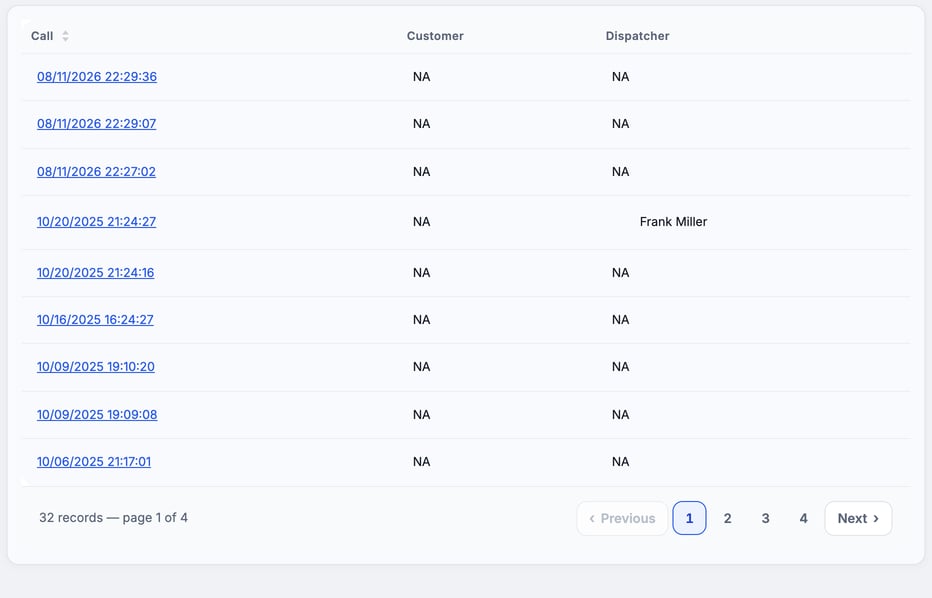
The list has no filters. To find a call, use its date and time, or the dispatcher's name.
Open a call
Click the date and time in the Call column. A live call opens the Phone Call page. A call that has ended opens its resolved page instead.
Take a live call
The Phone Call page shows the caller's number, the call ID and a log of what the call has done so far. Two cards let you act on it. You need Dispatch Calls for all of these.
Users lists the dispatchers on the call. A green dot means the person is connected. If they aren't, an Alert button shows next to them.
Call Options holds the call controls. Before you join, only Join Call shows. After you join, the other controls appear:
- Join Call: connects you to the call.
- Hold: puts the caller on hold. While the caller is on hold, the button reads Admit to Call. Click it to bring the caller back.
- View Dialpad: opens a dialpad you can use during the call.
- Resolve Call: ends the call.
- Leave Call: disconnects you. The call stays open for the others.
To bring a colleague in, click Add on the Users card, pick the person in Select User and click Add User To Call.
Resolve Call hangs up on the caller. It doesn't ask you to confirm. Leave the call instead if you only want to step away.
Hold, View Dialpad and Resolve Call show only after you join, and only on calls from outside. Calls between your own team don't have them.
Review a resolved call
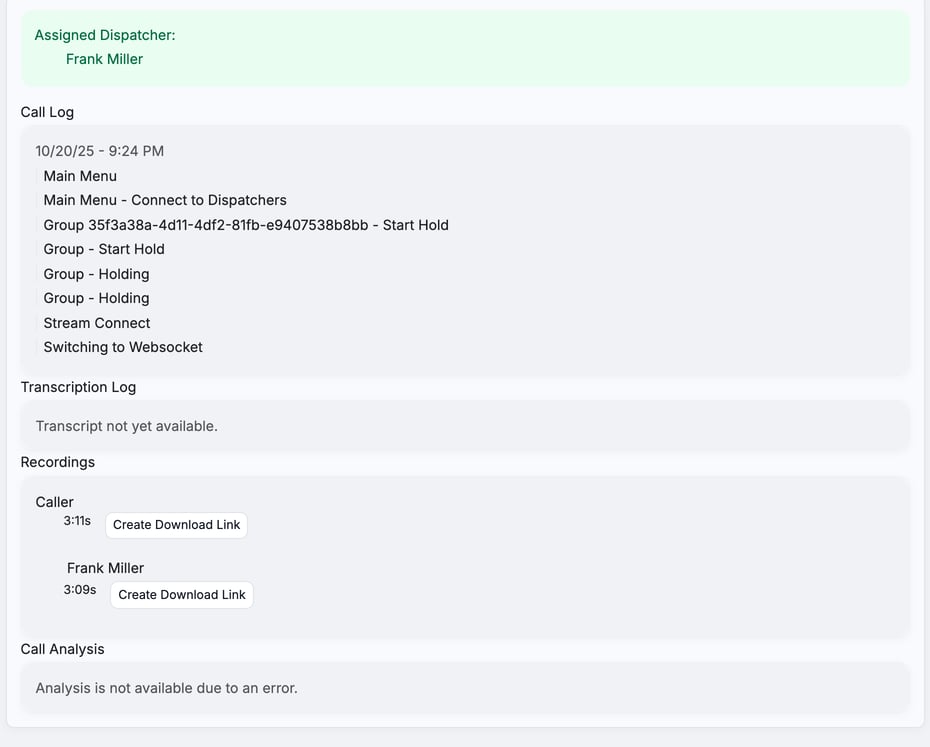
Open any call on the Resolved tab. The page shows these parts, top to bottom:
- Assigned Dispatcher: who handled the call. A Flagged for Review badge appears if the call was marked for review.
- Call Log: each step the call took, such as the main menu, hold and connecting to a dispatcher.
- Transcription Log: the written record of the call. It reads Transcript not yet available. until one exists.
- Recordings: one recording for the caller and one for each dispatcher who was on the call.
- Call Analysis: scores for the call. It's shown for group calls only.
Get a recording
Each recording shows its length and one of these:
- Create Download Link: click it to make a link, then use Download to save the file. Links expire, so create a new one if the old one stops working.
- Download: the link is ready.
- Recording in progress...: the call is still being recorded. Check back later.
- Recording Failed :( means the recording wasn't saved.
- No Recordings: nothing was recorded for this call.
Read the call analysis
For group calls, Call Analysis scores how the call went. The scores are Clarity, Closing Interaction, Customer Satisfaction, Empathy, Issue Resolution, Helpfulness, Politeness and Response Time. You also get Suggestions, a rating of the customer's clarity and behavior, and a Summary.
Until the scores exist, the section shows a message instead:
- Analysis not yet available. or Analysis is still being processed. Check back later.
- Analysis is not available due to an error. or Analysis is not available. No scores will appear for this call.
Troubleshooting
| Symptom | Likely cause | Fix |
|---|---|---|
| Call Log is in the menu but the list is empty or won't load | You have Dispatch Calls but not Read All Calls | Ask an admin to add Read All Calls to your role. |
| You don't see Call Log in the menu | You have neither permission | Ask an admin for Read All Calls, Dispatch Calls or both. |
| The Active tab is empty | No call is in progress | Nothing to fix. Click Refresh when a call comes in. |
| A recording's download link stopped working | Download links expire | Click Create Download Link again. |
| No Call Analysis on a call | It's shown for group calls only, and it can fail | Check the message under Call Analysis for which case you have. |
FAQs
Does Resolve Call just close the record?
No. It hangs up the call. Use Leave Call to step away without ending it.
Can I turn a call into a service order from the Call Log?
No. Create the service order separately and enter what the caller told you. See Create a Service Order.
Who can hear recordings?
People with Read All Calls.
Where do I change which dispatchers get calls?
In your phone settings. See Set Up Your Phone Menu and Call Groups.