---
title: Create and Send an Estimate Without a Service Order
description: Create a standalone estimate from the search bar, price labor, parts and fees, email it for approval, and put it on the schedule once approved.
---
[Skip to content](https://support.metafleet.ai/create-an-estimate-without-a-service-order#main-content)
English
Show submenu for translations

Open main navigation
Close main navigation
- English
Show submenu for translations
- [Contact us](mailto:support@metafleet.ai)
[Contact us](mailto:support@metafleet.ai)
How can we help you?
- There are no suggestions because the search field is empty.
1. [MetaFleet Answer Hub](https://support.metafleet.ai/?hsLang=en)
2. [Estimates & Approvals](https://support.metafleet.ai/estimates-approvals?hsLang=en)
3. [Estimates](https://support.metafleet.ai/estimates-approvals?hsLang=en#estimates)
# Create and Send an Estimate Without a Service Order
## Price a job for a customer who asks "what will this cost?" and send it for approval, without creating a service order first.
**For:** Dispatchers and managers · **Permission:** Send Estimate · **Time:** ~5 minutes
Use this when a customer asks what a job will cost and you don't have a service order yet. If the customer says no, nothing is left behind except the estimate. To estimate work on a service order that a technician has already diagnosed, see [Build and Send an Estimate](https://support.metafleet.ai/build-and-send-an-estimate?hsLang=en).
### Quick summary
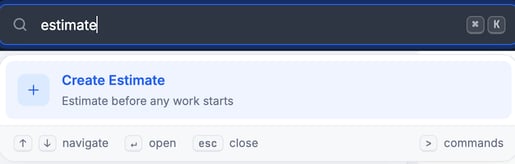
1. Press **⌘K**, type **estimate**, and choose **Create Estimate**.
2. Pick the type of work and the customer.
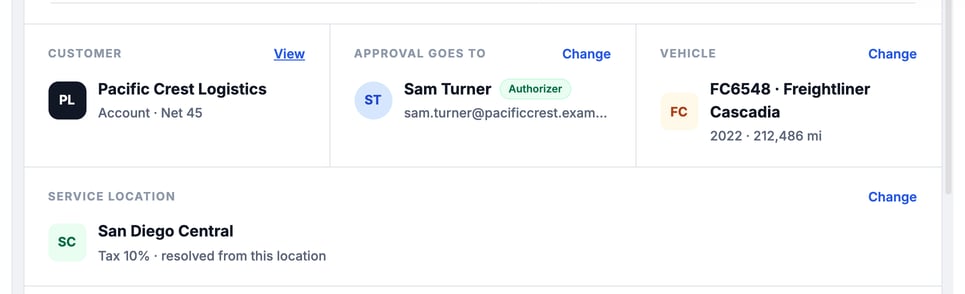
3. Check **Approval goes to**, the vehicle and the service location.
4. Add a work item with labor, parts and fees.
5. Click **Send estimate**. When the customer approves, click **Put on the schedule**.
### Before you start
- The customer needs at least one contact with a valid email address. The estimate goes only to the contact chosen under **Approval goes to**.
- If the customer is an enterprise account, the contact also needs a role that is allowed to approve estimates (**Authorizer** in the demo). Set roles on the contact's page, under **Contact Roles**.
- Know which truck the work is for. You pick it from the customer's vehicles.
### Start the estimate
Click the search bar at the top (or press **⌘K**), type **estimate**, and choose **Create Estimate**. The new estimate page opens.
1. **Pick the work type.** Choose **Repair**. This article covers repair estimates. **PM** and **Inspection** estimates cover several vehicles and aren't covered here.
2. **Pick the customer.** Search by company name and click the company. MetaFleet saves a draft and gives it a number such as `261014-HLC-0069`. For a company that isn't in MetaFleet yet, choose **+ Create a new customer** in the search results instead.
> Until you click **Put on the schedule**, the estimate never reaches the schedule or the technicians. No work starts until the customer approves it.
### Set who approves, the vehicle and the service location
Three cards sit under the customer name. Each has a **Change** link. On **Approval goes to**, until the customer approves, **Change** shows only if you have the Send Estimate permission or manage all service orders.
- **Approval goes to:** the contact who receives the estimate. A contact with no valid email address can't receive it. For an enterprise customer, the contact also needs the **Authorizer** role.
- **Vehicle:** the truck the estimate is for. Click **Change** to pick a different truck.
- **Service location:** the service area. It decides the tax on the estimate.
### Add a work item
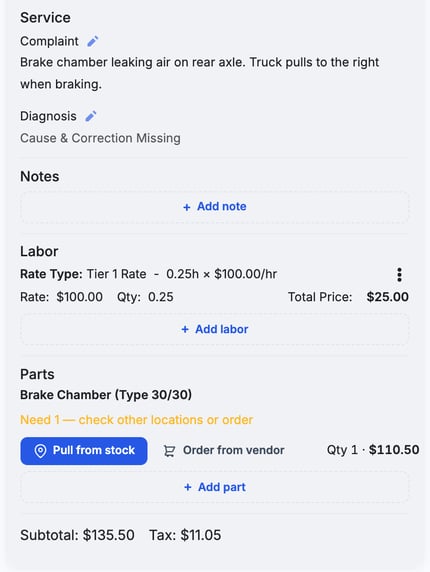
Under **Work Items**, click **Add work item**. A card opens where you type the **Complaint** (what the customer reported), then the **Diagnosis** (cause and correction). A work item can't be added without both a complaint and a diagnosis. Use **Add work item** again for each extra job.
### Add labor
1. Click **Add labor** on the work item.
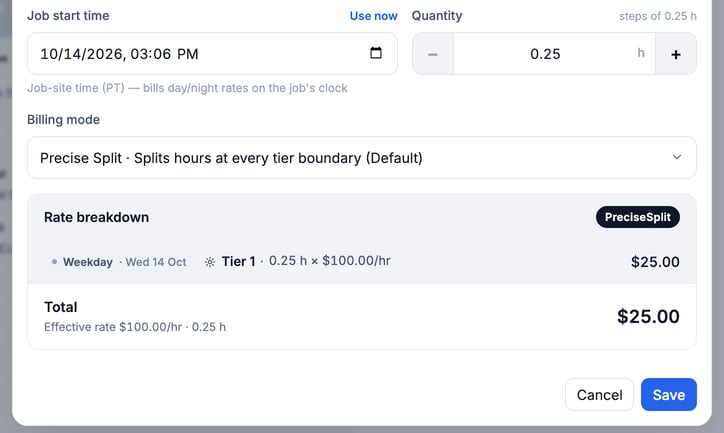
2. Under **Rate source**, leave **Time-based** selected to bill by your day and night tiers. Choose **Custom** to type an amount.
3. Set the **Job start time** and the **Quantity** in hours. The quantity moves in steps of 0.25 h.
4. Leave **Billing mode** as it is. Check the **Rate breakdown** and click **Save**.
### Add parts
1. Click **Add part** on the work item.
2. Search by part name or number. Each result shows the part number, name, price and stock status.
3. Click the part, check the **Price** and **Quantity**, and click **Update**.
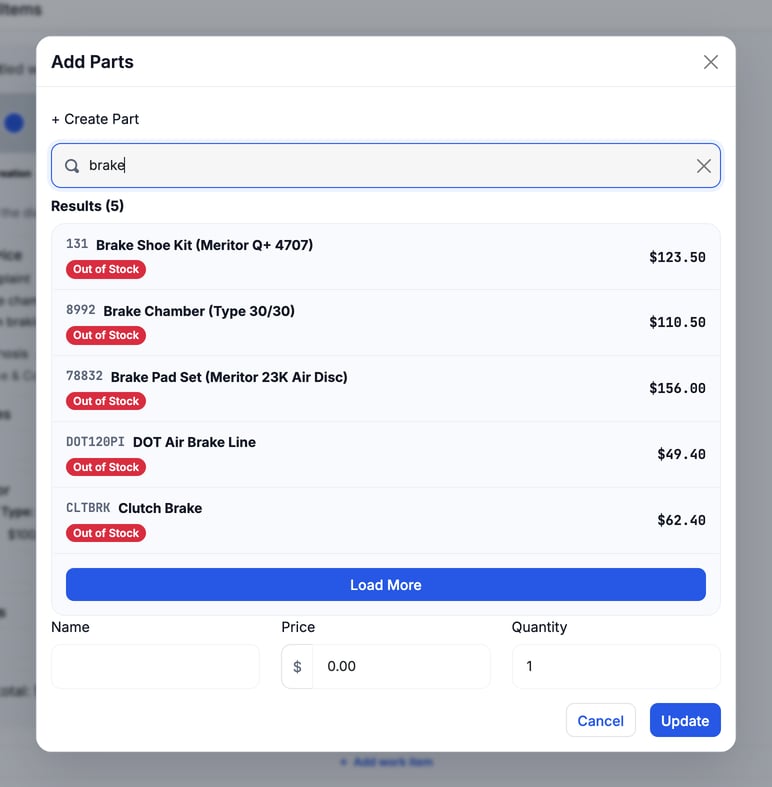
If a part is out of stock, the part line shows **Pull from stock** and **Order from vendor**.
### Add fees and check the total
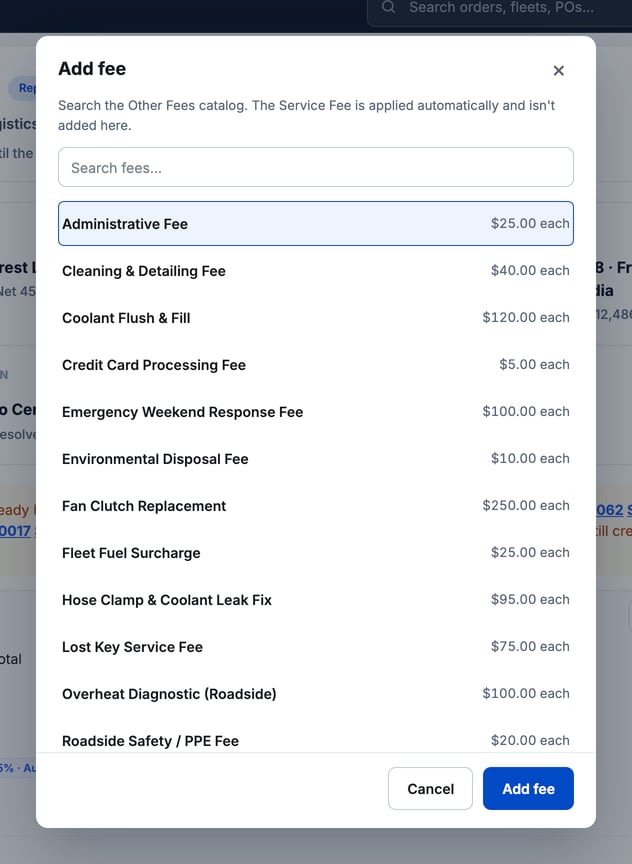
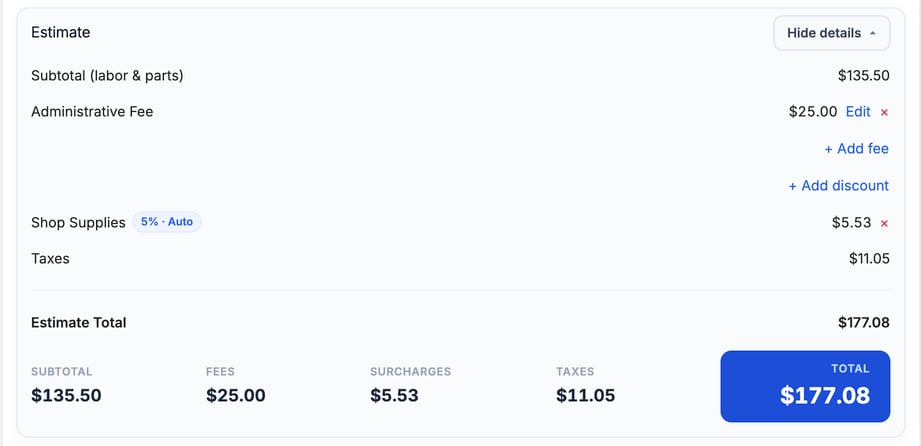
Click **Show details** on the **Estimate** card. From there you can:
- Click **+ Add fee** and pick one or more fees. Each one goes into the panel at the bottom with its quantity and **Price each**. To charge a different price on this estimate, change **Price each**. Then click **Add fee**, or **Add 2 fees** (and so on) for more than one. To change the quantity or price later, click **Edit** on the fee line. A fee at a changed price shows a **Custom price** tag that only your team sees. Click **×** to remove it.
- Click **Add discount** to take an amount off. It comes off the whole order (labor, parts, fees and surcharges) before tax.
The card shows **SUBTOTAL**, **FEES**, **SURCHARGES**, **TAXES** and **TOTAL**. They update as you edit. A line such as **Shop Supplies** is added by a surcharge rule and has its own **×**.
### Where the estimate goes
A standalone estimate always goes to the customer. The auto-approval limit and the **Customer approval is required before work can begin** setting don't apply to it, so a small total isn't approved on its own. No manager or dispatcher approval applies to it either, even if your shop has those gates on. The gates apply once the job becomes a service order. See [Understanding the Approval Gates](https://support.metafleet.ai/understanding-the-approval-gates?hsLang=en).
### Send the estimate
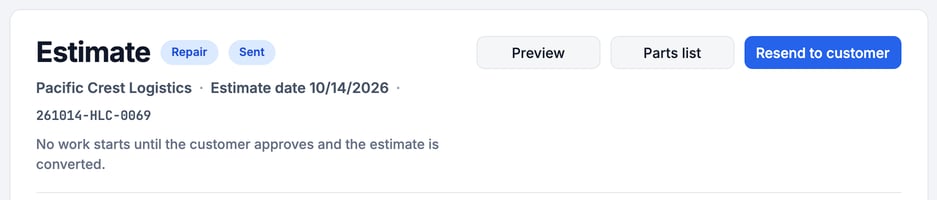
The buttons sit at the top right of the page, level with the title. Click **Preview** to see what the customer gets, then click **Send estimate**. If the button is off, the banner under it lists what is still missing, such as the customer, someone to approve it, the service location or a priced line. Hover over the button to see the same reason.
### Follow the estimate while it waits
After you send it, the status at the top changes to **Sent** and a banner reads **Awaiting customer approval**. Repair work can't begin until the customer approves.

The bar at the bottom of the page shows when the email went out, whether the customer has opened it, and when the link expires. The link works for 48 hours.

To send it again, for example after the link expires, click **Resend to customer** at the top right. After you send or resend, a message names who it went to and when. If you change the estimate after sending, a note tells you the customer is holding the earlier total. Resend so they see the new one.
### What your customer gets
The customer gets the **estimate approval email**. It has your shop's name and logo, the headline **Your estimate is ready for approval**, a summary with the total, and the estimate as a PDF. The email has one button, **Review your work to approve**. It opens the **estimate review page** (titled **Review your estimate**) without signing in.
- The customer also gets a text with the same approval link. A contact who isn't allowed to approve estimates gets a text with no link.
- The page lists every work item with its parts and labor, and the totals.
- Each item has **Approve** and **Decline**. When there is more than one item, **Approve all** and **Decline all** save time.
- For a declined item, the customer can say why. The reason goes back to your shop.
- The customer types their name and email, then clicks **Send my decision**. The page then reads **Your decision is sent**.
- The link works for 48 hours. If it has expired, the page reads **This link has expired** and offers **Sign in to see your estimate** or a call to your shop. Click **Resend to customer** to send a fresh link.
- A customer who opens the link again after deciding sees that the estimate already has their decision, and is told to call your shop to change it.
More on the customer's side: [Approve or Decline an Estimate](https://support.metafleet.ai/approve-or-decline-an-estimate?hsLang=en).
### When the customer decides
The status at the top and the banner update to match the customer's answer. If the customer approves some items and declines others, the approved items count as an approval. The banner names who answered and when.
- **Approved:** the banner reads **Approved** and the main button becomes **Put on the schedule**.
- **Declined:** the banner reads **The customer declined this estimate**, which means every item was declined. The declined version stays on record. Change a declined item or add work, then click **Revise & resend**. The customer is asked again only about the declined items you changed. With nothing new, MetaFleet says **Nothing new to ask about. Change a declined job or add work first.**
### Put an approved estimate on the schedule
Click **Put on the schedule** at the top right. If the estimate has no vehicle or service location, the banner says what to pick first and the button stays off until you do. The estimate becomes an unscheduled job that waits for a date. A line under the bar confirms it, with an **Open the schedule** link. Give the job a date and address there. The price the customer approved follows the job to the order.
It doesn't become a live service order until the job is scheduled and the truck arrives. If the customer declines, nothing is left to clean up.
### The Service Fee
Your shop can turn on a Service Fee that is added to every estimate and invoice. You don't add it from the **Add fee** list. It is set up on the **Fees & Surcharges** page, on the **Service Fee Config** tab.
### Troubleshooting
| Symptom | Likely cause | Fix |
| --- | --- | --- |
| **Send estimate** is off | No approver with a valid email address is set | Click **Change** under **Approval goes to** and pick a contact who has a valid email address. If you don't see **Change**, ask your admin for the Send Estimate permission. |
| **Approval goes to** still says "No contact yet" after you pick a contact | The contact has no valid email address, or the customer is an enterprise account and the contact's role isn't allowed to approve estimates | Fix the email on the contact. For an enterprise customer, open the contact and turn on the **Authorizer** role under **Contact Roles**. Then pick the contact again. |
| The customer says the link doesn't work | The link has expired | Click **Resend to customer**. |
| Sending is refused with "Nobody on this estimate can receive it" | No contact has a valid email address | Add a contact with a valid email address, pick it under **Approval goes to**, then send. |
| **Put on the schedule** isn't there | The customer hasn't approved yet | Wait for the approval, or resend the estimate. |
### FAQs
**Does an estimate create a service order?**
No live service order. The estimate is a draft with its own number. Technicians and the schedule don't see it until you click **Put on the schedule**.
**What if the customer says no?**
Nothing else is created. The declined estimate stays on record. If the customer wants another price, change a declined item or add work, then click **Revise & resend**.
**Can I save it and send it later?**
Yes. MetaFleet saves a draft as soon as you pick the customer.
**Where is the estimate PDF?**
Click **Preview**. You can read and save the PDF from there.
### Related articles
- [Build and Send an Estimate](https://support.metafleet.ai/build-and-send-an-estimate?hsLang=en)
- [Understanding the Approval Gates](https://support.metafleet.ai/understanding-the-approval-gates?hsLang=en)
- [Approve or Decline an Estimate](https://support.metafleet.ai/approve-or-decline-an-estimate?hsLang=en)
- [Start Here](https://support.metafleet.ai/start-here?hsLang=en)
- [Companies & Contacts](https://support.metafleet.ai/companies-contacts?hsLang=en#main-content)
- [Create/Edit Companies](https://support.metafleet.ai/companies-contacts?hsLang=en#create-edit-companies)
- [Contacts](https://support.metafleet.ai/companies-contacts?hsLang=en#contacts)
- [Vehicles](https://support.metafleet.ai/companies-contacts?hsLang=en#vehicles)
- [Work Intake (Requests & Service Orders)](https://support.metafleet.ai/work-intake-requests-service-orders?hsLang=en#main-content)
- [Creating Service Orders](https://support.metafleet.ai/work-intake-requests-service-orders?hsLang=en#creating-service-orders)
- [Customer & Partner Requests](https://support.metafleet.ai/work-intake-requests-service-orders?hsLang=en#customer-partner-requests)
- [Reference](https://support.metafleet.ai/work-intake-requests-service-orders?hsLang=en#reference)
- [Customer Portal](https://support.metafleet.ai/work-intake-requests-service-orders?hsLang=en#customer-portal)
- [Estimates & Approvals](https://support.metafleet.ai/estimates-approvals?hsLang=en#main-content)
- [Approval Gates](https://support.metafleet.ai/estimates-approvals?hsLang=en#approval-gates)
- [Estimates](https://support.metafleet.ai/estimates-approvals?hsLang=en#estimates)
- [Invoices](https://support.metafleet.ai/estimates-approvals?hsLang=en#invoices)
- [Billing](https://support.metafleet.ai/estimates-approvals?hsLang=en#billing)
- [Parts, Inventory & Vendors](https://support.metafleet.ai/parts-inventory-vendors?hsLang=en#main-content)
- [Add Parts & Kits](https://support.metafleet.ai/parts-inventory-vendors?hsLang=en#add-parts-kits)
- [Stock & Counts](https://support.metafleet.ai/parts-inventory-vendors?hsLang=en#stock-counts)
- [Locations & Bins](https://support.metafleet.ai/parts-inventory-vendors?hsLang=en#locations-bins)
- [Purchase Orders](https://support.metafleet.ai/parts-inventory-vendors?hsLang=en#purchase-orders)
- [Parts Catalog](https://support.metafleet.ai/parts-inventory-vendors?hsLang=en#parts-catalog)
- [Vendors & Manufacturers](https://support.metafleet.ai/parts-inventory-vendors?hsLang=en#vendors-manufacturers)
- [Pricing](https://support.metafleet.ai/parts-inventory-vendors?hsLang=en#pricing)
- [Service Vehicles](https://support.metafleet.ai/parts-inventory-vendors?hsLang=en#service-vehicles)
- [Sourcing & Hand-Off](https://support.metafleet.ai/parts-inventory-vendors?hsLang=en#sourcing-hand-off)
- [Part Numbers](https://support.metafleet.ai/parts-inventory-vendors?hsLang=en#part-numbers)
- [Notifications](https://support.metafleet.ai/parts-inventory-vendors?hsLang=en#notifications)
- [Reports](https://support.metafleet.ai/parts-inventory-vendors?hsLang=en#reports)
- [Invoicing & Payments](https://support.metafleet.ai/invoicing-payments?hsLang=en)
- [Dispatch & Scheduling](https://support.metafleet.ai/dispatch-scheduling?hsLang=en#main-content)
- [Preventative Maintenance](https://support.metafleet.ai/dispatch-scheduling?hsLang=en#preventative-maintenance)
- [Technician Assignment](https://support.metafleet.ai/dispatch-scheduling?hsLang=en#technician-assignment)
- [Scheduling & Calendar](https://support.metafleet.ai/dispatch-scheduling?hsLang=en#scheduling-calendar)
- [Technician Schedule](https://support.metafleet.ai/dispatch-scheduling?hsLang=en#technician-schedule)
- [Technicians & Mobile App](https://support.metafleet.ai/technicians-mobile-app?hsLang=en#main-content)
- [Time Tracking](https://support.metafleet.ai/technicians-mobile-app?hsLang=en#time-tracking)
- [Tech Workflow](https://support.metafleet.ai/technicians-mobile-app?hsLang=en#tech-workflow)
- [Evidence & Photos](https://support.metafleet.ai/technicians-mobile-app?hsLang=en#evidence-photos)
- [AI Assistant](https://support.metafleet.ai/technicians-mobile-app?hsLang=en#ai-assistant)
- [Alerts, Alarms & Notifications](https://support.metafleet.ai/alerts-alarms-notifications?hsLang=en#main-content)
- [Email/SMS/App Settings](https://support.metafleet.ai/alerts-alarms-notifications?hsLang=en#email-sms-app-settings)
- [Reporting & Dashboards](https://support.metafleet.ai/reporting-dashboards?hsLang=en)
- [Admin & Settings](https://support.metafleet.ai/admin-settings?hsLang=en#main-content)
- [Rates & Fees](https://support.metafleet.ai/admin-settings?hsLang=en#rates-fees)
- [Branding](https://support.metafleet.ai/admin-settings?hsLang=en#branding)
- [Roles, Permissions & Users](https://support.metafleet.ai/admin-settings?hsLang=en#roles-permissions-users)
- [Service Areas](https://support.metafleet.ai/admin-settings?hsLang=en#service-areas)
- [Workflows](https://support.metafleet.ai/admin-settings?hsLang=en#workflows)
- [Taxes](https://support.metafleet.ai/admin-settings?hsLang=en#taxes)
- [Integrations](https://support.metafleet.ai/admin-settings?hsLang=en#integrations)
- [Integrations](https://support.metafleet.ai/integrations?hsLang=en#main-content)
- [Phone Setup](https://support.metafleet.ai/integrations?hsLang=en#phone-setup)
- [AI Assistant Access](https://support.metafleet.ai/integrations?hsLang=en#ai-assistant-access)
- [QuickBooks](https://support.metafleet.ai/integrations?hsLang=en#quickbooks)
- [Getting Around](https://support.metafleet.ai/getting-around?hsLang=en#main-content)
- [Search & Command Bar](https://support.metafleet.ai/getting-around?hsLang=en#search-command-bar)
[](http://www.metafleet.ai)
[mailto:support@metafleet.ai](mailto:support@metafleet.ai)
Copyright © 2025, MetaFleet, Inc