
For: Dispatchers & Service Managers · Permission: Manage appointments · Time: ~3 minutes
Who this is forDispatchers and service managers booking PM (and DOT inspection) visits for fleet customers.
What you'll learnHow to create a PM appointment from the Service Workspace, choose the visit type, attach vehicles and a program, and set the time.
Before you start- You'll need: A customer with vehicles, ideally enrolled in a PM program (see Enrolling Vehicles in a PM Program).
- Where it lives: Service → Appointment Requests — the Service Workspace.
Quick summary
- Go to Service → Appointment Requests and click + Create Appointment.
- Pick the visit type — PM Service, Inspection, or both.
- Choose the customer, then its vehicles, then a service program.
- Set the date & time and click Create Appointment.
Open Service → Appointment Requests. This is your scheduling hub — a calendar of booked visits, with views for Needs Confirmation, a List, and Enrollment Opportunities. Click + Create Appointment to begin.
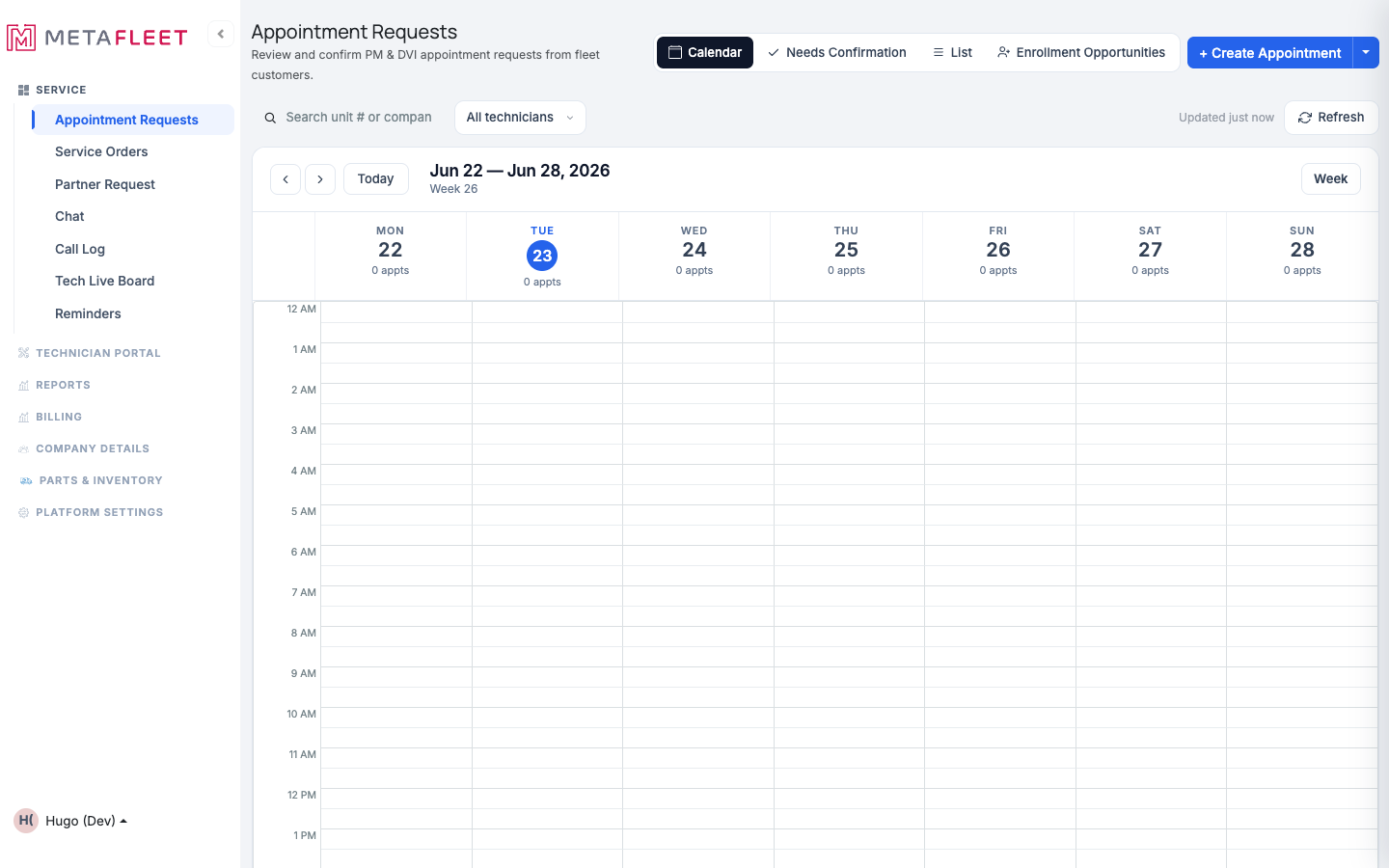
The Service Workspace — booked visits on a calendar, with a + Create Appointment button.
Fill in the appointmentThe create page guides you with a readiness tracker — Customer and Vehicle are required before you can schedule.
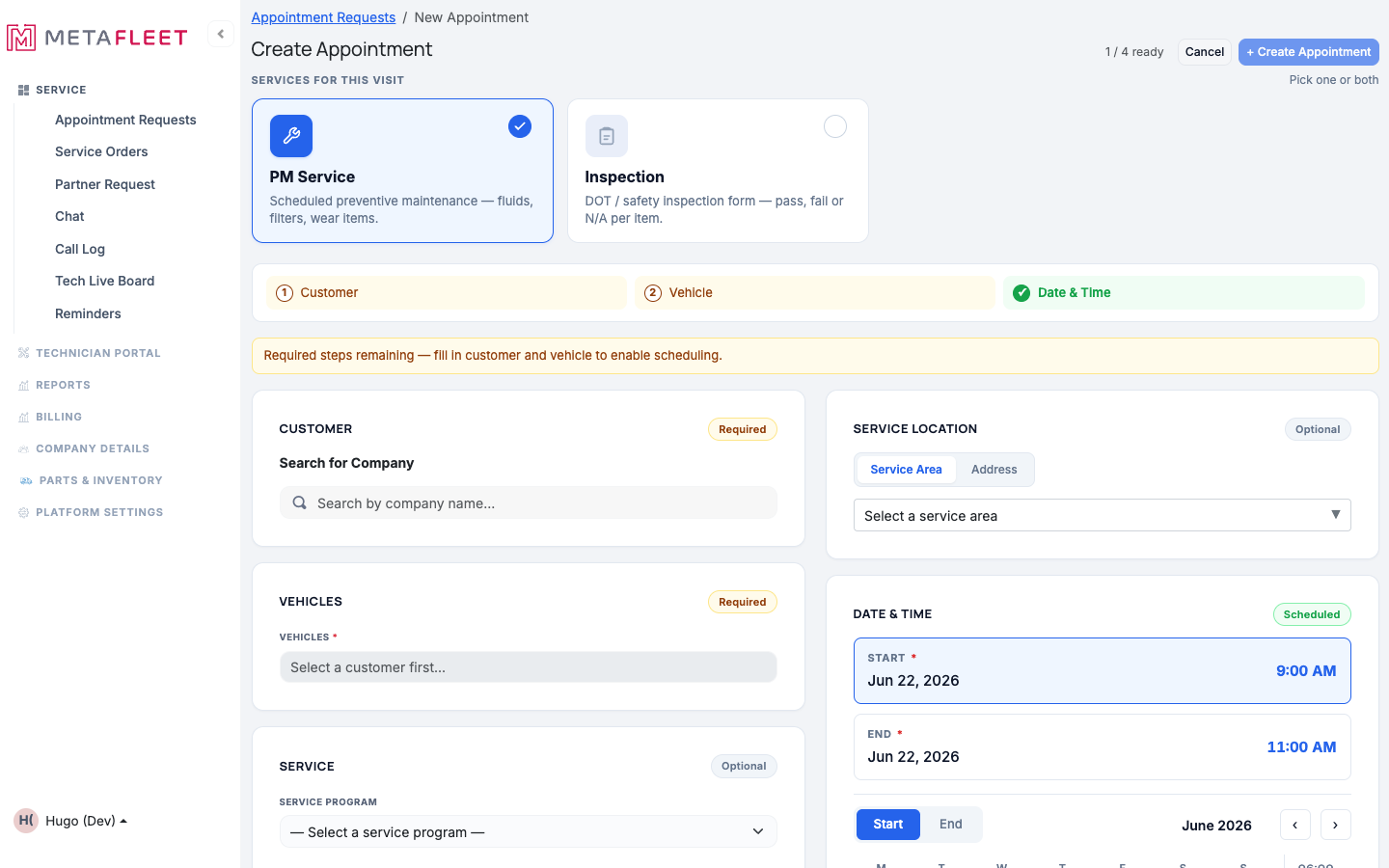
Create Appointment — choose the visit type, then customer, vehicles, program, and time.
Choose the visit type.
Pick PM Service, Inspection, or both — a single visit can bundle a PM with a DOT/safety inspection.
Select the customer and vehicles.
Search the customer company, then choose one or more of its vehicles. (Pick the customer first — the vehicle list fills in from there.)
Pick the service program.
Choose the service program for the visit. The picker is tied to what the vehicle is enrolled in; you can also schedule and enroll in one step.
Set the date & time and create.
Choose the start and end on the calendar (optionally a service area or technician), then click Create Appointment. It appears on the workspace calendar.
Enrollment Opportunities. The workspace has an Enrollment Opportunities view that surfaces un-enrolled vehicles worth putting on a program — a quick way to fill the schedule. See Enrolling Vehicles in a PM Program.Troubleshooting
| Symptom | Likely cause | Fix |
|---|---|---|
| Create Appointment stays disabled | Customer and/or vehicle not chosen | The readiness tracker shows what's missing — fill in customer and vehicle. |
| No vehicles to pick | No customer selected yet | Choose the customer first; its vehicles then appear. |
| The program I want isn't listed | The vehicle isn't enrolled in it | Enroll the vehicle first, or enroll as part of scheduling. |
Can one appointment cover several vehicles?
Yes — select multiple vehicles for the same customer on one visit.
Can a visit be both a PM and an inspection?
Yes — choose both visit types and they're handled together on the one appointment.
Where does the appointment show up after I create it?
On the workspace calendar, and in the customer's appointment list. Confirm, reschedule, or cancel it from there.