
For: Dispatchers, parts managers and admins · Time: ~2 minutes
Quick summary
- For one job, click Parts List on the job.
- For many jobs, click Parts List on the Appointment Requests page.
- Pick the service days and click Download.
- Open the PDF and print it.
What a parts ticket is
A parts ticket is the pick sheet for a job. It lists the parts to grab and where to grab them. It has no pricing. Printing it reserves nothing and does not move stock.
Before you start
- The job needs parts on its work items. A service order has them once it is diagnosed. You don't need an approved estimate.
- Use a computer. The ticket is a PDF. If it doesn't open, check your browser's pop-up and download settings.
Print the ticket for one job
Click Parts List on the job. Hover over the ? next to it to see what the ticket covers. The PDF opens when it is ready.
You'll find the button in these places:
- Service order: on the Estimate tab, next to Download PDF.
- Estimate editor: in the action bar, labeled Parts list.
- Appointment request: at the end of the buttons, after Confirm, while the request is waiting to be scheduled.
- Booked PM or inspection visit: on the Parts tab, in the Parts for this job card, next to Add. You can print it before you click Begin Service, so the pick list is ready ahead of the visit.
- New repair order: next to Save unscheduled, when you turn a request into a repair order.

Print tickets for a date range
- Go to Service › Appointment Requests.
- Click Parts List, in the toolbar at the top of the page, to the right of the technician filter.

- Under Service days, pick a start and end date. Or click Today, Tomorrow, This weekend or Next week (the 7 days starting a week from today).
- Check the summary under the dates. It shows the number of jobs, days, technicians, part lines and pieces.
- Click Download. The button shows the number of tickets, for example Download 8 tickets.
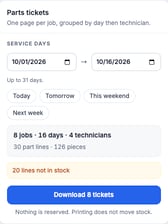
The range can be up to 31 days. If no jobs fall in the range, the button reads Download 0 tickets and stays off.
If some parts are not in stock, the window shows a line such as 20 lines not in stock before you print. Use it to start sourcing early. See Source and Hand Off Parts to a Technician.
What's on the ticket
- One page per job. A date-range PDF groups the pages by day, then by technician.
- The header marks the page INTERNAL · SHOP COPY and NO PRICING ON THIS DOCUMENT.
- The customer and job site, the vehicle (with its VIN) and the Work To Perform.
- Parts To Grab: a table with Qty, Part and Where. A part that isn't in stock is marked NOT IN STOCK.
- A TOTAL PIECES count, and Picked by and Time lines to fill in by hand.
A job with no parts prints No parts required for this appointment.
Troubleshooting
| Symptom | Likely cause | Fix |
|---|---|---|
| The PDF doesn't open after you click Download | The browser may have blocked the PDF | Check your browser's pop-up and download settings, then click Download again. |
| Download 0 tickets and the button is off | No jobs in the date range | Pick other days. |
| The window asks you to shorten the range | The range is longer than 31 days | Shorten the range, or print in two batches. |
| "Parts tickets aren't available on this device." or "Parts tickets aren't available here." | This screen can't build tickets | Open the job in a web browser on a computer. |
| "Parts ticket failed — no PDF data returned. Please try again." (estimate editor or Estimate tab) | The ticket came back empty | Click Parts List again. If it keeps failing, contact support. |
| "We couldn't print the parts list right now. Please try again or contact your administrator." (appointment request and new repair order) | The ticket couldn't be built | Click Parts List again. If it keeps failing, contact your administrator. |
FAQs
Does printing a ticket reserve the parts?
No. Printing doesn't reserve anything or move stock.
Does the ticket show prices?
No. It is an internal sheet for the person picking parts.
Do I need an approved estimate first?
No. The ticket comes from the parts on the job's work items, so you can print it before the estimate is approved.