
For: Fleet office staff using the customer portal · Permission: Depends on your role (see below) · Time: ~5 minutes
Quick summary
- Open Settings to manage Company, Vehicles, Vehicle groups and Billing.
- Open My Account to update your profile, mobile number and notification choices.
- Use the Notifications feed to see what changed on your open orders.
- Use the Service Orders page to find any order.
Before you start
- Sign in to the customer portal with the email your shop invited.
- Your role decides which settings you can change. See "Who can change what" below.
- To add coworkers, see Invite a Coworker to Your Customer Portal.
Who can change what
The Several people use this account switch on the Company page sets the rules.
- Off: everyone who signs in can change everything and approve estimates. Roles don't apply.
- On: the company owner can change everything. Everyone else can change only what their role allows: company details and saved cards, users and invites, or vehicles and vehicle groups. The role also decides who can approve estimates and who sees every order.
The company owner (also called the company admin or account owner) is the person on Company admin email.
When you can't change something, the page says Only your company admin can change this. Everyone can edit their own My Account page.
Only the account owner can turn Several people use this account off. To turn it on, first give someone a role that can manage users. Add people in Users.
Update your company details
- Open Settings › Company.
- To add a logo, click Upload logo. Use a PNG or JPG under 25 MB. Click Remove to clear it.
- Edit Company name. It's required and can have up to 100 characters.
- Click Save changes. You see Changes saved.
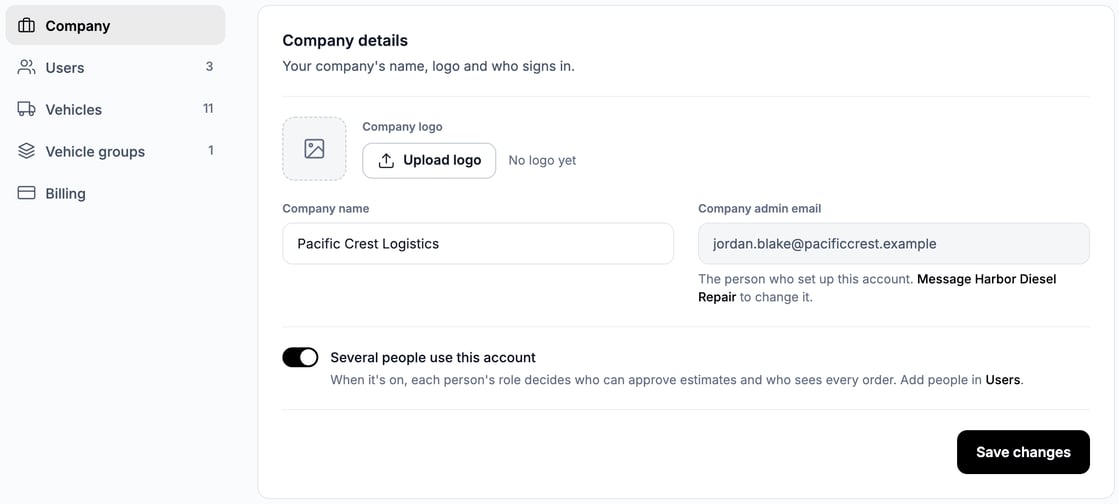
Company admin email is read-only. It's the person who set up the account. To change it, message your shop.
Manage your vehicles
- Open Settings › Vehicles.
- To find a truck, type its unit number or VIN in Search by unit number or VIN.
- To add one, click Add vehicle and fill in the form.
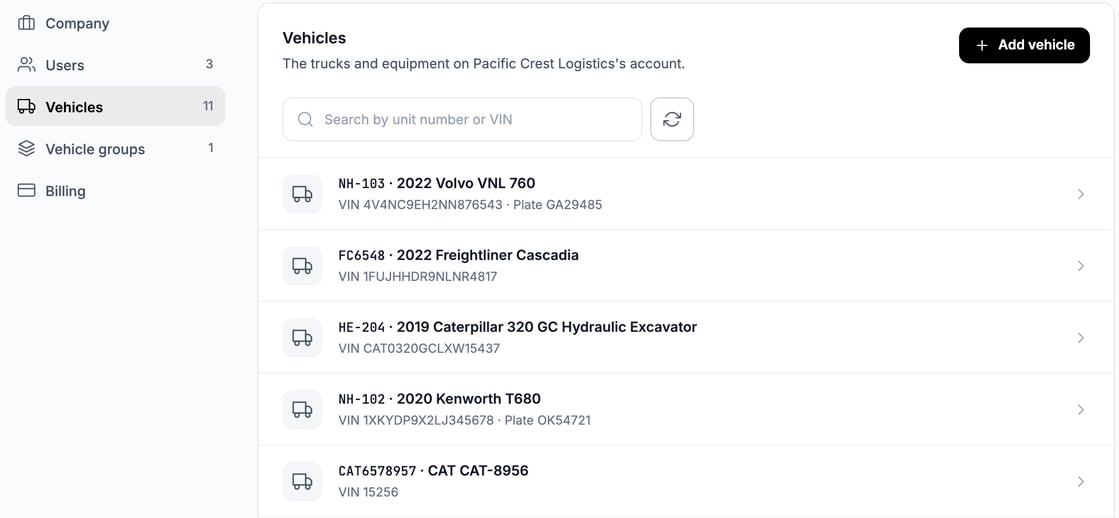
Each row shows the unit, year, make and model, VIN and plate. The list loads 50 at a time. Click Show more vehicles for the rest.
You need a role that includes vehicles, or to be the company owner, to use Add vehicle. Anyone can still add the truck they're requesting service for while they create a service order. See Create a Service Order (Customer).
Group vehicles
A vehicle group lets you pick several vehicles at once when you book an appointment.
- Open Settings › Vehicle groups.
- Click Create group.
- In Create vehicle group, enter a Name, for example East Coast fleet. Description (optional) is up to you.
- Check the vehicles to include. Select all and Deselect all speed this up.
- Click Save group.
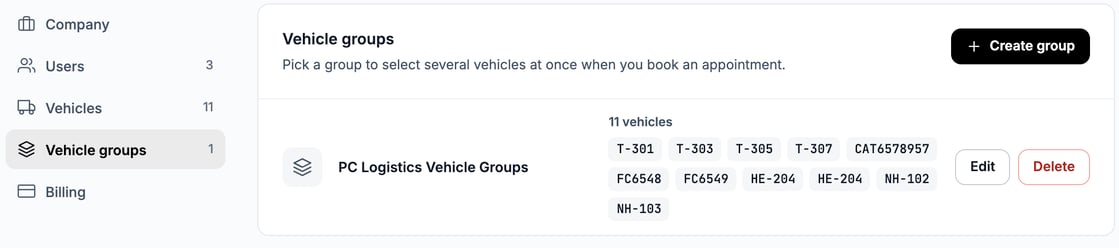
Use Edit to change a group. Delete removes the group only. The vehicles stay on your account. If the list says No vehicles yet, add vehicles in Vehicles first.
Check your payment methods
Open Settings › Billing. Only your company admin, or a role that can edit the company profile, can see and change saved cards. Everyone else sees Only your company admin can see or change saved cards. in place of the cards, with a note that you can still pay by card for orders you're on. Pick a saved card or add a new one when you pay.
If you can manage cards, the Payment methods card lists the cards on file for paying your invoices, such as Visa ending 4242, with the expiry date and a Default label. Click Add payment method to open a pop-up of the same name. Save card stays gray until the card details are complete. Click Cancel to close it without saving. If your shop hasn't set up card payments yet, the card says saved cards can't be shown. Message your shop.
This page doesn't remove a card or change the default. To pay an invoice, see Review and Pay an Invoice.
Update your profile and mobile number
- Click your name at the top right and choose My Account. The page is headed My account.
- Under Profile, add a photo with Upload photo and check Your name.
- Turn on I'm a driver if you should be named as the driver on a service order.
- Click Save changes.
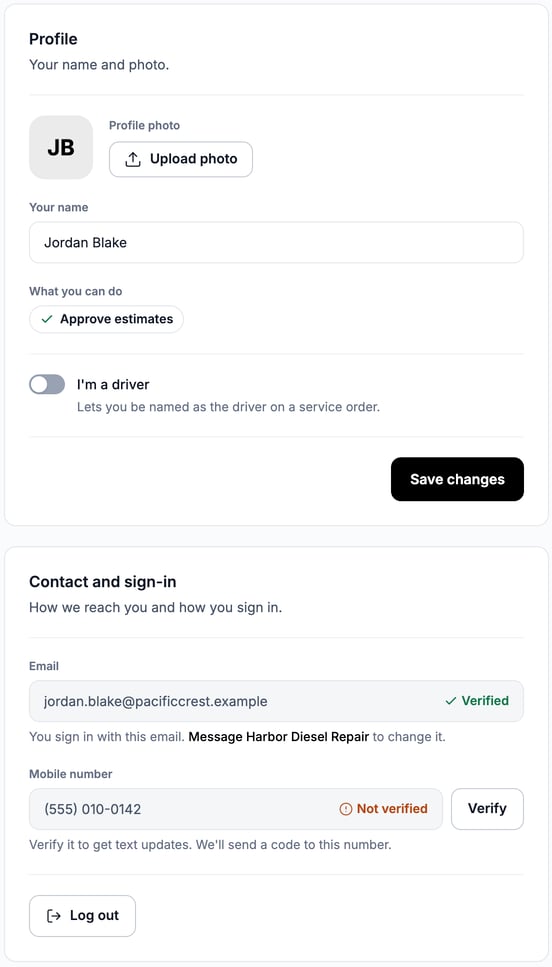
If you can approve estimates, a What you can do: Approve estimates label shows on this page.
Under Contact and sign-in:
- Email: it's read-only because you sign in with it. To change it, message your shop.
- Mobile number: to get text updates, click Add, enter the number, then enter the code we text you.
- Not verified: click Verify and enter the code.
- Change: enter the new number. We text a code to the new number.
Choose your notifications
- Open My Account and find the Notifications card.
- Under How you get updates, turn Email updates and Text updates on or off. Sign-in codes and account emails still arrive if you turn email off.
- Under What you get, pick Email, Text or both for each type: Order status, Estimates, Invoices and payments, Messages and Maintenance reminders.
- Click Save changes.
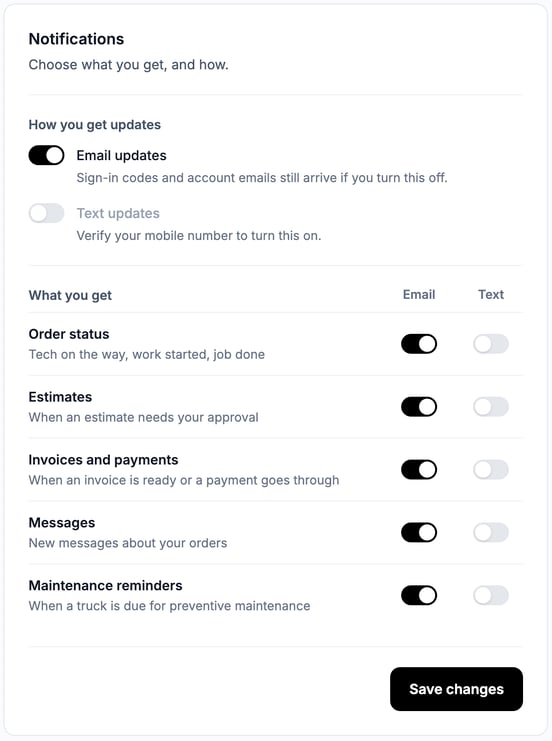
Text updates stays off until you verify your mobile number. Texts go to that number. Reply STOP any time to end them. Standard message rates may apply.
Read your Notifications feed
The Notifications feed shows updates on your open orders, newest first. They're grouped as Today, Earlier this week, Last week and Earlier. A dot marks an unread update. Opening a row clears the dot.
Some rows have an action, such as Review estimate (for people who can approve estimates) or View invoice. To act on an estimate, see Approve or Decline an Estimate. For a finished job, use See completed orders at the bottom.
Find an order
- Open Service Orders.
- Pick a tab: Active, Completed or Cancelled. Each tab shows a count.
- On Active, look at these sections:
- Needs you: orders that need your approval or are ready to pay. Start here.
- In progress: work under way.
- Not sent yet: requests you haven't finished. Click Finish request to continue one.
- To search, type a unit, truck or order number in Search unit, truck or order number. The list filters as you type.
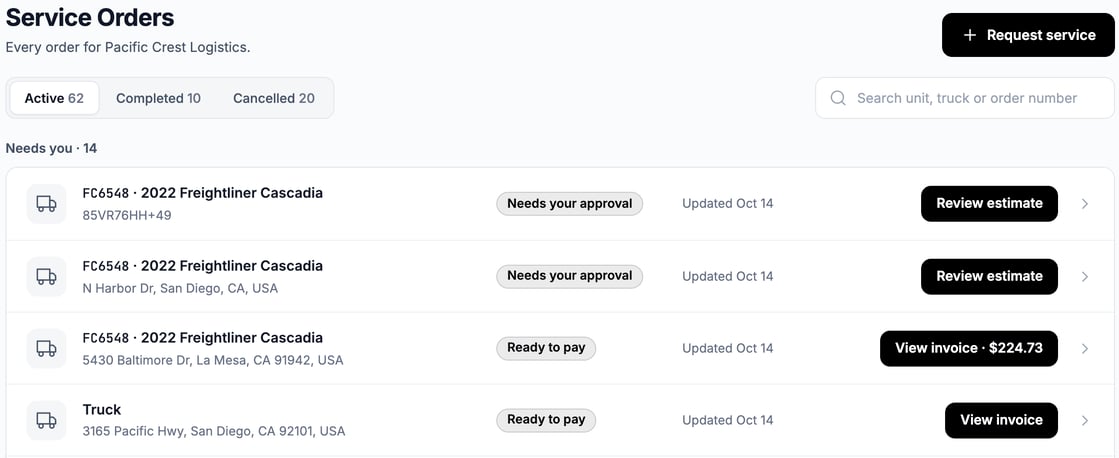
A PM or inspection order lists its trucks' units, or how many trucks it covers.
The line under the title shows what you see. Every order for your company appears when several people share the account and your role lets you see all orders. Otherwise you see the orders you requested or are the driver on. To start a new order, click Request service.
When several people share the account, only the company owner and the people on an order (its creator, its members or its driver) can confirm its invoice, pay it or change how it pays. Everyone else can open the order from its link and read it. The order says that someone on this order at your company confirms and pays the invoice, and shows no Confirm, Change or Pay now. If your role shows every order, the list shows Invoice ready outside Needs you.
Troubleshooting
| Symptom | Likely cause | Fix |
|---|---|---|
| A setting is read-only | Your role can't change it | Ask your company admin, or the person with that role. |
| Add vehicle is missing | Your role doesn't include vehicles | Ask your admin for the role, or add the truck while you request service. |
| I can't turn on Text updates | Your mobile number isn't verified | Click Add or Verify in Contact and sign-in and enter the code. |
| The Billing page says Only your company admin can see or change saved cards. | Your role can't manage cards | Ask your company admin. You can still pick or add a card when you pay. |
| The Billing page says saved cards can't be shown | Your shop hasn't finished setting up card payments | Message your shop. |
| We couldn't upload that logo shows under the logo | The file is too large or not a PNG or JPG | Use a PNG or JPG under 25 MB. |
| I can't turn off Several people use this account | Only the account owner can | Ask the account owner. |
| An order I expect is missing | You see only orders you requested or drive | Search by unit or order number, or ask your admin about your role. |
FAQs
How do I change my sign-in email?
Message your shop. The email on My Account is read-only.
Does deleting a vehicle group delete its vehicles?
No. The vehicles stay on your account.
Can I remove a card here?
No. Billing lists cards and lets you add one, if you're the company admin or have a role that can edit the company profile.
Where do I add coworkers?
See Invite a Coworker to Your Customer Portal.