
For: Fleet customers using the portal · Permission: Invite users (or manage users) · Time: ~2 minutes
Quick summary
- In the portal, open Settings › Users and click Add user.
- Enter the person's Name and Email.
- Tick the Roles they need.
- Click Send invitation. They appear under Pending invites until they accept.
Before you start
- You need the permission to invite users. If you don't have it, the Add user button doesn't show.
- Use the address the person signs in with. The invitation goes to that address only, and only that address can accept it.
- Your shop can also add a contact from its side. See Add a Contact to a Customer Company.
- Decide what they should do. Roles decide who can approve estimates and who receives invoices.
Open the Users page
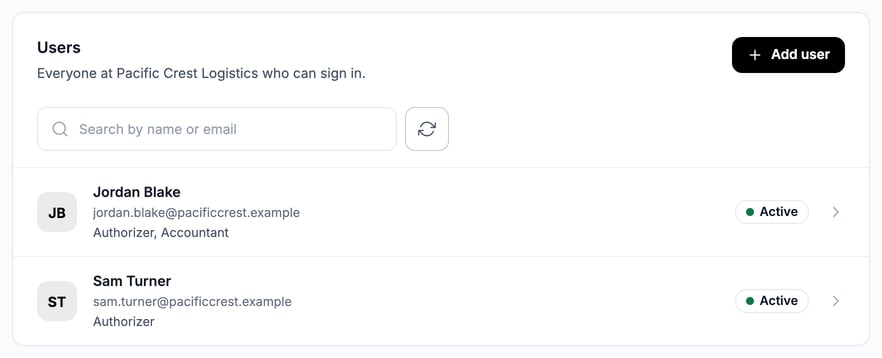
Sign in to the portal, click Settings, then Users. The Users card lists everyone at your company who can sign in, with their roles and an Active badge.
Add the person
- Click Add user.
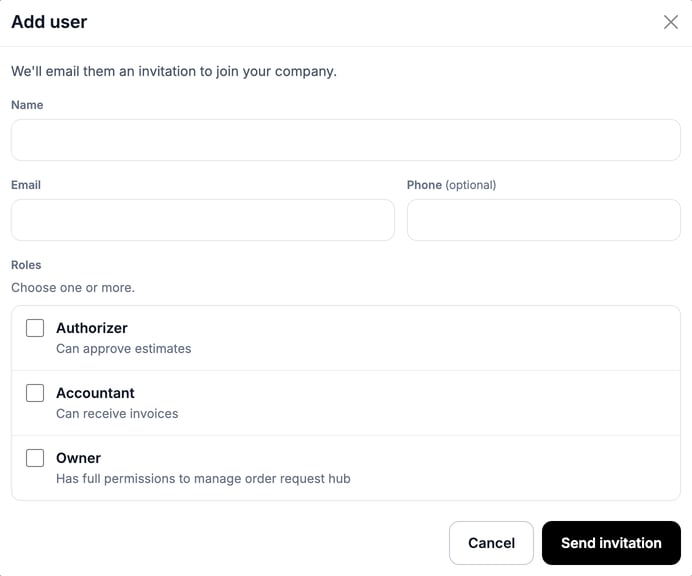
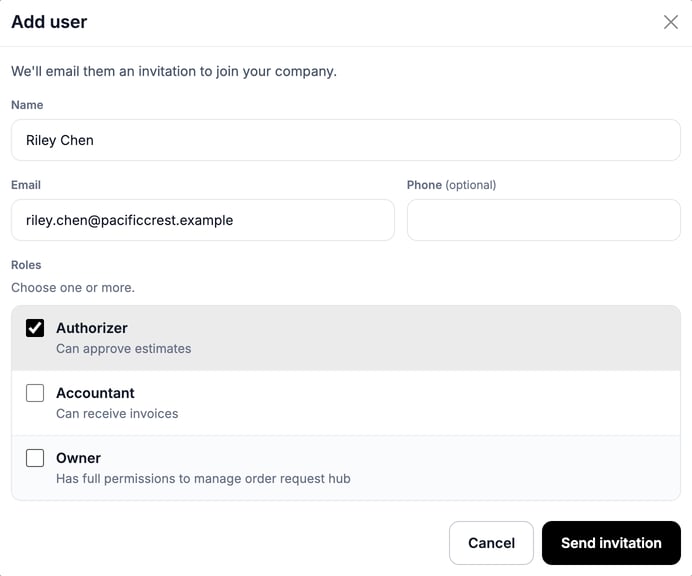
- Type their Name and Email. Phone is optional.
- Under Roles, tick one or more. Each role shows what it allows: Authorizer can approve estimates, Accountant can receive invoices.
- Click Send invitation.
The window shows Invitation sent to the address you entered, then closes by itself.
You only see roles you hold. You can't give someone a role that can do more than you can. If a role is missing from the list, ask a colleague with more access to send the invitation. If no role is offered at all, the window says the person joins without a role.
Track the invitation
Until the person accepts, they're listed under Pending invites, with the date you invited them and the roles you chose. An invitation stays open for 15 days.
- Resend invite emails the invitation again. It stays grayed out for 1 day after each send.
- Cancel invite withdraws it. The link in the email stops working.
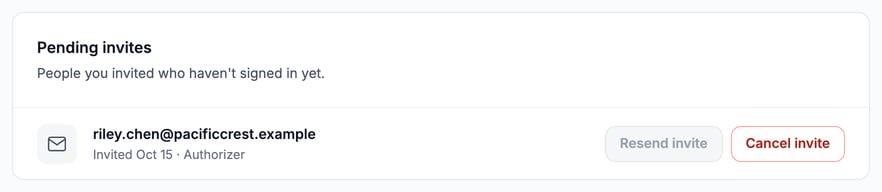
Resend and cancel need the permission to manage users. Without it, the card is read-only.
What the person does next
- They open the invitation email and click the link in it.
- If they aren't signed in, MetaFleet emails a 6-digit code to the invited address (shown partly hidden). They enter it to confirm it's them.
- They click Accept invite, or Decline invite if it isn't for them.
After they accept, they move from Pending invites to the Users card. They sign in with the same email and a code, like any portal user. The name and phone you typed on the invitation go with them, so they don't need to enter them again. If they already had an account, it keeps its own name and phone.
One company per account. If the person already belongs to another company in the portal, accepting asks them to confirm the move first.
How roles limit what they can do
| Role | What it allows |
|---|---|
| Authorizer | Approve or decline estimates. When Several people use this account is on in Settings › Company, only Authorizers on the order get the estimate approval email. |
| Accountant | Receive invoices. Invoice emails go to everyone with this role, whether or not they are on the order. If nobody has it, they go to the order's contacts. |
| Owner | Full permissions to manage the order request hub. Also gets the invoice email for orders they are on. |
A person who can't approve estimates sees Waiting for approval on an estimate. Authorizers see Needs your approval and can act. See Approve or Decline an Estimate.
Your role names come from the shop. Your list may differ if the shop set up other roles.
Troubleshooting
| Symptom | Likely cause | Fix |
|---|---|---|
| There's no Add user button | Your role doesn't include inviting users | Ask a colleague who can invite, or your company admin. |
| A role is missing from the list | That role can do more than you can | Ask someone with a higher role to send the invitation. |
| You see "Choose at least one role." | Roles are offered but none is ticked | Tick at least one role, then click Send invitation. |
| You see "You have too many invitations waiting." | Your company already has 50 invitations waiting | Cancel one under Pending invites, then try again. |
| The person says "This invite isn't available" | It was already used, declined, canceled, or is older than 15 days | Send a new invitation. |
| The person doesn't see the email | It's in spam, or the address has a typo | Check spam. If the address is wrong, cancel the invite and send a new one. |
| They got the invoice email but can't pay it | Several people use this account is on and they aren't on the order | Ask someone on the order, or the Owner, to pay. |
| They can't approve an estimate | They don't have the Authorizer role | Ask the person who manages users to add it. |
FAQs
Can I invite someone with a different email than the one they use for work?
Yes, but they must accept from that address. The 6-digit code goes there.
Can I change someone's roles later?
Yes, if you can manage users. Click the person on the Users card and use the Roles card on their page.
Who can approve estimates?
Anyone with the Authorizer role. If Several people use this account is off in Settings › Company, everyone at your company can approve estimates.
Do I have to invite people?
No. Your shop can add contacts for you.