
For: Dispatchers and managers · Permission: Access to Company Details › Vehicle Management · Time: ~2 minutes
Quick summary
- Open Vehicle Management and stay on the Vehicles tab.
- Click + Create vehicle to add a vehicle. Click a unit number, then Edit Details, to change one.
- To retire a truck, choose Archive in the ⋮ menu at the end of its row. To bring it back, click Archived and choose Restore.
- To set the asset type on several vehicles, tick their rows, pick a type and click Apply.
- To see where a unit was parked, open its service order and click Show history on the Unit Location card.
Before you start
- Where it lives: In the left menu, open Company Details › Vehicle Management. A customer's own page also has a Vehicles tab with the same list, already limited to that customer.
- Two tabs: Vehicles and Groups of Vehicles (on a customer's page the second tab is called Groups). This article covers the Vehicles tab.
- Archive is not delete. An archived vehicle keeps its record and its history. You can restore it at any time.
Find a vehicle
The Vehicles tab lists every active vehicle. Use the All Companies menu to show one customer. Search by unit number, VIN or plate, or filter by asset type, year or PM health. The Active and Archived buttons sit at the top right of the list. The VIN / Serial Number column holds a VIN for trucks, tractors and trailers, and a serial number for heavy equipment.
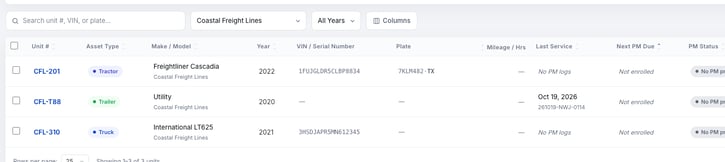
The Vehicles list with the All Companies menu set to one customer. Click Columns to choose which columns show.
The + Create vehicle button has a small arrow beside it. The arrow also offers Create a group of vehicles.
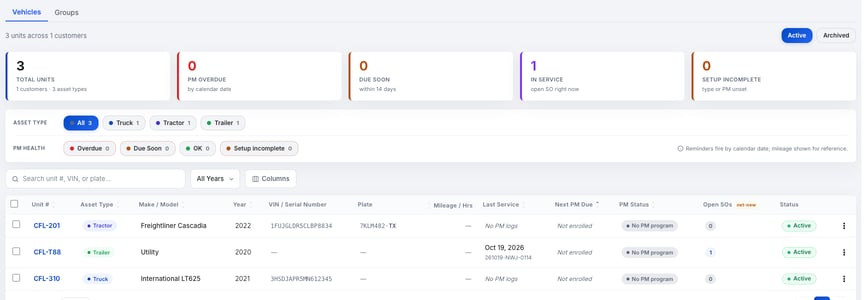
On a customer's page, the Vehicles tab shows the same list for that customer only.
Create a vehicle
- Click + Create vehicle. The Create Vehicle window opens. You can also start from a customer's Vehicles tab, where the customer is already set.
- Pick the customer and asset type. Choose the Customer. If they aren't on file yet, click + New company in the same window. One Asset Type is already selected. Change it if needed. Your shop's vehicle types setting decides which types show; the full set is Truck, Trailer, Tractor, Heavy Equipment, Dolly and Other. The type decides which fields appear. Trucks show Mileage. Tractors and Other show Mileage and Engine Hours. Heavy equipment shows Engine Hours. Trailers and dollies show neither.
- Fill in the vehicle. Enter the VIN, then click Decode to look up the vehicle details (see Auto-Fill Vehicle Details from the VIN). Or type the details yourself. The window requires a Customer, an Asset Type and a Unit Number. Everything else can wait.
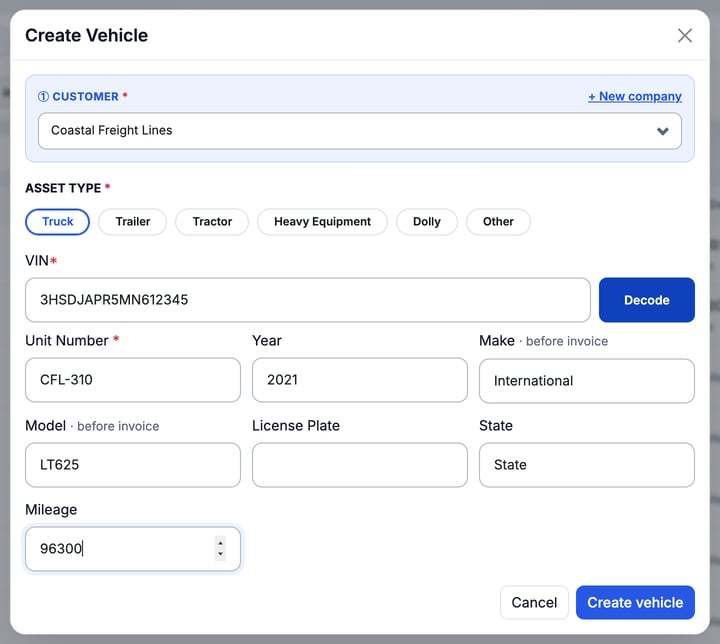
The Create Vehicle window for a truck. Heavy equipment shows Serial Number in place of VIN.
- Click Create vehicle. The new unit appears in the list under its customer.
Make and Model say "before invoice". You can save without them, but fill them in before you invoice the customer.
VIN. The VIN shows a red asterisk for trucks, tractors and trailers, but the window saves without it. Add it when you can: MetaFleet uses it to spot an archived duplicate (see below).
Auto-numbered units. If your shop generates unit numbers automatically, Unit Number opens already filled in. You can type over it.
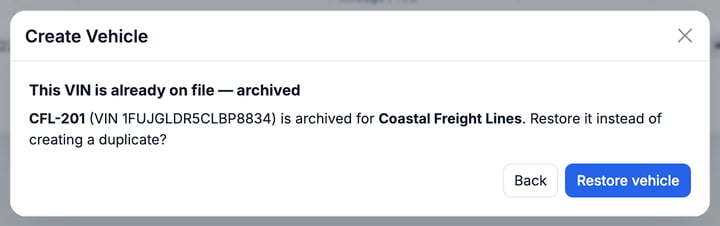
That VIN is already on an archived unit. If the customer has an archived vehicle with the same VIN, the window says This VIN is already on file — archived. Click Restore vehicle to bring that unit back instead of creating a duplicate, or Back to change the VIN.
Edit a vehicle
- In the list, click the unit number to open the vehicle.
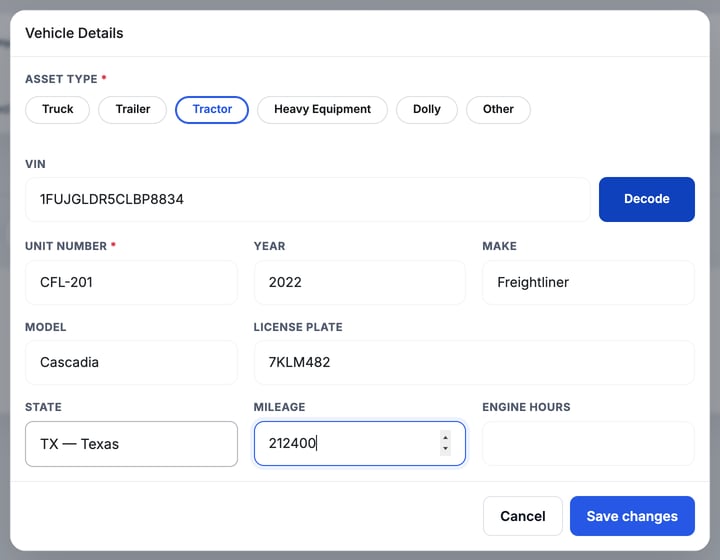
- Click Edit Details. The Vehicle Details window opens with the same fields.
- Change what you need and click Save changes.
Set the asset type on several vehicles
Use this when many units show Not Set, or you filed a group under the wrong type.
- Tick the rows. Use the checkbox at the start of each vehicle row. A bar opens at the top of the list and shows how many vehicles are selected.
- Pick the asset type. After Set asset type to:, choose Truck, Tractor, Trailer, Heavy Equipment, Dolly or Other. Apply stays grey until you pick one.
- Click Apply. The ticked vehicles get that type and the list reloads. If some can't be saved, the bar says how many were updated (for example Updated 3 of 4) and keeps those rows ticked so you can click Apply again. Click Cancel instead to clear the selection and change nothing.

The bar that opens when you tick rows. It sets the asset type and nothing else.
Check the selection first. The type goes on every ticked row, so look at the count in the bar before you click Apply. The type decides which fields a unit shows, such as Mileage or Engine Hours.
See where a unit was
Location history belongs to a service order, not to the vehicle list. It shows where the unit was when the job was logged.
- Open the service order. In the left menu, open Service › Service Orders and click the order.
- Find the Unit Location card. It shows the latest address, its time and a small map.
- Click Show history. The Unit Location window opens with the Latest Location on a map.
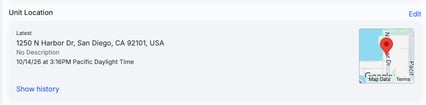
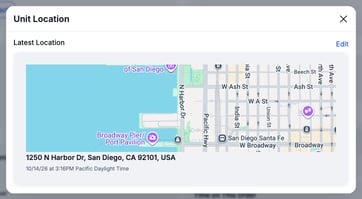
When the order has more than one saved location, a History list with the count sits under the latest one, newest first. Click Edit to record a new location. The older ones stay in the list.
Orders with no location yet. The card shows Add Location instead of Show history. Add one and the history starts from there.
Archive a vehicle
When a customer sells or retires a truck, archive it. The record, its service orders and its history all stay.
- Find the vehicle on the Active list.
- Open the ⋮ menu at the end of its row and choose Archive.
The vehicle leaves the Active list right away. There is no confirmation window.

Once archived, a vehicle is hidden from the active list and search, from group selection, and from PM enrollment and the Setup incomplete count. Its history stays, and a service order it is already on keeps its vehicle.
See archived vehicles and restore one
- Click Archived at the top right of the list. It shows only retired units.
- Open the ⋮ menu on the vehicle and choose Restore. It returns to the Active list.
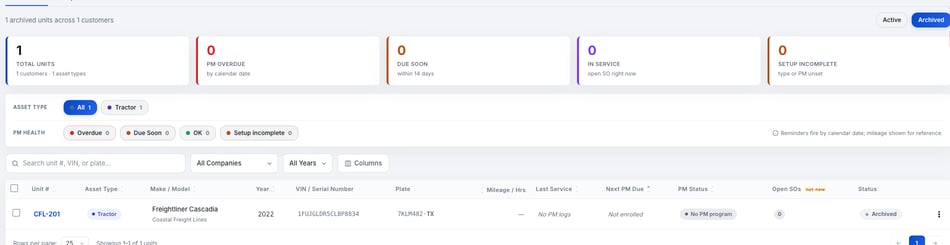

Archive and Restore work one vehicle at a time. Ticking row checkboxes opens a bar that only sets the asset type. The ⋮ menu is where Archive and Restore live. To change the asset type of several vehicles, see Set the asset type on several vehicles above.
Troubleshooting
| Symptom | Likely cause | Fix |
|---|---|---|
| A vehicle isn't in the list | It is archived, or another filter is on | Click Archived. If it's there, open its ⋮ menu and choose Restore. Also check All Companies and the asset type filter. |
| I can't see the ⋮ menu | The Alerts panel is covering the end of the row | Close the Alerts panel with Toggle alerts in the top bar, or widen the window. |
| I ticked a row but there is no Archive button | The bar that opens only sets the asset type (see Set the asset type on several vehicles) | Untick the row and use the ⋮ menu at the end of the row. |
| Create vehicle won't save | The customer, asset type or Unit Number is missing | Fill in the field the window flags and click Create vehicle again. |
| It says the VIN is already on file | An archived unit of that customer has the same VIN | Click Restore vehicle to revive it, or Back to enter a different vehicle. |
| I can't find the Vehicles tab | You are on the Companies list, not on the customer's own page | Click the customer's name under Company Details › Companies, then click Vehicles next to Contacts. |
| An archived truck still shows inside a group | It was a group member before it was archived | This is expected. Existing members stay and show as archived, so you can keep or remove them on purpose when you edit the group. |
| The Apply button is grey | No asset type is picked yet | Pick a type after Set asset type to:. Apply turns on. |
| I can't find Show history | The order has no location yet, or you are not on the order page | Open the service order. If its Unit Location card shows Add Location, add one first. |
FAQs
Does archiving delete the vehicle?
No. The vehicle, its service orders and its history are kept. It is only hidden from everyday lists. You can restore it at any time.
Do I have to confirm an archive?
No. The vehicle leaves the Active list as soon as you choose Archive. To undo it, switch to Archived and choose Restore.
Can I create a vehicle without a VIN?
Yes. The window saves without a VIN, even where it shows the asterisk. Add it later from Edit Details.
What happens to a service order if I archive its vehicle?
The order keeps the vehicle it was created with. The vehicle stops showing in the active list and search.
Can I set the asset type on many vehicles at once?
Yes. Tick the rows, pick a type after Set asset type to: and click Apply. It changes the asset type only.
Where do I see where a unit has been?
Open the service order and click Show history on its Unit Location card.
Where did the View vehicles & groups link go?
A customer's page now has its own Vehicles tab. Open the customer from Company Details › Companies and click Vehicles.