
For: Owners and office managers · Permission: Manage account settings · Time: ~3 minutes per customer
Quick summary
- Open Company Details › Companies and click the customer company.
- On the Details tab, find the QuickBooks card.
- Click Link to a QuickBooks customer, pick the match and click Link to this customer.
- Or click Create in QuickBooks if the customer is not in QuickBooks yet.
Before you start
- QuickBooks is connected. See Connect QuickBooks Online to MetaFleet. Without a connection, the card does not appear.
- You have the Manage account settings permission. Without it you can see the card but not the buttons.
- You know which QuickBooks customer the company is. Linking sends nothing by itself, but every later invoice and payment follows the link.
What a link does
A link tells MetaFleet that a company and a QuickBooks customer are the same customer. After it, the company's invoices are posted to that customer, and its payments follow.
Most companies link on their own. MetaFleet matches a company when an invoice is sent. The order it tries is in How Customers Map to QuickBooks. A close name is not linked on its own. It goes to Possible duplicates so a person confirms it. A company with no match at all is created in QuickBooks. That article also covers what MetaFleet sends when it creates a customer.
A company can still be Not linked with invoices waiting. That happens when its close-name match is parked in Possible duplicates, when someone removed its match, when customer sync is off for the connection, or when your account has not yet chosen which customers sync. If the QuickBooks name is longer than 100 characters, the link is made without a rename, but the nightly sync lists the company as Skipped until the name is shortened in QuickBooks.
Open the QuickBooks card on the company
- Go to Company Details › Companies.
- Click the customer company.
- On the Details tab, scroll to the QuickBooks card.
The badge beside the title shows the state: Linked, Not linked or Not syncing.
Link a company to a QuickBooks customer
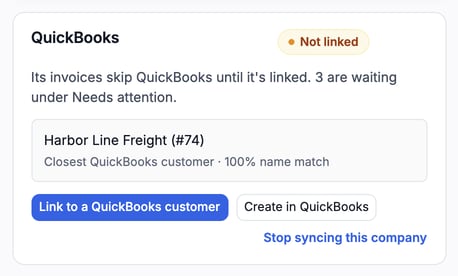
Use this when the card says Not linked. The card also tells you how many of the company's invoices are waiting under Needs attention. If MetaFleet found a likely match, it shows under Closest QuickBooks customer with a percent name match.
- Open the window. Click Link to a QuickBooks customer. The window of the same name opens with the closest matches listed. The closest one is already selected.
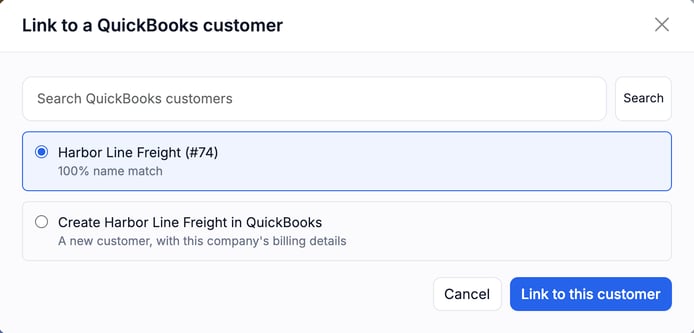
- Find the customer. If the right one is not listed, type in Search QuickBooks customers and click Search.
- Pick it. Read the notice under the list. See the rename warning below.
- Save the link. Click Link to this customer.
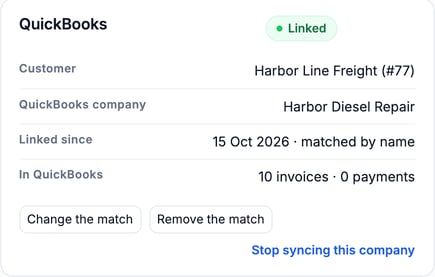
The card now reads Linked. It shows the Customer, the QuickBooks company and Linked since (both when known; Linked since can end with how the link was made, such as "matched by name") and In QuickBooks (how many invoices and payments are there).
Linking can rename the company. If the QuickBooks name differs from the MetaFleet name, the company takes the QuickBooks name. If the company's brand has its own QuickBooks connection, the company keeps its MetaFleet name. The window says so first: "Company will be renamed to QuickBooks name to match QuickBooks." If the QuickBooks name is longer than 100 characters, the company keeps its name and nothing is renamed in QuickBooks. Names that differ only in capitals or spaces at the ends count as the same name, so nothing is renamed and no warning shows.
Once a company is linked, the order's QuickBooks line reads "Customer is now linked. Ready to sync." Click Re-sync on the order's Invoice tab. See Fix What Needs Attention in QuickBooks.
Create the customer in QuickBooks
Use this when the customer is not in QuickBooks yet.
- On the Not linked card, click Create in QuickBooks.
MetaFleet adds the company to QuickBooks as a new customer, with the company's billing details, and links it. You can also pick Create company name in QuickBooks at the bottom of the link window.
QuickBooks needs every customer name to be unique. If QuickBooks already has a customer with this company's name and that customer is linked to another company in MetaFleet, nothing is created or linked. The card shows an error instead. Rename this company, then click Create in QuickBooks again. MetaFleet never takes another company's QuickBooks customer.
Change the match
Use this when the company is linked to the wrong customer.
- On the Linked card, click Change the match. The Change the QuickBooks customer window opens. The current customer is marked Linked now.
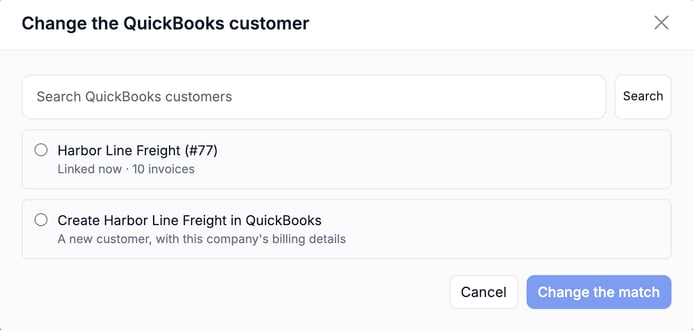
- Pick the right customer, or the option to create a new one.
- Read What stays where. It explains the change, and on a change it can also say the company will be renamed to match QuickBooks (see the rename note above). The invoices already in QuickBooks stay on the old customer, and payments on them still go there. From now on, new invoices and payments go to the new customer.
- Click Change the match.
Remove the match
Use this to unlink a company without choosing a new customer.
- On the Linked card, click Remove the match.
- In Remove the QuickBooks match?, click Remove the match.
Nothing already in QuickBooks changes or is deleted. New invoices skip QuickBooks until the company is linked again. MetaFleet does not re-match the company by itself after you remove the match. A person has to link it.
Stop or start syncing a company
Use Stop syncing this company for a customer that should never go to QuickBooks. It shows on the Linked and Not linked cards.
- The company's invoices and payments stay out of QuickBooks. Nothing waits for it.
- Anything already waiting to go is dismissed.
- The card reads Not syncing and shows who stopped it.
To reverse it, click Start syncing again. New invoices and payments go to QuickBooks again. Nothing that was dismissed comes back, so re-send any invoice the company should have had in the meantime.
Map customers from the Review lists
You can link many companies without opening each one. The Review lists hold the ones that need a decision.
- Go to Settings › Integrations and open the QuickBooks tab.
- Open the Review tab.
- Pick Possible duplicates (close name matches to confirm) or Unmapped customers (companies with no link). A list only shows when it has something in it.
- Click Review match… on a Possible duplicates row, or Map customer… on an Unmapped customers row. The Map "company" to QuickBooks window opens. It shows how many invoices are waiting and lists the candidates with a percent match.
- For the right customer, click Confirm. It links them. No duplicate is created.
- For a wrong one, click Not a match. MetaFleet does not suggest that customer for this company again.
After you click Confirm, a banner says how many of the company's invoices "didn't sync and can be re-sent now." They are marked Ready to sync under Needs attention. Click Re-sync on the order's Invoice tab.
The Invoices waiting column shows how many invoices a link will release. If the window says no similar QuickBooks customers were found, create the customer in QuickBooks, or use the company card's Create in QuickBooks button.
Invoices stuck on an unlinked company also appear on the Needs attention list. Link the company and they become ready to re-send.
Troubleshooting
| Symptom | Likely cause | Fix |
|---|---|---|
| No QuickBooks card on the company | QuickBooks is not connected | Connect it first. See Connect QuickBooks Online to MetaFleet. |
| The card shows no buttons | You lack the Manage account settings permission | Ask an owner or manager with that permission. |
| Invoices for a company are waiting under Needs attention | The company is not linked | Link it. Its invoices then become ready to re-send. |
| A company changed its name after you linked it | Linking takes the QuickBooks name | This is expected: the two names now match. Don't link a different customer just to change a name. |
| An unlinked company's invoices stay unsent and no customer is created | Customer sync may be off for the connection | Link the company yourself from its card. |
| A customer you want is not in the list | The search found nothing close | Search by another part of the name, or click Create in QuickBooks. If it says the name is linked to another company, rename this company first. |
| A company's invoices never reach QuickBooks | The card reads Not syncing, or the match was removed | Click Start syncing again, or link the company. |
FAQs
Does linking change anything in QuickBooks?
No. Linking only records the match. Creating a customer is the only action here that adds a record to QuickBooks.
What happens to invoices already sent if I change the match?
They stay on the old QuickBooks customer. Only new invoices and payments go to the new one.
What is the difference between Remove the match and Stop syncing?
Removing the match leaves the company waiting to be linked. Its invoices wait under Needs attention until you link it. Stopping the sync means the company is never sent, and nothing waits.
Who can link a customer?
Anyone with the Manage account settings permission.