
For: Admins and parts managers · Permission: Manage Parts on your role (to link numbers; anyone with Parts access can search) · Time: ~3 minutes
Quick summary
- Type any number or name into the search box on the Parts page.
- Open the part and find its Part Numbers card.
- Click Link a number and search for the part that's the same item under another number.
- Click Link, or + Create & associate if the number isn't in your catalog yet.
Before you start
- You need permission to edit parts. If you don't see Link a number on a part, you don't have it.
- Link only numbers that are the same part, such as the same filter sold under an OEM number and an aftermarket number.
- Each linked number stays its own part, with its own count, price and vendor. Linking doesn't merge stock.
Find a part by any number
Open Parts and click the search box that says Search by any number — OEM, aftermarket, vendor, SKU, name…. Matches appear under Cross-reference matches a moment after you stop typing, up to 6 at a time.
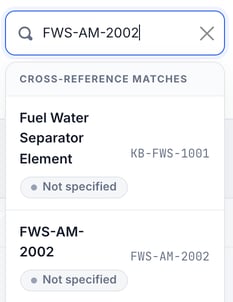
Click a match to open that part. Click See all results to filter the Parts list. Parts that are linked to each other show an Also fits badge in the list.
To see only parts that already have linked numbers, click Has alternate numbers above the list.
Open the Part Numbers card
Click a part in the list. On its page, find the Part Numbers card. It lists the part's own Catalog # and every number linked to it, each with its on-hand count. Each row carries a small tag for the kind of number, and a Make Primary button on the linked rows.
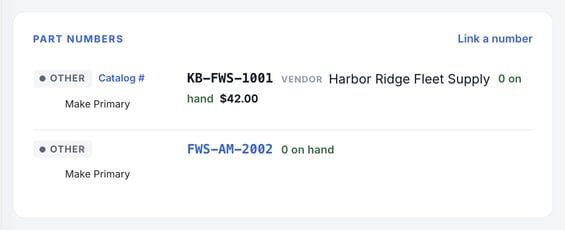
Link a number
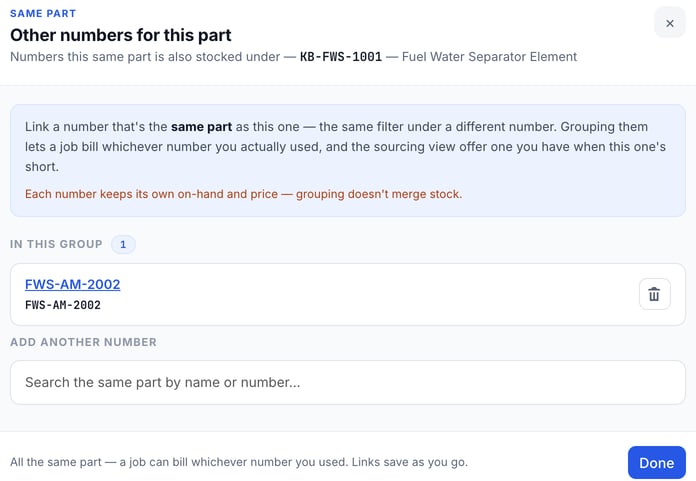
- Open the dialog. On the Part Numbers card, click Link a number. The Other numbers for this part dialog opens.
- Search. Under Add another number, type the other number or a name.
- Link it. If the part is in your catalog, click Link next to it.
- Or create it. If nothing matches, + Create & associate appears once you've typed 2 or more characters. Click it. MetaFleet creates a new part with that number and links it. Add its price and vendor later on its own page.
- Click Done. Links save as you go, so each one takes effect at once.
Make Primary. This article doesn't cover Make Primary. Linking and unlinking work without it.
Same part only. A linked number is not a replacement that merges stock. Each number keeps its own on-hand and price. Link a number only when you would hand the technician either one for the same job.
Unlink a number
Open Link a number again. Under In this group, click the trash icon next to the number. The change saves at once. The part itself stays in your catalog.
Why linking helps
- The Link a number dialog describes it this way: the same part under a different number, so a job can bill whichever number you actually used.
- The Parts list marks linked parts with Also fits, and you can filter to them with Has alternate numbers.
- The search lists a part's linked numbers under Cross-reference matches.
Troubleshooting
| Symptom | Likely cause | Fix |
|---|---|---|
| No Link a number button on the card | Your role can't edit parts | Ask an admin to link the number, or to change your permissions. |
| The search shows nothing | Nothing matches the number | Check the number for typos. If the part isn't in your catalog, link it with + Create & associate. |
| A linked number shows $0.00 and 0 on hand | It was just created and has no price or stock yet | Open the number's own part page and add its price and vendor. |
| I linked the wrong number | The two aren't the same part | Open Link a number and click the trash icon next to it. |
FAQs
Does linking merge the stock of two numbers?
No. Each number keeps its own on-hand count and price.
Can I choose whether a number is OEM or aftermarket?
The dialog doesn't ask for a type, so you can't pick one when you link a number. The tag on each row shows the kind of number.
Does a linked number create a new part?
Only if you use + Create & associate. Linking an existing part creates nothing new.