
For: Admins and service managers who handle purchasing · Permission: Manage Parts · Time: About 2 minutes
Quick summary
- Open the part and click Edit.
- Under Vendor & Sourcing, pick a Preferred vendor.
- Add the Vendor part number, the Lead time, and a Vendor cost override if the price differs.
- Click Update.
Before you start
- You'll need: The Manage Parts permission and at least one active vendor.
- No vendor yet? Go to Parts & Inventory → Vendors and click + New vendor (see Add and Manage Vendors).
- Inactive vendors don't appear in the Preferred vendor list. Reactivate the vendor first.
Open the part and click Edit
Go to Parts & Inventory → Parts. Click the part's name to open its detail page, then click Edit. You can also use the row's ⋯ menu → Edit.
Pick the Preferred vendor
In the Vendor & Sourcing section, open the Preferred vendor list and choose a vendor. The other sourcing fields unlock after you pick one. To remove the link, click Clear vendor. Clearing the vendor also clears the part number, lead time, and cost override.
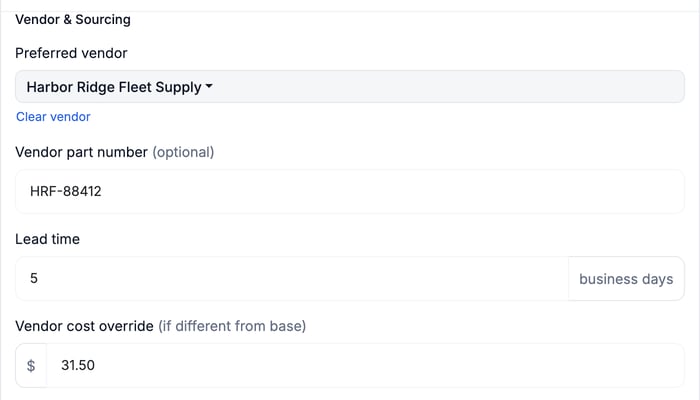
Vendor & Sourcing in the Edit Part window: the preferred vendor, plus the optional part number, lead time, and cost override.
Fill in the sourcing details
- Vendor part number (optional): The vendor's own number for this part.
- Lead time: How long this vendor takes to deliver this part, in business days.
- Vendor cost override (if different from base): The price this vendor charges, when it differs from the part's base cost.
Per-part override vs vendor average. If you leave Lead time blank, the chip uses the vendor's average lead time. Enter a value to override the average for this part only. This helps when one part from a fast vendor is on back order.
Click Update
Click Update to save. The part's detail page shows the preferred vendor in the Part numbers card.
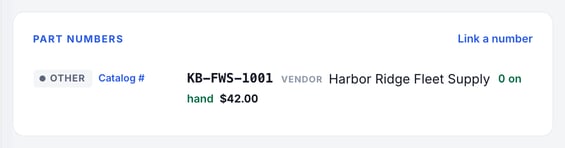
The Part numbers card shows the vendor.
The parts list shows the lead time as a colored chip in the Vendor column:
- Green: 3 days or fewer.
- Amber: 4 to 7 days.
- Red: More than 7 days.

Lead-time chips in the Vendor column of the parts list. Slow-to-source parts stand out.
Troubleshooting
| Symptom | Likely cause | Fix |
|---|---|---|
| The sourcing fields are greyed out | No preferred vendor is selected yet | Pick a vendor first. The fields unlock. |
| The vendor isn't in the Preferred vendor list | The vendor is inactive, or it hasn't been created yet | Reactivate it, or add it under Parts & Inventory → Vendors. |
| The vendor name has an Inactive badge on the parts list | The vendor was deactivated after you linked it | Reactivate the vendor under Parts & Inventory → Vendors. |
| The lead-time chip color looks wrong | A per-part lead time is set | Clear the Lead time field to use the vendor's average. |
| No lead-time chip on the parts list | The part has no lead time, and the vendor has no average | Enter a Lead time on the part. |
FAQs
Can a part have more than one vendor?
A part has one preferred vendor for sourcing. Change it anytime from the Edit window.
What does the vendor cost override do?
It records the price this vendor charges when that price differs from the part's base cost.
Do I have to fill in every sourcing field?
No. Only the preferred vendor is required. Add the part number, lead time, and cost as you have them.